Last-Minute Presentation Tomorrow? Here’s How to Create a Great PPT in Minutes


Learn how to create a last-minute presentation quickly using proven strategies and AI tools like MagicSlides to build professional slides in minutes.
Imagine this situation.
Your manager sends a message at 8 PM asking for a presentation tomorrow morning. Your professor announces that presentations start in the first class. A client meeting was suddenly scheduled.
You have very little time, no slides prepared, and no idea where to start.
If you’ve ever experienced presentation panic, you’re not alone. Students, teachers, marketers, business professionals, sales teams, and entrepreneurs regularly face last-minute presentations.
The good news is that creating a high-quality presentation no longer requires spending several hours researching, writing, designing, and formatting slides. Modern AI tools can dramatically reduce the time required while still helping you create professional presentations.
This guide explains exactly how to create a last-minute presentation, what mistakes to avoid, and how AI tools like MagicSlides can help you save time.
Why Last-Minute Presentations Feel So Difficult
Most people don’t struggle because they lack knowledge. They struggle because presentations require multiple tasks at once.
You need to:
- Research the topic.
- Create an outline.
- Write slide content.
- Design layouts.
- Find visuals.
- Organize information.
- Practice delivery.
Trying to do all of these tasks within a few hours creates stress and often leads to poor slides.
Common problems include:
- Too much text on slides.
- Poor design.
- Missing information.
- Lack of structure.
- Inconsistent formatting.
- Rushed delivery.
Fortunately, there are ways to simplify the process.
The 30-Minute Last-Minute Presentation Framework
If you’re short on time, use this simple framework.
First 5 Minutes: Define Your Goal
Ask yourself:
- What is the purpose of this presentation?
- Who is the audience?
- What should people remember afterward?
A presentation with one clear objective is always stronger than a presentation trying to cover everything.
For example:
- Convince a client.
- Explain a concept.
- Present research findings.
- Share project updates.
- Teach a topic.
Next 10 Minutes: Create an Outline
Every presentation follows a simple structure:
- Introduction
- Problem or topic
- Main points
- Supporting evidence
- Conclusion
A basic 10-slide presentation may look like this:
- Title slide
- Agenda
- Background
- Key point one
- Key point two
- Key point three
- Examples
- Data or visuals
- Summary
- Questions
Once you have an outline, building slides becomes much easier.
Next 10 Minutes: Build the Slides
Focus on:
- Short headlines.
- Bullet points.
- Images.
- Charts.
- Examples.
Avoid writing paragraphs.
Your audience listens to you. The slides support your message.
Final 5 Minutes: Practice
Read through your slides.
Check:
- Slide order.
- Spelling.
- Timing.
- Important talking points.
Even five minutes of practice can significantly improve your confidence.
Common Mistakes People Make During Last-Minute Presentations
Trying to Include Everything
People often believe more information means a better presentation.
The opposite is usually true.
Focus only on the most important ideas.
Using Too Much Text
Large paragraphs overwhelm audiences.
Instead:
- Use bullets.
- Highlight key numbers.
- Keep sentences short.
Spending Too Much Time on Design
Many presenters waste valuable time adjusting fonts, colors, and animations.
Good content matters more than complex design.
Ignoring the Audience
Always ask:
- What does my audience need?
- What problems do they want solved?
- What information matters to them?
Audience-focused presentations perform better.
How AI Is Changing Presentation Creation?
Artificial intelligence has transformed how presentations are created.
Instead of starting with blank slides, AI tools can:
- Generate outlines.
- Create content.
- Suggest designs.
- Add images.
- Organize information.
- Build complete presentations.
This saves hours of manual work.
For professionals who regularly create presentations, AI can become a major productivity advantage.
How MagicSlides Helps You Create Presentations Faster?
MagicSlides is an AI presentation maker designed to help users create professional presentations in minutes.
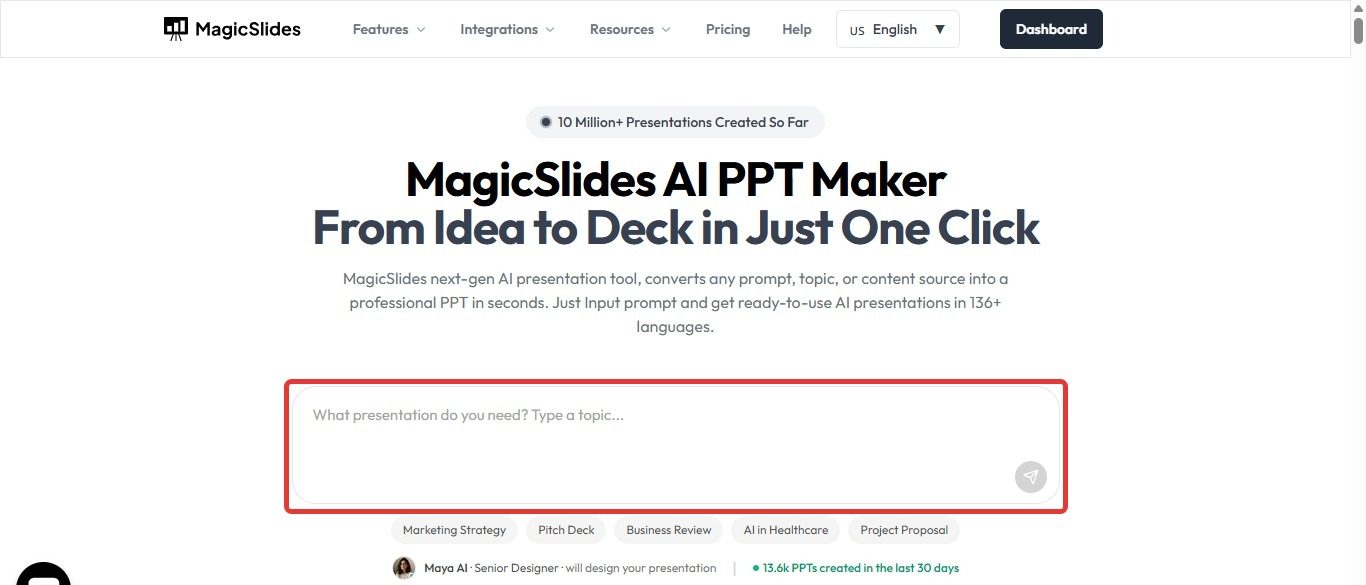
Instead of building slides manually, users simply provide input, and the AI generates the presentation structure and content.
You can convert from:
- Topics to PPT
- Text prompts to PPT
- PDFs to PPT
- YouTube to PPT
- Documents Word to PPT
- URLs to PPT
- Existing content
This makes it useful for students, teachers, marketers, business teams, and consultants.
Example
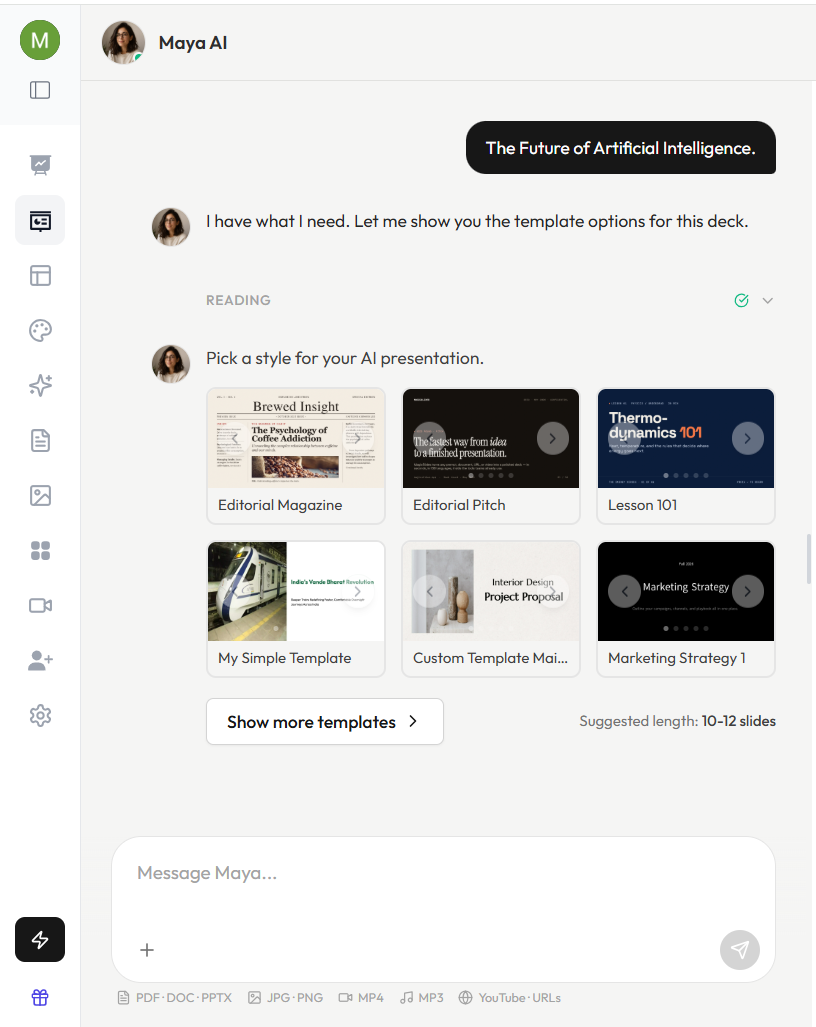
Suppose you need a presentation on:
“The Future of Artificial Intelligence.”
Traditionally, you would need to:
- Research the topic.
- Create an outline.
- Write slides.
- Design layouts.
- Add images.
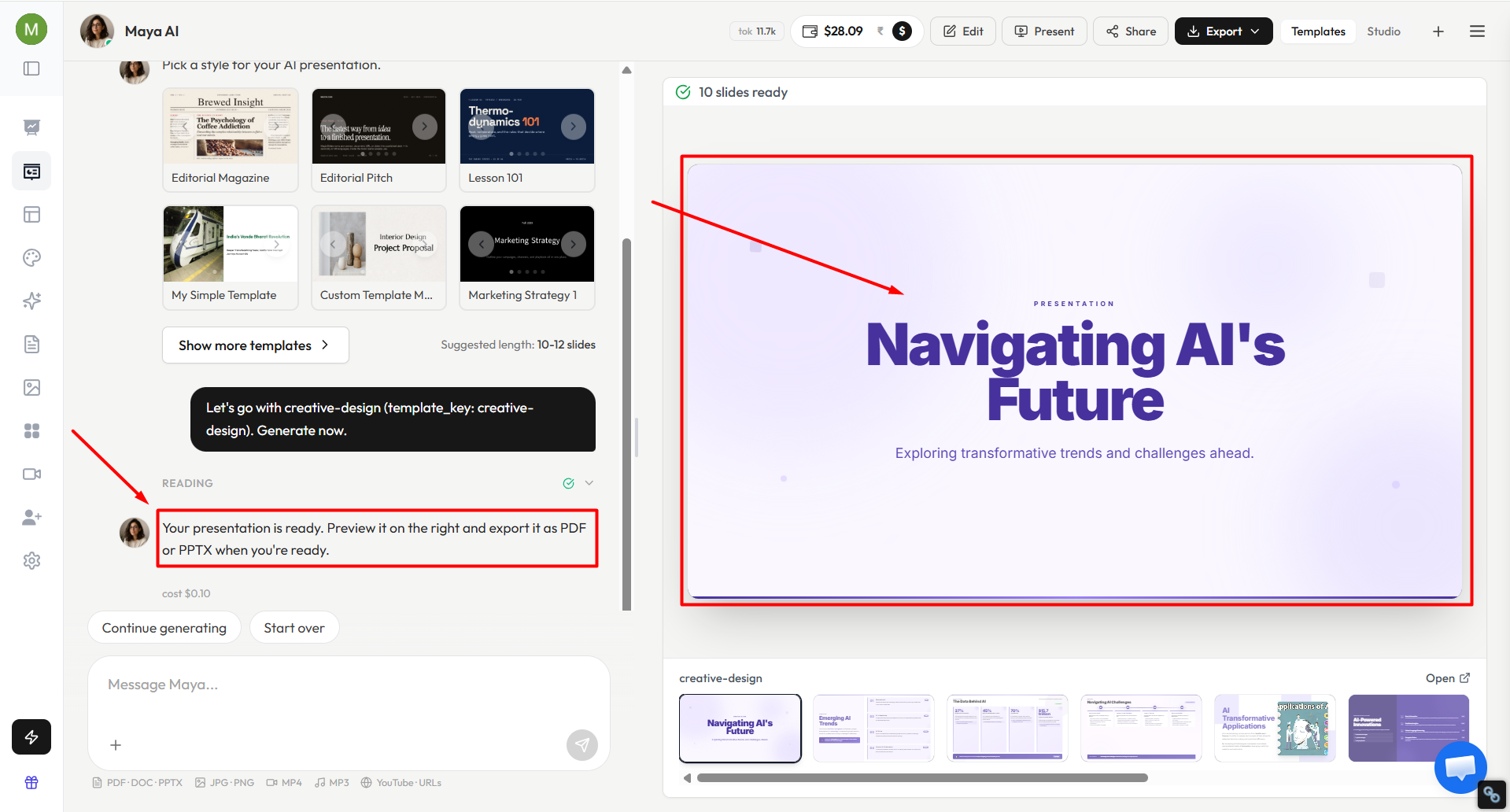
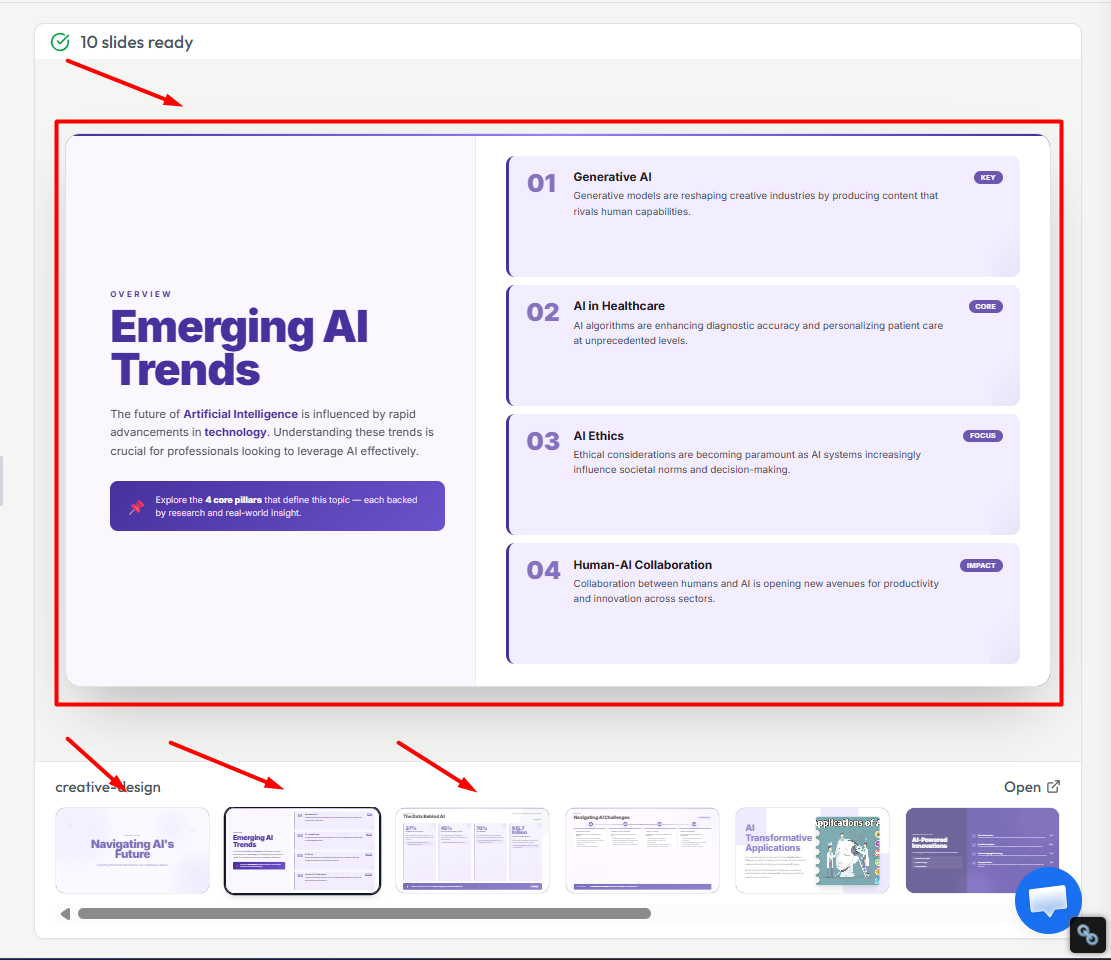
With MagicSlides, you enter the topic, select the number of slides, and generate a presentation within minutes.
The result can then be edited and customized according to your needs.
Benefits of Using AI for Last-Minute Presentations
1. Saves Time
AI eliminates repetitive work.
You spend less time formatting and more time preparing.
2. Generates Structure
Many people struggle with slide organization.
AI helps create logical flow.
3. Improves Productivity
Teams can create presentations faster.
Students can focus on learning.
Professionals can focus on meetings and strategy.
4. Reduces Stress
Knowing that you can generate slides quickly reduces presentation anxiety.
5. Helps Overcome Creative Blocks
Sometimes people know the topic but don’t know where to begin.
AI provides a starting point.
Who Can Benefit From AI Presentation Tools?
Students
Students often face assignment deadlines.
AI can help create:
- Class presentations.
- Research presentations.
- Seminar slides.
- Project reports.
Teachers
Teachers can generate:
- Lesson presentations.
- Lecture slides.
- Course materials.
- Training sessions.
Business Professionals
Professionals can create:
- Reports.
- Team updates.
- Strategy presentations.
- Client meetings.
Marketers
Marketing teams can develop:
- Campaign presentations.
- Performance reports.
- Proposals.
- Pitch decks.
Entrepreneurs
Founders can build:
- Investor decks.
- Startup presentations.
- Product launches.
- Sales presentations.
Tips to Deliver a Great Presentation Even If You Prepared Late
Know Your Opening
The first 30 seconds matter.
Prepare your introduction carefully.
Focus on Key Messages
People rarely remember everything.
They remember the main ideas.
Speak Slowly
Nervous presenters often speak too quickly.
Take pauses.
Allow information to sink in.
Use Stories
Examples and stories make presentations memorable.
End With a Clear Conclusion
Summarize your main points.
Tell the audience what they should remember.
When Should You Use AI Presentation Tools?
AI tools are especially useful when:
- Deadlines are closing.
- You need multiple presentations.
- You want a starting point.
- You need to save time.
- You want consistent slide quality.
However, AI works best when combined with your expertise.
Always review and personalize the final presentation.
Final Thoughts
Last-minute presentations don’t have to cause panic.
With a clear structure, focused content, and modern AI tools, you can create impressive presentations even when time is limited.
The key is to focus on your audience, communicate your main ideas clearly, and avoid spending unnecessary time on design and formatting.
Tools like MagicSlides make this process significantly easier by helping users generate presentations from topics, documents, videos, and other content sources in just a few minutes.
Whether you’re a student facing a class deadline, a professional preparing for a meeting, or an entrepreneur building a pitch deck, AI can help you move from stress to confidence much faster.
The next time someone says, “We need a presentation tomorrow,” you’ll know exactly what to do.
Frequently Asked Questions
Q1. Can AI create a complete presentation?
Yes. Modern AI tools can generate titles, content, layouts, and slide structures.
Q2. Are AI-generated presentations editable?
Yes. You can customize content, design, images, and formatting.
Q3. Is AI suitable for professional presentations?
Many professionals use AI tools to speed up presentation creation while maintaining quality.
Q4. Can students use AI presentation tools?
Yes. Students often use AI to organize information and create academic presentations.
Q5. How long does it take to create a presentation with AI?
Depending on the topic, many presentations can be generated within a few minutes.


