How to Use AI for Stunning PowerPoint Presentations


Discover how to use AI to create stunning PowerPoint presentations, enhancing design and effectiveness effortlessly.
In the modern landscape of communication, the ability to convey ideas effectively is essential across various domains, including academic, business, and personal contexts.
PowerPoint presentations stand as a fundamental tool in this arena, facilitating the structured delivery of complex information.
However, the task of designing an engaging and professional PowerPoint presentation can be challenging. It demands not only a flair for visual design but also a strategic approach to content organization.
Artificial Intelligence (AI) has emerged as a game-changing technology in this field, offering tools that profoundly streamline and refine the presentation creation process.
AI-powered solutions can automate the design aspect, intelligently selecting layouts, color schemes, and typography that align with the content's tone and purpose.
This not only saves time but also ensures a high level of aesthetic coherence throughout the presentation.
AI in PowerPoint design not only enhances user experience by reducing manual effort but also significantly boosts the effectiveness of the presentations, ensuring that they capture and maintain audience engagement.
How to use an Online AI PowerPoint Maker?
Online AI-powered PowerPoint makers like magicslides.app represent a leap in presentation design technology.
These platforms use sophisticated algorithms to automate the design process, analyze content, and suggest layouts that make presentations not only visually appealing but also more effective in communicating the intended message.
Visit a Reliable AI PowerPoint Maker
Start by navigating to a trusted AI-powered presentation tool like Magicslides.app.
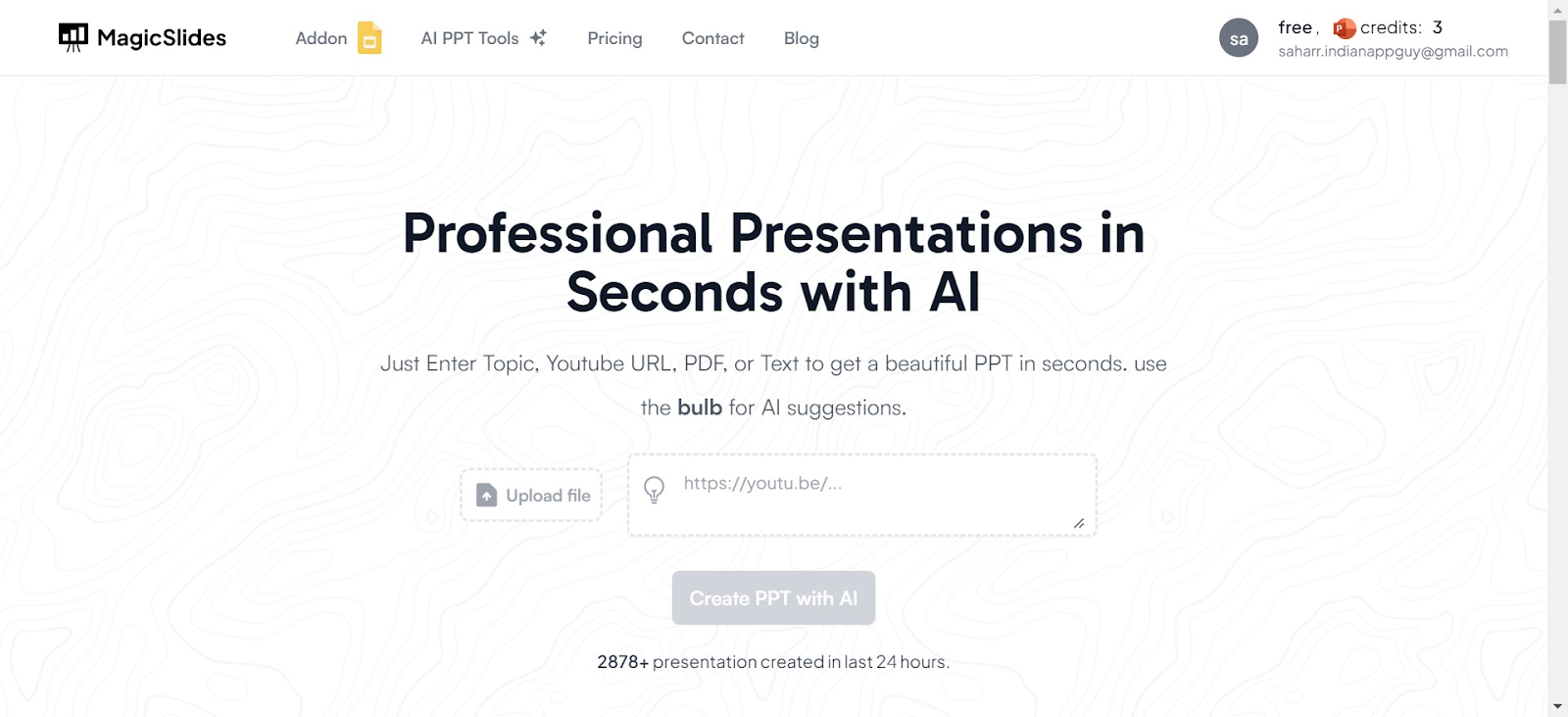
Access AI PowerPoint Tools
On the Magicslides.app homepage, locate and click on the ‘AI PPT Tools’ section.
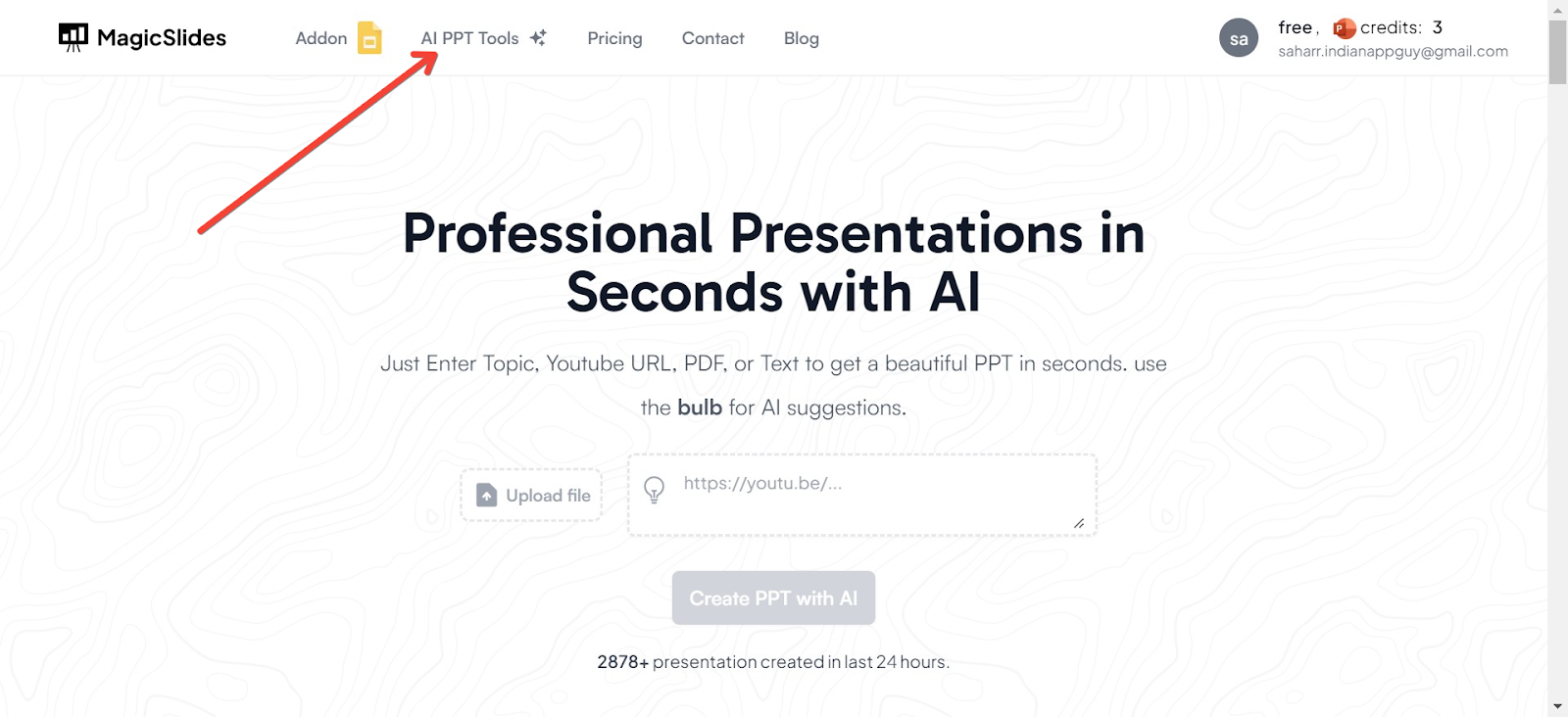
Choose Your Creation Method
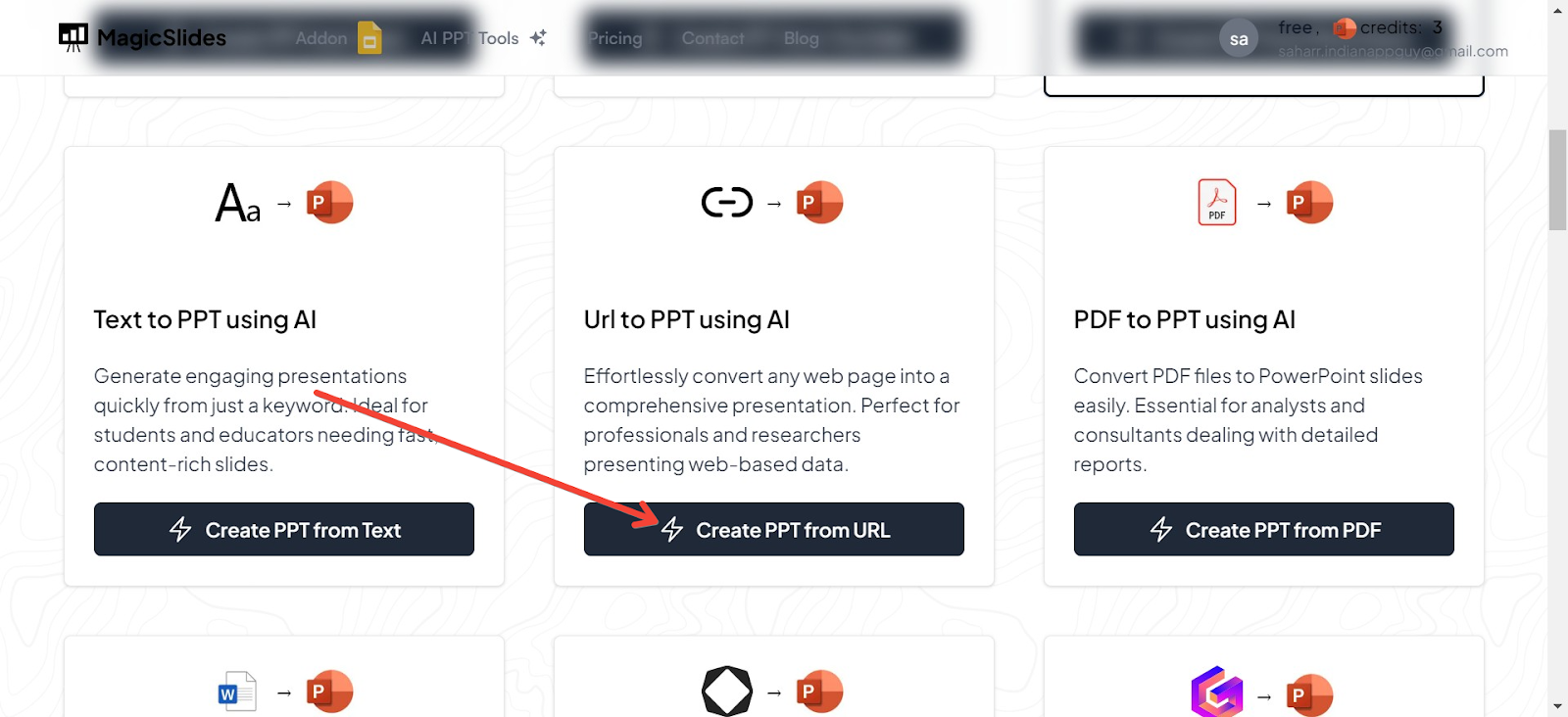
Magicslides.app offers several innovative options to create your PowerPoint:
- Topic to PPT: Generate slides based on a specific subject.
- YouTube to PPT: Convert video content into a presentation.
- URL to PPT: Turn web content into a visually appealing PowerPoint.
- Additional features include a pitch deck generator and enhancements for existing presentations.

Using URL to PPT for This Guide
For this demonstration, we will use the URL to PPT feature. This option is particularly useful for converting articles, blog posts, and other web content directly into PowerPoint slides.
Enter the URL
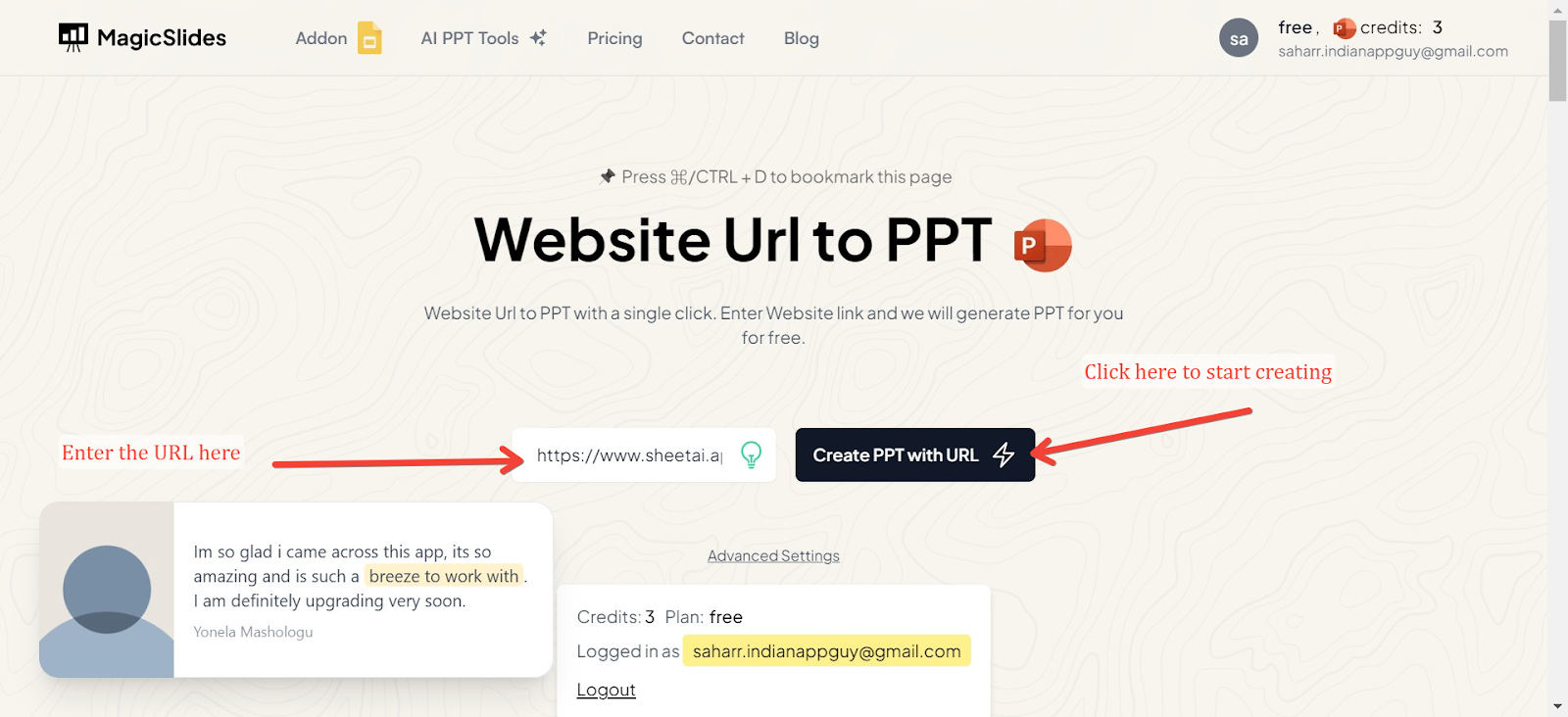
Input the URL of the web page you want to convert into a PowerPoint presentation in the designated field.
Generate Your Presentation
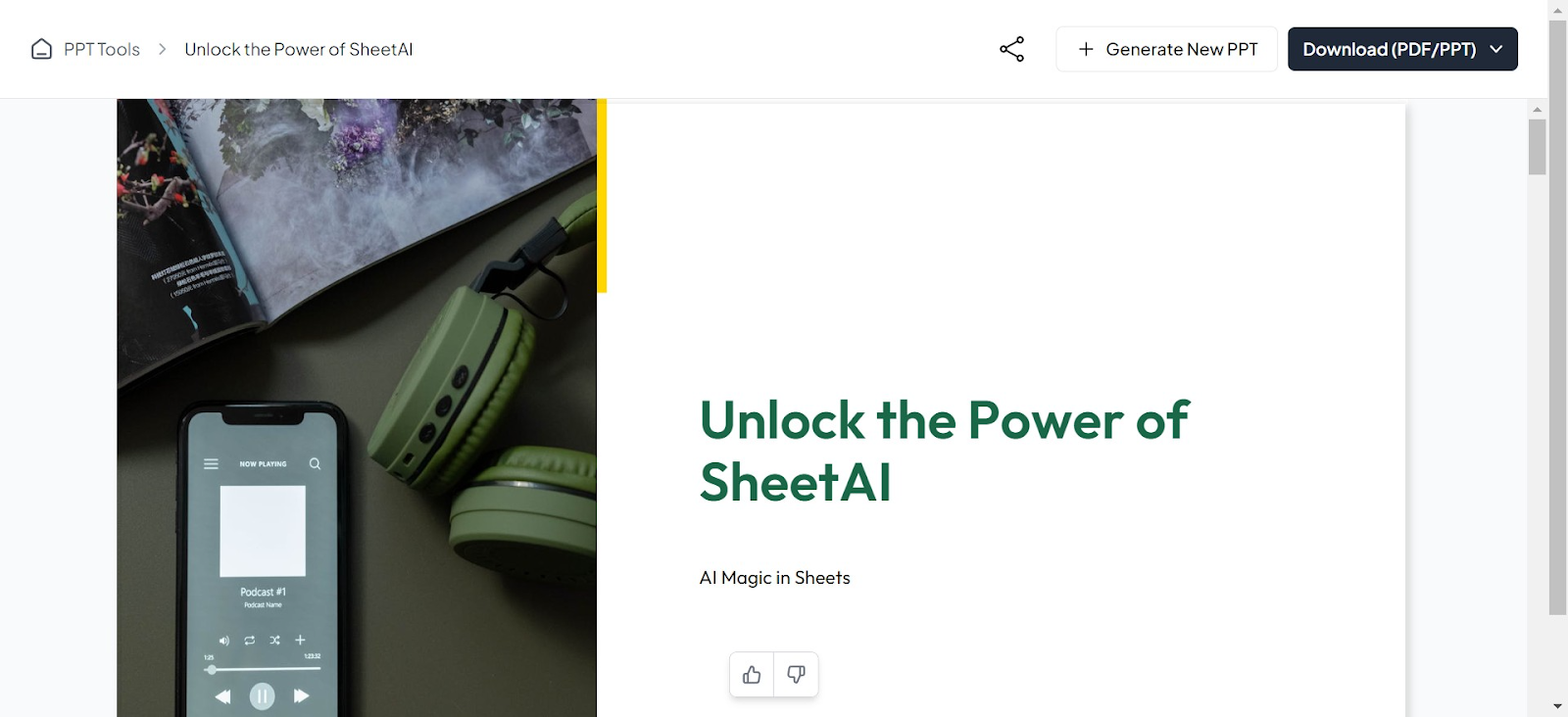
Click the generate button, and Magicslides.app will process the URL, extracting key information and organizing it into a beautifully designed PowerPoint presentation. The result is a ready-to-use slide deck that you can edit further if needed.
Key Features of AI PowerPoint Makers
- Automated Design Choices: These tools analyze the content provided and suggest design elements like themes, color schemes, and layouts that complement the text, enhancing readability and viewer engagement.
- Content Assistance: Beyond design, AI tools can generate concise summaries, catchy titles, and even help organize content into logical, impactful flows.
- Customization and Flexibility: Users can tweak AI suggestions to suit specific needs, ensuring that each presentation remains unique and tailored to its audience.
User Experience
Utilizing an AI PowerPoint maker typically involves entering your main presentation points into the platform. The AI then processes this information and offers a range of design templates and layout suggestions, streamlining the creation process and reducing the time spent on manual adjustments.
PPT Maker AI Add-ons
AI add-ons for PowerPoint inject advanced AI capabilities right into the traditional PowerPoint interface. These add-ons can provide real-time suggestions, automate content and design adjustments, and enhance the overall creation process within the familiar environment of PowerPoint.
Benefits of AI Add-ons
- Seamless Integration: By integrating directly with PowerPoint, these add-ons allow users to leverage AI enhancements without disrupting their normal workflow.
- Real-time Design and Content Suggestions: As you build your presentation, AI continuously provides design and content recommendations, which can be particularly useful for refining presentations to better align with audience expectations.
- Efficiency and Customization: These tools significantly speed up the presentation creation process and offer customization options to fine-tune the AI's suggestions, ensuring the final product is polished and personalized.
How To Use AI Add Ons?
Download and Install an AI PowerPoint Maker
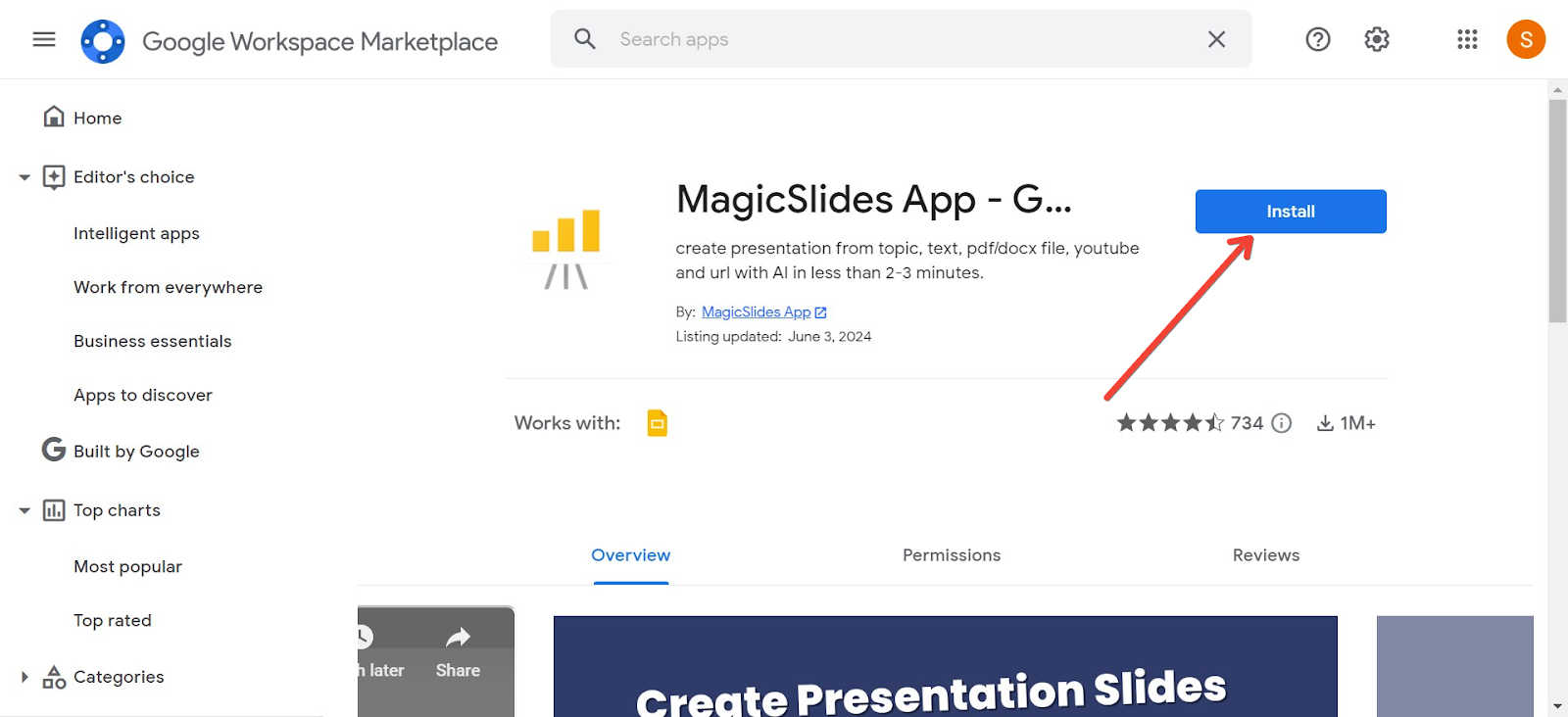
Begin by selecting a reliable AI PowerPoint tool. Magicslides.app is a great choice for its user-friendly interface and advanced AI capabilities. You can download it by clicking here.
Initiate a New Presentation
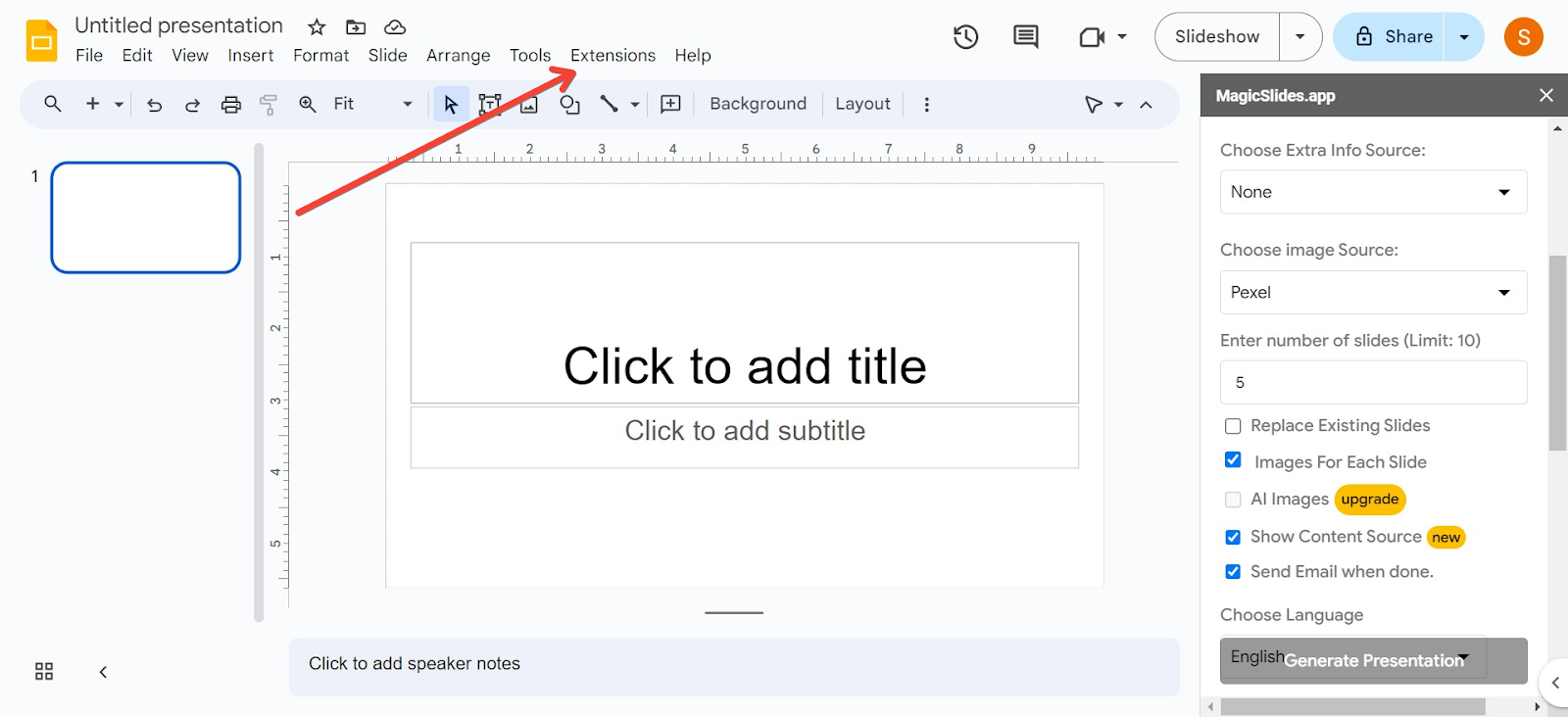
Open your browser and navigate to slides.new to start a new Google Slides presentation. This provides a clean slate for your AI-enhanced presentation.

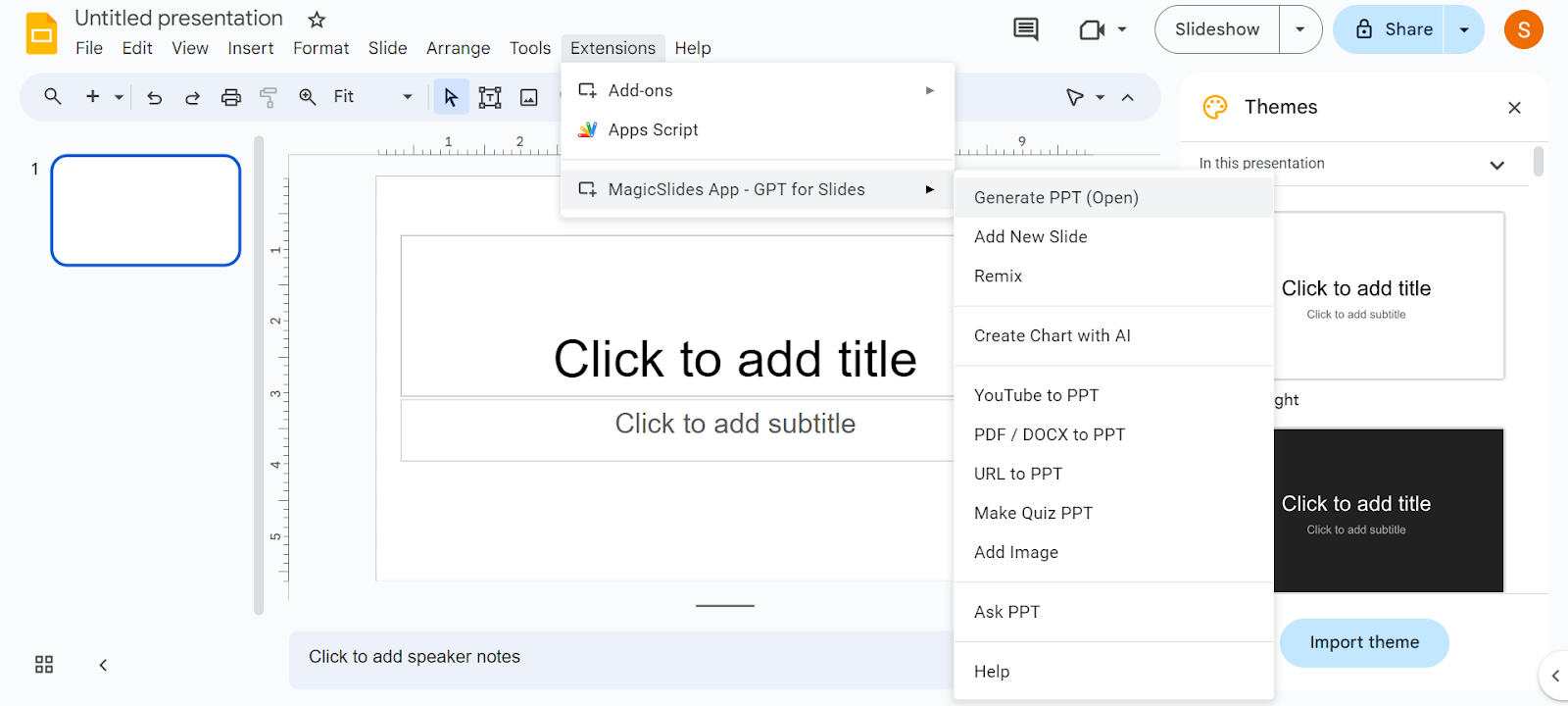
Access Extensions
Once your Google Slides is open, locate the 'Extensions' menu in the toolbar.
Launch Magicslides.app
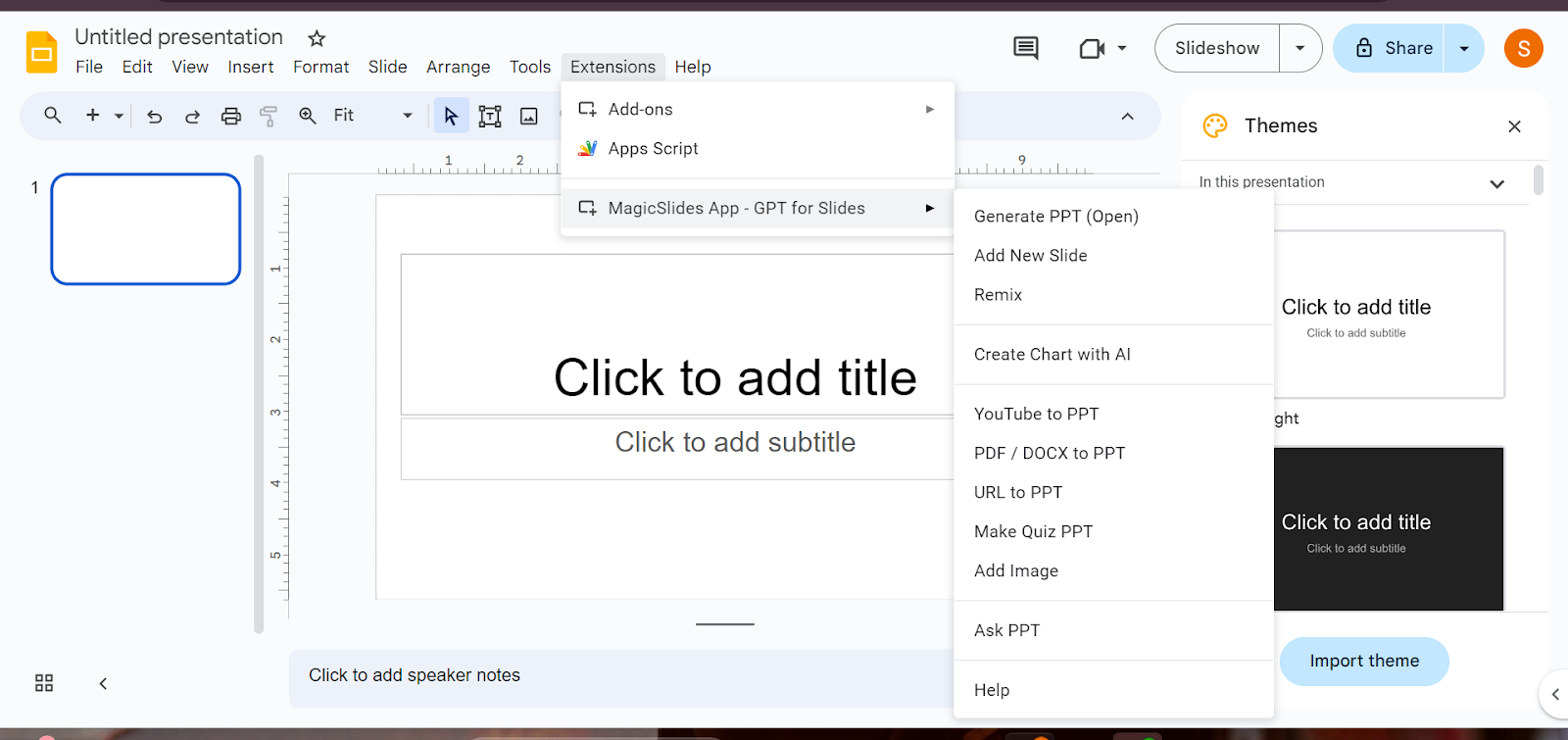
Within the 'Extensions' menu, find and select Magicslides.app to activate the AI features.
Choose the Presentation Type
Magicslides.app offers various options depending on your needs. For creating a presentation from a specific topic, select the 'Generate PPT' option.
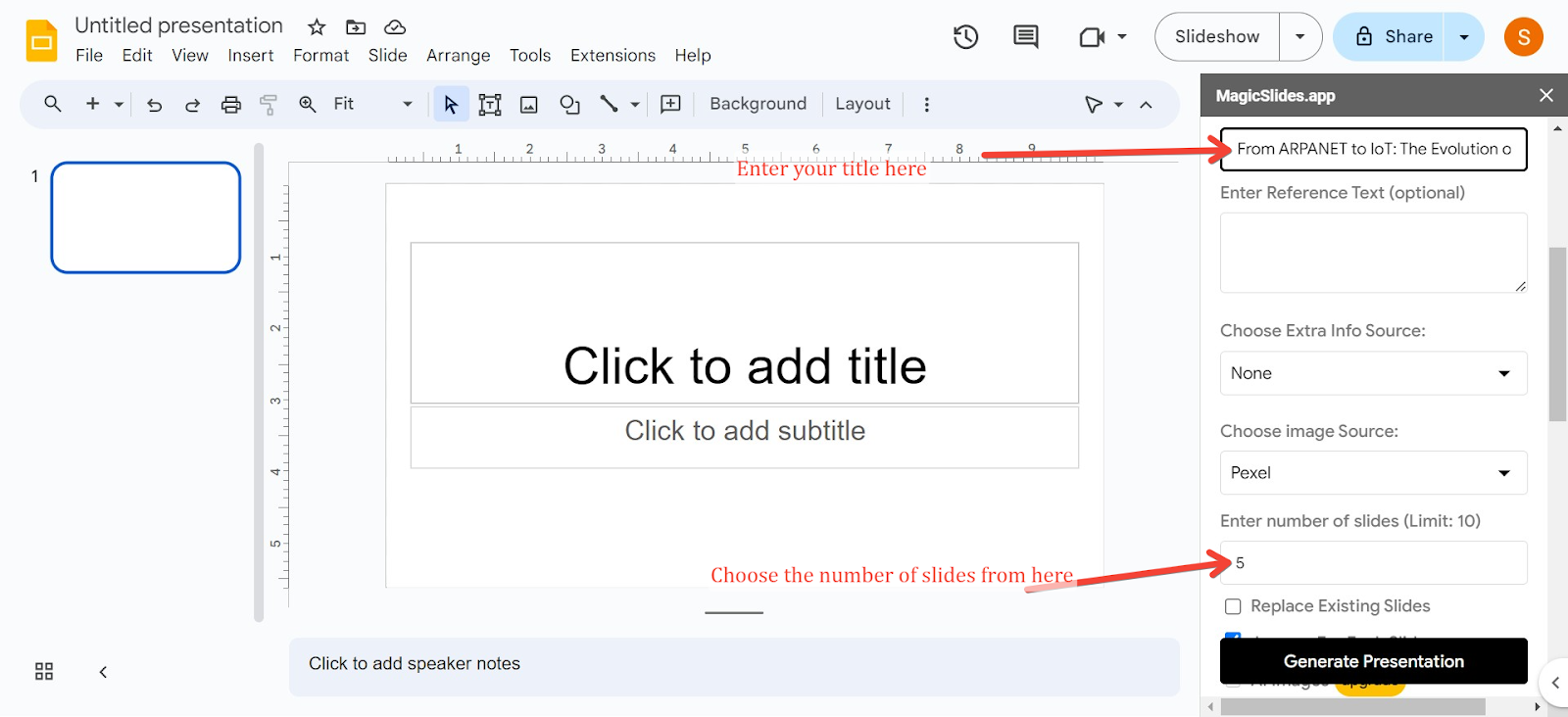
Enter Your Topic
In the toolbox provided by Magicslides, you’ll find an option to input your topic along with any other relevant information.
Generate Your Presentation
After entering all necessary details, click on 'Generate'. Magicslides.app will then process the information and automatically create a PowerPoint presentation tailored to your topic, complete with design and content suggestions.
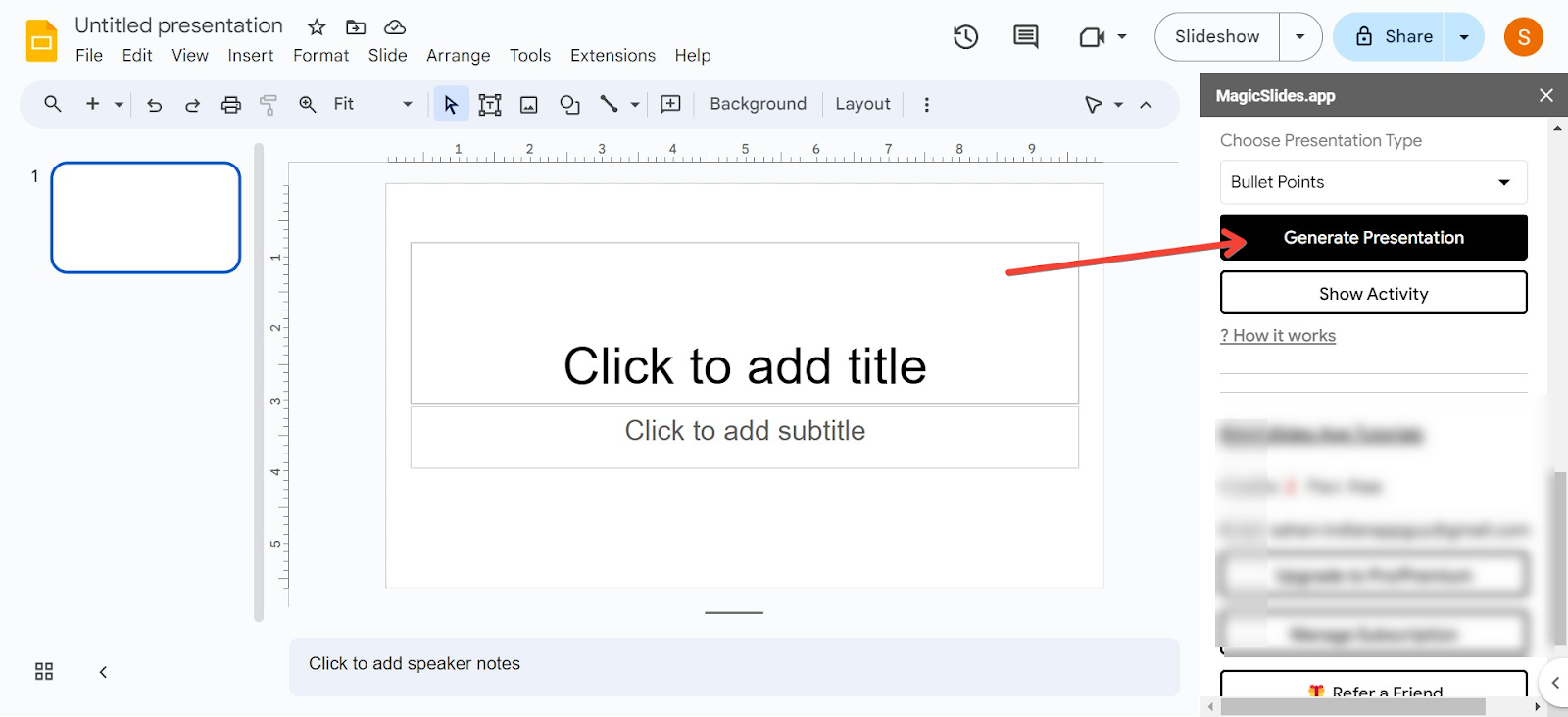
Your PPT is generated

Leveraging ChatGPT for Dynamic Content Creation
ChatGPT, developed by OpenAI, is capable of generating intelligent, context-aware content based on user prompts. This technology can be adapted for PowerPoint to help create detailed, engaging presentation content.
How to create a PPT using ChatGPT?
Visit ChatGPT
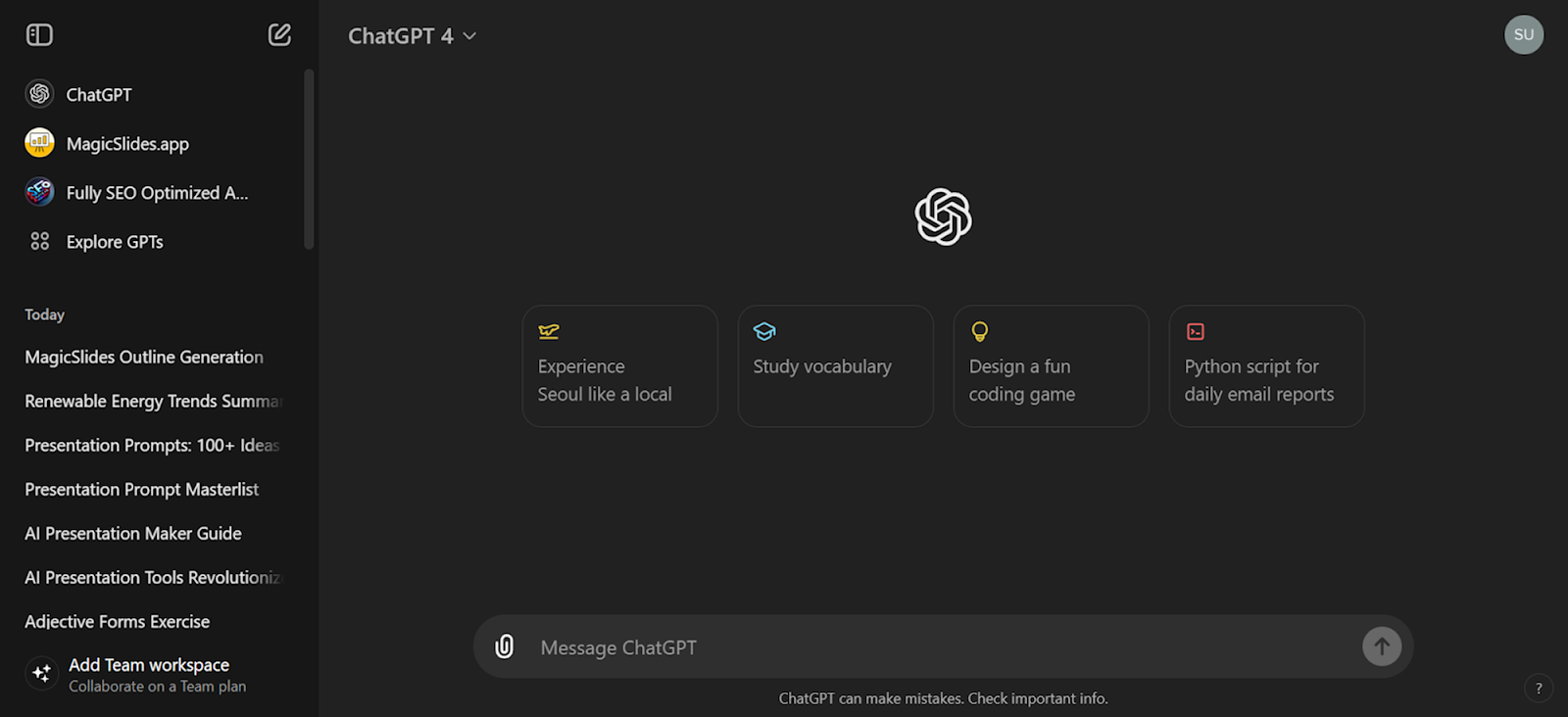
Open your web browser and go to the ChatGPT website.
Click on "Explore GPTs"
On the homepage, locate and click on the "Explore GPTs" button or tab. This will take you to a page where you can browse various GPT models.
Search for MagicSlides
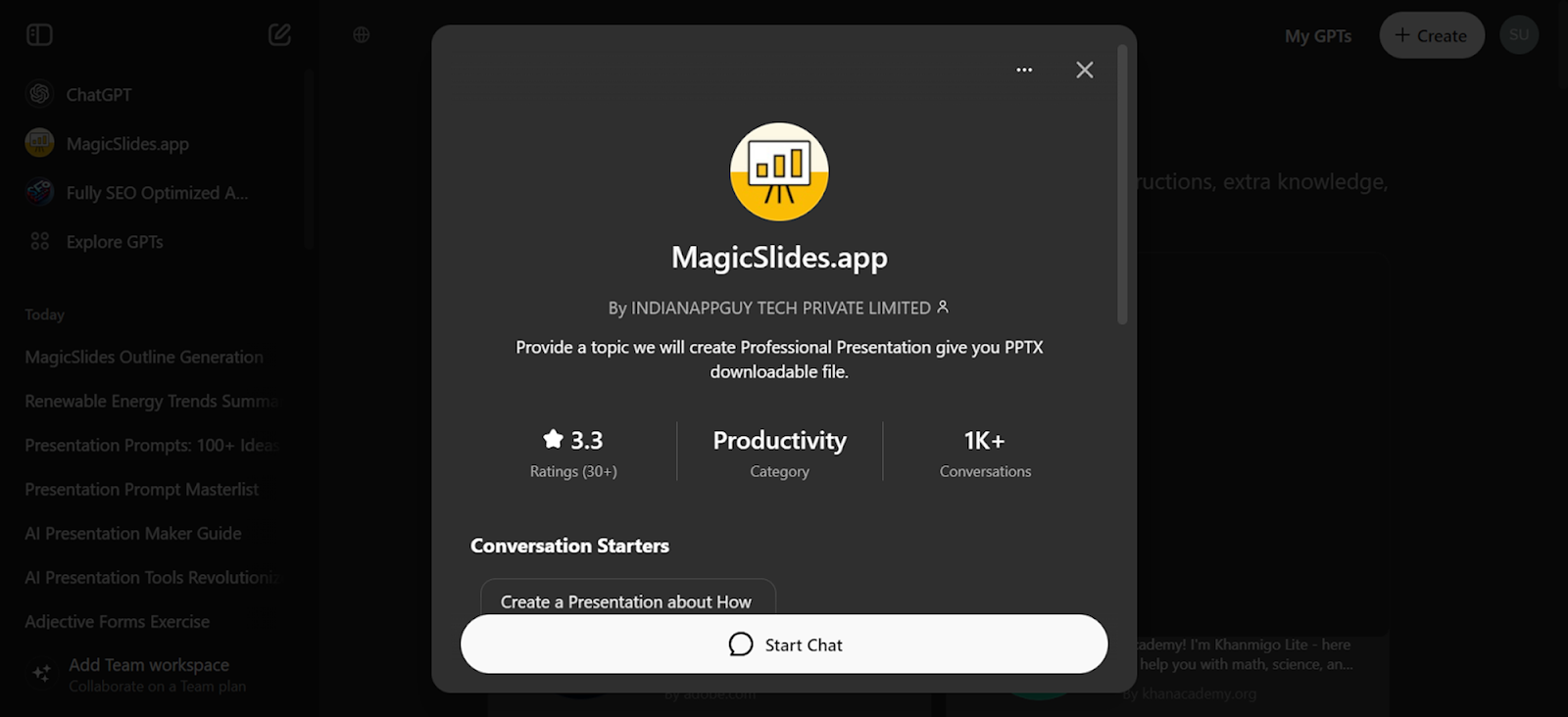
In the search bar, type "MagicSlides" and press enter. Look for the specific GPT model related to MagicSlides.
Click on "Start Chat"
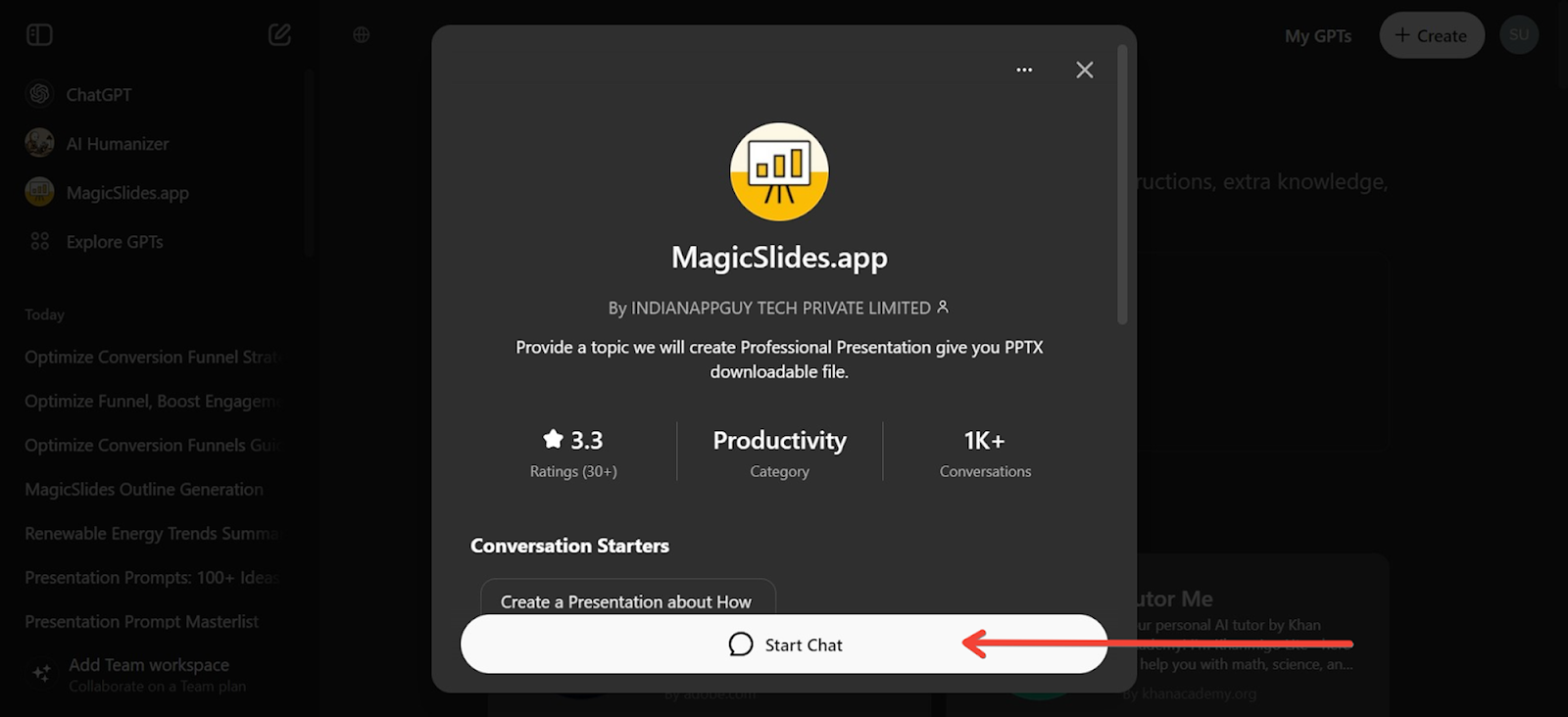
Once you find the MagicSlides GPT, click on the "Start Chat" or similar button to begin interacting with the model.
Type Your Prompt in the Chat Box
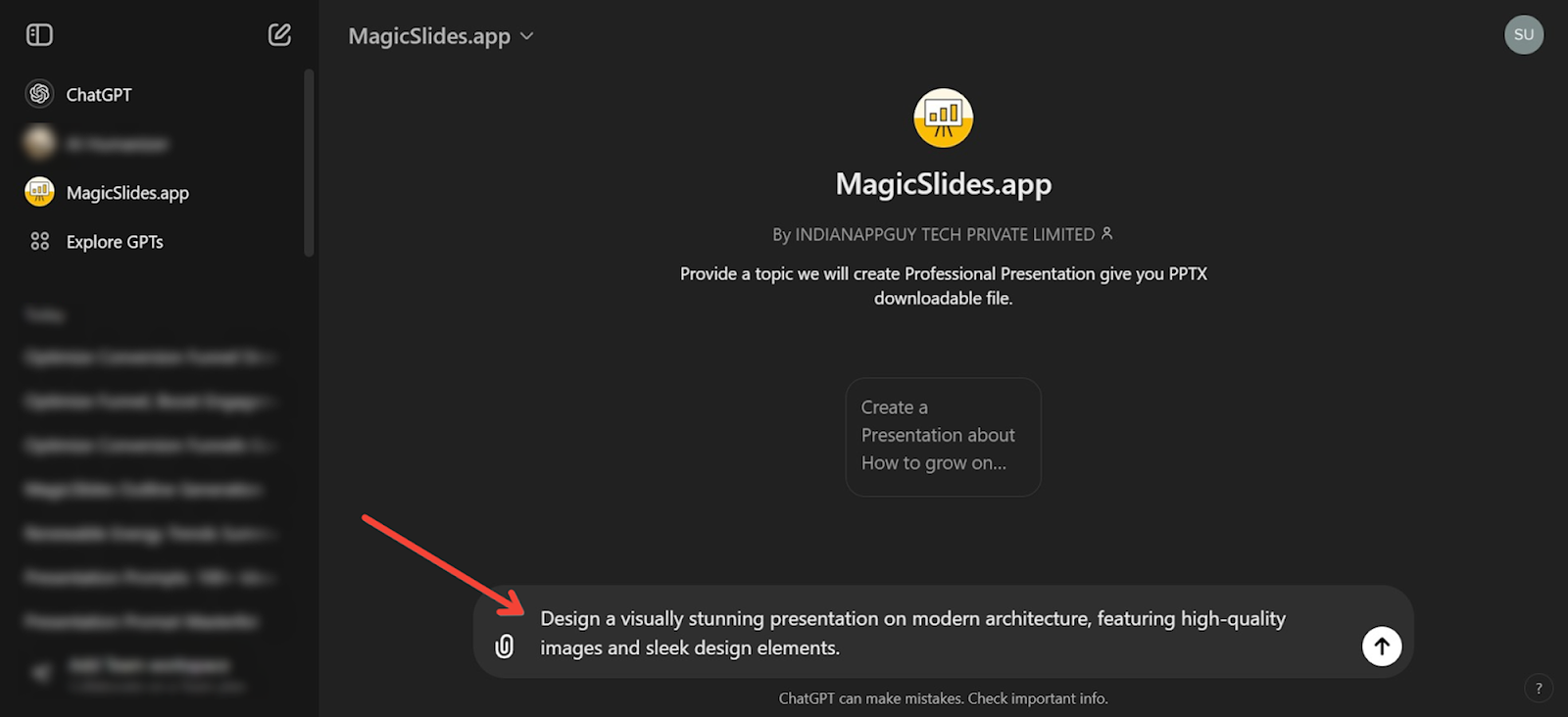
In the chat box, type a detailed prompt or description of the presentation you need. For example, "Create an outline for a 10-slide presentation on the latest SEO strategies."
Receive Your Presentation Outline
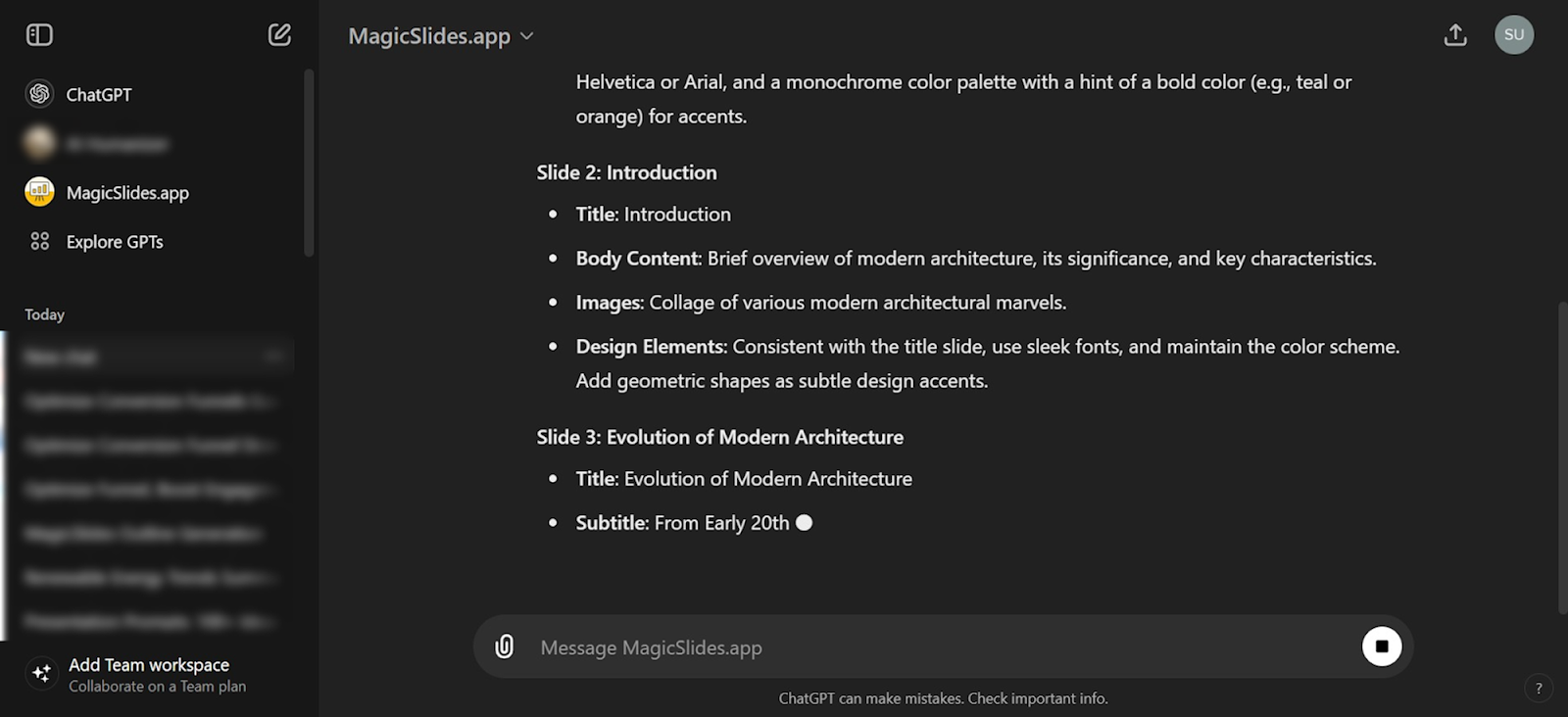
The GPT will process your prompt and provide you with a structured outline for your PowerPoint presentation. Review the outline to ensure it meets your requirements.
Ask to Generate the Presentation
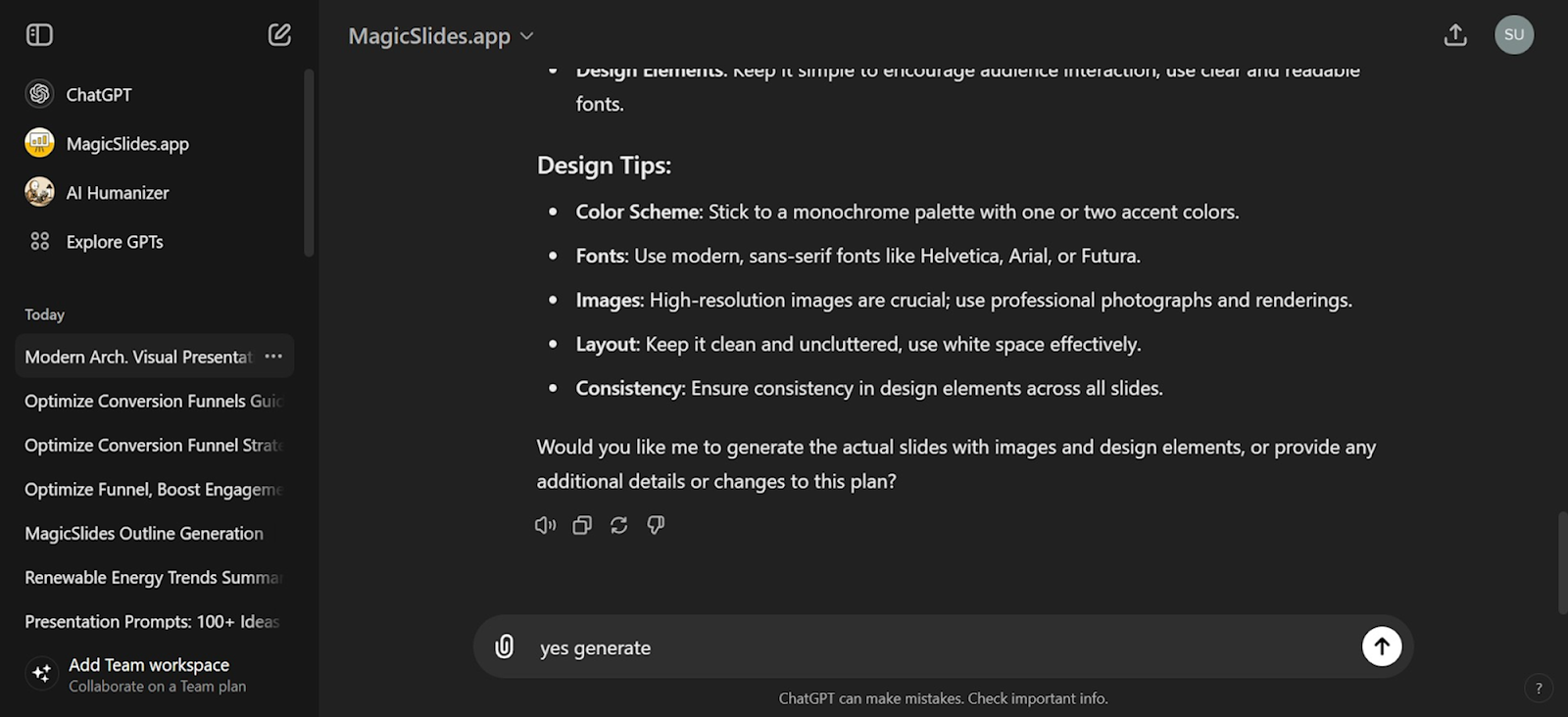
If you are satisfied with the outline, type a follow-up message such as "Generate this presentation." The GPT will then create the PowerPoint slides based on the outline provided.
Download Your Presentation
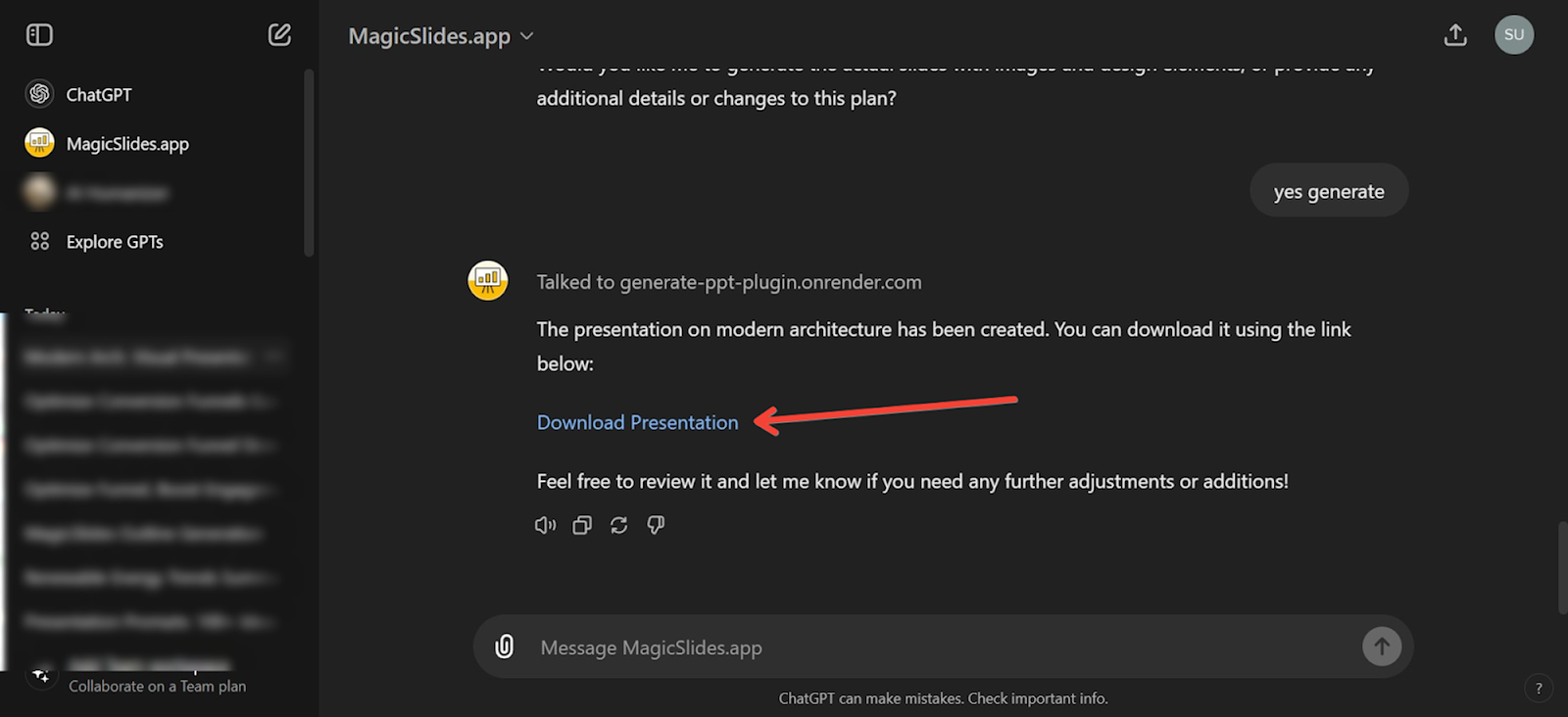
Once the presentation is ready, the GPT will share a download link. Click on this link to download your PowerPoint presentation to your device.
Conclusion
As AI continues to evolve, its integration into tools like PowerPoint is transforming how presentations are created. By leveraging AI-powered tools and extensions, anyone can produce professional, engaging presentations with greater ease and efficiency. This not only saves valuable time but also enhances the quality of communication, allowing presenters to make a more substantial impact on their audiences.


