Option to change Shadow Text and Box Colour in PPT


Enhance your PowerPoint slides by customizing text shadows and box colors with these simple steps
Adding or modifying text shadows and box colors in PowerPoint can greatly enhance your presentation’s visual appeal.
With a few easy adjustments, you can make text pop and customize box colors to align with your theme.
This step-by-step guide will show you how to change shadow text and box colors in PowerPoint effectively.
How to Change Shadow Text and Box Color in PowerPoint
Step 1: Open PowerPoint and Select Your Slide
Open your PowerPoint presentation and navigate to the slide where you want to make changes.
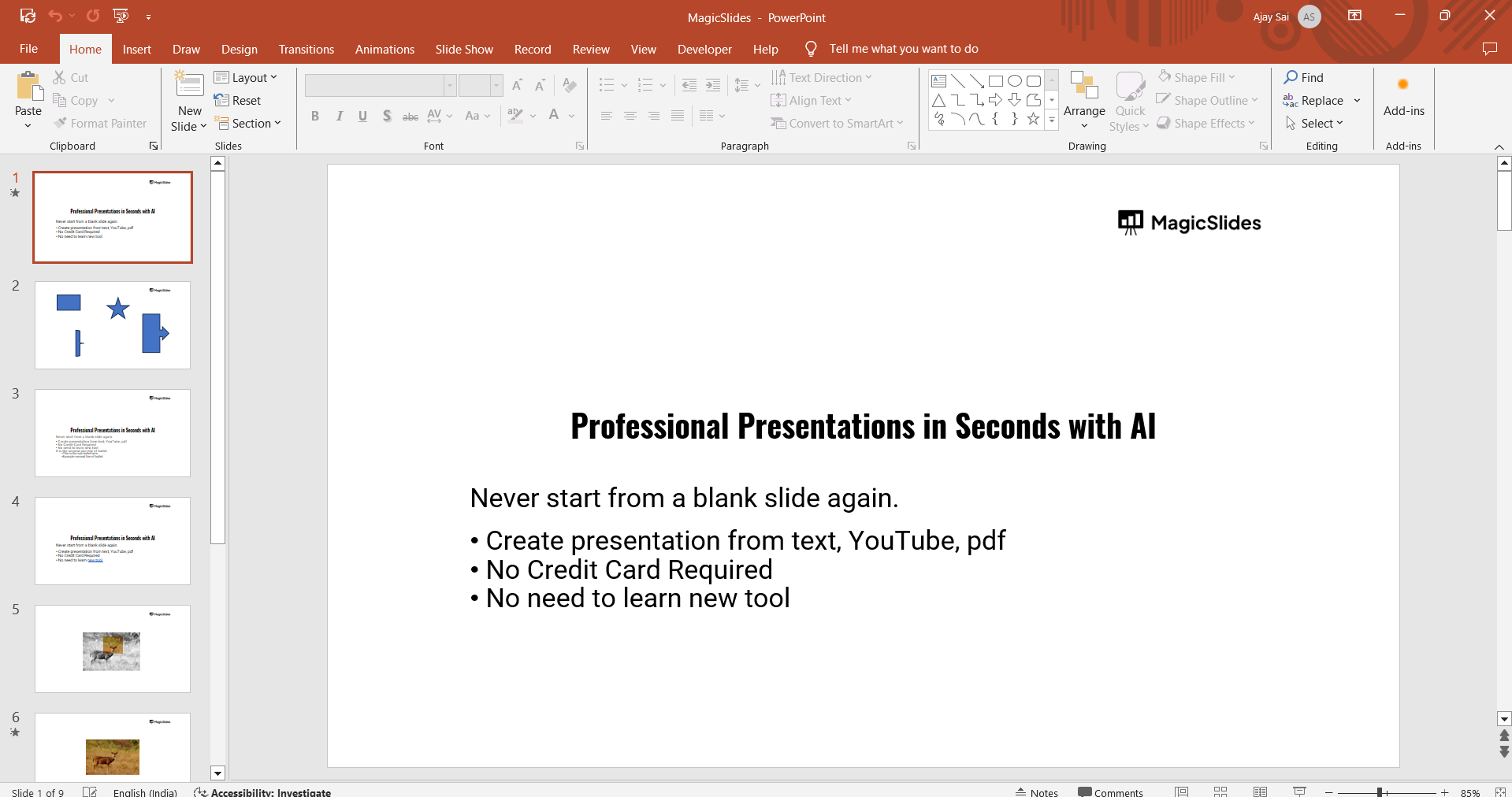
Click on the text box or shape containing the text or color you want to modify.
Step 2: Apply or Modify Text Shadow
Select the text you want to add a shadow to. Navigate to the “Format” tab in the top toolbar.
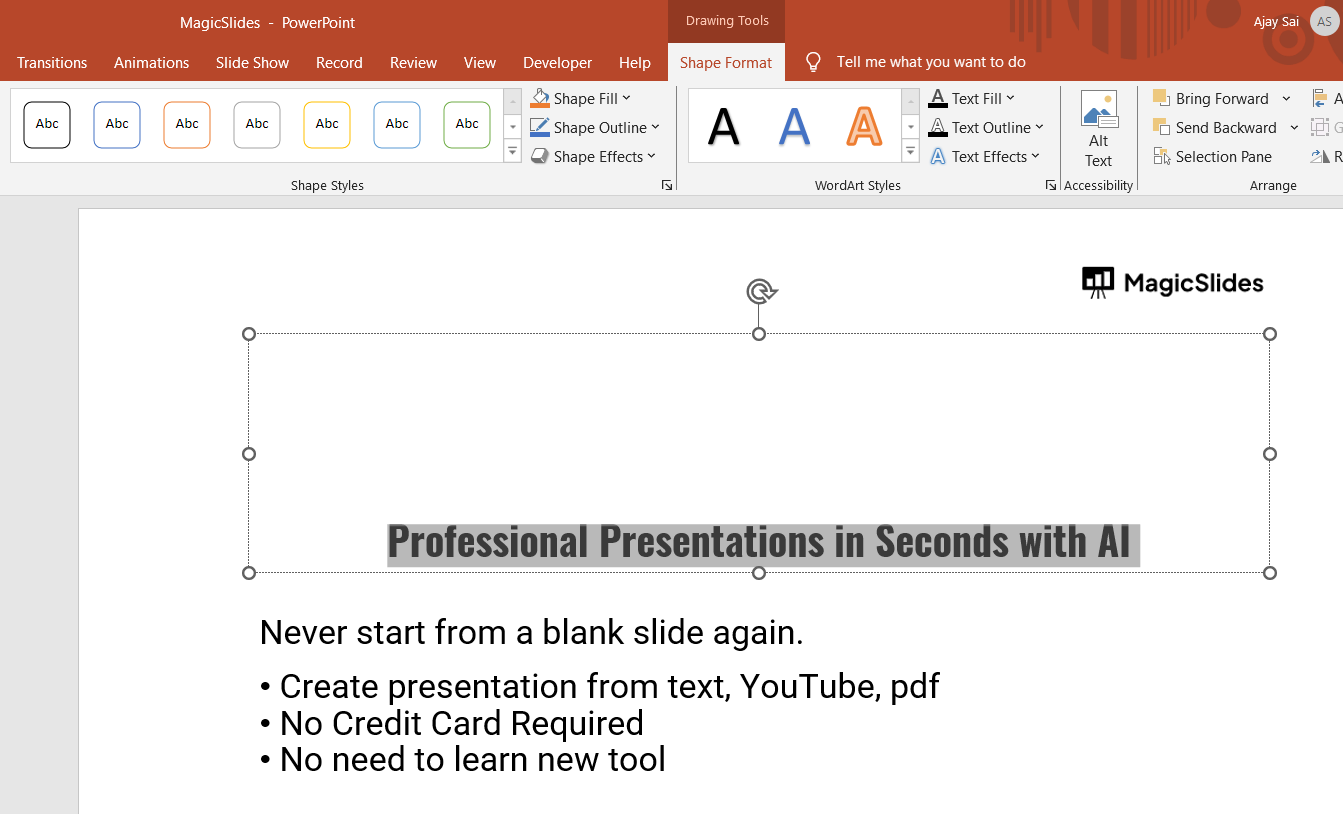
Click “Text Effects” and select “Shadow” from the dropdown menu.
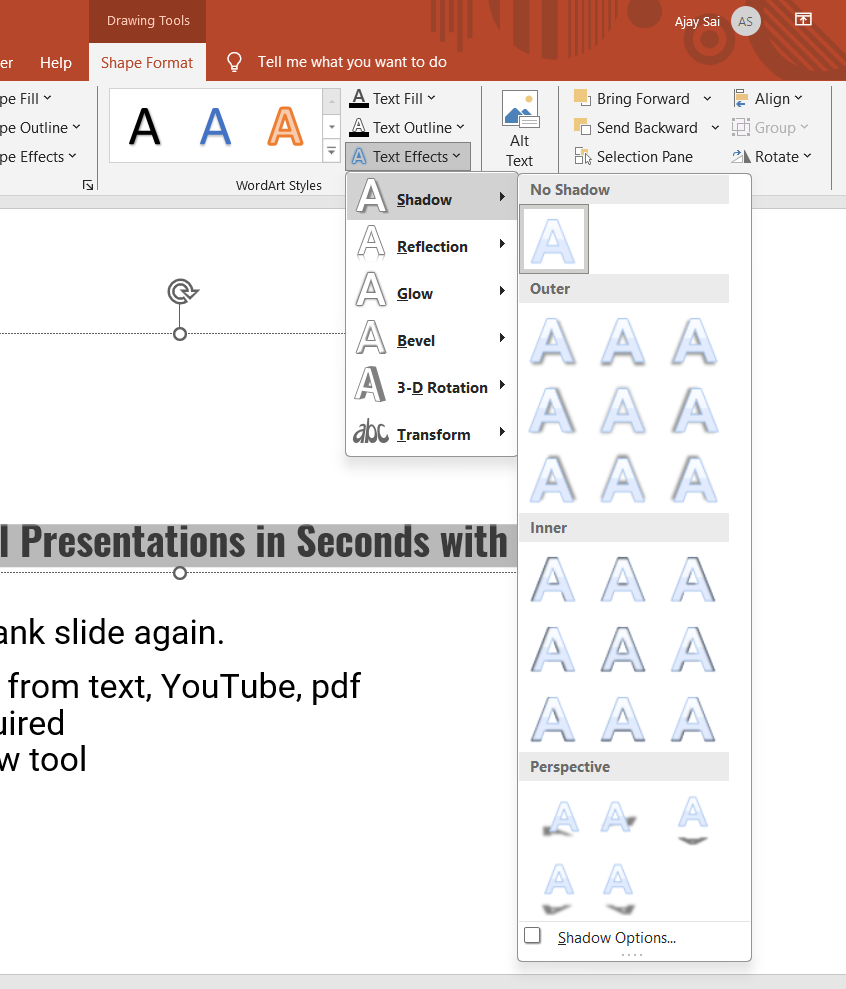
Choose a preset shadow style, such as outer, inner, or perspective shadows.
For more customization, select “Shadow Options” at the bottom of the menu.
- Adjust parameters like transparency, size, blur, angle, and distance to refine the shadow effect.
Step 3: Change the Box (Shape) Color
Click on the box or shape whose color you want to change. Under the “Format” tab, click “Shape Fill.”
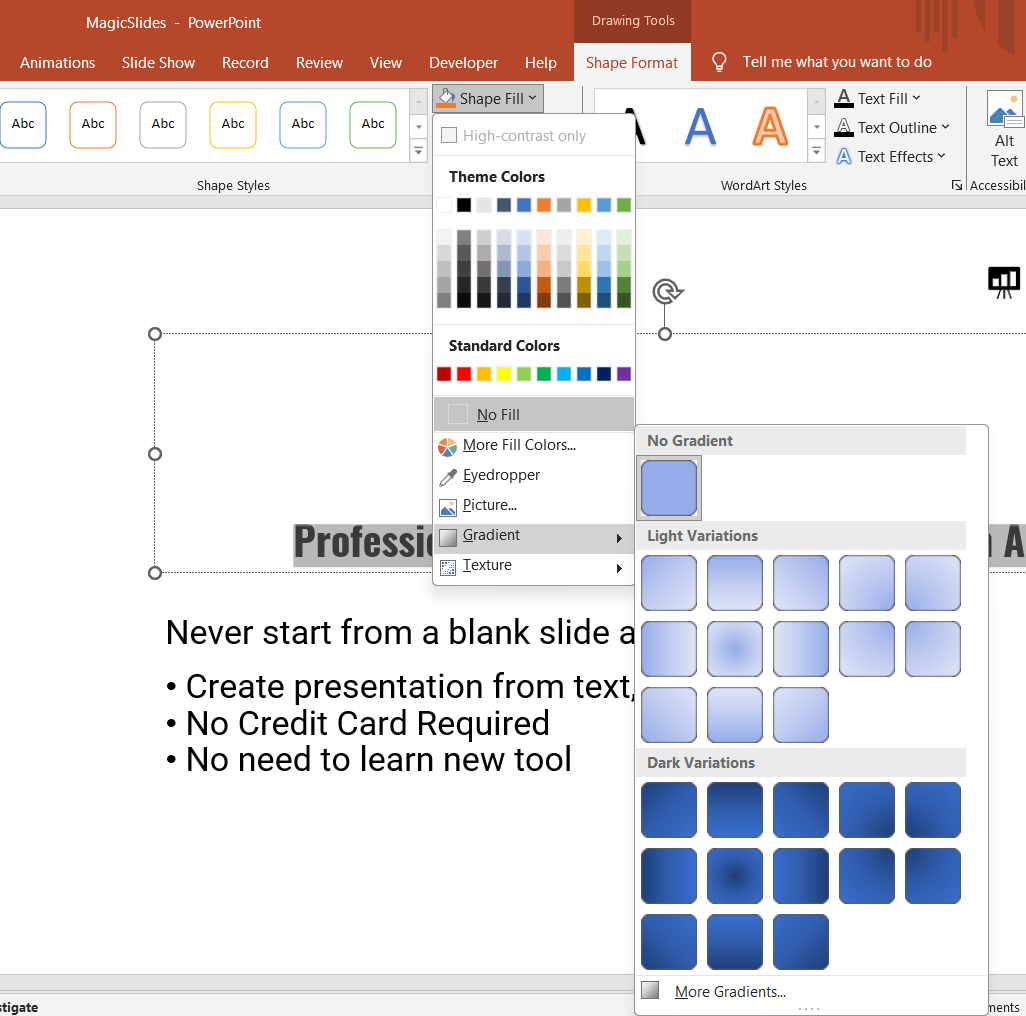
Choose a color from the palette, or select “More Fill Colors” to pick a custom shade.
If you want a gradient, click “Gradient” and select a gradient style or create a custom one.
Step 4: Adjust the Outline Color (Optional)
To further customize, click “Shape Outline” in the same “Format” tab.
Choose a color or remove the outline entirely by selecting “No Outline.”
Step 5: Preview and Finalize Changes
Preview the slide to ensure the text shadow and box colors complement the overall design.
Make further adjustments as needed, and save your presentation.
Conclusion
Customizing text shadows and box colors in PowerPoint adds depth and personality to your slides.
By following these simple steps, you can create a professional and visually appealing presentation that effectively communicates your ideas.
Experiment with different styles and colors to find the perfect combination for your theme.
FAQs on Changing Shadow Text and Box Color in PowerPoint
Can I apply a shadow effect to all text in a presentation?
No, text shadow effects must be applied individually to each text box. However, using the Slide Master feature can help maintain consistency across slides.
Can I use custom colors for text shadows and shapes?
Yes, PowerPoint allows you to choose custom colors for shadows and shapes using the “More Fill Colors” or “Custom Color” options.
How do I remove a text shadow or box color?
To remove a shadow, go to “Text Effects” > “Shadow” and select “No Shadow.” For box color, select the shape, click “Shape Fill,” and choose “No Fill.”
By mastering these techniques, you can take your PowerPoint designs to the next level, ensuring a polished and impactful presentation.


