How to Print Google Slides with 4 Slides Per Page


Learn to print Google Slides efficiently with four slides per page, ideal for handouts and saving paper.
Printing your Google Slides presentation with multiple slides per page is not only a great way to save paper but also makes it easier to review your presentation in a compact format.
Whether you're preparing handouts for a class, a business meeting, or just want to have a handy reference of your slides, knowing how to print four slides per page can be incredibly useful. Here’s a detailed guide on how to accomplish this task seamlessly.
Step 1: Open Your Google Slides Presentation
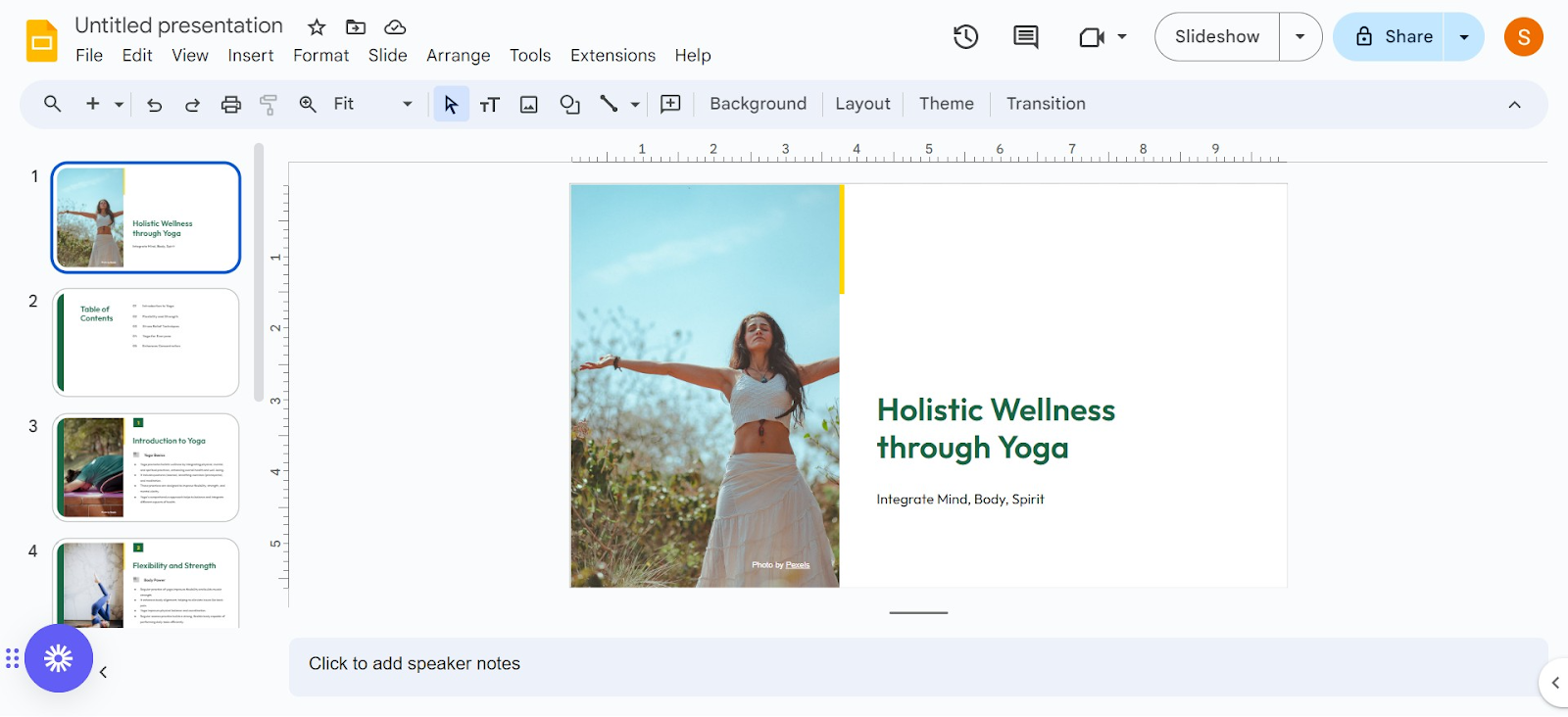
Start by opening Google Slides in your web browser.
You can access your slides by going to the Google Slides website or through searching slides.google.com.
Open the presentation you wish to print.
Step 2: Prepare Your Presentation for Printing
Before printing, it’s important to ensure your slides are ready for a smaller format to avoid any cropped or unreadable text and images. Here are a few tips to optimize your slides:
- Simplify Your Design: Reduce clutter by removing unnecessary elements and using simple backgrounds.
- Increase Text Size: Ensure that text remains legible even when scaled down. Consider increasing font size and using bold for emphasis.
- Use High-Contrast Colors: This makes your slides easy to read even when printed in grayscale.
Step 3: Access the Print Settings
Once your presentation is ready, click on ‘File’ in the upper menu, then select ‘Print settings and preview’ from the dropdown menu.
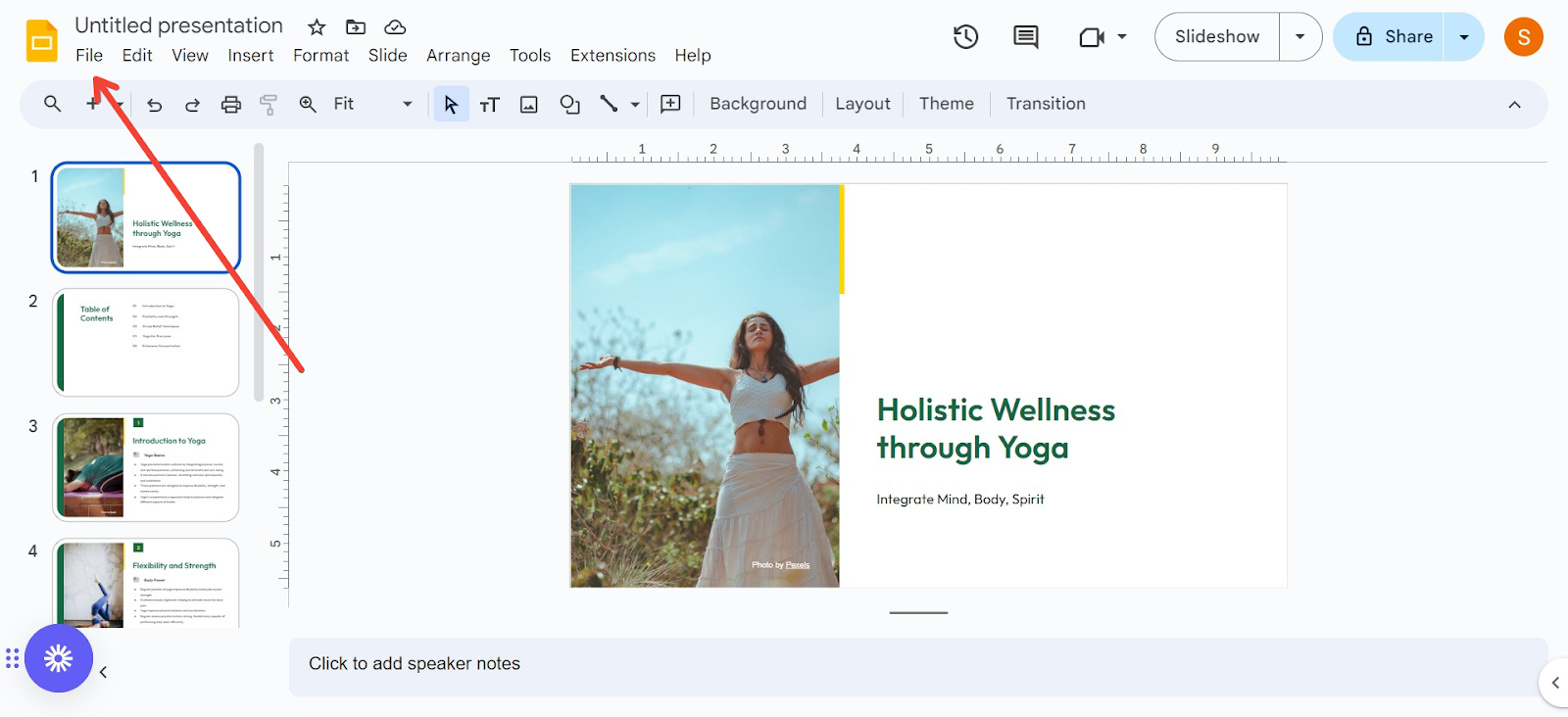
This option will take you to a new screen where you can adjust how your slides appear on paper.
Step 4: Adjust Your Print Layout
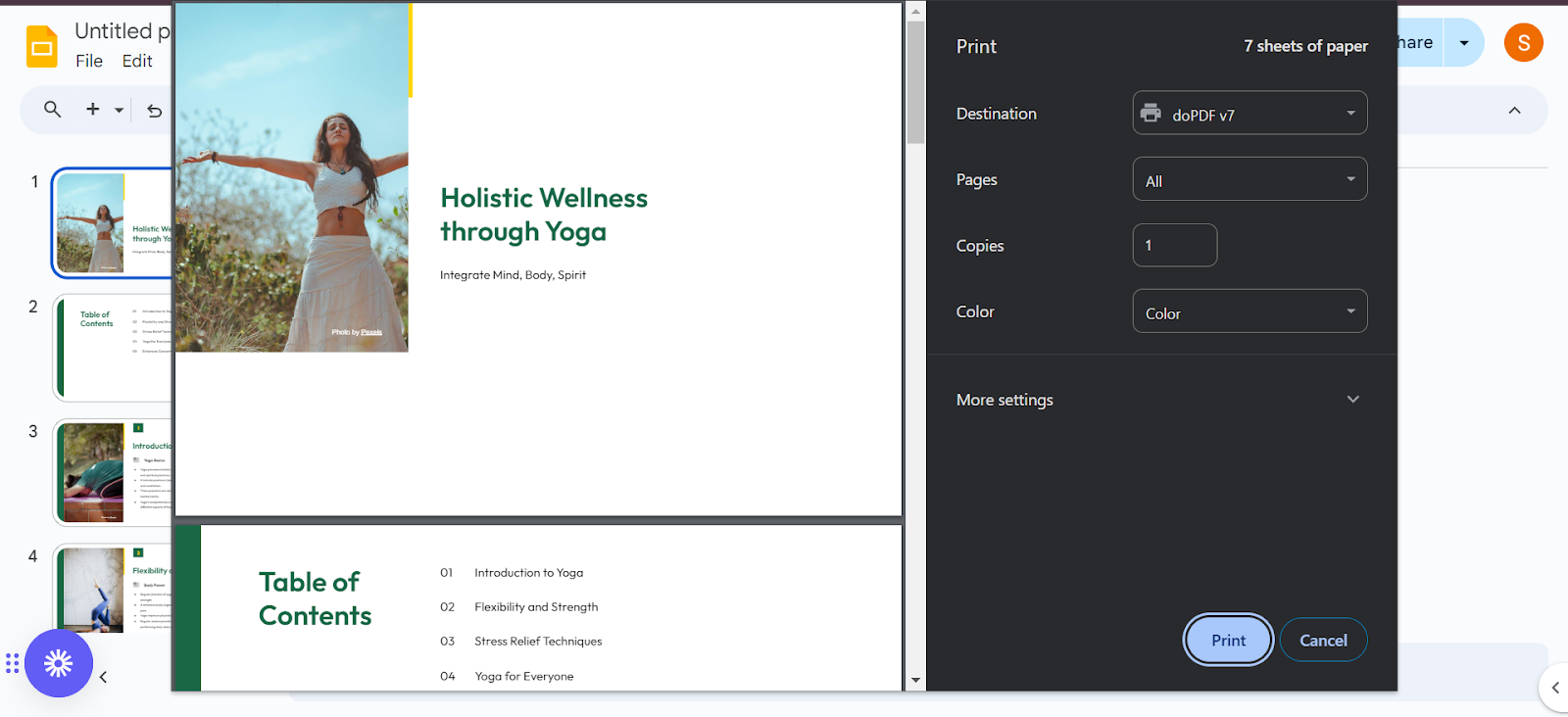
In the ‘Print settings and preview’ window, you will see several options:
- Change Layout: Click on the dropdown menu where it shows ‘1 slide without notes’. This will allow you to select different layouts for printing. Choose ‘1 slide with notes’ if you want to include your speaker notes, or select ‘4 slides horizontal’ or ‘4 slides vertical’ depending on how you want your slides to be arranged on each page.
- Scale to Fit: Check this option to scale your slides to fit the paper size you are using, ensuring that all content is printed without being cut off.
Step 5: Choose Your Printing Preferences
Before sending your slides to the printer, it’s important to adjust the settings to ensure the best quality. Click on the gear icon in the top right corner of the ‘Print settings and preview’ window. Here, you can select:
- Paper Size: Choose the paper size that matches what you have in your printer.
- Color: Select whether you want to print in color or in black and white.
- Orientation: Depending on how you've arranged the slides, choose either portrait or landscape orientation.
Step 6: Preview Your Slides
Always preview your slides before printing to catch any issues with layout or readability. Google Slides allows you to see a thumbnail preview on the left side of the screen. Scroll through to make sure everything looks good.
Step 7: Print Your Slides
After confirming that everything is set correctly in the preview, click on the ‘Print’ button. This will open your computer’s print dialog box. Select your printer, confirm the settings (like paper source and print quality), and then click ‘Print’.
Additional Tips
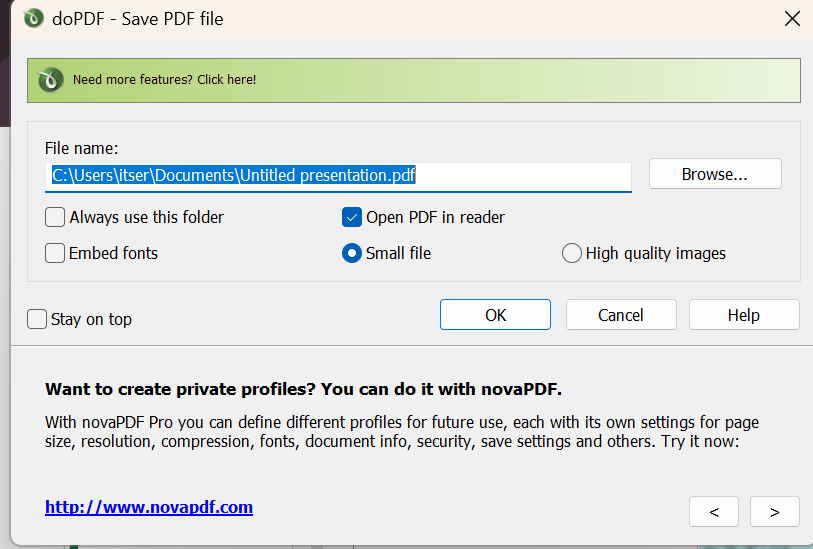
- Save as PDF: If you're not ready to print immediately or want a digital copy with four slides per page, you can choose the ‘Download as PDF’ option in the print settings. This is especially useful for sharing with others digitally.
- Test Print: Consider doing a test print on one page to ensure that your settings are correct before printing the entire presentation.
- Use Print-Friendly Themes: Some themes are more print-friendly than others, typically those with simple, high-contrast designs.
By following these steps, you can efficiently print your Google Slides presentation with four slides per page, making your handouts more resourceful and practical for any audience.


