How to print multiple slides on one page Google slides


Optimize your Google Slides printing for efficiency – learn how to print multiple slides per page
Step 1: Open Your Google Slides:
- Open your Google Slides presentation that you want to print.

Step 2: Click on the "File" Menu:
- In the top-left corner of the screen, click on the "File" menu.

Step 3: Select "Print":
- From the dropdown menu, click on "Print." This will open the print preview dialog.
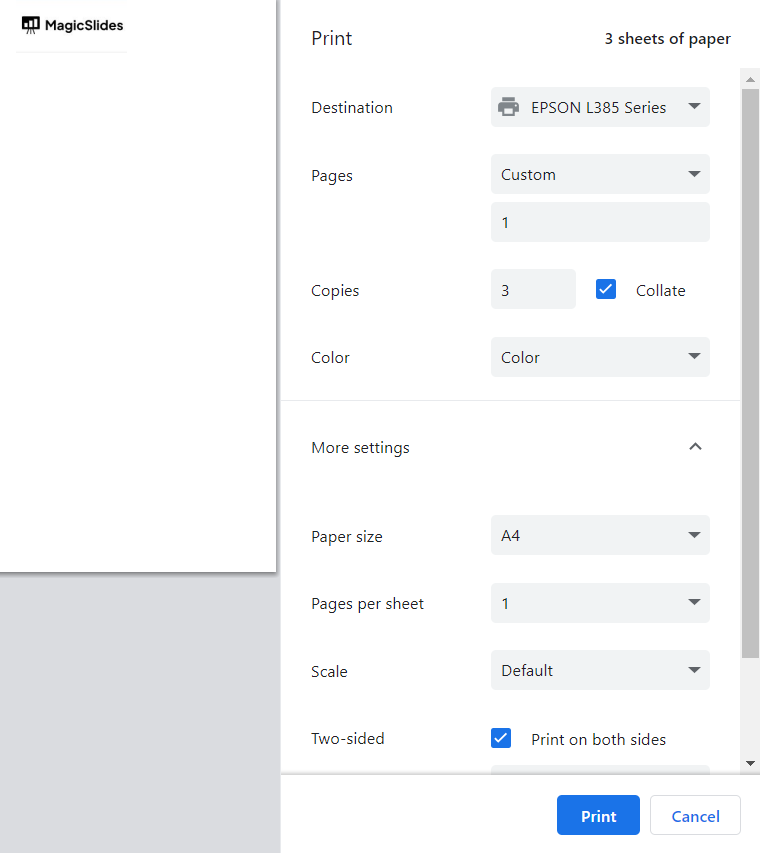
Step 4: Choose Multiple Slides per Page:
- Select the option that allows you to print multiple slides on a single page. This option will usually have settings like "2 slides per page" or "4 slides per page."
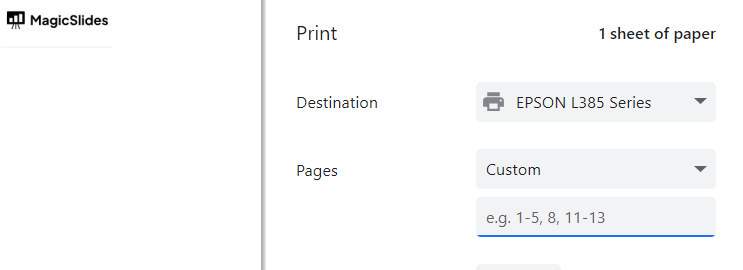
Step 5: Adjust Additional Settings:
- Depending on your printer settings, you might have additional options to adjust, such as the orientation, page margins, or scale.
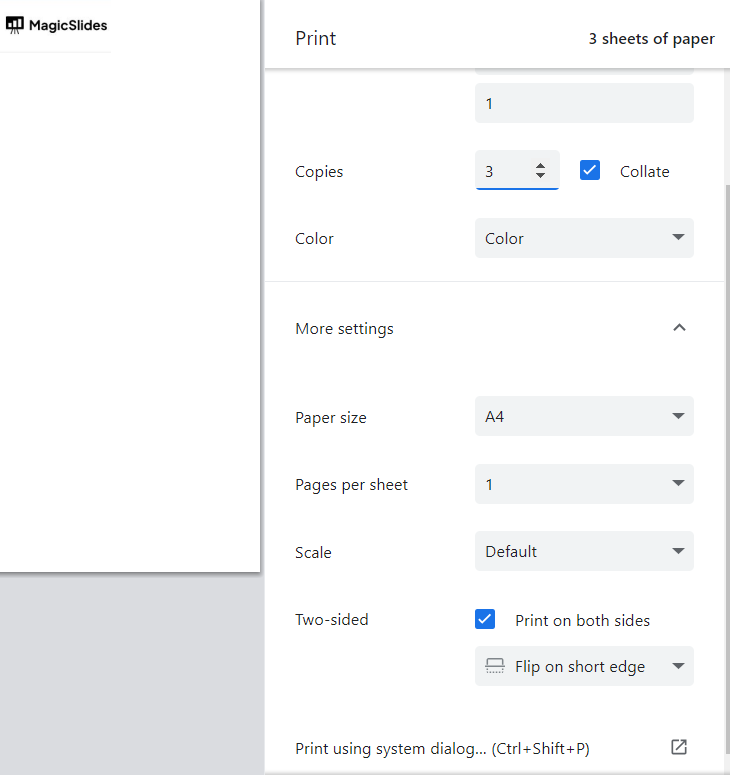
Step 6: Print the Slides:
- Once you're satisfied with the preview, click the "Print" button to send the slides to your printer.
Make sure to explore the print settings in your specific browser's print dialog to find the option to print multiple slides per page.


