How to Record a PowerPoint Presentation with Audio


Learn how to record engaging PowerPoint presentations with audio using this detailed, step-by-step guide.
PowerPoint presentations are a staple in business, education, and various professional fields. Enhancing them with audio can make your presentation more engaging and informative. Whether you're preparing for a virtual conference, a class lecture, or a business proposal, recording your PowerPoint with audio is a valuable skill to master. Here’s a comprehensive guide to help you do just that, with a mention of MagicSlides.app for those looking to enhance their presentation game.
Understanding the Importance of Audio in Presentations
Before diving into the "how-to," let's understand why adding audio to your PowerPoint presentations can be beneficial:
- Enhances Understanding: Audio explanations can help clarify complex points and ensure that your message is conveyed more effectively.
- Increases Engagement: A voice can add a personal touch and make the content more relatable and interesting.
- Facilitates Accessibility: For those who might find it challenging to read text on slides, audio provides an alternative means to access information.
- Saves Time: Audio can cover details quickly that would take longer to read, making your presentation more efficient.
Preparing Your Content for Recording
- Script Your Audio: Before you start recording, it's helpful to write a script for what you intend to say. This ensures that your presentation remains structured and you cover all necessary points without unnecessary rambling.
- Review Your Slides: Make sure that your slides are well-organized and visually aligned with the audio. Each slide should complement the spoken content, not contradict or confuse it.
- Practice Your Delivery: A few practice runs can help you smooth out any awkward phrases and get comfortable with the flow of your presentation.
How to Record Audio in PowerPoint
Here's a step-by-step guide to recording audio directly in Microsoft PowerPoint:
Step 1: Set Up Your Equipment
Ensure your microphone is connected and functioning. If possible, use an external microphone for clearer quality audio.
Step 2: Open Your Presentation
Launch PowerPoint and open the presentation you wish to record.
Step 3: Access the Recording Feature
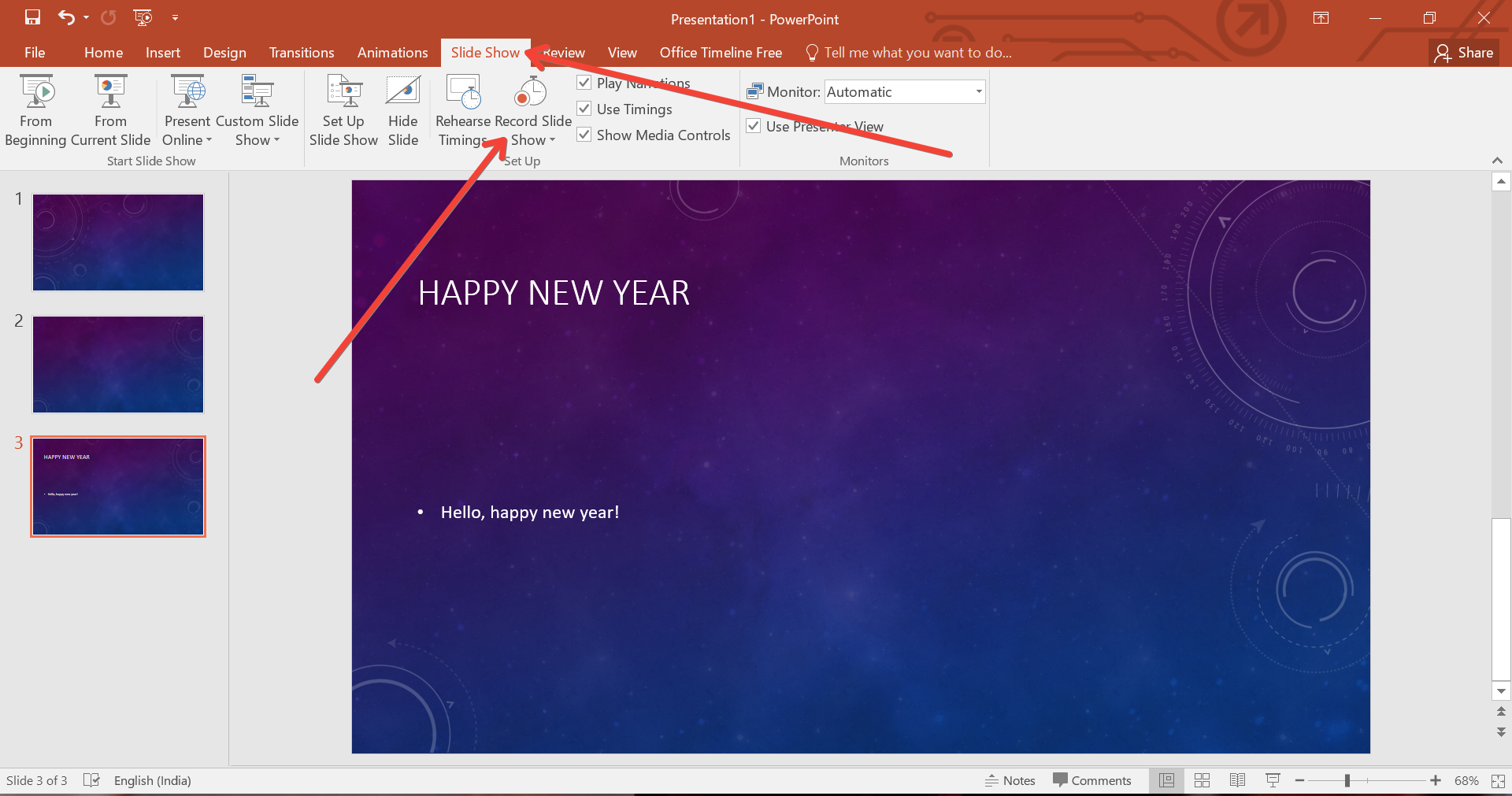
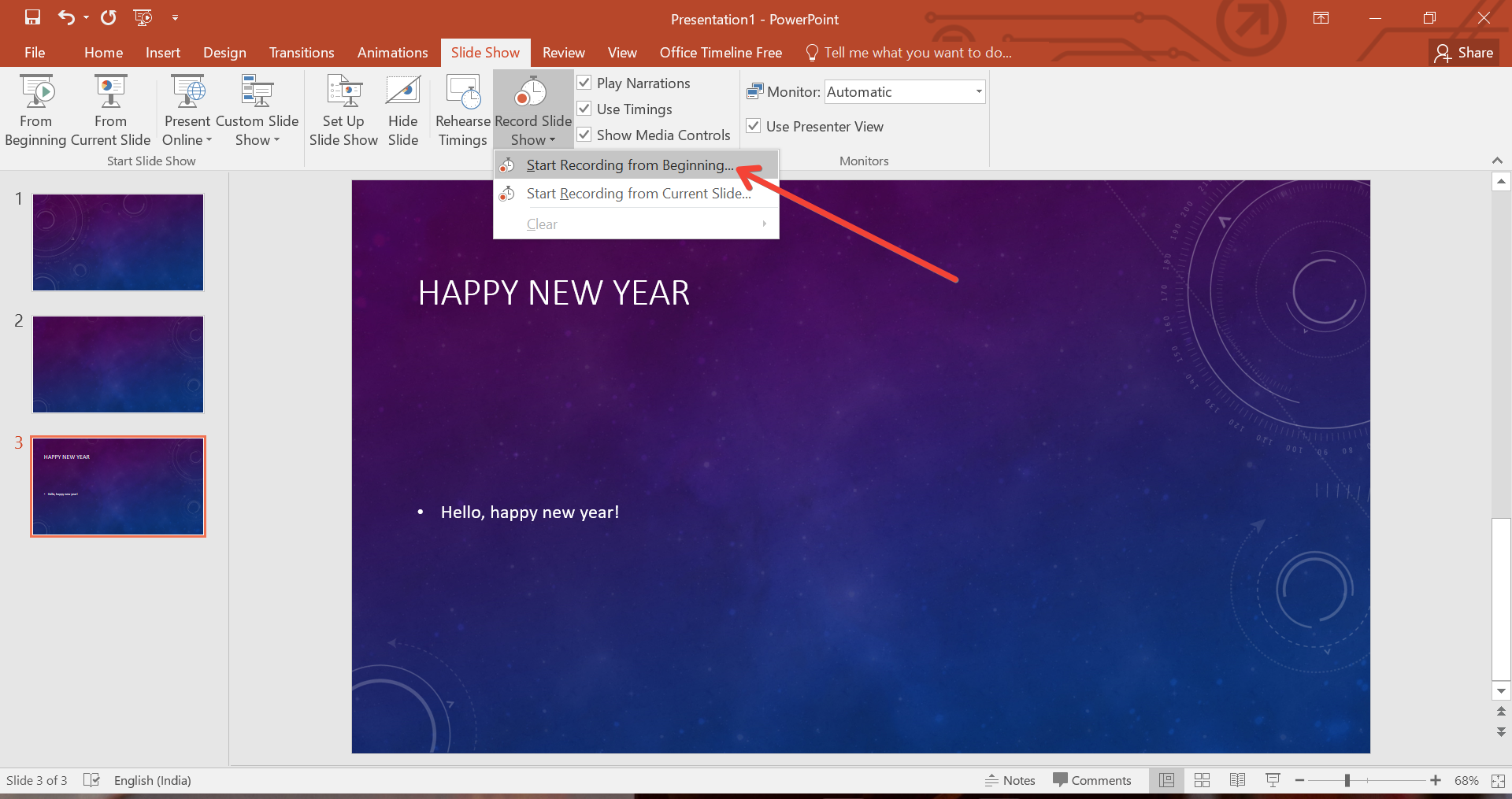
Navigate to the “Slide Show” tab in the ribbon and click on “Record Slide Show.” You can choose to start recording from the beginning or from a specific slide.
Step 4: Record Your Audio
Click the “Record” button, which typically looks like a red dot. As you record, advance the slides at your natural pace. You can pause and resume recording as needed.
Step 5: Save Your Recording
Once you finish recording, PowerPoint automatically saves your audio clips with your slides. Make sure to save your entire presentation once you’re done.
Step 6: Review and Edit
Play your presentation to ensure the audio aligns well with the slides. You can re-record specific slides if necessary.
Enhancing Presentations with MagicSlides.app
While PowerPoint offers robust features, platforms like MagicSlides.app can elevate your presentation. MagicSlides.app allows users to create dynamic, visually appealing presentations easily. The platform supports seamless integration of various multimedia elements, including audio, making it an excellent tool for those looking to make an impact without extensive design skills.
Exporting and Sharing Your Recorded Presentation
Once your presentation is recorded with audio, you'll want to share it:
- Save as a Video: PowerPoint allows you to export your presentation as a video file, which will include your audio recordings.
- Share Directly: You can also share the PowerPoint file directly, but ensure the recipients have the necessary software to view the presentation as intended.
Conclusion
Recording a PowerPoint presentation with audio is not just about delivering information; it's about creating an engaging, accessible, and effective communication experience. Whether you're using PowerPoint’s native features or enhancing your presentation with tools like MagicSlides.app, the key is preparation and practice. With these tips, you’re ready to deliver powerful, audio-enhanced presentations that can captivate and inform any audience.


