How to remove someone from Slack direct message


Optimize direct messaging: Learn how to smoothly remove members from Slack conversations for efficient team communication.
Effective collaboration often involves direct communication, and Slack's direct messages are crucial in fostering quick and focused discussions.
However, there may be instances where you need to remove a member from a direct message. This guide will walk you through each step, offering a seamless process for refining your direct message conversations and maintaining clarity in team communication.
Before we begin, if you are looking to send Google form submissions directly to Slack, check SlackNotify.app
How to Remove Someone from a Direct Message in Slack:
Open the Direct Message Conversation:
Open your Slack workspace Begin by opening the direct message conversation from which you want to remove a member.

Click on the Channel Name or Member List:
In the header of the direct message window, click on the channel name or the list of members. This will open the member list.
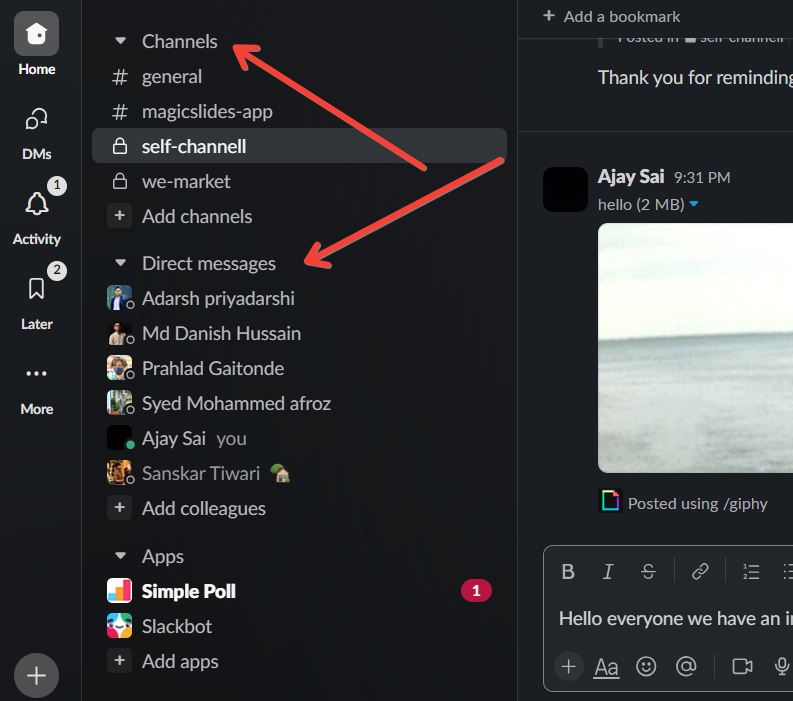
Find and Click on the Member's Name:
Scroll through the member list and locate the name of the person you want to remove. Click on their name to select it.
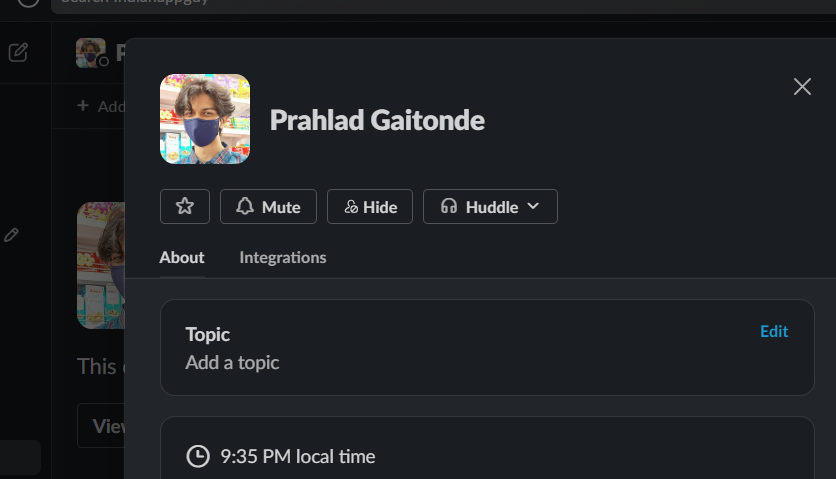
Access Member Options:
Once the member's name is selected, a menu of options will appear. Look for and click on the option that says "Remove from Conversation."
Confirm the Removal/ Add People to Conversation:
Slack will prompt you to confirm the removal. Confirm the action to remove the selected member from the direct message conversation.
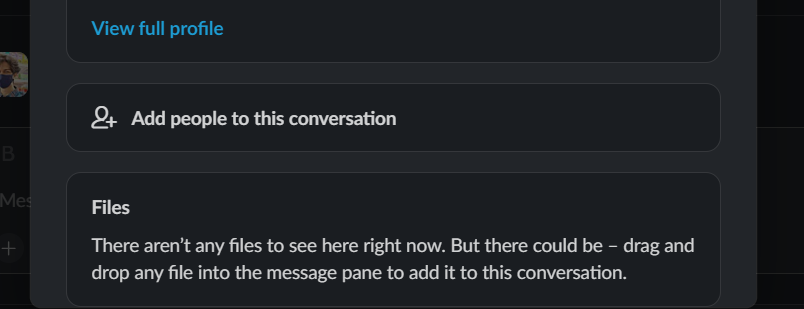
Optional: Add New Members or Continue Conversation:
If necessary, you can add new members to the direct message or continue the conversation with the adjusted group.
Conclusion:
Clear and focused communication is pivotal in team dynamics, and the ability to manage direct message conversations in Slack contributes to this clarity. By following these steps, you can effortlessly remove a member from a direct message, ensuring that your conversations remain relevant and distraction-free. This guide empowers you to refine your direct message groups, creating a tailored environment for effective one-on-one or small group discussions. Mastering this skill allows you to adapt your communication channels dynamically, enhancing the overall efficiency of your team collaboration.
Frequently Asked Questions:
Can a member know if they've been removed from a direct message on Slack?
No, Slack does not notify members when they are removed from a direct message conversation.
Can I add someone back after removing them from a direct message?
Yes, you can add someone back to a direct message conversation by inviting them as a participant.
What happens to shared files and messages when someone is removed from a direct message?
The removed member loses access to shared files and messages; however, the content remains visible to other participants.
Is there a limit to the number of members in a direct message conversation on Slack?
Slack allows up to eight members in a direct message conversation, including the person who initiated the conversation.


