How to upload a Microsoft PowerPoint to canva in few simple clicks


PowerPoint might limit us in doing few things, to rather expore our creativity we might have to use Canva and here is a simple guide.
Canva allows you to import PowerPoint presentations for further editing and design. Here's how you can upload a PowerPoint presentation to Canva:
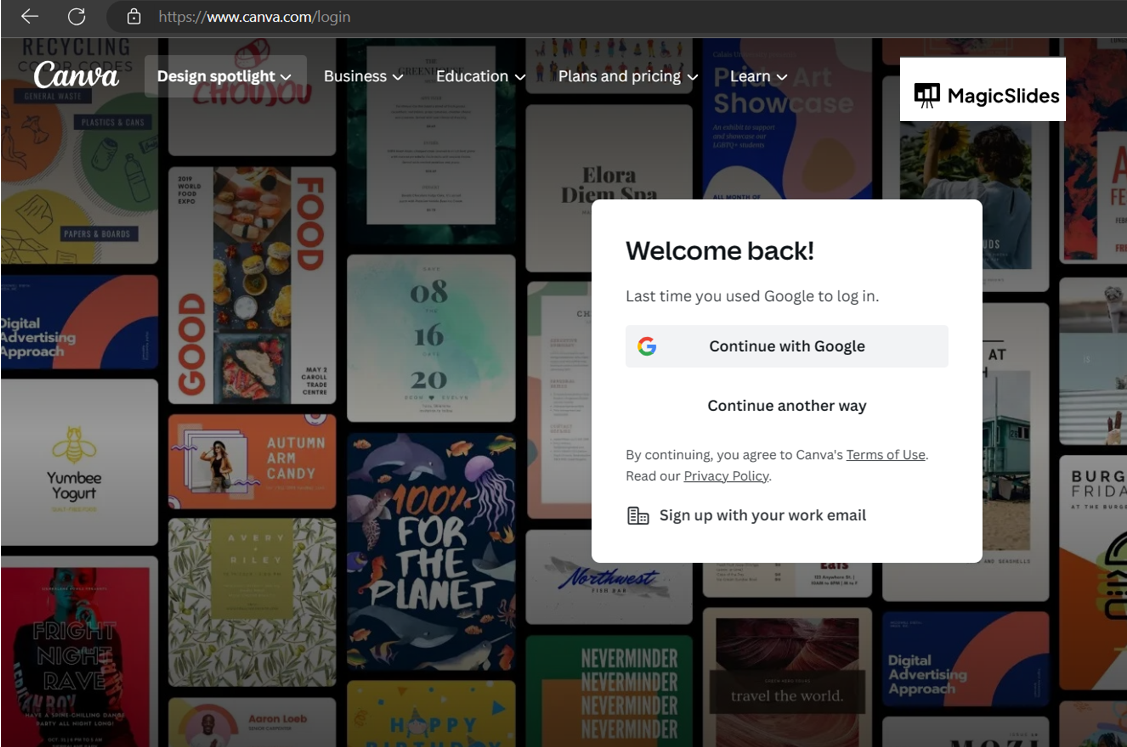
- Sign In or Create an Account:
- Go to the Canva website (www.canva.com) and either sign in to your existing account or create a new account if you don't have one.
- Start a New Project:

- After signing in, you'll be taken to your Canva homepage.
- Click on the "Create a design" button. This will open a list of design options.
- Choose Custom Dimensions:
- In the design options list, scroll down and click on "Custom dimensions."
- Enter the dimensions that match the slide size of your PowerPoint presentation. Typically, PowerPoint slides are in a 4:3 or 16:9 aspect ratio.
- Upload PowerPoint:
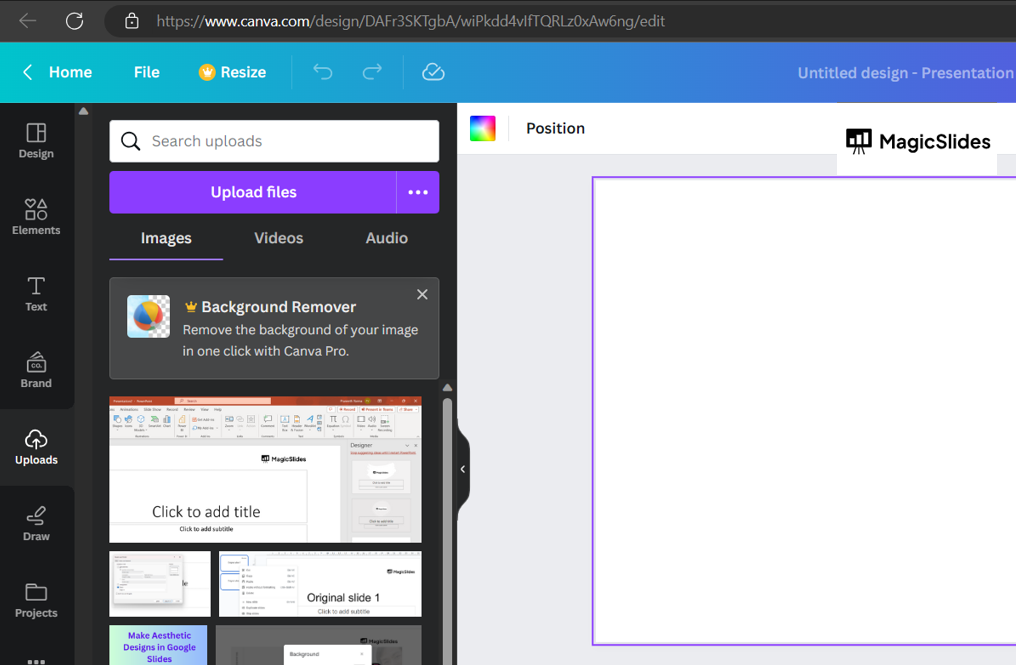
- Once you've selected the custom dimensions, you'll be taken to the Canva design interface.
- Click on the "Uploads" tab on the left-hand sidebar.
- Click on the "Upload an image or video" button.
- Locate and select your PowerPoint presentation file from your computer. Canva will then upload the presentation.
- Edit the Slides:
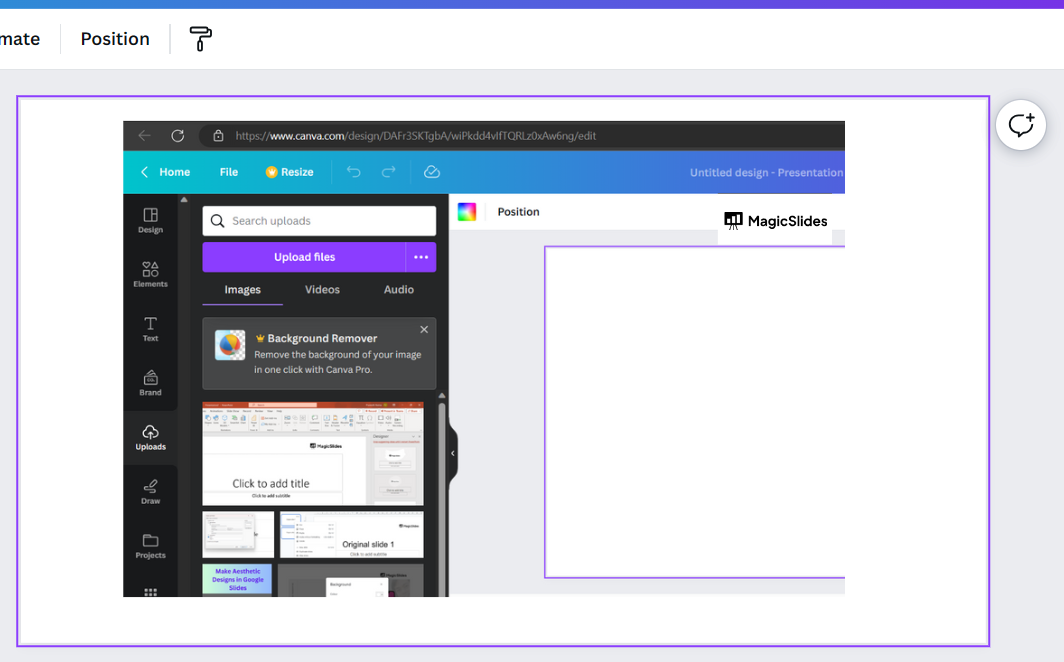
- Once your PowerPoint presentation is uploaded, you'll see each slide as an individual image in the "Uploads" tab.
- Drag and drop the slides onto your Canva canvas.
- You can now edit each slide individually, adding elements, text, images, and other design elements.
- Design and Save:
- Customize each slide to your liking using Canva's tools and features.
- Once you're done designing and editing, click on the "Download" button in the top-right corner to save your design.
Please note that Canva's features and interface might have changed since my last update. Always refer to Canva's official support or documentation for the most up-to-date instructions on uploading PowerPoint presentations and using their platform.


