What are the Pixel Dimensions of a Google Slide


Easily customize Google Slides by learning its default pixel dimensions and how to adjust them
What Are the Pixel Dimensions of a Google Slide and How to Change It?
Google Slides has a default slide size, but you may need to change the dimensions for different presentations, such as posters, banners, or social media graphics.
Understanding pixel dimensions and how to customize them ensures your slides look perfect across all platforms.
Follow this guide to learn the default Google Slides pixel dimensions and how to modify them.
Default Pixel Dimensions of a Google Slide
Google Slides uses a default aspect ratio of 16:9, which translates to:
- Standard HD: 1920 x 1080 pixels
- 4:3 aspect ratio (Standard Presentation): 1024 x 768 pixels
- 16:10 aspect ratio: 1280 x 800 pixels
If you need custom dimensions for print or digital use, you can modify the slide size using the steps below.
How to Change Google Slide Dimensions
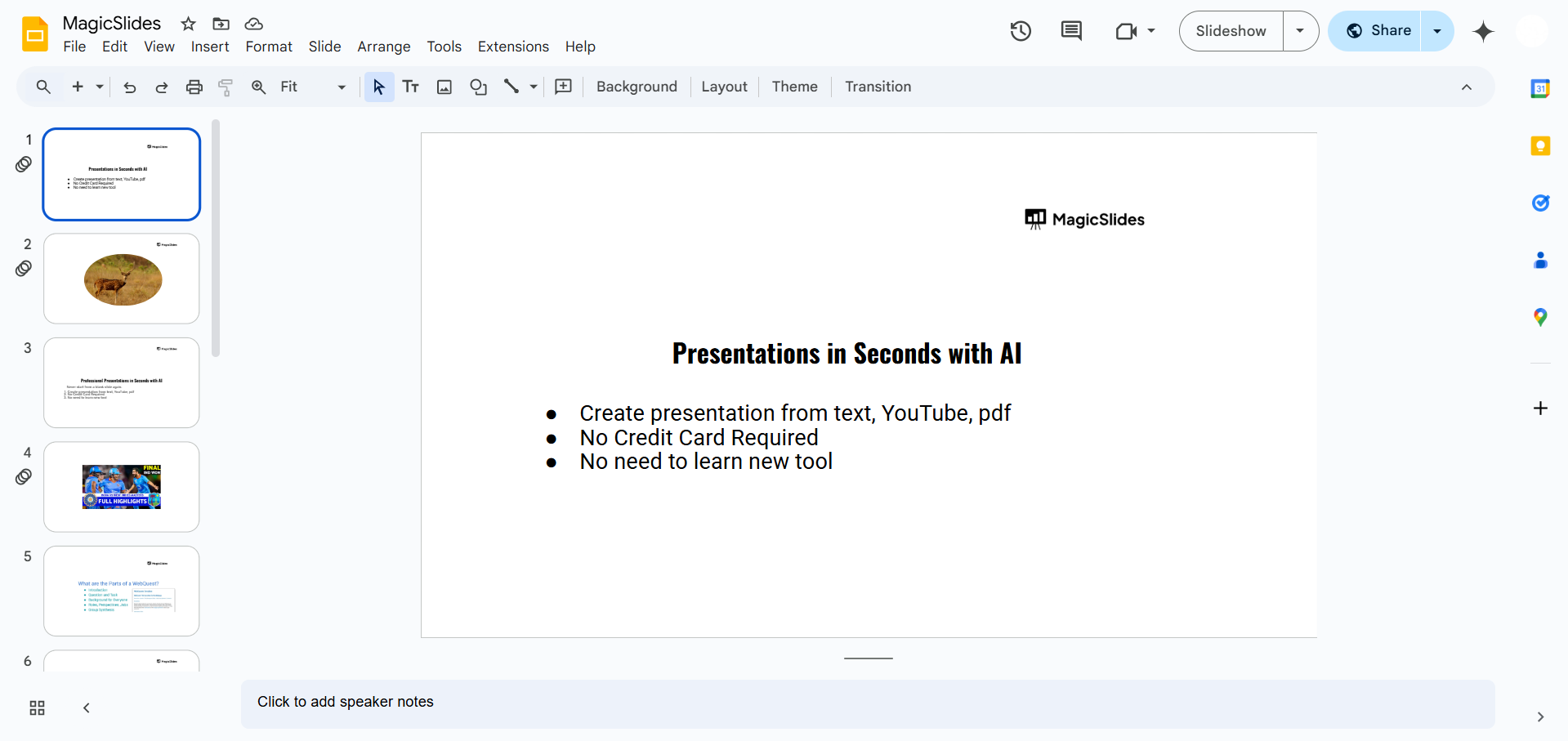
Step 1: Open Your Google Slides Presentation
Go to Google Slides. Open an existing presentation or create a new one by visiting slide.new.
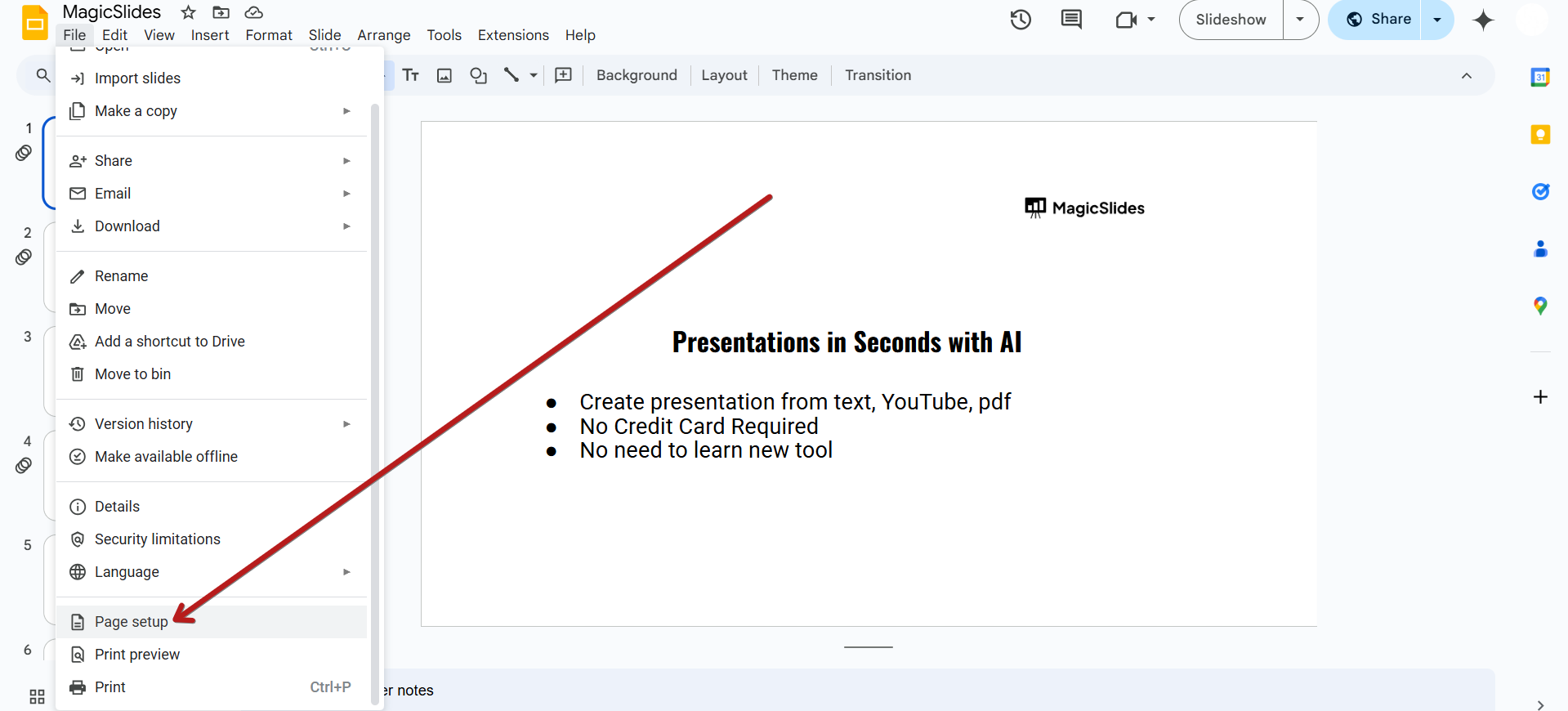
Step 2: Access the Page Setup Option
Click File in the top menu. Scroll down and select Page setup from the dropdown menu.
Step 3: Choose a Custom Slide Size
A Page setup window will appear with a default aspect ratio (usually Widescreen 16:9).
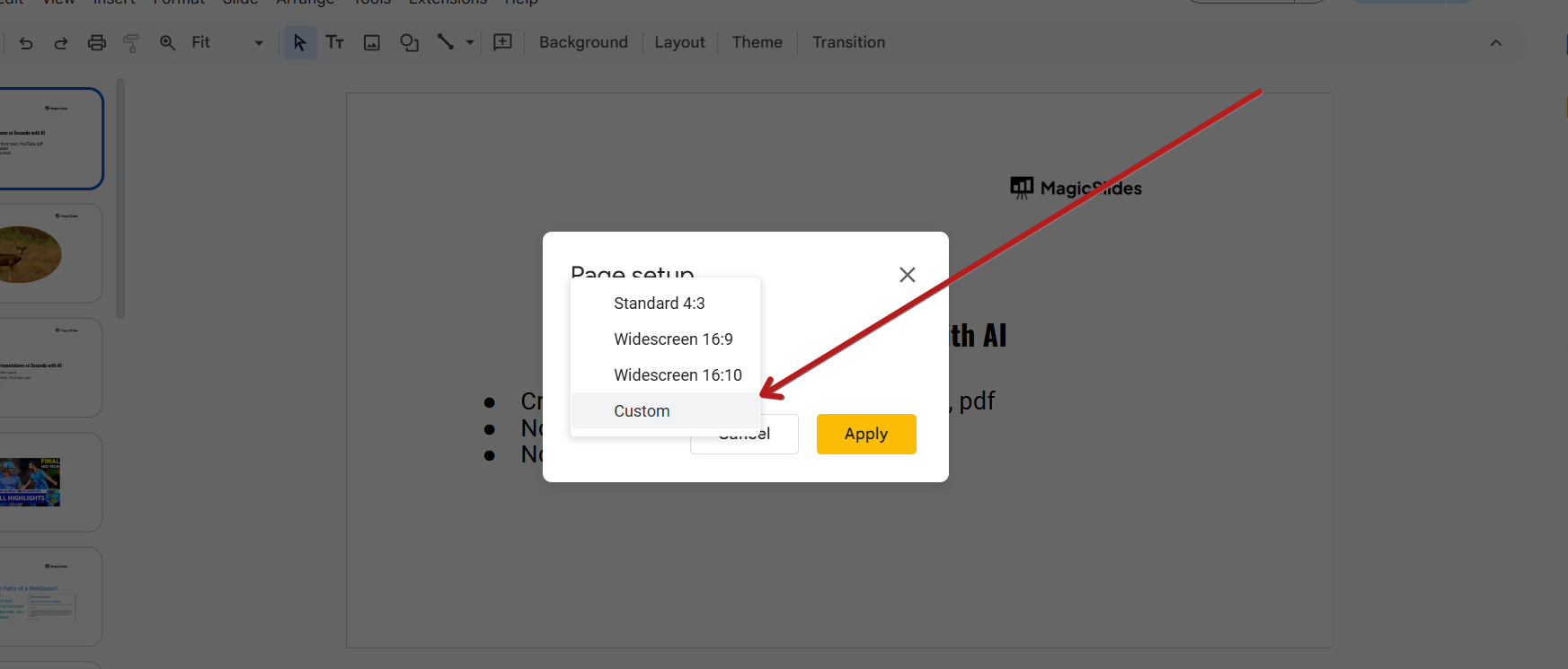
Click the dropdown and select Custom.
Step 4: Enter Your Desired Dimensions
Type in your preferred dimensions. You can enter values in:
To convert pixels to inches, use the 96 pixels = 1 inch rule. Example:
- For 1920 x 1080 pixels, enter 20 x 11.25 inches.
- For 1024 x 768 pixels, enter 10.67 x 8 inches.
Click Apply to save your changes.
Step 5: Adjust Content to Fit the New Slide Size
After changing the slide dimensions, some elements may be misplaced. Manually resize and reposition images, text boxes, and other objects to fit the new layout.
Knowing Google Slides’ dimensions helps in design accuracy, but why not let AI handle it for you? With MagicSlides.app, you can create beautifully structured slides in seconds!
Conclusion
Google Slides defaults to a 16:9 (1920×1080 px) aspect ratio, but you can customize the dimensions based on your needs.
Whether you're designing a poster, a presentation, or a social media post, adjusting slide size ensures your content fits perfectly.
Follow these simple steps to modify Google Slide dimensions and create a visually appealing presentation.
FAQs can come handy!
Can I set Google Slides to a specific pixel size?
Google Slides does not allow direct input in pixels, but you can convert pixels to inches using the 96 pixels = 1 inch rule and enter the equivalent value in the custom page setup.
What is the best size for a Google Slides presentation?
For most presentations, the 16:9 ratio (1920 x 1080 px) works best, as it's compatible with most screens. However, for print materials, adjust to a standard paper size (e.g., 8.5 x 11 inches).
Will changing slide dimensions affect my existing content?
Yes, resizing may cause content misalignment. After changing dimensions, manually adjust images, text boxes, and other elements to ensure proper formatting.


