What Frame Rate is Google Slides


Discover how Google Slides handles frame rates and ensures smooth animations and video playback
What Frame Rate Is Google Slides?
Google Slides is a powerful tool for creating presentations, but when it comes to animations and embedded videos, understanding its frame rate is crucial.
Unlike video editing software, Google Slides does not operate on a fixed frame rate, but animations and transitions still follow a smooth playback process.
In this guide, we’ll explore the frame rate of Google Slides and how it impacts your presentation.
Understanding Frame Rate in Google Slides
Step 1: Does Google Slides Have a Defined Frame Rate?
- Google Slides does not have a standard, user-defined frame rate like video editing tools.
- Animations and transitions generally run at around 30 frames per second (FPS), depending on device performance and browser settings.
- Videos embedded in Google Slides play at their original frame rate, which can be 24 FPS, 30 FPS, or 60 FPS based on the source.
Step 2: Factors That Affect Google Slides Animation Smoothness
- Browser Performance – Google Chrome, Firefox, and Edge may render animations differently.
- Device Hardware – High-performance devices handle animations more smoothly than older computers.
- Internet Speed – Slow connections may cause embedded videos to stutter or buffer.

- Slide Complexity – Using multiple animations, images, and transitions can affect smoothness.
Step 3: How to Ensure Smooth Animations in Google Slides
To optimize animation playback:
Use simple transitions – Stick to basic animations like "Fade" instead of complex effects.
Limit the number of animated objects – Too many elements can slow down the presentation.
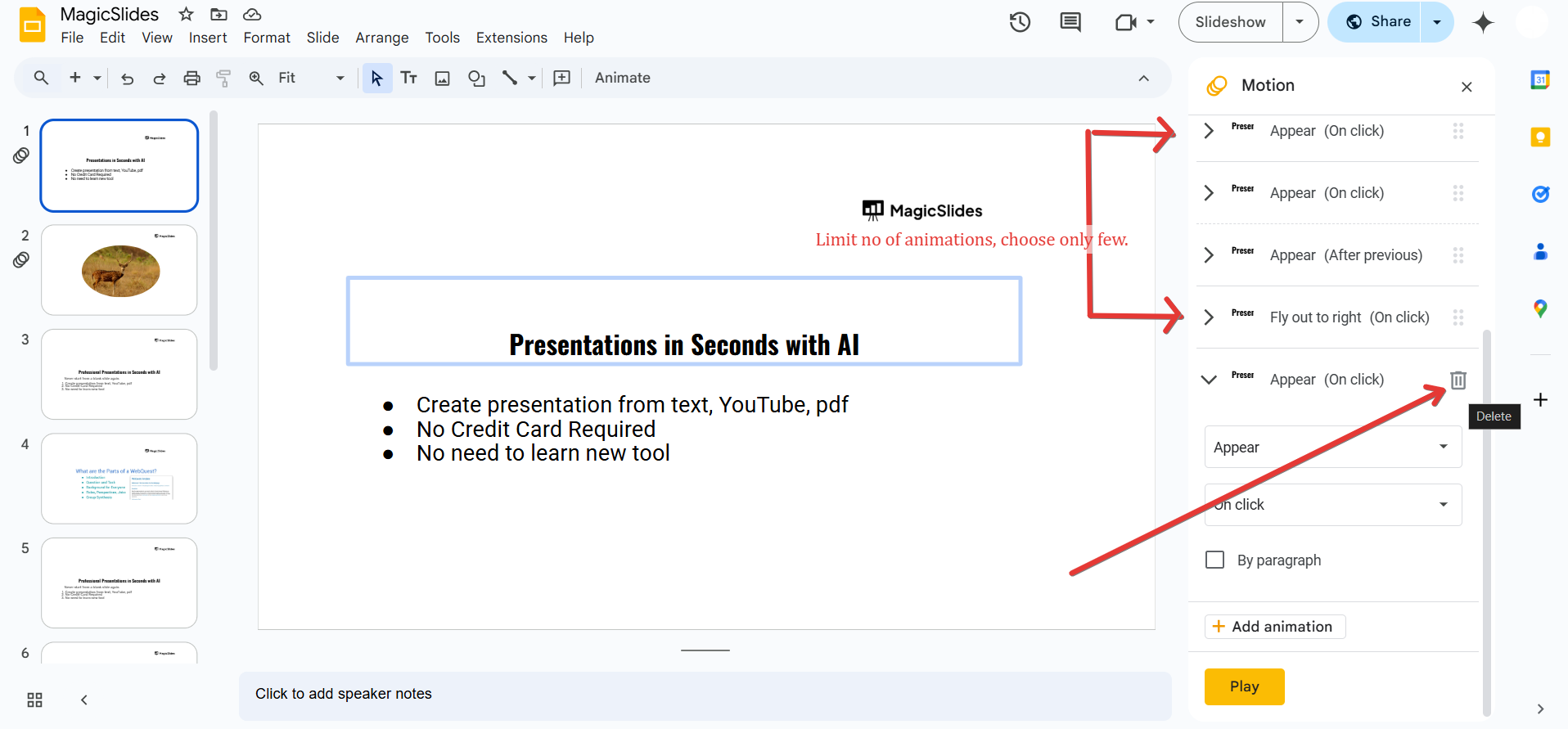
Check your browser settings – Ensure hardware acceleration is enabled for better performance.
Use embedded videos wisely – Upload videos to YouTube for smoother playback rather than inserting large video files directly.
Step 4: Testing Animation Speed in Google Slides
- Preview animations by clicking Present mode and observing their playback.
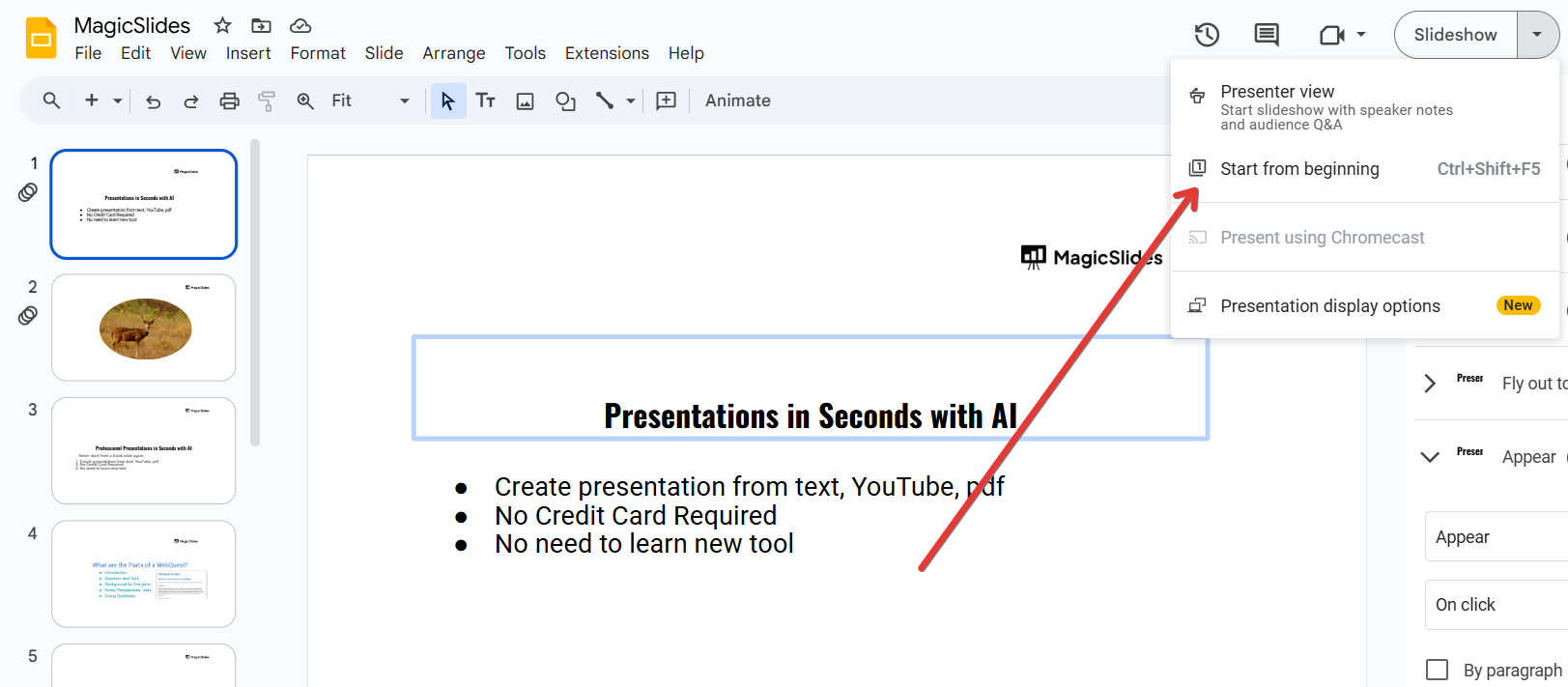
- Adjust animation timing in the Animation panel to ensure smooth transitions.
- If a presentation lags, try reducing animation effects or using a different browser.
Google Slides doesn’t have a fixed frame rate, but smooth transitions and animations depend on your device and browser.
Want to create high-quality, animated presentations effortlessly? Check out MagicSlides.app!
Conclusion
While Google Slides does not have a fixed frame rate, animations generally run at 30 FPS, depending on the browser and device performance.
Embedded videos retain their original FPS, and optimizing animations ensures a smoother presentation experience.
FAQs About Google Slides Frame Rate
Can I change the frame rate in Google Slides?
No, Google Slides does not allow users to adjust the frame rate, but optimizing animations can improve smoothness.
Why do animations lag in Google Slides?
Animations may lag due to device performance, internet speed, or complex slide elements. Try simplifying transitions for better playback.
Do embedded videos in Google Slides maintain their original frame rate?
Yes, embedded YouTube or uploaded videos retain their original FPS (e.g., 24 FPS, 30 FPS, or 60 FPS).
Now you know how Google Slides handles frame rates and how to ensure smooth animations in your presentations! 🚀


