What is Slide Layout in PowerPoint


Discover how PowerPoint’s Slide Layouts organize your content, ensuring visually appealing and structured presentations
Slide Layout in PowerPoint refers to predefined templates that determine the structure, placement, and arrangement of content elements like text, images, charts, and videos on a slide.
These layouts make it easy to create professional-looking presentations by maintaining consistency and organization throughout your slides.
In this guide, we’ll explain how to use slide layouts effectively in PowerPoint and why they are an essential feature for creating impactful presentations.
What is Slide Layout in PowerPoint? | Steps to Use Slide Layout in PowerPoint
Step 1: Open Your PowerPoint Presentation
Launch PowerPoint and open an existing presentation or create a new one.
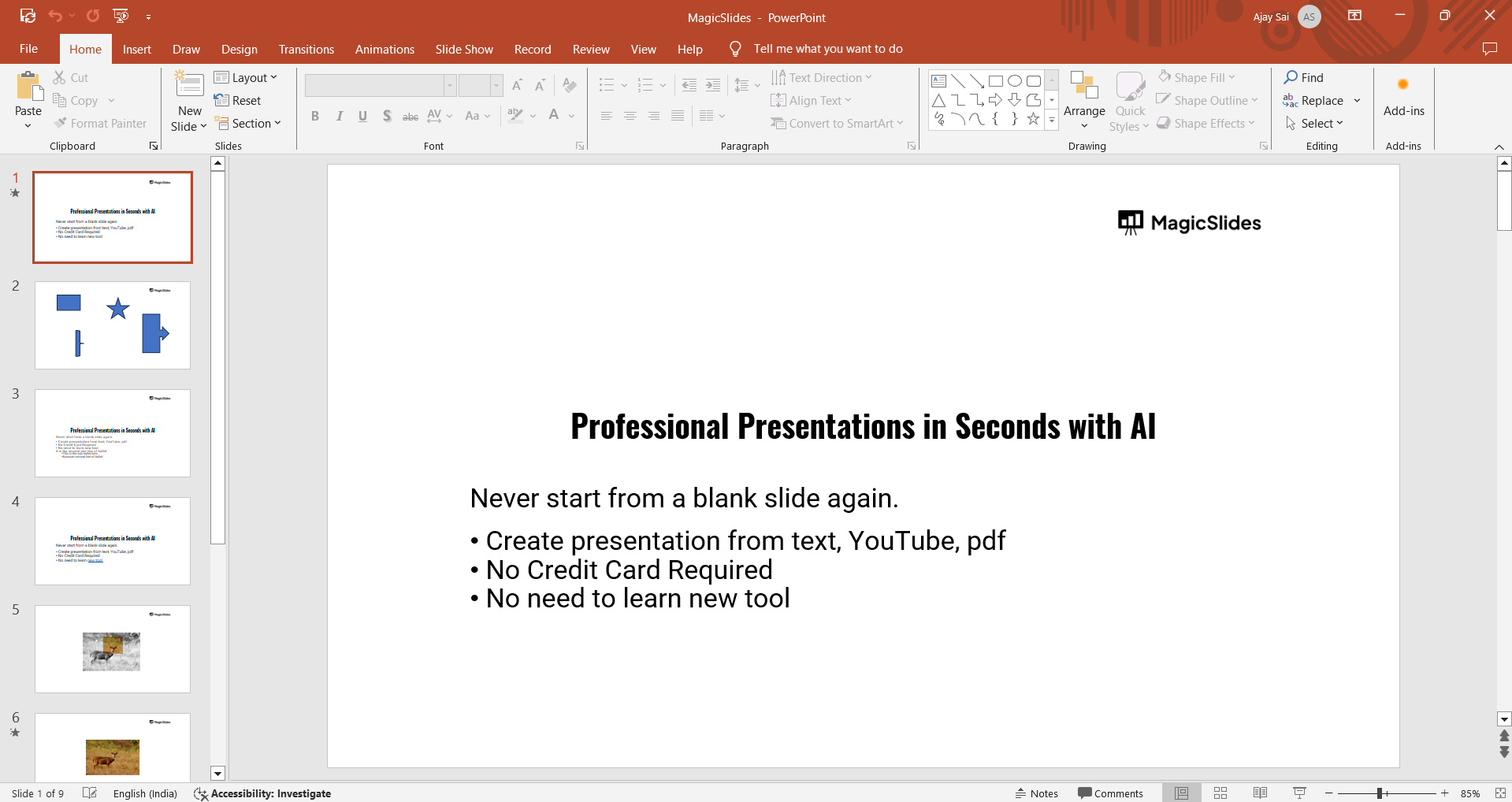
Navigate to the slide where you want to apply or modify a layout.
Step 2: Access the Slide Layout Options
Go to the Home tab in the PowerPoint ribbon.
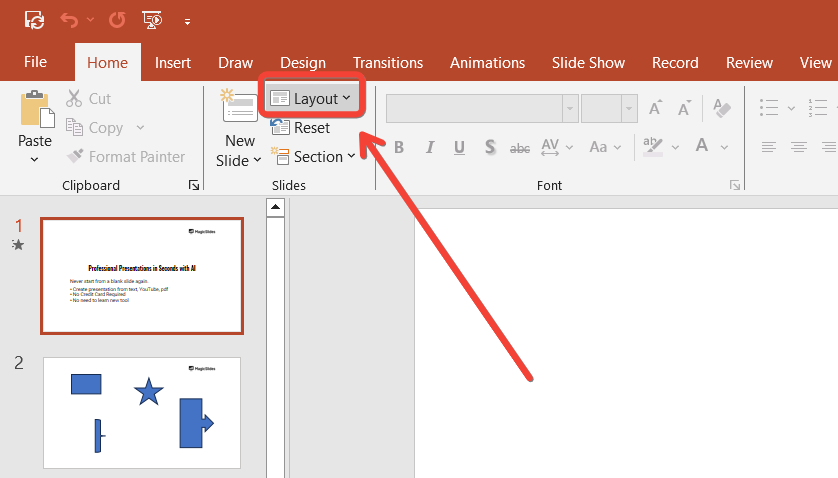
Click on the Layout button in the Slides group to open the Slide Layout menu.
Step 3: Choose a Suitable Layout
Browse through the available layouts, such as Title Slide, Title and Content, Two Content, Comparison, or Blank.
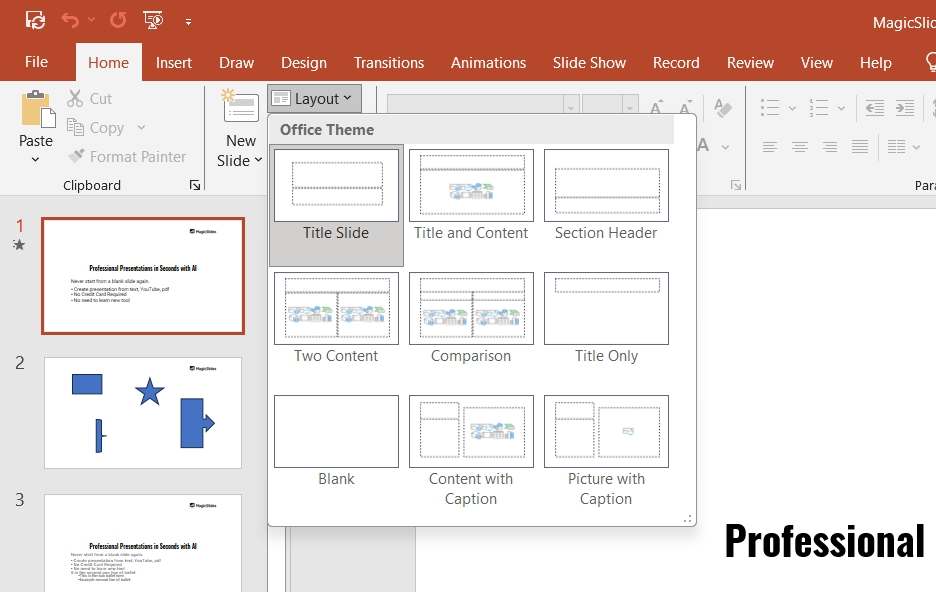
Select a layout that best suits the content you want to present on the slide.
Step 4: Apply the Layout
Click on the chosen layout to apply it to the selected slide.
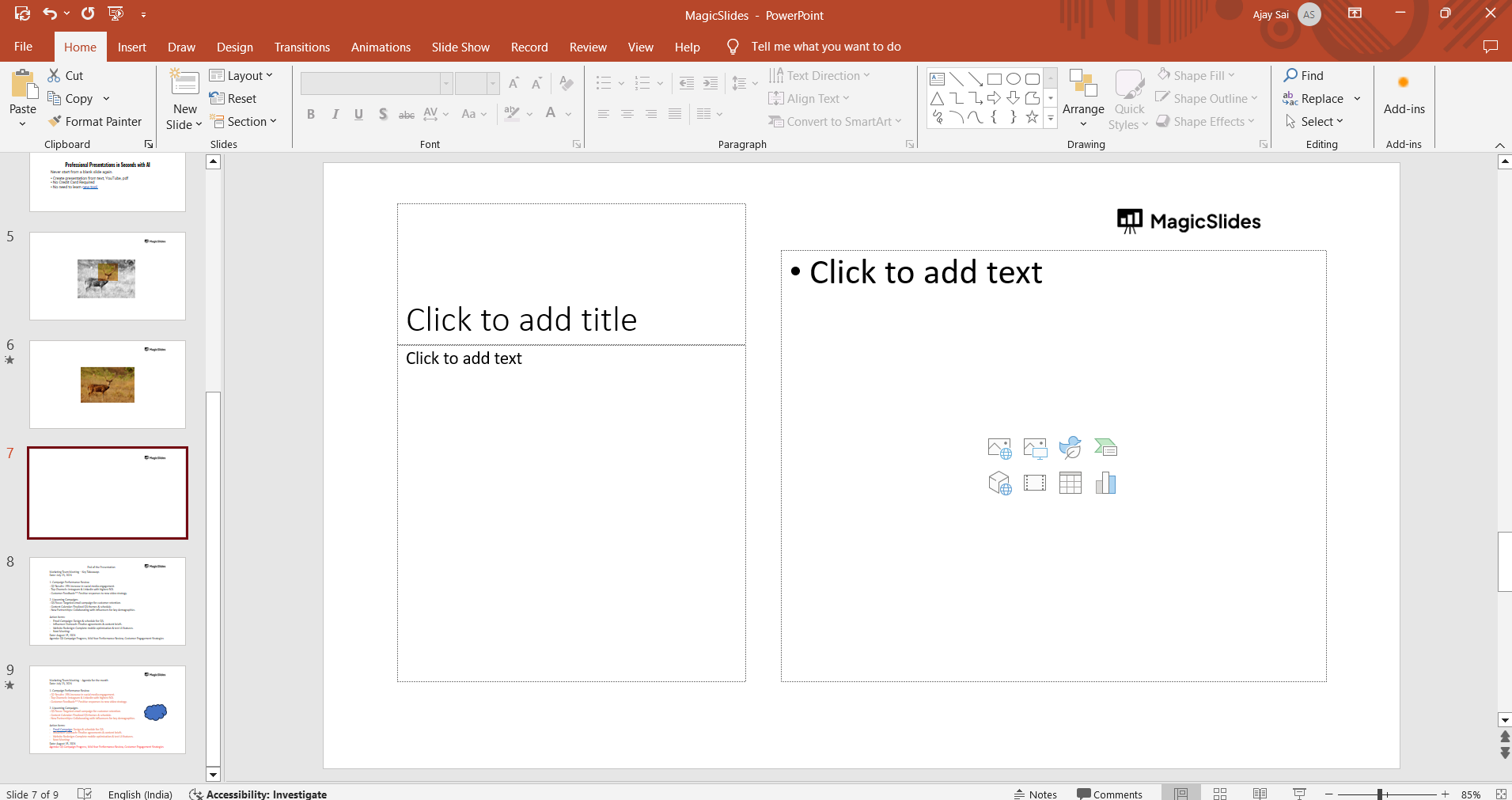
The slide will automatically adjust to the chosen layout, rearranging placeholders for text, images, or other elements.
Step 5: Customize the Layout (Optional)
Modify the placeholders as needed add text, images, charts, or other content.
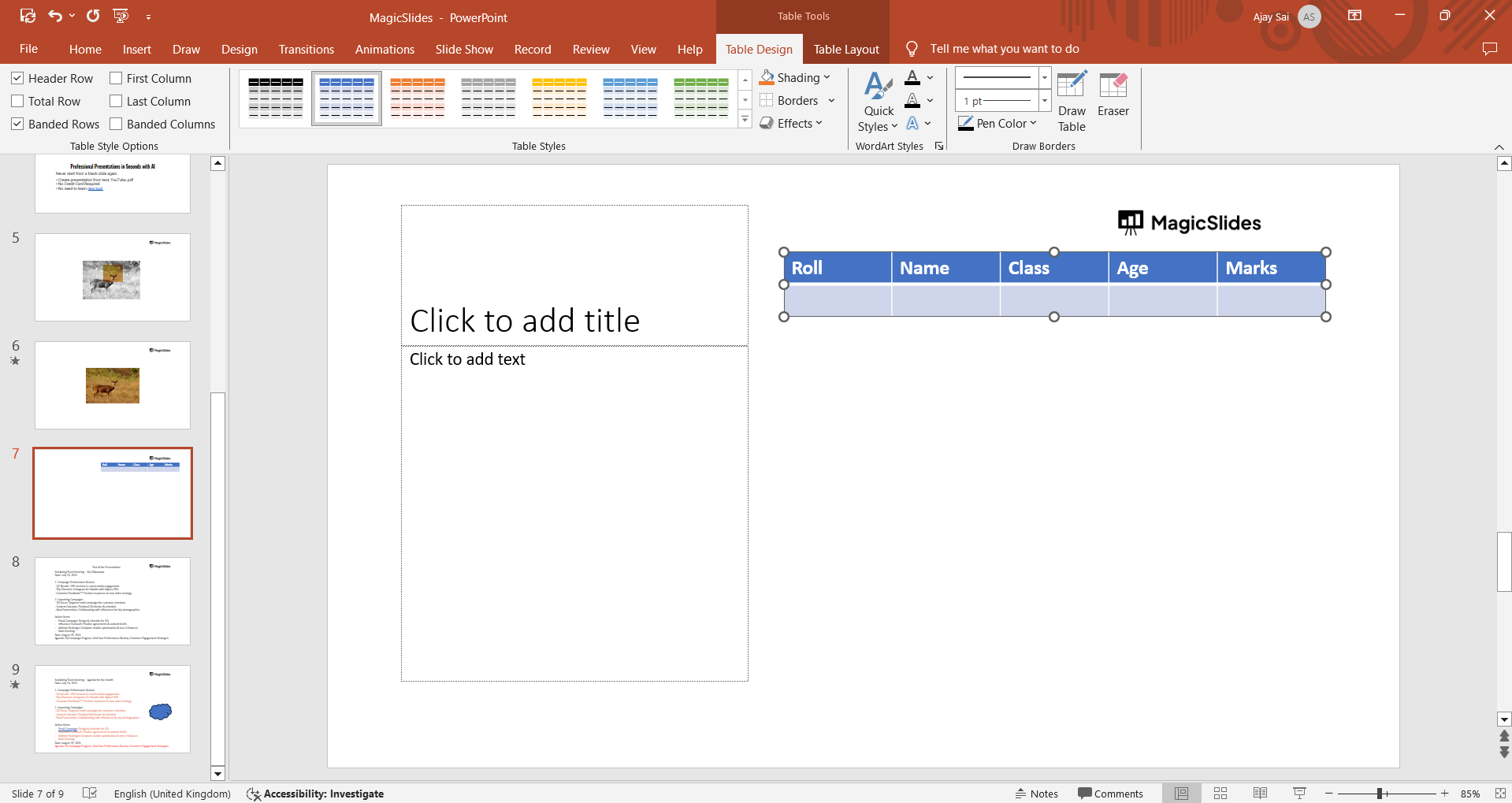
Resize or reposition placeholders for a customized look, while still maintaining the overall structure of the layout.
Step 6: Save Your Presentation
Once your slide layout is finalized, save your presentation by clicking File > Save As or pressing Ctrl+S (Windows) or Command+S (Mac).
Conclusion
Slide Layouts in PowerPoint are a vital tool for creating visually appealing and organized presentations.
They simplify the process of arranging content, ensuring consistency across all slides.
By choosing the right layout for your content, you can communicate your ideas more effectively and maintain a polished look throughout your presentation.
FAQs on Slide Layout in PowerPoint
Can I create custom slide layouts in PowerPoint?
Yes, you can create custom layouts using the Slide Master view, which allows you to design layouts tailored to your specific needs.
Can I change the layout of a slide after adding content?
Absolutely! Changing the layout will rearrange the existing content into the new layout’s placeholders. Some manual adjustments might be needed for a perfect fit.
Is Slide Layout available in all versions of PowerPoint?
Yes, the Slide Layout feature is available in all modern versions of Microsoft PowerPoint, including online and mobile versions.
Using Slide Layouts effectively can save time and ensure your presentations have a professional and cohesive appearance.


