What is the File Extension of a PowerPoint Document?


Learn about PowerPoint file extensions and how they impact saving, sharing, and editing your presentations
When working with Microsoft PowerPoint, it's important to understand the different file extensions associated with PowerPoint documents. These file extensions not only determine how your presentation is saved but also dictate how it can be opened, shared, and edited.
Whether you're saving a standard presentation, a template, or a slideshow, knowing the appropriate file extension will help you manage your files more effectively.
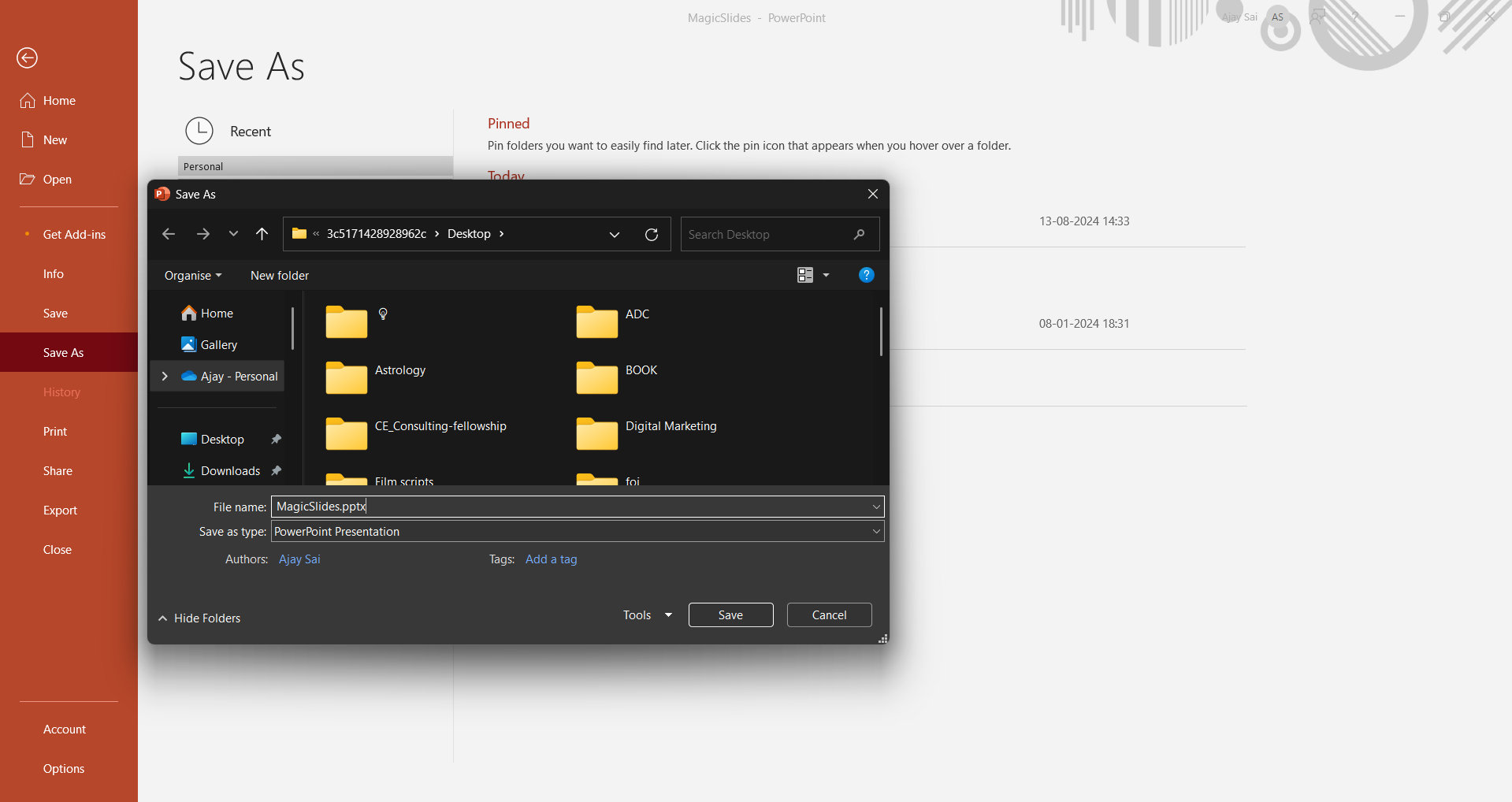
In this blog post, we'll explore the various file extensions used in PowerPoint, explain their purposes, and guide you through the steps to save your PowerPoint document with the correct extension. The most common extension for PowerPoint is the (.pptx extension) we will practically see the extension while saving our presentation!
What is the file extension of a powerpoint document
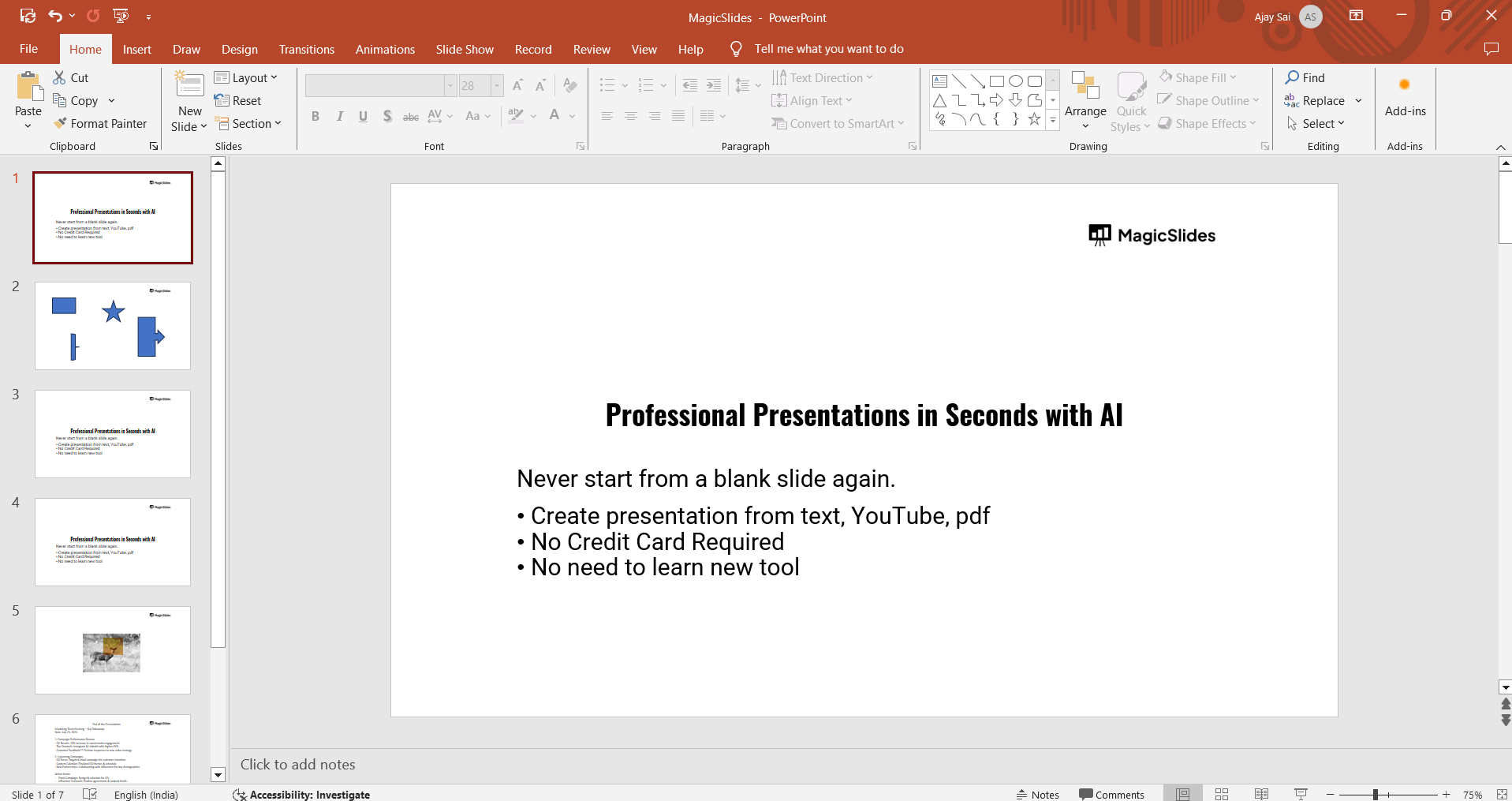
Step 1: Open Your PowerPoint Presentation
Begin by opening the PowerPoint presentation you’re working on.
If you don’t have a presentation yet, create a new one by selecting "Blank Presentation" from the start screen.
Step 2: Go to the File Menu
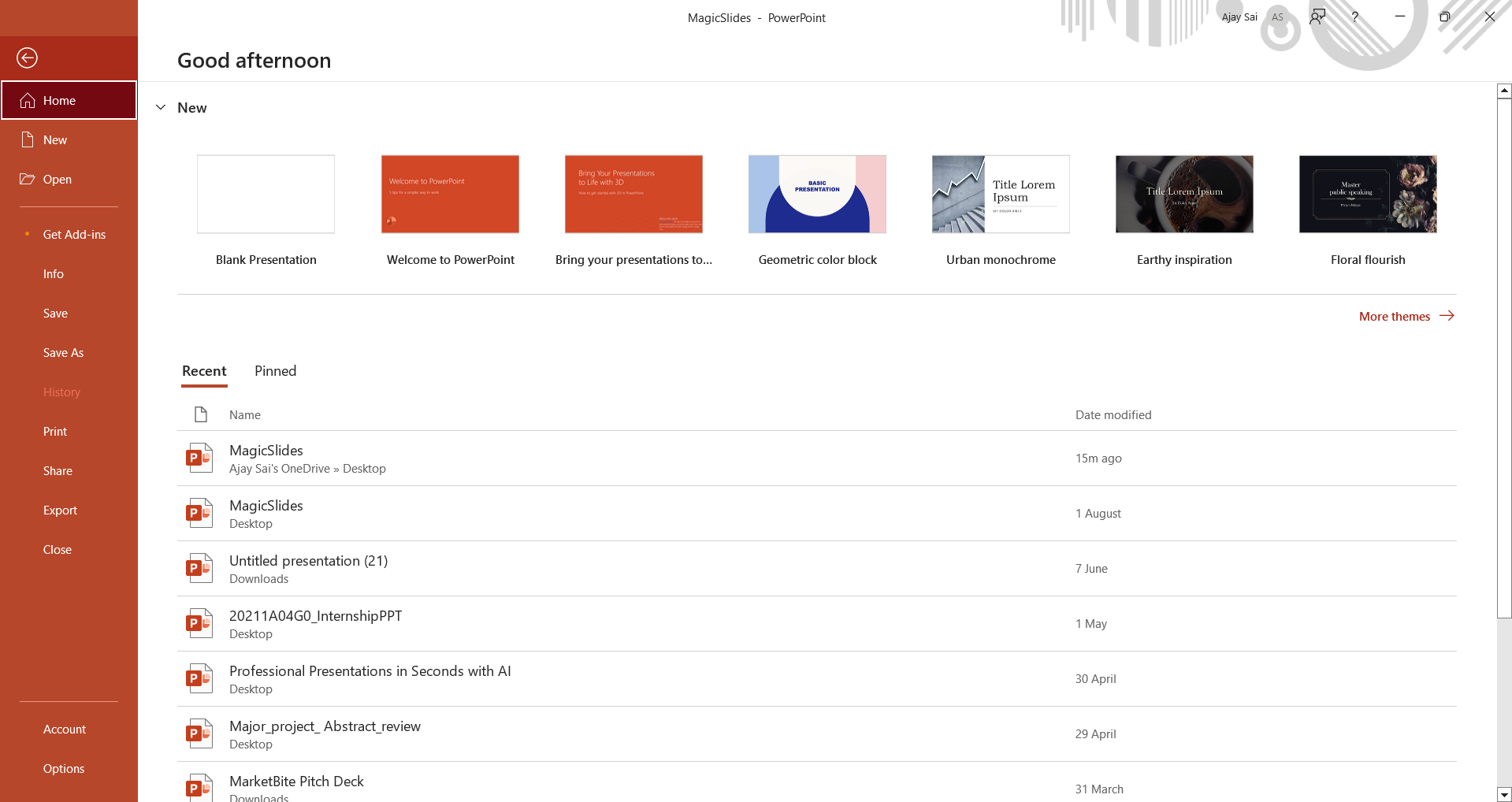
Once your presentation is open, click on the "File" menu located at the top left corner of the screen.
This will open a dropdown menu with various options related to your presentation.
Step 3: Select "Save As"
In the "File" menu, choose the "Save As" option.
This option allows you to save your presentation with a specific file name and choose the location where you want to save it.
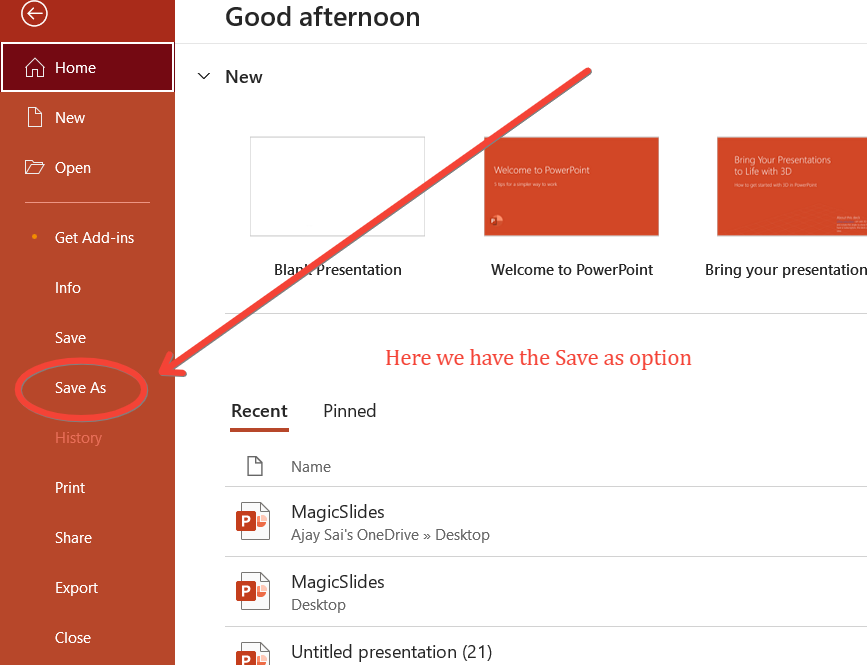
It also lets you select the file format or extension.
Step 4: Choose the File Format
After selecting "Save As," a dialog box will appear, allowing you to name your file and choose its format.
Click on the dropdown menu next to "Save as type" to see a list of available file formats.
The most common PowerPoint file extensions include(Historical and newer ones):
- .pptx: The default file extension for PowerPoint presentations created in PowerPoint 2007 and later. This format supports most PowerPoint features.
- .ppt: The older file extension used in PowerPoint 97-2003. Use this format if you need to share your presentation with someone using an older version of PowerPoint.
- .ppsx: This extension is used for PowerPoint Show files, which open directly in slideshow mode, making it ideal for presentations that are meant to be viewed rather than edited.
- .potx: This is the file extension for PowerPoint templates. Use this format if you’re creating a reusable template for future presentations.
Step 5: Save Your Presentation
Once you've selected the appropriate file extension, click "Save." Your presentation will be saved with the chosen extension, ready to be opened or shared as needed.
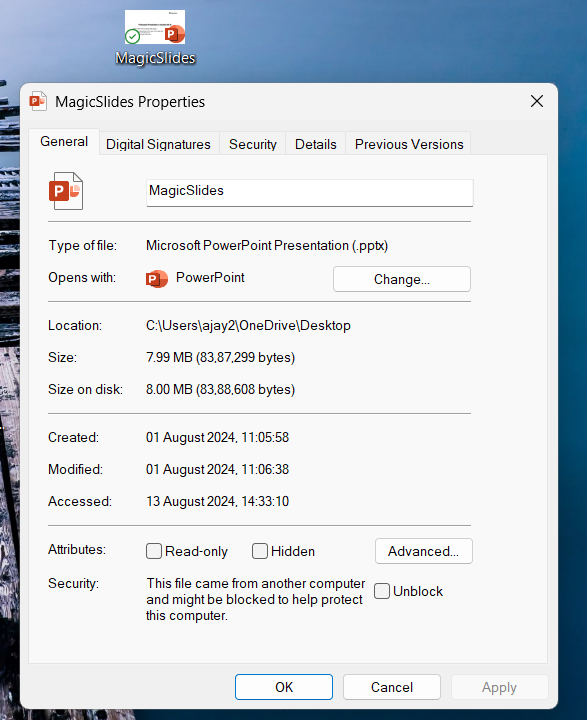
Step 6: Verify the File Extension
To ensure that your presentation has been saved with the correct file extension, navigate to the folder where you saved it. Check the file name to see if it ends with the extension you selected, such as .pptx or .ppsx.
Conclusion
Understanding PowerPoint file extensions is crucial for saving, sharing, and editing your presentations effectively.
Each extension serves a different purpose, from creating standard presentations to templates and slideshow files.
By following the steps outlined in this guide, you can ensure that your PowerPoint documents are saved with the appropriate file extension, making them easier to manage and use across different platforms.
FAQs that might help!
What is the most common PowerPoint file extension?
The most common file extension is .pptx, used for standard presentations in PowerPoint 2007 and later.
Can I still use the .ppt extension for my presentations?
Yes, but .ppt is an older format, mainly for compatibility with PowerPoint 97-2003.
What is the difference between .pptx and .ppsx?
.pptx is for editing presentations, while .ppsx opens directly in slideshow mode, ideal for viewing.


