What PowerPoint feature will you use to apply Motion Effects to different Objects of a Slide


PowerPoint’s Animations feature adds dynamic motion effects to objects, enhancing presentations’ visual appeal
What PowerPoint Feature Will You Use to Apply Motion Effects to Different Objects of a Slide?
To apply motion effects to different objects on a PowerPoint slide, you'll use the Animations feature.
This powerful tool allows you to add dynamic effects to text, images, shapes, and other objects on your slides, enhancing the visual appeal and helping to emphasize key points.
By applying animations, you can control how and when objects appear, move, or disappear during your presentation, making it more engaging and interactive.
How to Apply Motion Effects to Objects in PowerPoint
Step 1: Open Your Presentation
Begin by opening the PowerPoint presentation where you want to add motion effects.
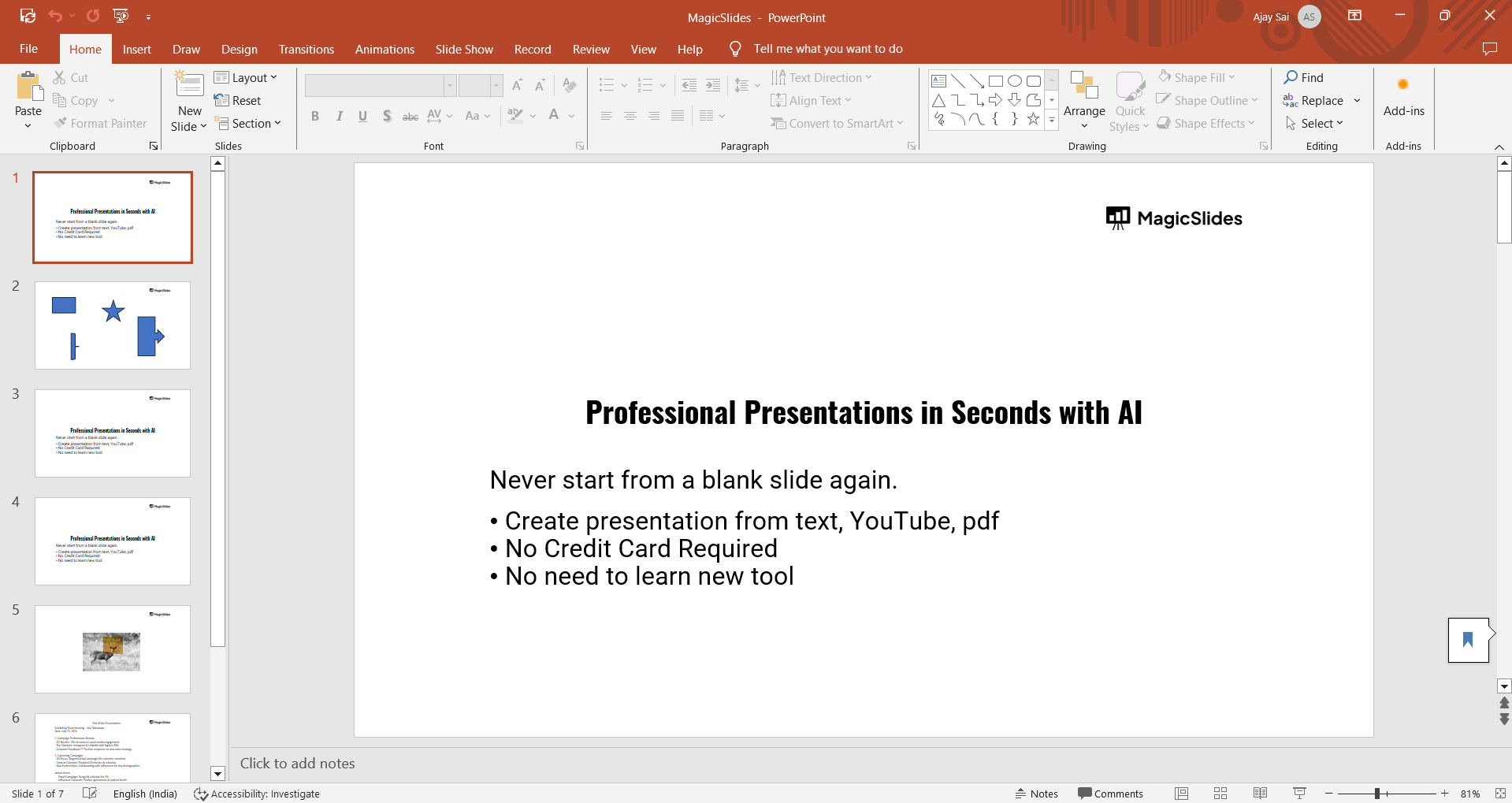
You can do this by launching PowerPoint, clicking on "File" in the top-left corner, selecting "Open," and choosing the presentation you wish to edit.
Step 2: Select the Object
Navigate to the slide where you want to apply a motion effect. Click on the object (text, image, shape, etc.) that you want to animate.
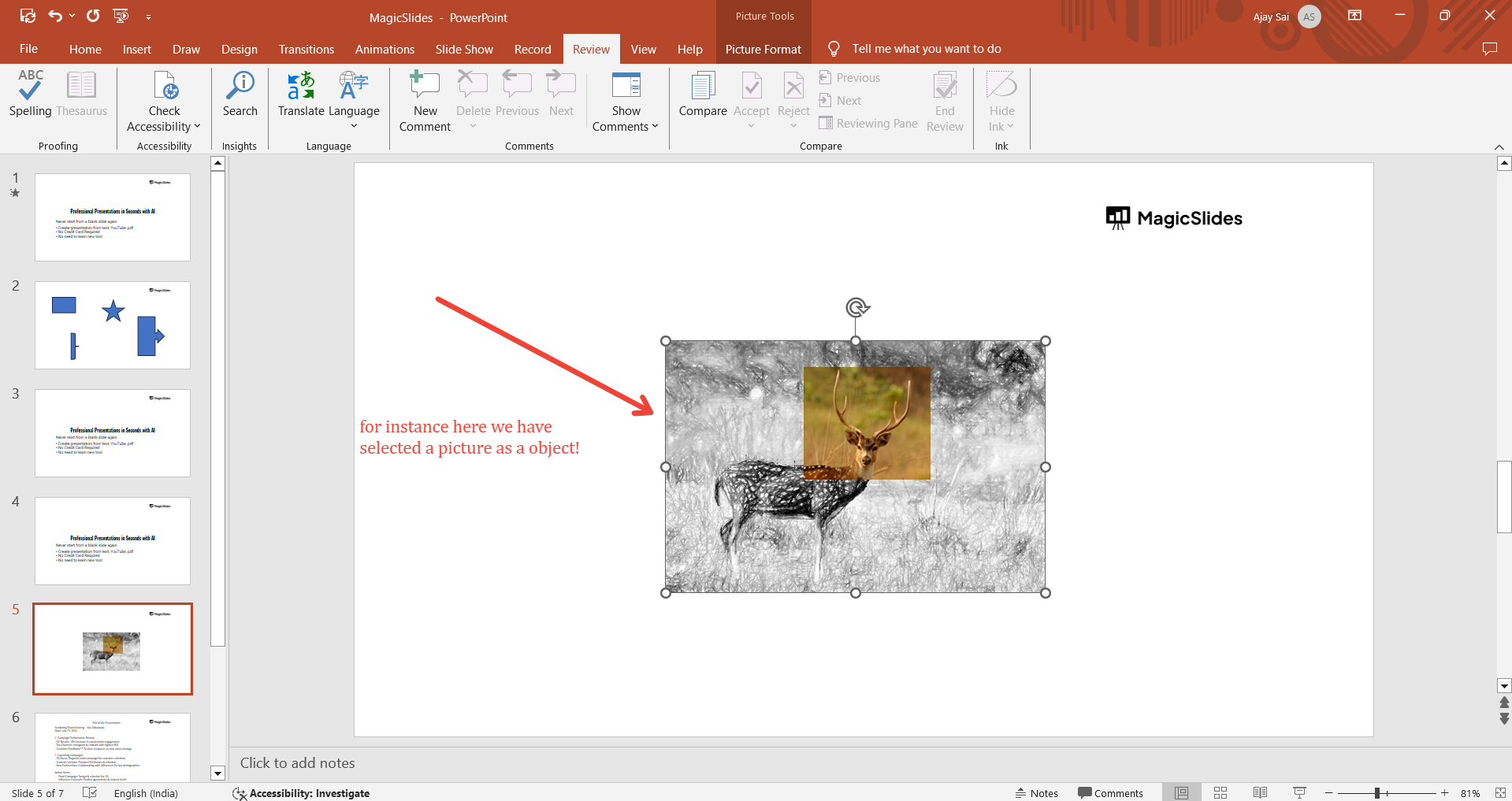
You’ll see selection handles around the object, indicating that it’s selected.
Step 3: Go to the Animations Tab
Once the object is selected, go to the "Animations" tab on the PowerPoint ribbon at the top of the screen.
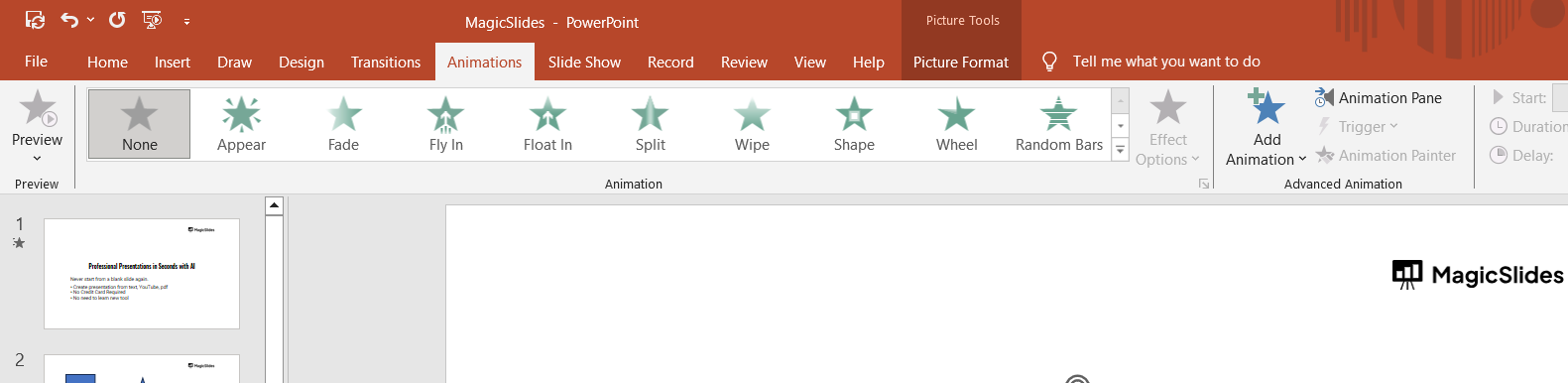
This tab contains all the animation options available in PowerPoint.
Step 4: Choose an Animation Effect
In the "Animations" tab, you'll see a gallery of animation effects. These effects are categorized into Entrance, Emphasis, Exit, and Motion Paths.
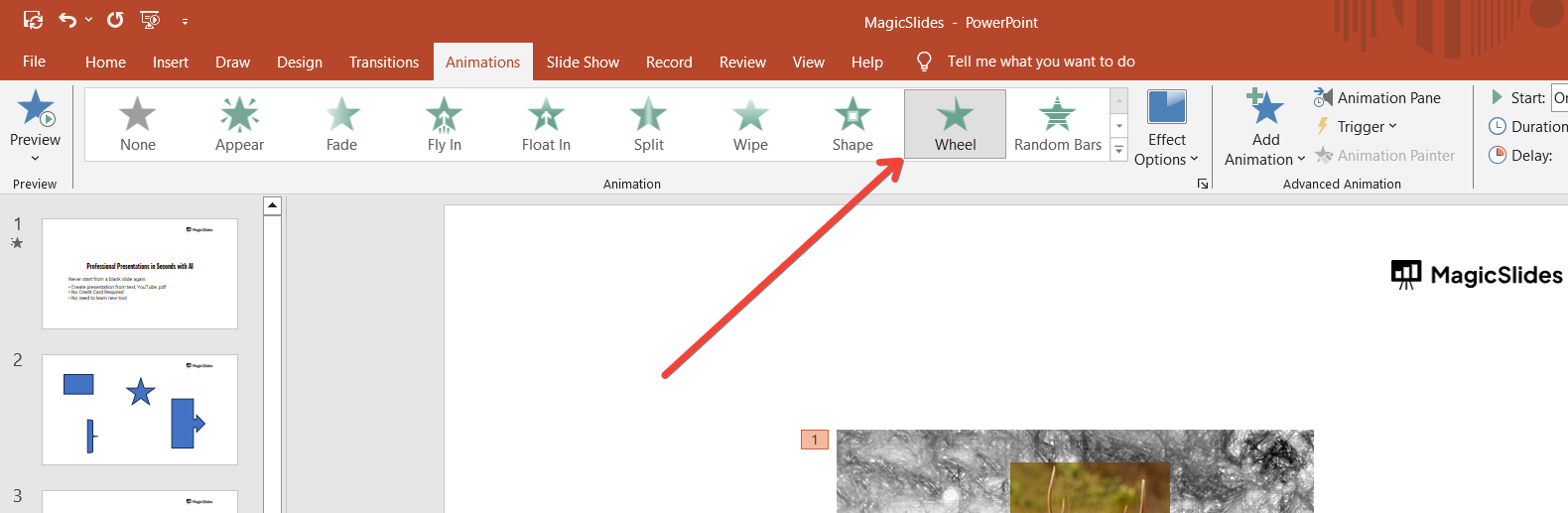
Click on the effect you want to apply to your selected object. The effect will immediately preview on the slide.
Step 5: Customize the Animation
After selecting an animation, you can customize it using the options in the "Animations" tab.
Use the "Effect Options" dropdown to adjust the direction or style of the animation.
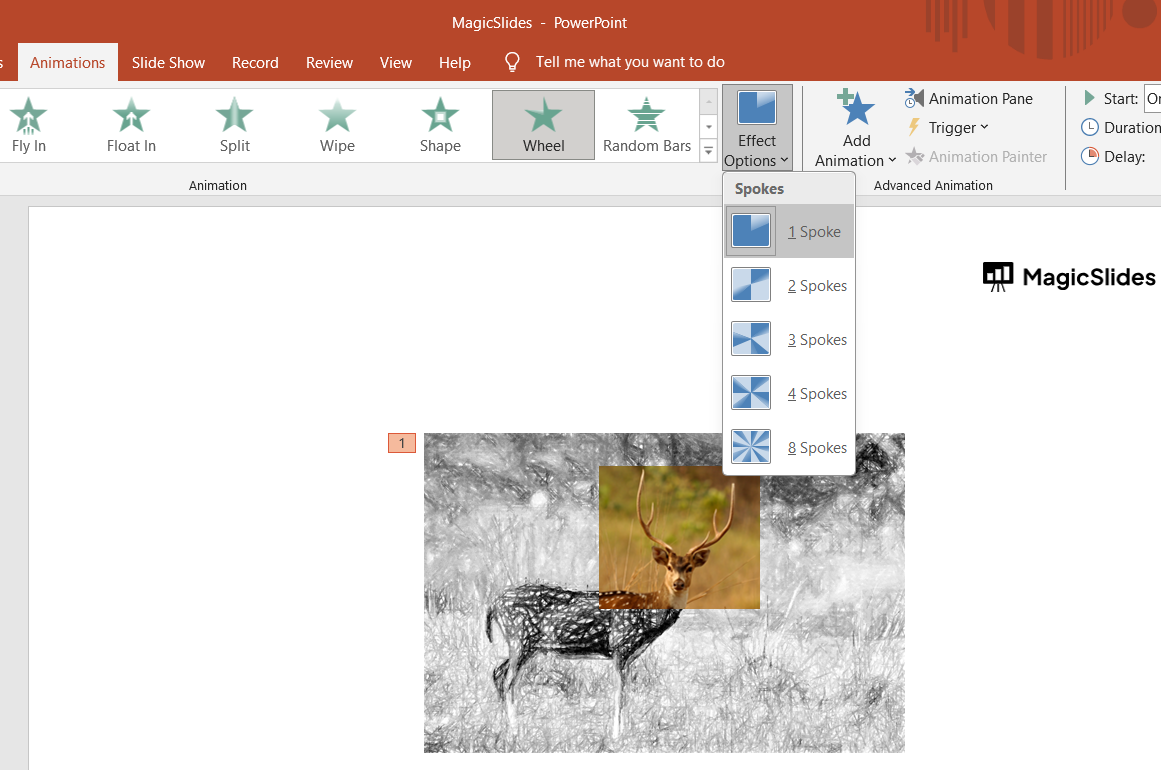
You can also set the duration, delay, and trigger of the animation using the "Timing" group.
Step 6: Add Additional Animations
If you want to apply more than one animation to an object, click on "Add Animation" in the "Animations" tab.
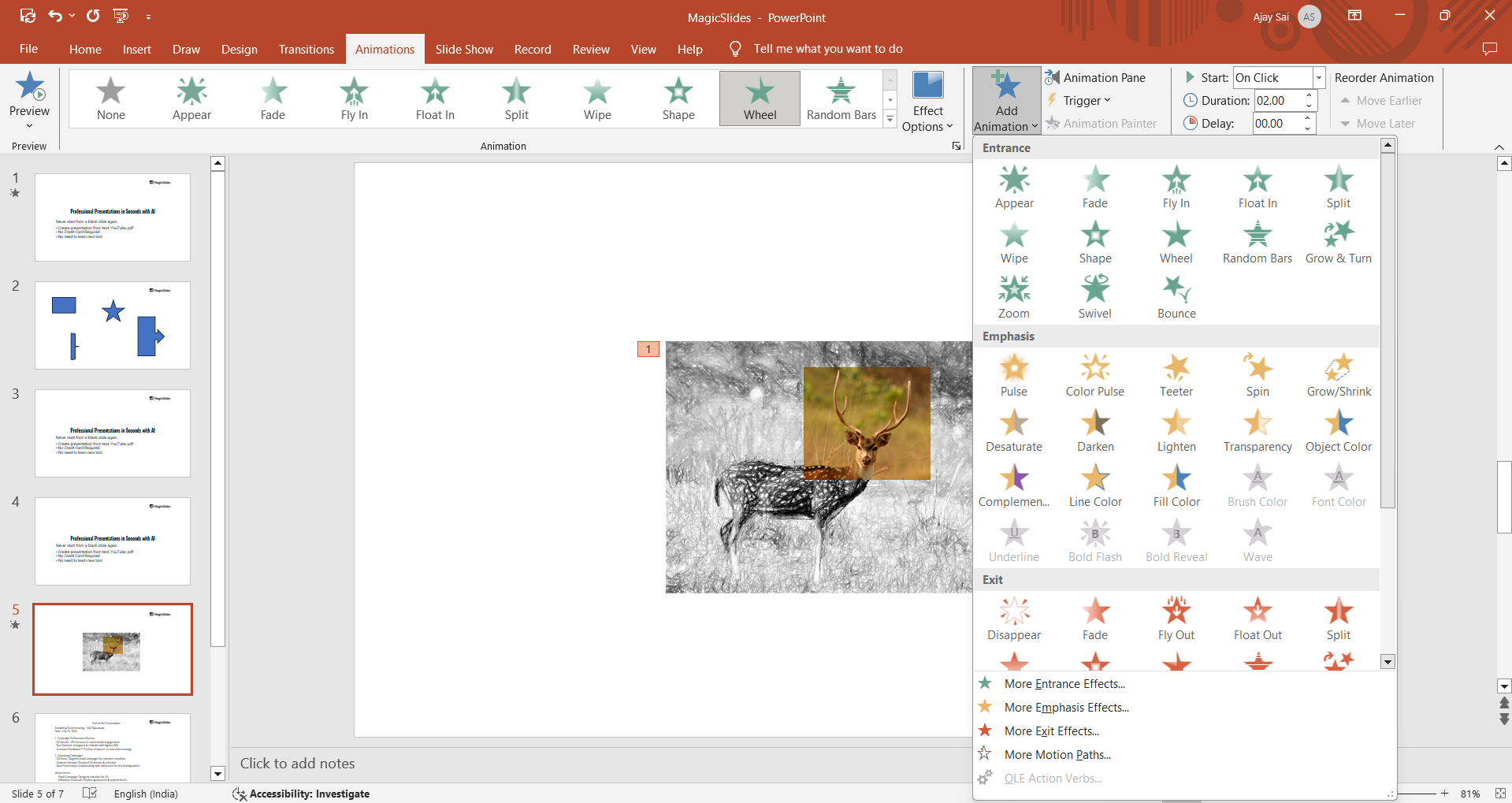
This allows you to layer multiple effects on a single object, such as having it fade in and then move across the slide.
Step 7: Preview and Fine-Tune
To see how your animations will play out, click on "Preview" in the "Animations" tab.
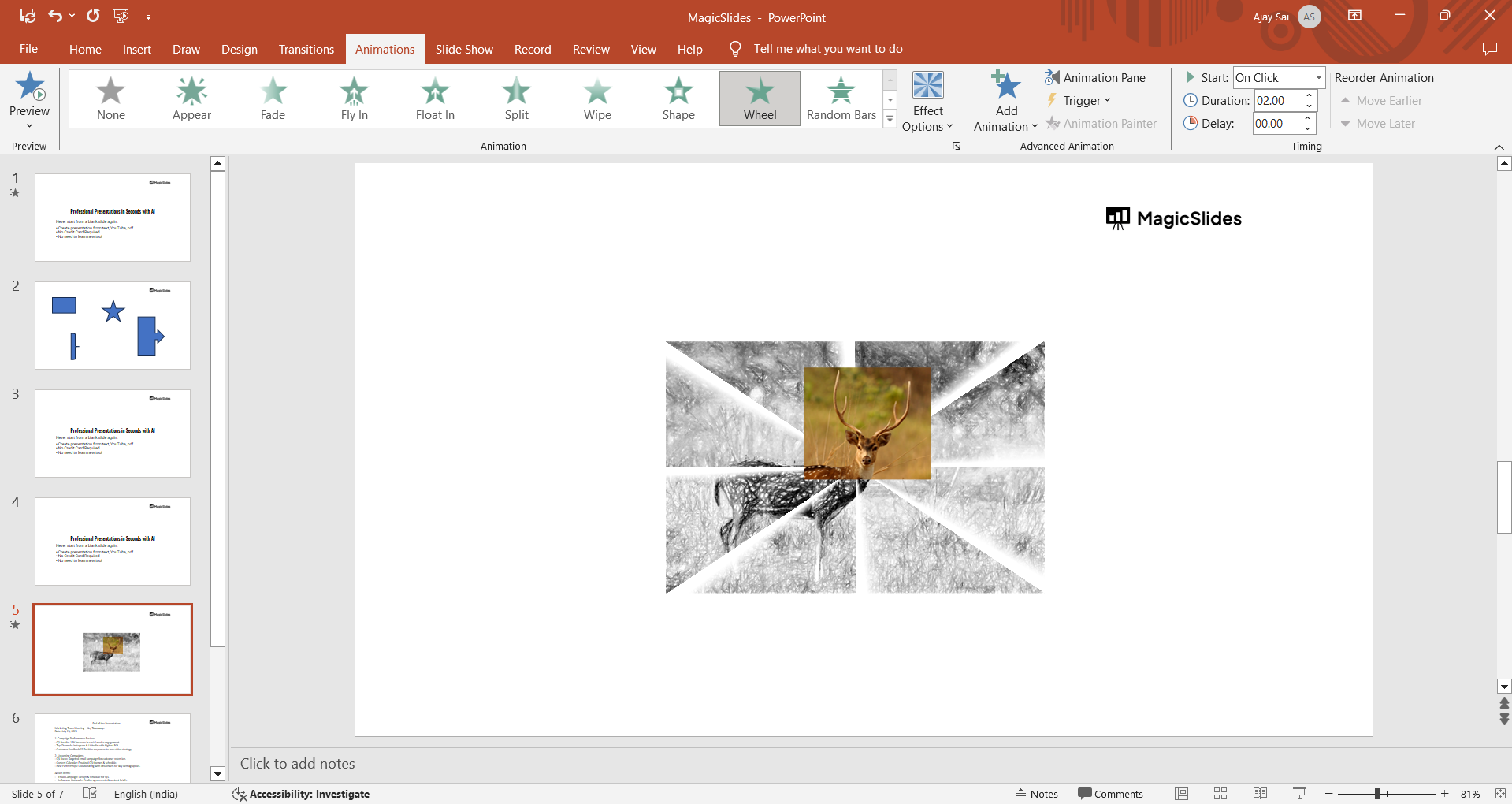
Watch the preview and make any necessary adjustments to the timing or effect options to ensure the animations flow smoothly.
Conclusion
Adding motion effects to objects in PowerPoint can greatly enhance the visual appeal and effectiveness of your presentation.
By using the Animations feature, you can control how different elements on your slides appear, move, and interact, creating a more dynamic and engaging experience for your audience.
Follow these steps to easily apply and customize animations, making your presentations more impactful and memorable.
FAQs are here to guide you!
Can I apply multiple animations to a single object?
Yes, use the "Add Animation" option to layer multiple effects on one object.
How do I control the timing of animations?
You can adjust the timing, delay, and duration in the "Timing" section of the Animations tab.
What types of animation effects are available in PowerPoint?
PowerPoint offers Entrance, Emphasis, Exit, and Motion Path effects to animate objects.


