Can You Cut Out Things on Google Slides


Easily cut out objects in Google Slides using cropping, masking, transparency, and Google Drawings techniques
Can You Cut Out Things on Google Slides?
Google Slides offers several ways to remove or cut out elements from your slides, whether it’s text, images, or shapes.
While Google Slides doesn’t have a dedicated “cut-out” tool like Photoshop, you can still achieve similar effects using built-in features.
This guide will walk you through step-by-step methods to cut out objects and refine your slides.
How to Cut Out Things on Google Slides
Step 1: Remove Unwanted Text or Objects
Open Google Slides and select the slide containing the element you want to remove.
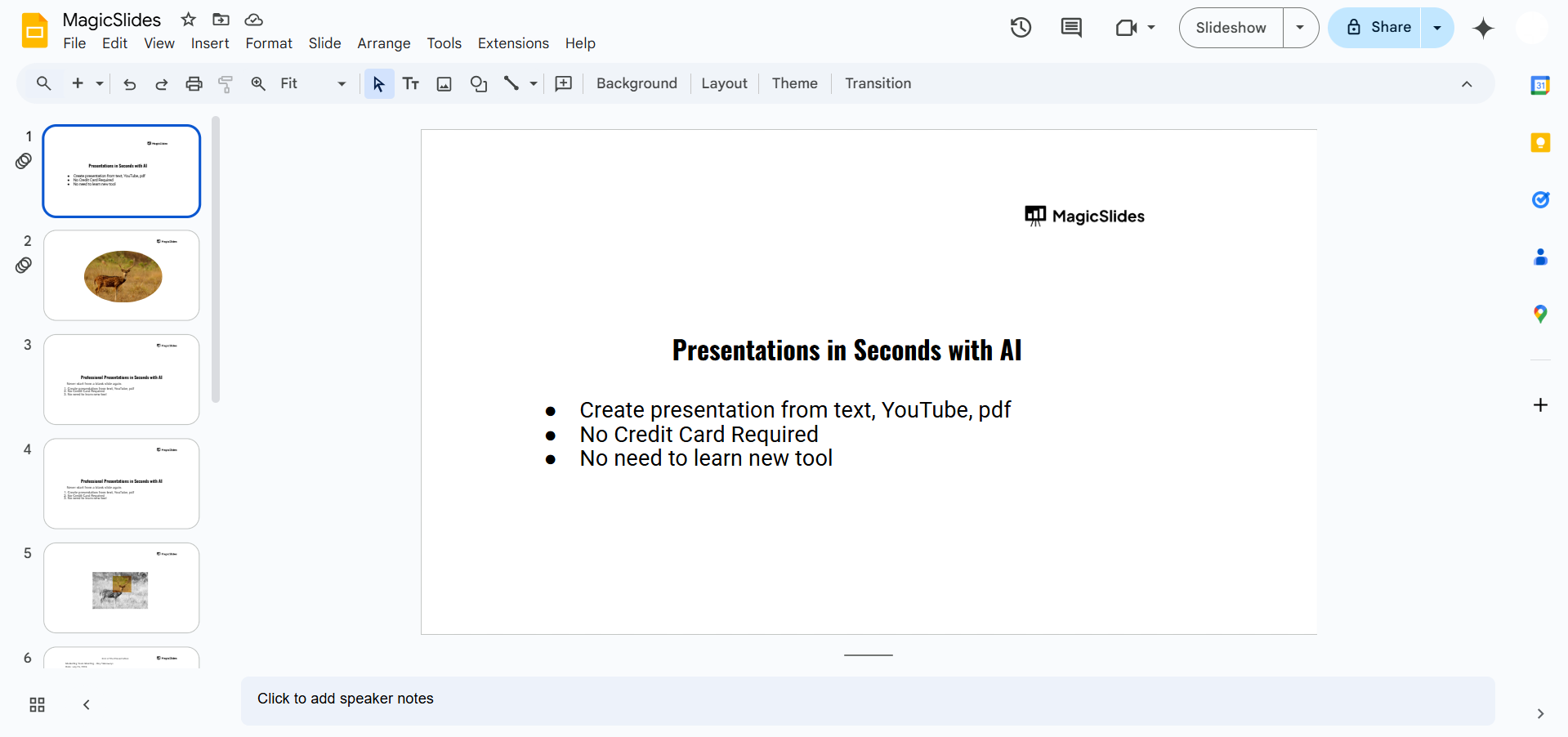
Click on the text box, shape, or image you want to delete. Press Delete or Backspace on your keyboard to remove it.
Step 2: Crop an Image to Cut Out Unnecessary Parts
Select the image you want to modify. Click on Format → Crop Image from the toolbar.
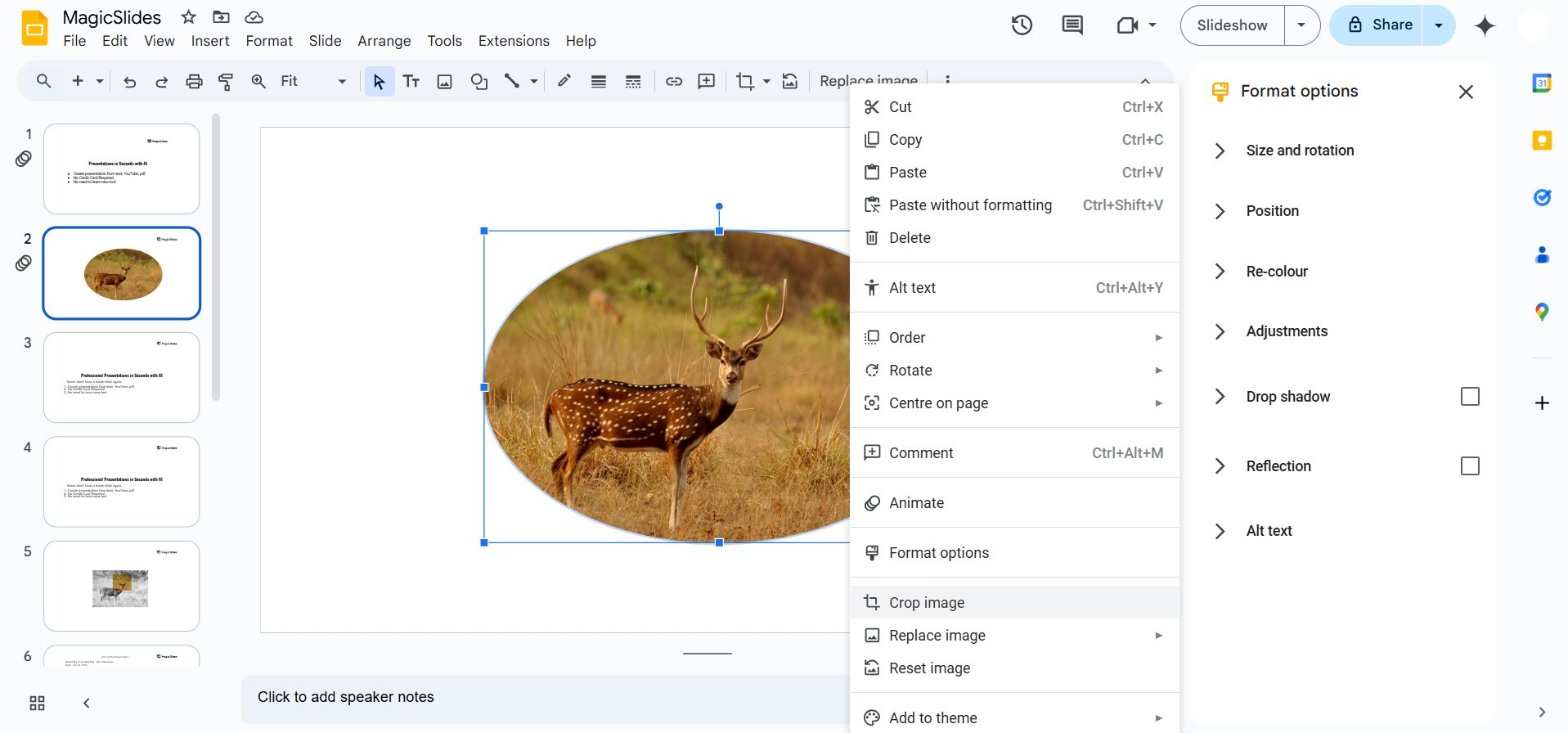
Drag the black crop handles to adjust the visible area of the image. Press Enter to apply the crop.
Step 3: Use the Masking Tool to Shape an Image
Click on the image and select Crop → Mask Image (small dropdown next to the crop button).
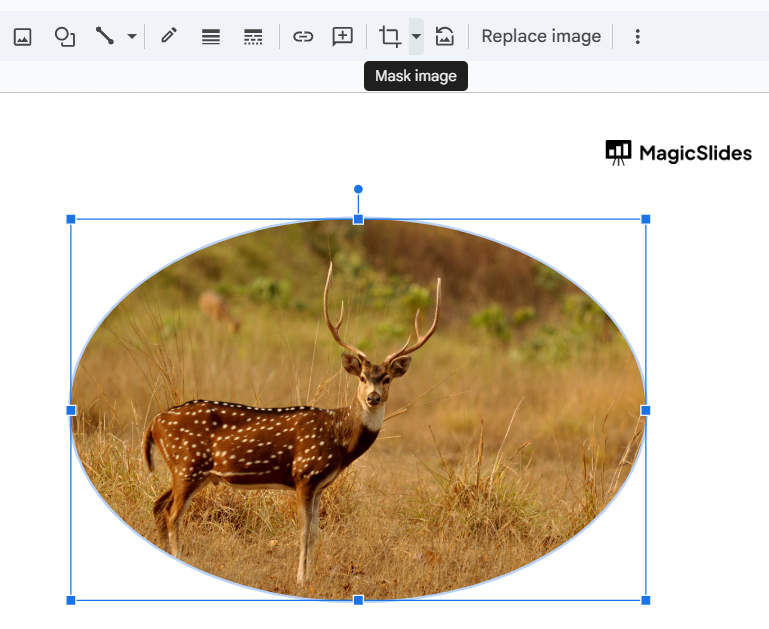
Choose a shape (e.g., circle, triangle, or custom shape). Adjust the image inside the masked shape for a cleaner look.
Step 4: Use Transparency to Blend or Hide Parts of an Image
Select the image and click on Format Options in the toolbar. Expand the Adjustments section and reduce the Transparency slider to fade parts of the image.
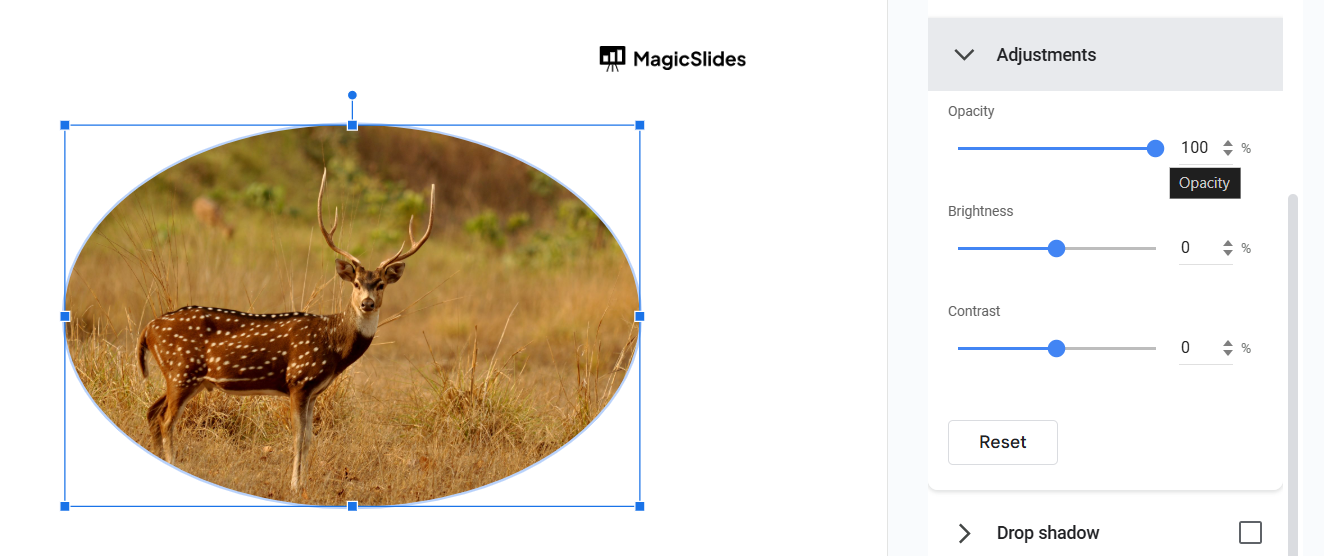
This method helps when you need to overlay objects or blend elements into the background.
Step 5: Use Google Drawings for Advanced Cut-Outs
Open Google Drawings (drawings.google.com).
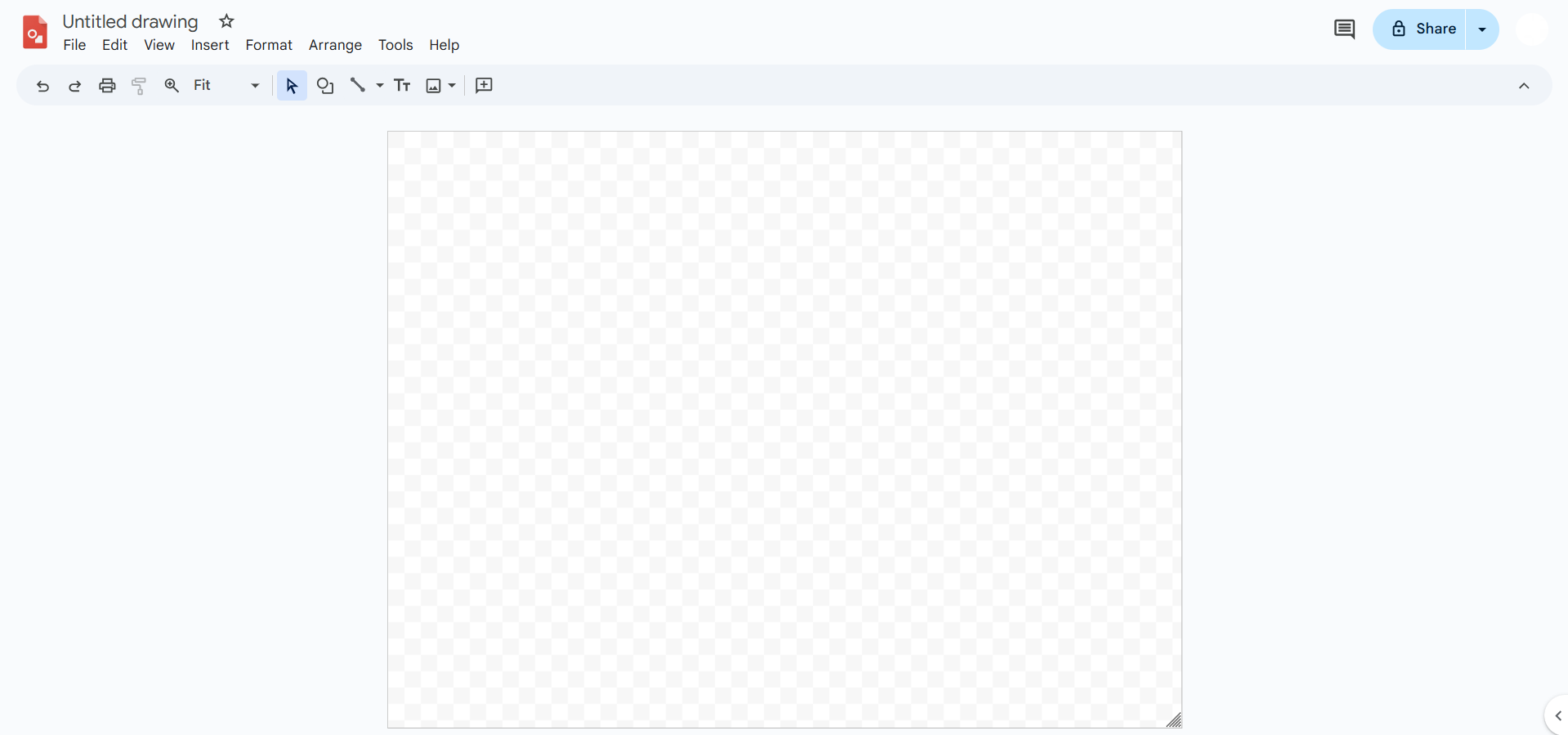
Insert the image and use the Crop and Polyline tools to manually trace and cut out sections.
Save the edited image and insert it back into Google Slides.
Google Slides has limited options for cutting out objects, but if you want an easier way to create professional slides with perfectly placed elements, try MagicSlides.app. It generates AI-powered presentations with customized layouts in seconds!
Conclusion
Although Google Slides doesn’t have a direct “cut-out” feature like professional design tools, you can still remove, crop, mask, and blend elements effectively.
By using cropping, masking, transparency, and Google Drawings, you can enhance your slides with customized visuals.
FAQs on Cutting Out Things in Google Slides
Can I remove the background of an image in Google Slides?
Google Slides doesn’t have a built-in background remover, but you can use tools like Remove.bg before inserting the image.
How do I cut a part of an image in Google Slides?
Use the Crop tool to trim unwanted areas or the Mask tool to shape the image.
Can I erase parts of an image directly in Google Slides?
No, but you can edit the image in Google Drawings or use a third-party tool before inserting it.
Now you’re ready to refine your Google Slides presentations with better cut-out techniques! 🚀


