Can you do a Webquest on Google Slides


Create an interactive WebQuest on Google Slides to engage students in structured online learning activities easily
Can You Do a WebQuest on Google Slides?
A WebQuest is an inquiry-based learning activity where students explore information online to complete a task.
Google Slides is an excellent tool for creating interactive WebQuests because it allows you to structure information, embed links, and guide learners through a step-by-step process.
Follow this guide to create a WebQuest using Google Slides.
Steps to Create a WebQuest on Google Slides
Step 1: Open Google Slides and Create a New Presentation
Go to Google Slides and click Blank Presentation to start from scratch.
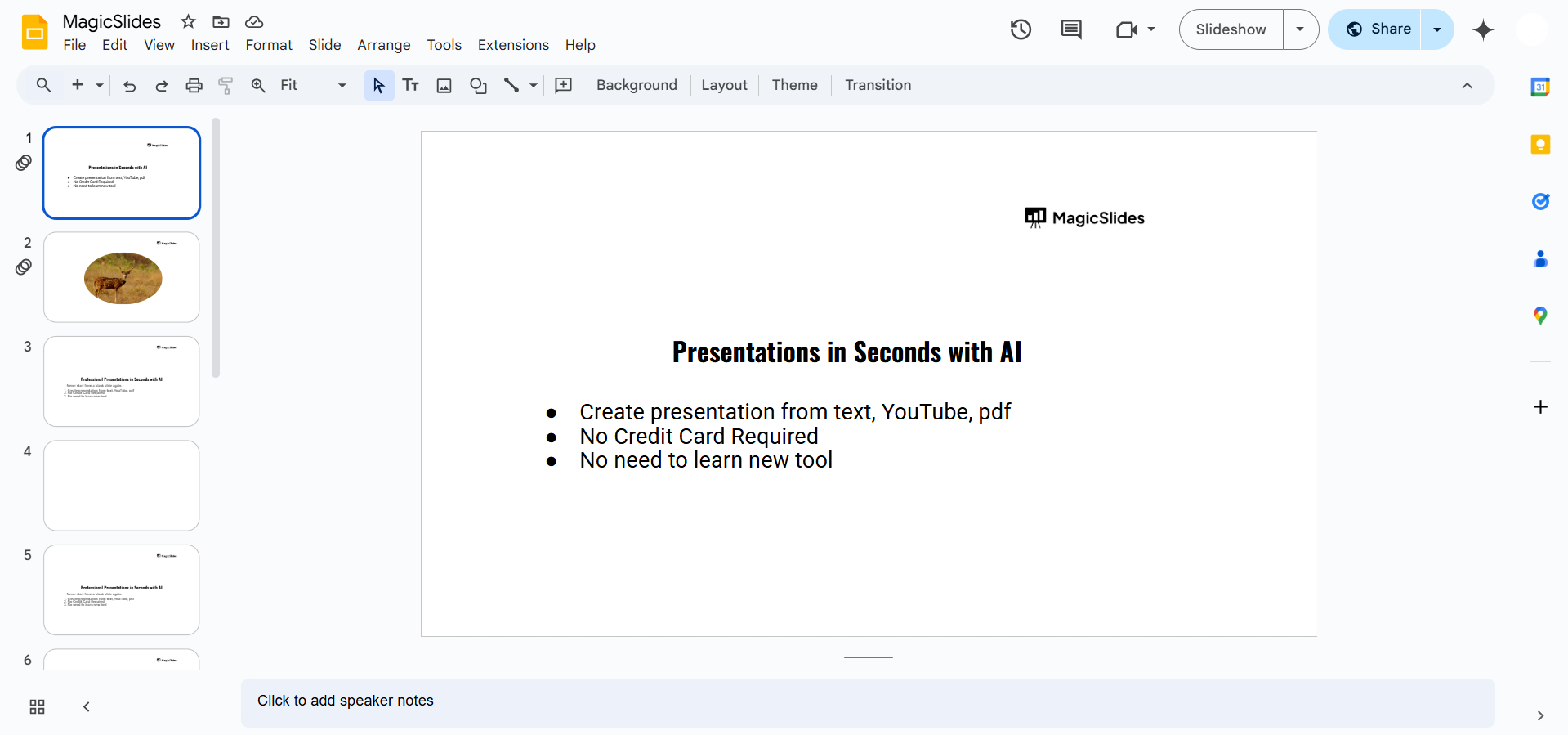
Give your WebQuest a title by clicking Untitled Presentation and renaming it.
Step 2: Design the Introduction Slide
The first slide should introduce the WebQuest topic. Add a brief background about the subject and explain what students will explore.
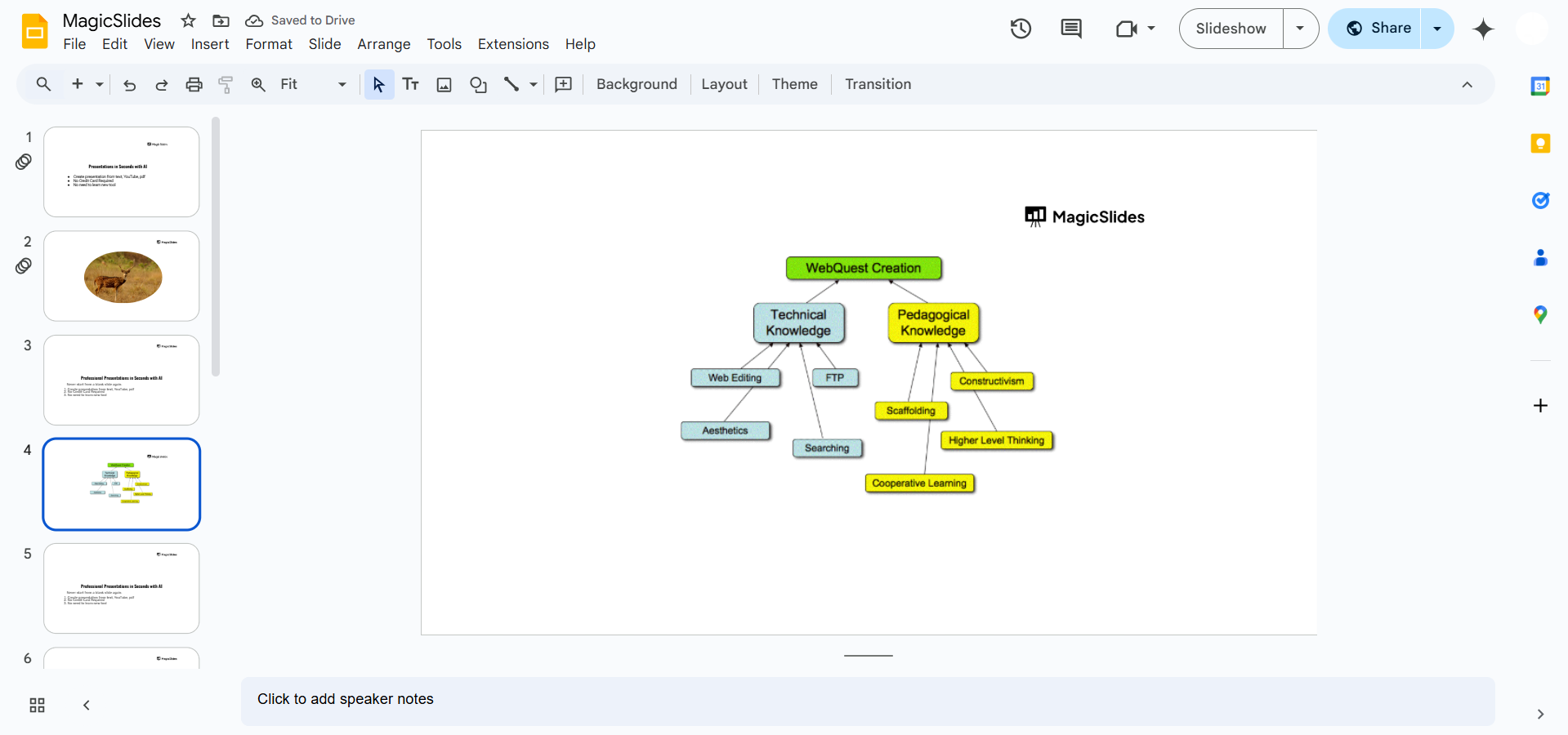
Use an engaging title and visuals to capture interest.
Step 3: Define the Task
On a new slide, explain what students need to achieve in the WebQuest.
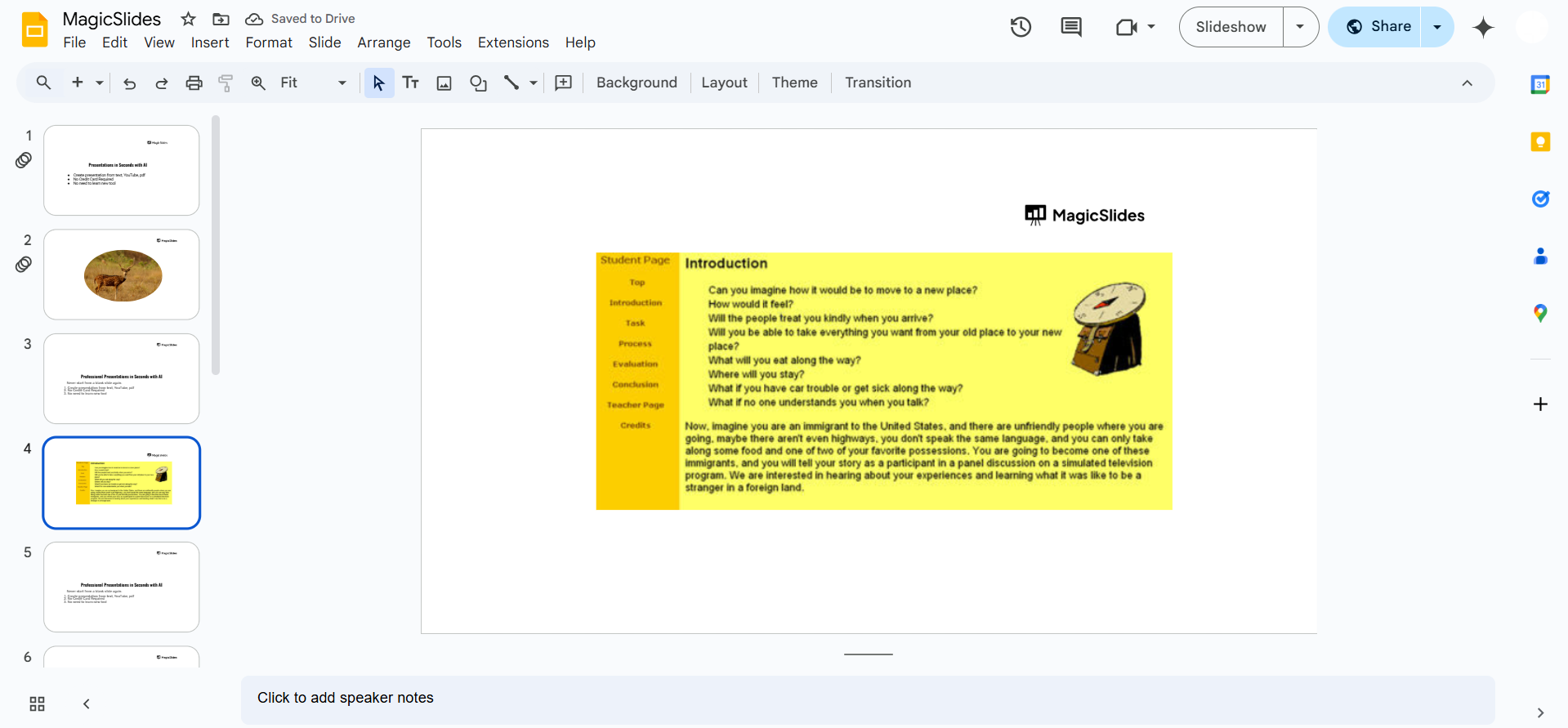
Provide clear objectives, such as writing a report, creating a presentation, or answering specific questions.
Step 4: Add Process Steps and Resources
Create separate slides for each step of the WebQuest. Provide guiding questions and online resources (web links, videos, articles) for research.
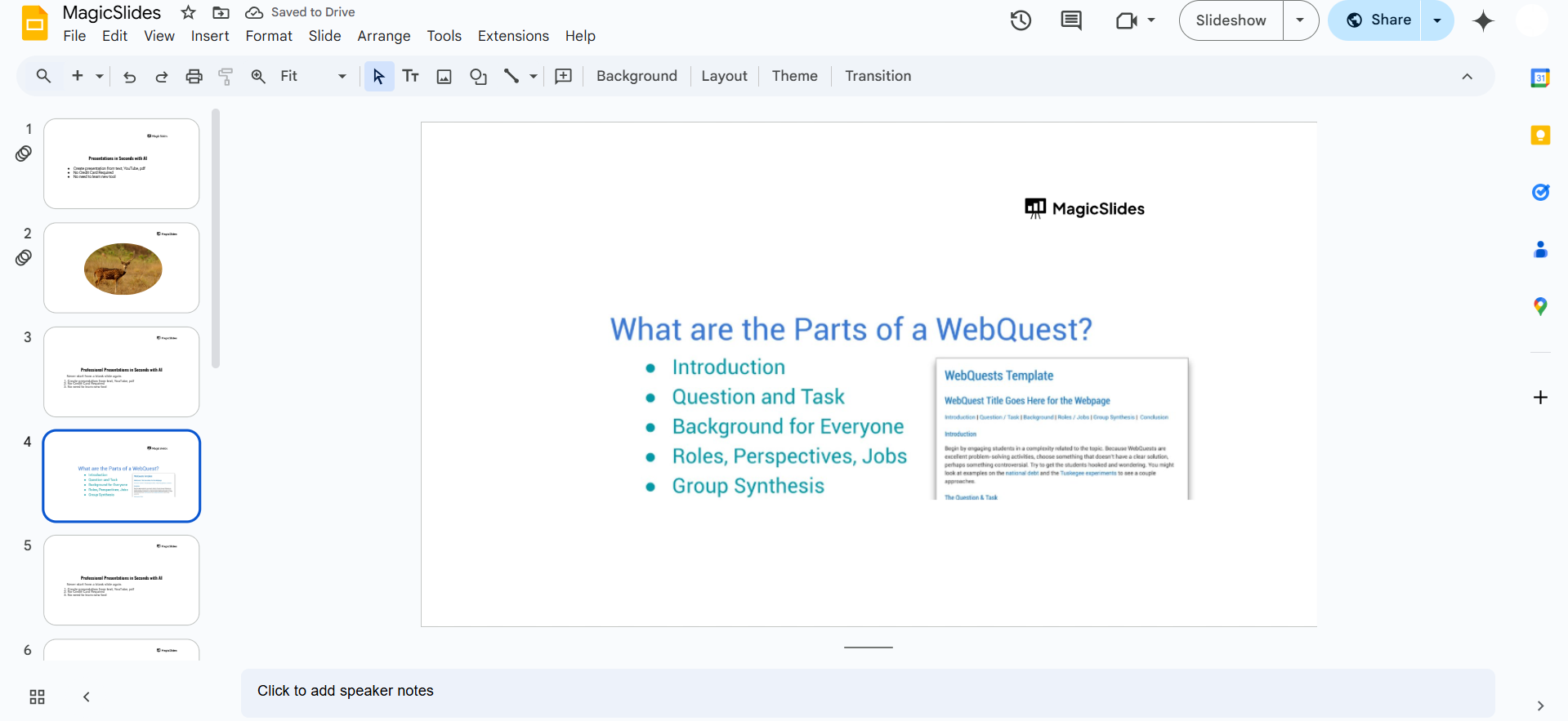
You can hyperlink text or insert clickable buttons to direct students to external sources.
Step 5: Include an Evaluation Criteria Slide
Add a slide explaining how students will be graded (rubrics, expectations).
Clearly outline criteria such as creativity, accuracy, organization, and collaboration.
Step 6: Create a Conclusion Slide
Summarize the learning objectives and encourage reflection.
Ask students to think about what they learned and how they can apply it.
Step 7: Share the WebQuest with Students
Click File > Share to generate a link. Choose the Anyone with the link can view option to ensure accessibility.
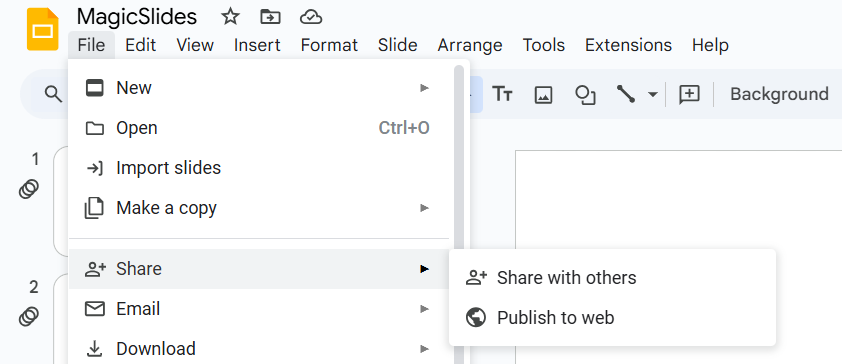
You can also assign students specific slides if it’s a group project.
Yes! Google Slides can be a great tool for WebQuests, but if you're looking to create interactive, structured slides quickly, try MagicSlides.app. AI-powered slide creation makes your job easier just enter a topic and get a complete presentation in seconds!
Conclusion
Google Slides is a powerful tool for creating interactive WebQuests, allowing educators to guide students through structured online learning.
By embedding links, step-by-step instructions, and evaluation criteria, you can create a meaningful and engaging learning experience.
FAQs on Creating a WebQuest in Google Slides
Can students collaborate on a WebQuest in Google Slides?
Yes! You can share the WebQuest as an editable file so students can add their responses.
Can I insert interactive elements into my WebQuest?
Yes! You can add hyperlinks, videos, images, and even quizzes using Google Forms for interaction.
How can I assess students’ responses in a WebQuest?
You can ask students to submit their work via Google Docs, Slides, or a shared discussion board.
Now, you’re ready to create an engaging WebQuest using Google Slides! 🚀


