Can you use Text to Speech in PowerPoint


Easily add voice narration to your PowerPoint using Text-to-Speech for engaging and accessible presentations
Can You Use Text to Speech in PowerPoint?
Yes! PowerPoint has a built-in Text-to-Speech (TTS) feature that allows you to convert written text into spoken audio. This is especially useful for presentations, accessibility, and voiceover narration. In this guide, we'll walk you through how to use Text-to-Speech in PowerPoint step by step.
Step-by-Step Guide to Using Text-to-Speech in PowerPoint
Step 1: Enable the Speak Feature in PowerPoint
Before using Text-to-Speech, you need to add the Speak button to the toolbar.
How to Enable:
Open PowerPoint.
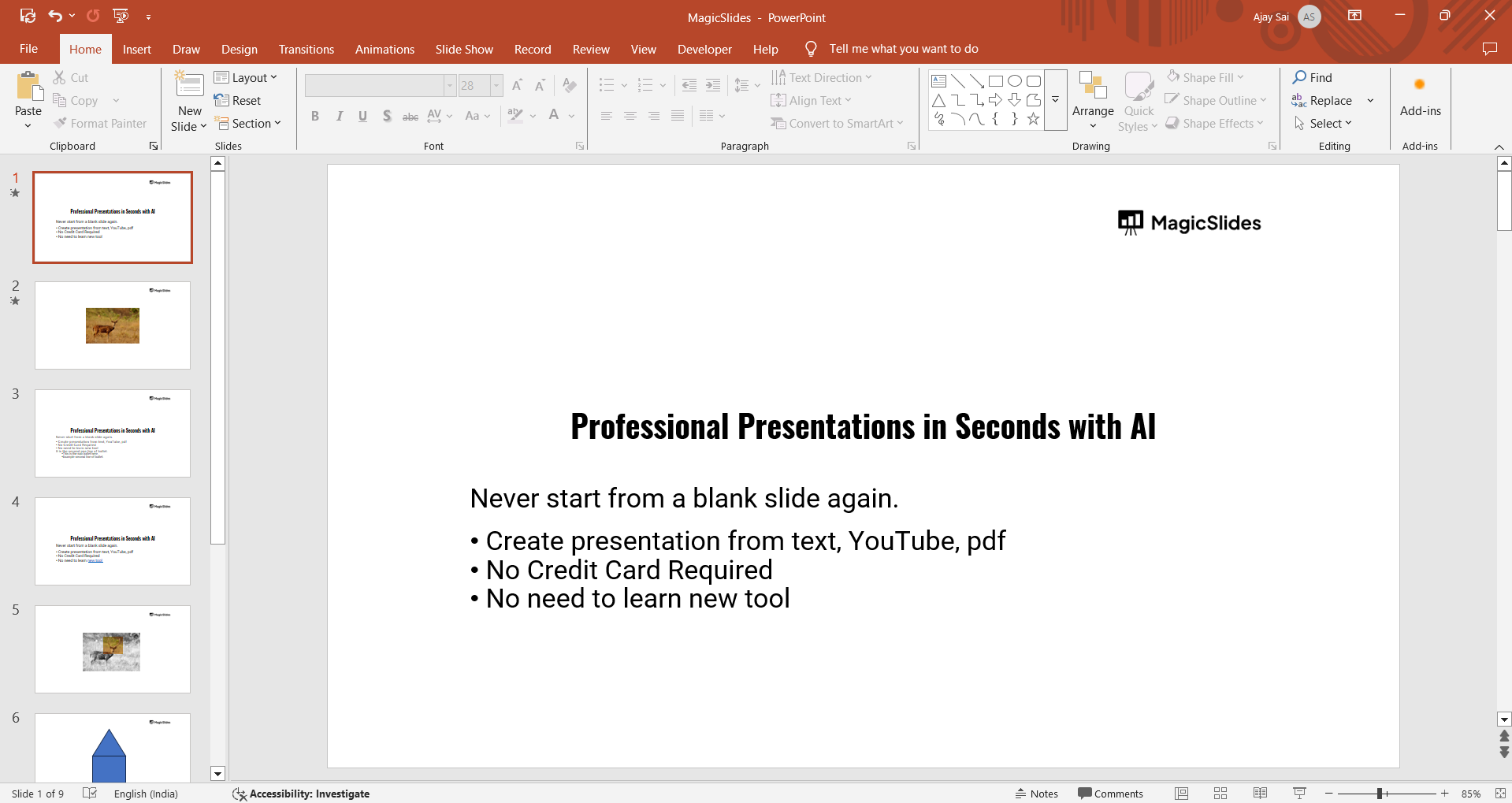
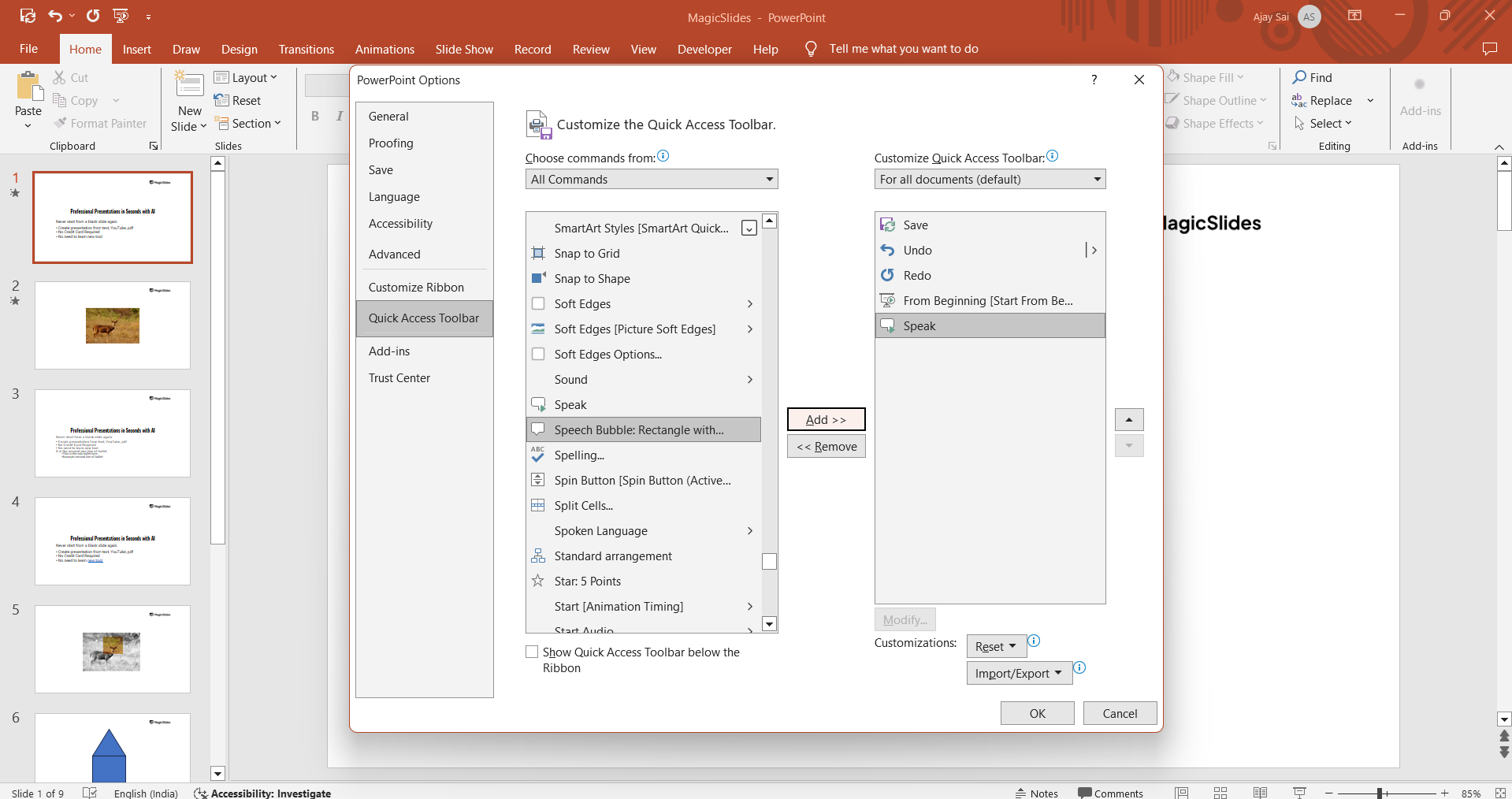
Click on File > Options.
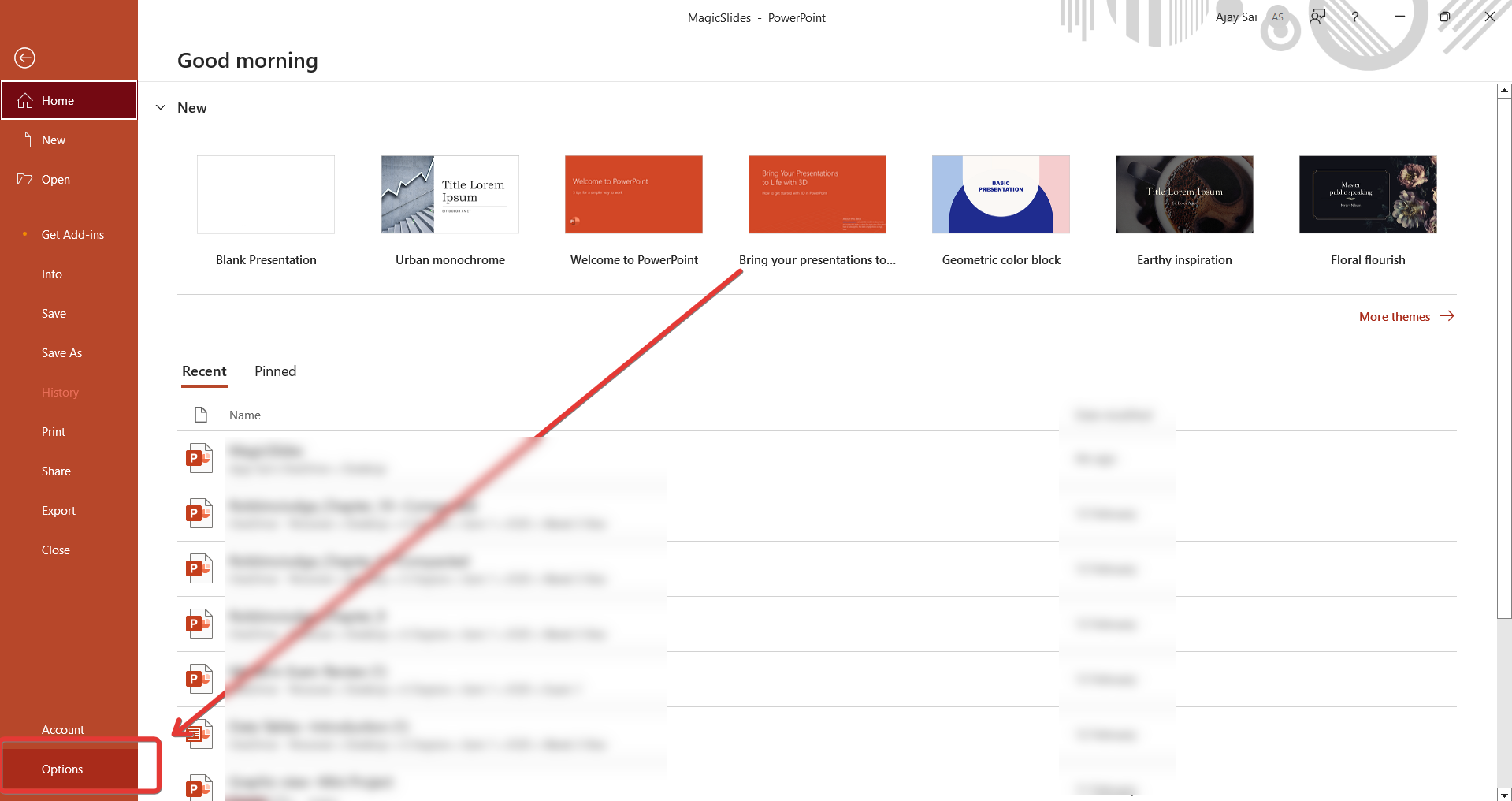
Select Quick Access Toolbar on the left panel.
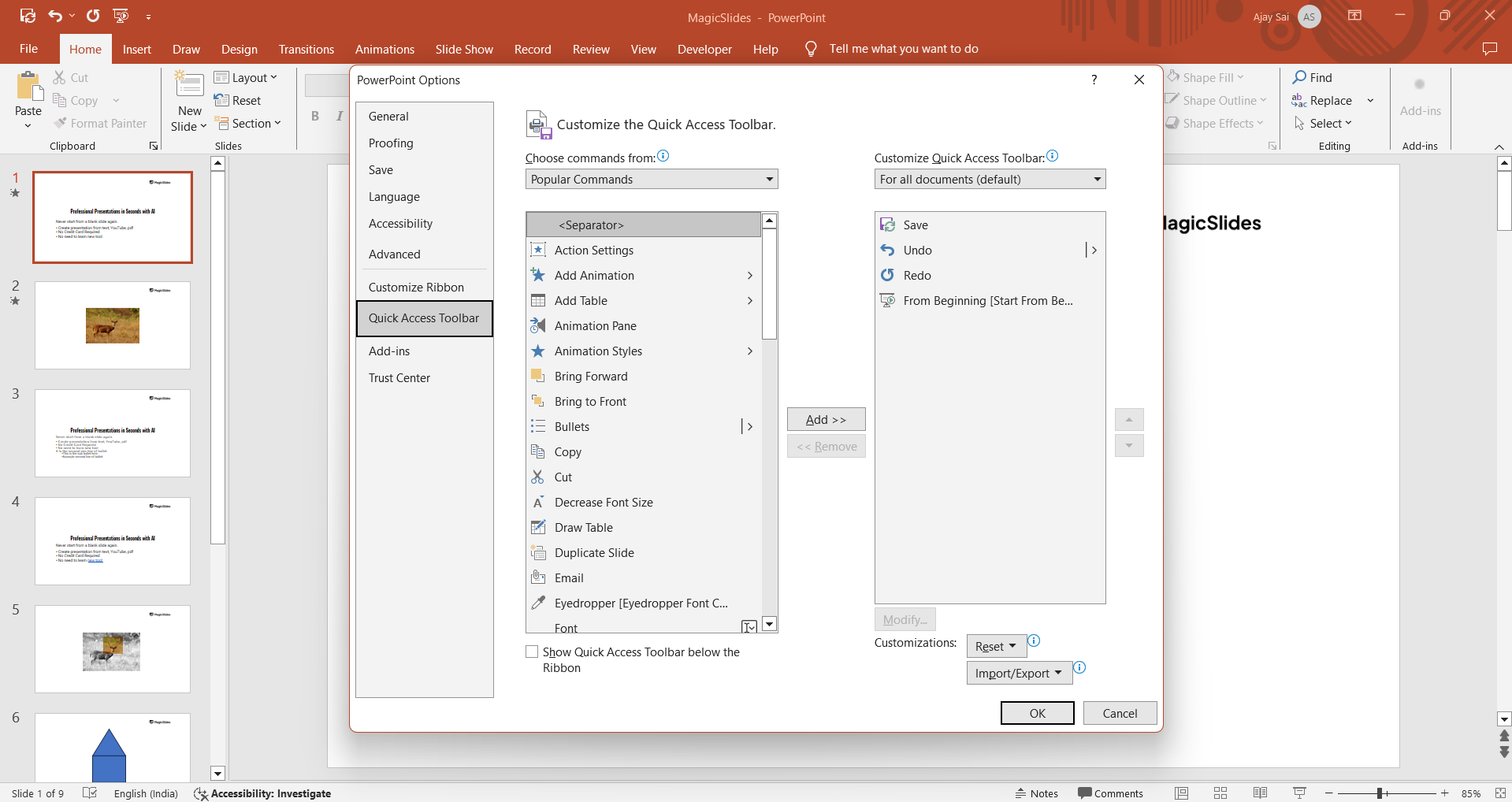
In the Choose commands from dropdown, select All Commands.
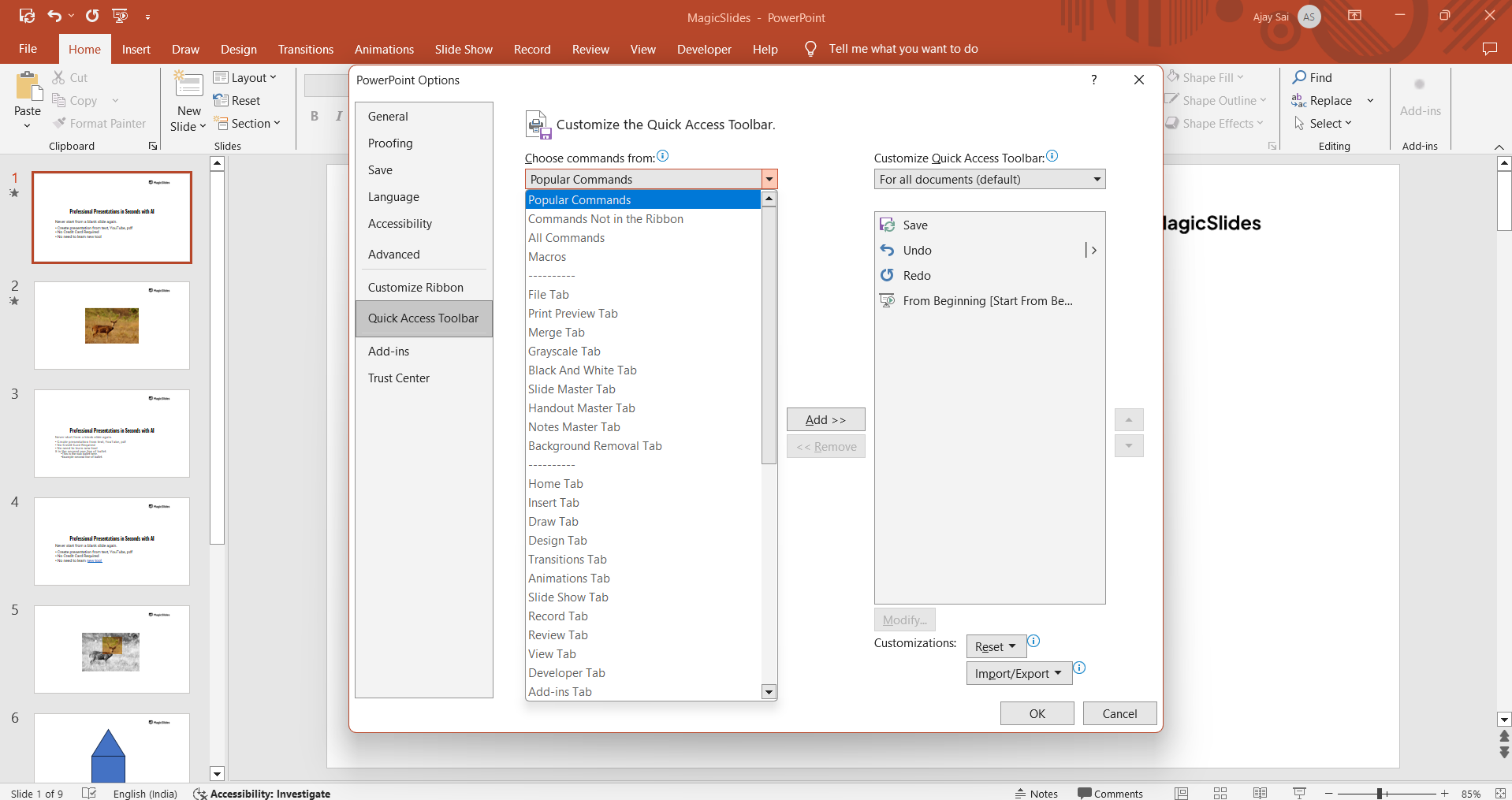
Scroll down and find Speak. Click Add to move it to the Quick Access Toolbar. Click OK to save changes.
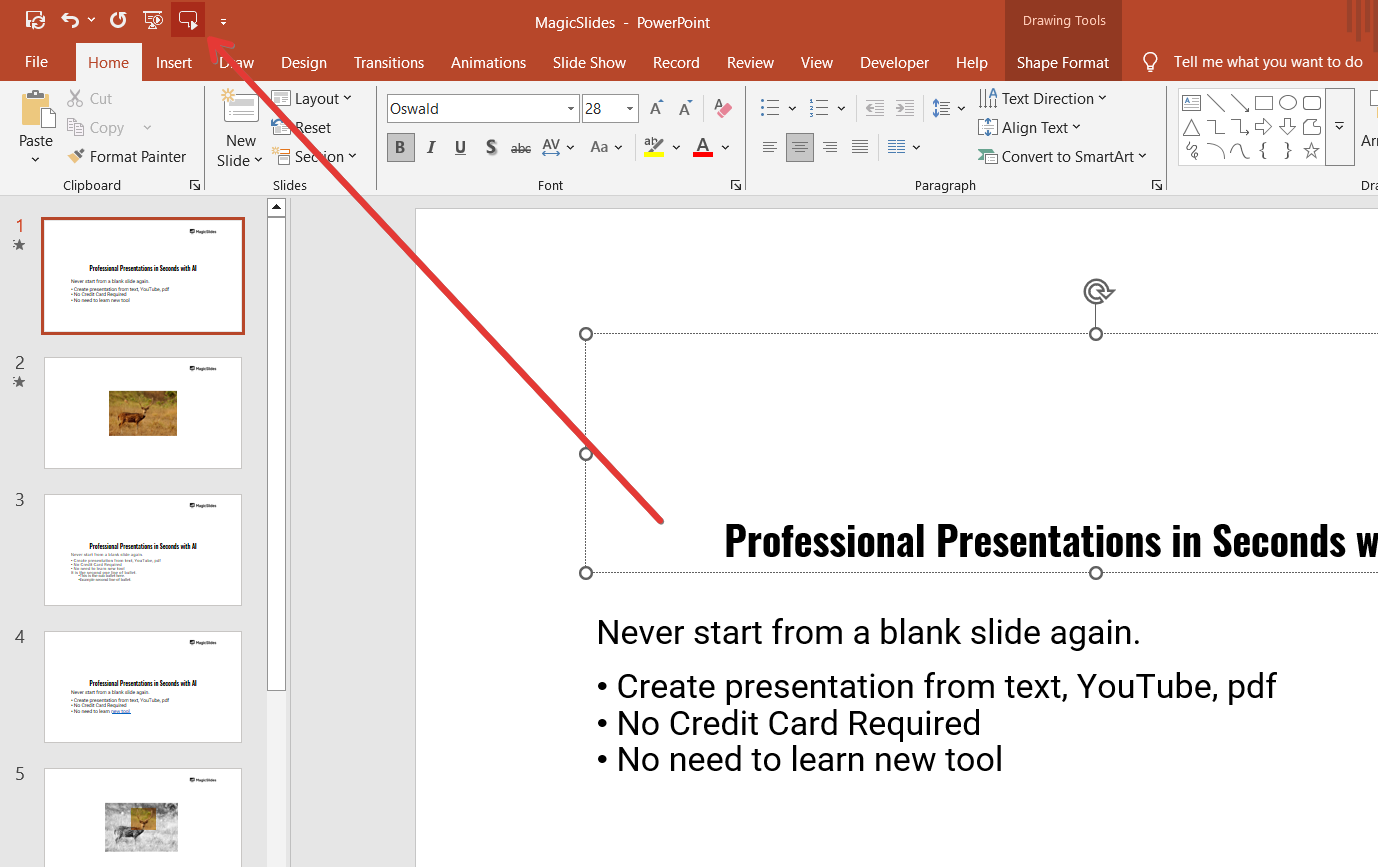
Now, the Speak button will appear on the top toolbar.
Use Text-to-Speech in PowerPoint
Once enabled, you can convert text to speech easily.
How to Use:
Highlight the text you want to be read aloud. Click on the Speak button in the Quick Access Toolbar.
PowerPoint will read the text using your system’s default voice.
Customize the Voice and Speed
You can change the voice and speaking speed from your system settings.
For Windows Users:
Open Settings and go to Time & Language. Click on Speech from the left menu.
Under Text-to-Speech, select a different voice. Adjust the speech speed as needed.
For Mac Users:
Go to System Preferences > Accessibility. Select Speech and choose a preferred voice.
Adjust the speech rate for faster or slower playback.
Use Online Text-to-Speech Tools for More Voices
If PowerPoint’s built-in voices don’t meet your needs, try external TTS tools.
Popular Free TTS Tools:
- NaturalReader
- Microsoft Edge Read Aloud
- Google Text-to-Speech
You can generate speech, download the audio, and insert it into PowerPoint by clicking Insert > Audio > Audio on My PC.
Yes, PowerPoint allows text-to-speech functionality, making presentations more accessible. But if you want to create an entire AI-powered presentation effortlessly, try MagicSlides.app generate complete slides in seconds from just a topic or text!
Conclusion
PowerPoint’s built-in Text-to-Speech feature makes presentations more engaging and accessible.
By following these steps, you can enable the Speak tool, customize the voice, and even record a voiceover for slideshows.
If you need more flexibility, third-party TTS tools can help you add professional-quality narration.
FAQs are here to guide!
Can I change the voice in PowerPoint Text-to-Speech?
Yes, you can change the voice and speed in your system's Speech settings.
Does PowerPoint support AI voiceovers?
PowerPoint itself doesn’t have AI-generated voices, but you can use external AI voice tools and insert audio.
Can I use Text-to-Speech in PowerPoint Online?
No, the built-in Speak feature is only available in desktop versions of PowerPoint.
Now you know how to use Text-to-Speech in PowerPoint! 🚀


