How to create a deck presentation using Google Slides in few clicks


Deck presentations condense complex ideas, engage audiences, and facilitate clear communication, enhancing understanding and retention.
Step 1: Planning Your Presentation
Before diving into Google Slides, outline your presentation's purpose, structure, and content. Identify key points, create an agenda, and decide on a visual theme that suits your topic and audience.
credit: freepik

Step 2: Accessing Google Slides
Open your web browser, go to Google Drive (drive.google.com), and sign in with your Google account. Click the "+ New" button, then select "Google Slides" to create a new presentation.
credit: freepik
Step 3: Creating Slides and Content
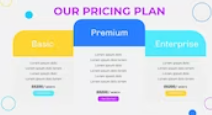
Add slides by clicking the "+ Slide" button or using shortcuts (Ctrl+M or Cmd+M). Customize slide layouts by clicking "Slide" > "Change background" or "Slide" > "Layout." Enter your text, insert images, charts, and videos using the "Insert" menu.
credit: freepik

Step 4: Formatting and Design
Enhance your presentation's visual appeal by adjusting fonts, colors, and backgrounds in the "Slide" > "Slide settings" menu. Maintain a consistent design across slides to ensure coherence.
credit: freepik

Step 5: Present and Share
Click the "Present" button to view your presentation in full-screen mode. To share, click the "Share" button in the upper right corner, enter email addresses or generate a shareable link. Adjust sharing settings (view or edit access) to control who can access and collaborate on your presentation. Collaborators can leave comments or suggest edits in real-time, streamlining the collaborative process.
credit: freepik