Does Canva take pdf


Easily upload, edit, and customize PDF files in Canva with this comprehensive step-by-step guide
Yes, Canva allows you to upload and edit PDF files seamlessly. Whether you want to tweak a PDF for design purposes or add creative elements to it, Canva’s platform makes it easy.
This step-by-step guide explains how you can upload, edit, and utilize PDF files in Canva.
Does Canva Take PDF Files? | Steps to Use PDF Files in Canva
Step 1: Log into Your Canva Account
Open your web browser and visit Canva.
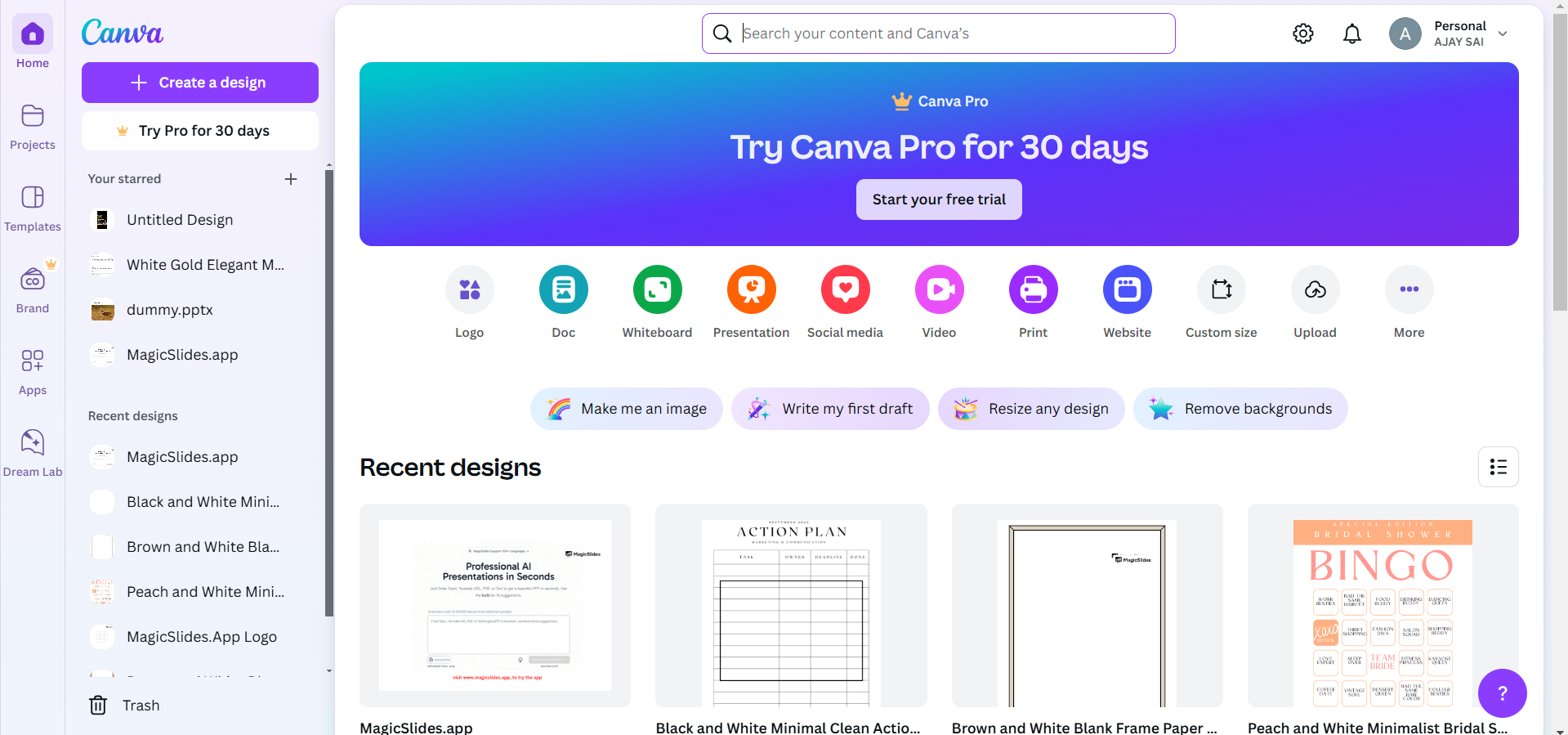
Log in using your credentials or sign up for a free account if you’re new.
Step 2: Upload Your PDF File
On the Canva homepage, click on the Create a design button. Select Import file from the dropdown.
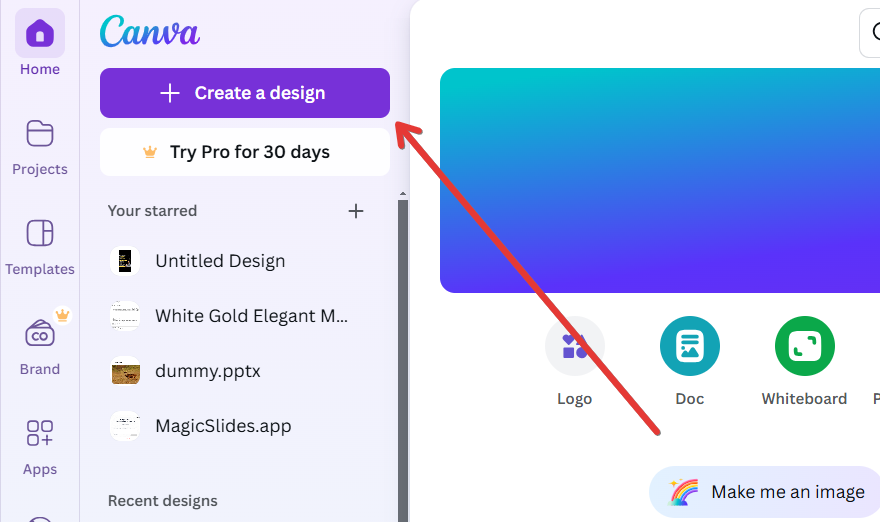
Locate and select the PDF file from your computer. Wait for the file to upload. Canva will automatically convert your PDF into editable elements.
Step 3: Open and Edit the PDF
Once the upload is complete, click on the PDF to open it in the Canva editor.
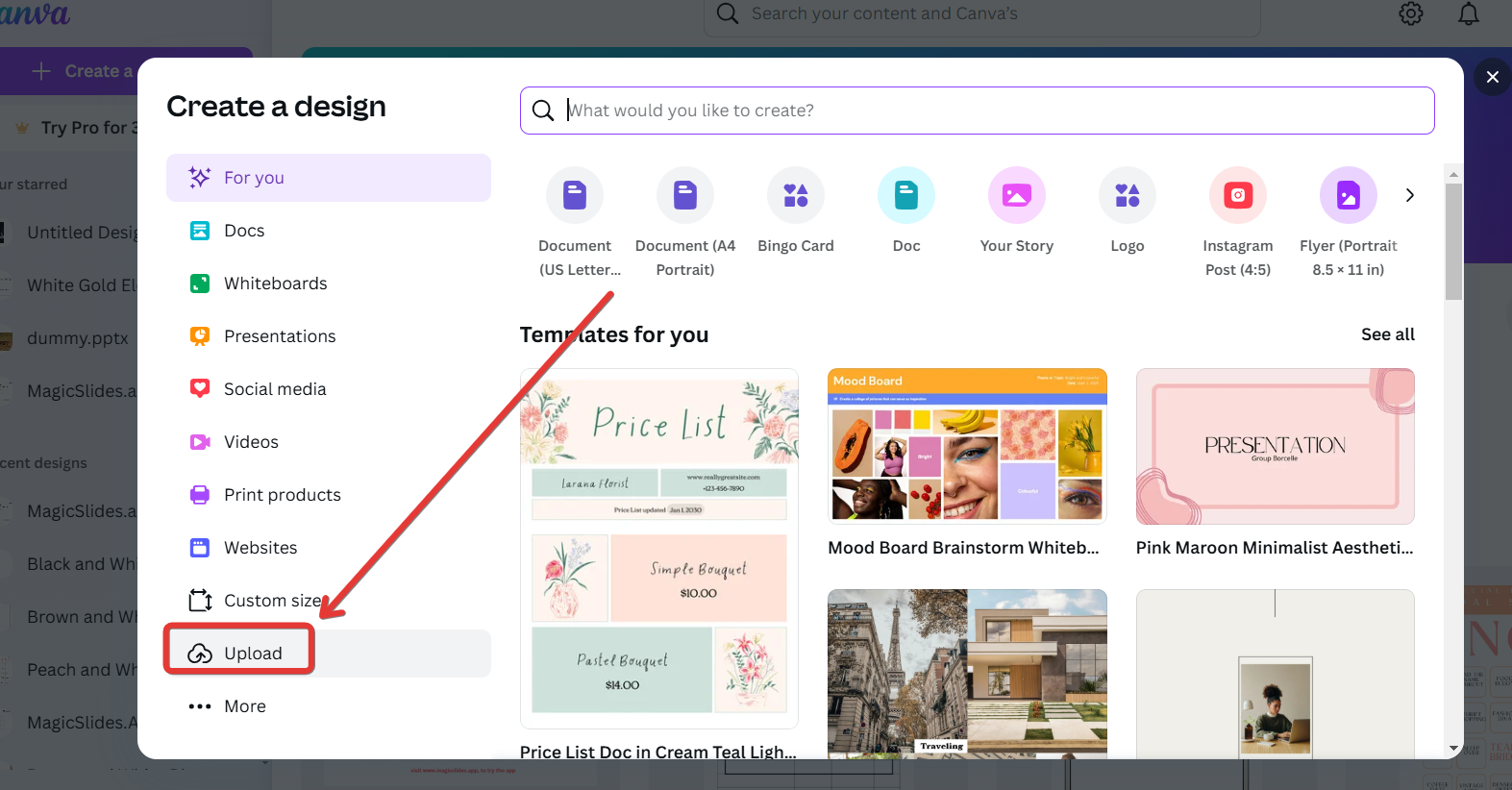
Each page of the PDF will appear as a separate design element. Use Canva’s tools to edit text, images, or design elements within the PDF.
Step 4: Customize the PDF
Add new design elements such as graphics, text, or animations from Canva’s extensive library.
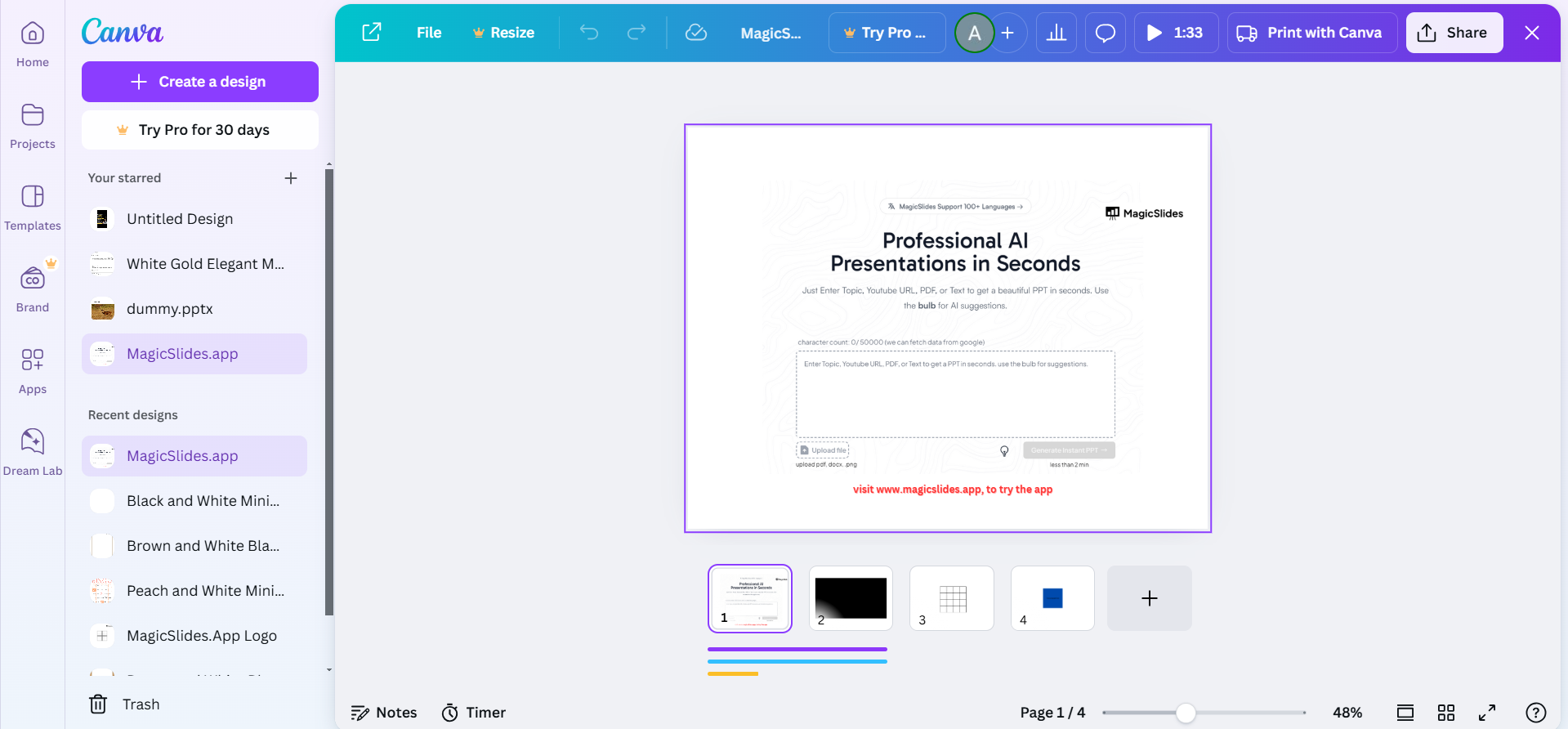
Adjust colors, fonts, and layouts to match your desired style.
Step 5: Save or Export the Edited PDF
Once you’ve made all edits, click on the Share button in the top-right corner.
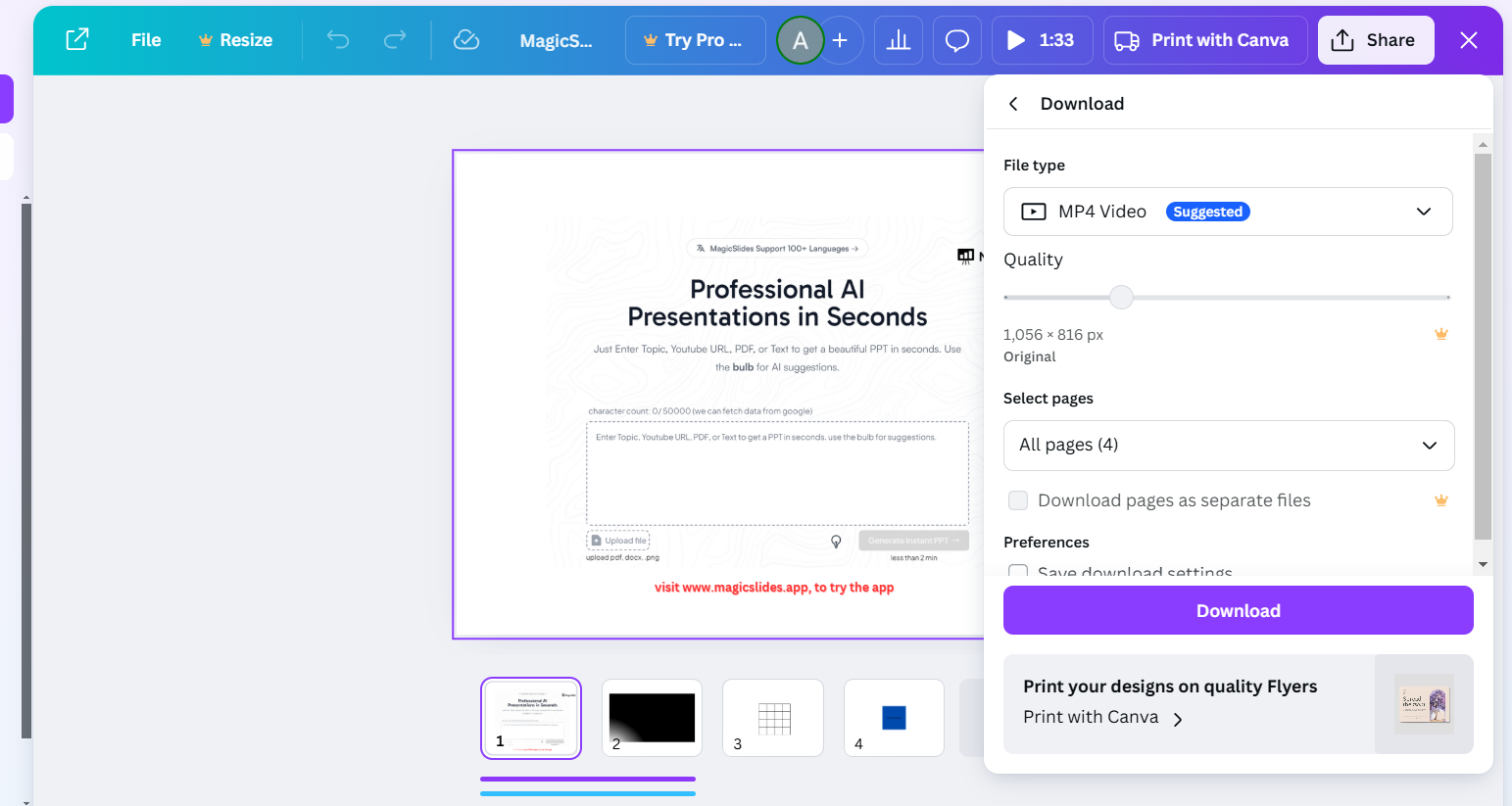
Choose Download, select PDF Standard or PDF Print based on your needs, and click Download. Since you've explored how Canva handles PDFs, learn how to make a PDF fillable in Canva for more interactive documents.
Yes, Canva supports PDFs! But if you want to quickly turn PDFs into fully designed presentations, try MagicSlides.app. It converts PDFs into professional PowerPoint slides effortlessly, so you can focus on presenting.
Conclusion
Canva makes it incredibly easy to work with PDF files, whether you’re looking to edit an existing document or create a new design.
By following these steps, you can import, edit, and export PDFs effortlessly.
FAQs on Using PDFs in Canva
Can I edit every part of a PDF in Canva?
Yes, Canva converts PDFs into editable elements, but some complex formatting may not transfer perfectly.
What file size limit does Canva have for PDFs?
Canva supports PDF uploads up to 100MB, ensuring most files can be used without issues.
Can I use Canva to merge multiple PDFs?
Not directly. You can upload multiple PDFs and combine their pages manually into a single design.
By leveraging Canva’s intuitive tools, you can unlock new possibilities for your PDF files.


