How do I make Text the Same in PowerPoint


Learn how to make text consistent in PowerPoint by adjusting fonts, sizes, colors, and spacing
Consistency in text formatting is crucial when designing a PowerPoint presentation.
Whether you’re creating slides for a meeting, class, or a professional presentation, ensuring that your text looks uniform across slides helps maintain clarity and visual appeal.
In this guide, we’ll walk you through the steps to make text the same in PowerPoint, from font styles to sizes and colors.
How to Make Text the Same in PowerPoint | Steps to Make Text the Same in PowerPoint
Step 1: Select Your Text Box
Open your PowerPoint presentation and navigate to the slide with the text you want to modify.
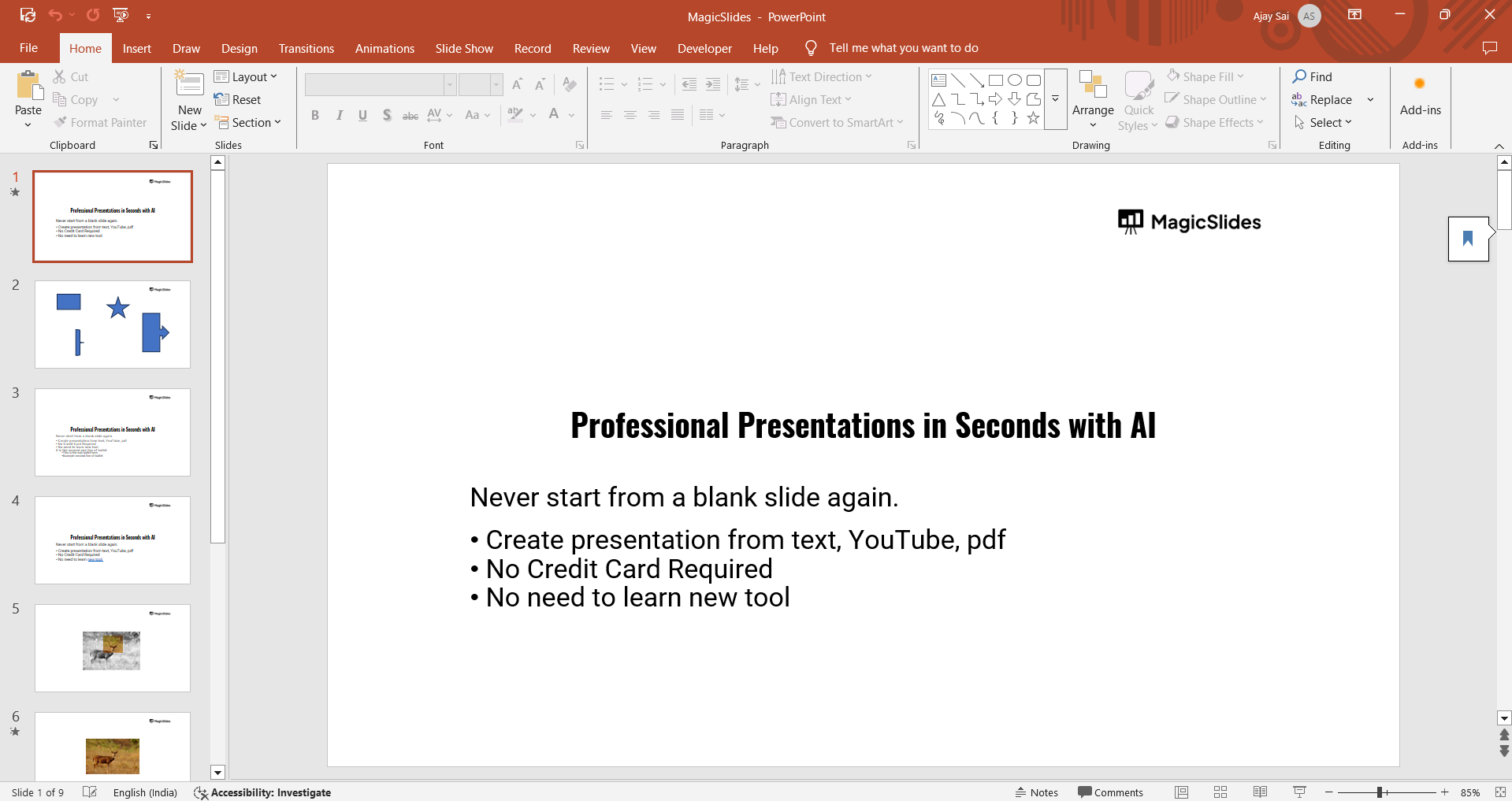
Click on the text box where the text is located to select it.
Step 2: Choose the Font Style
Highlight the text you want to change or select the entire text box.
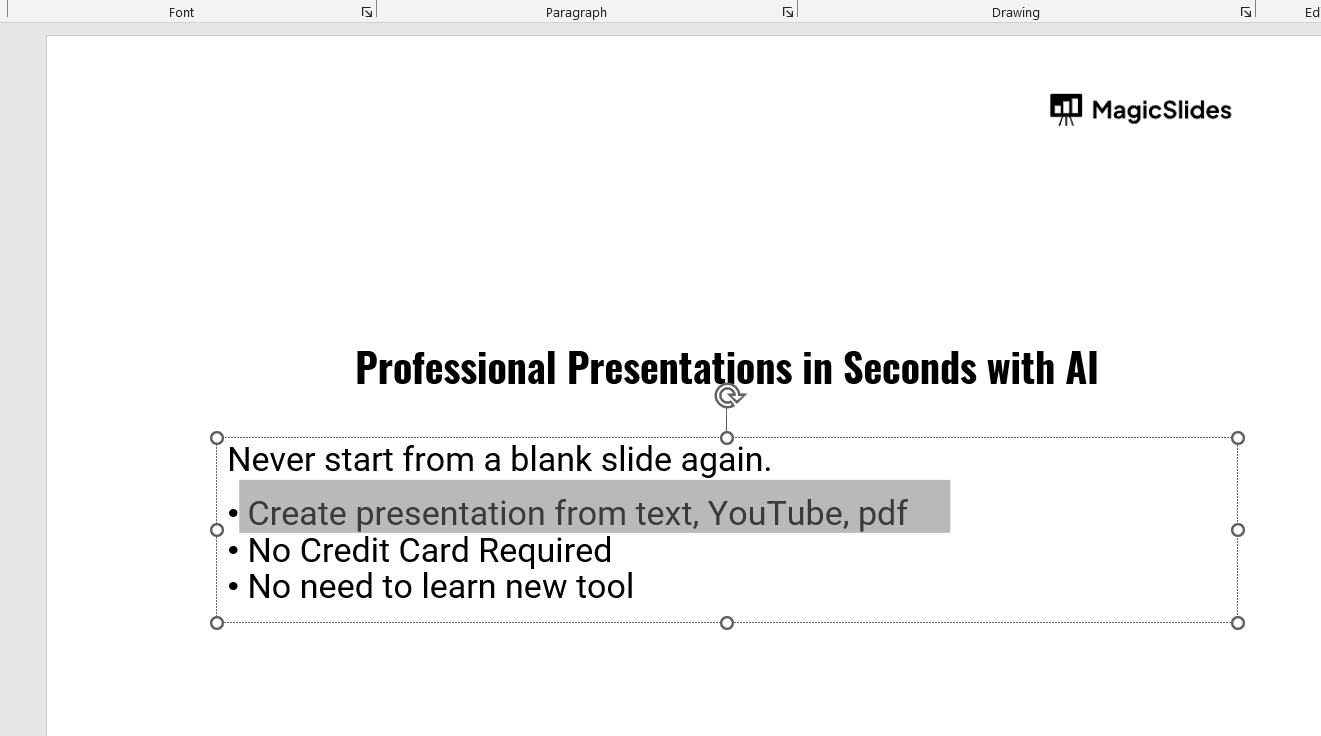
On the Home tab, in the Font group, choose the desired font from the dropdown menu.
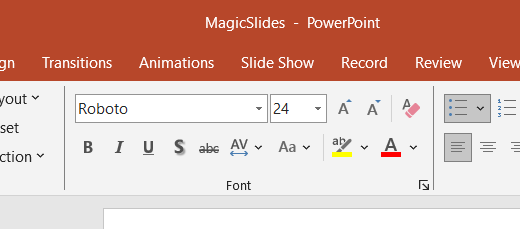
If you want to apply the same font to other text, repeat this step for each text box.
Step 3: Adjust Font Size
With the text still selected, go to the Font Size box in the Font group on the Home tab.
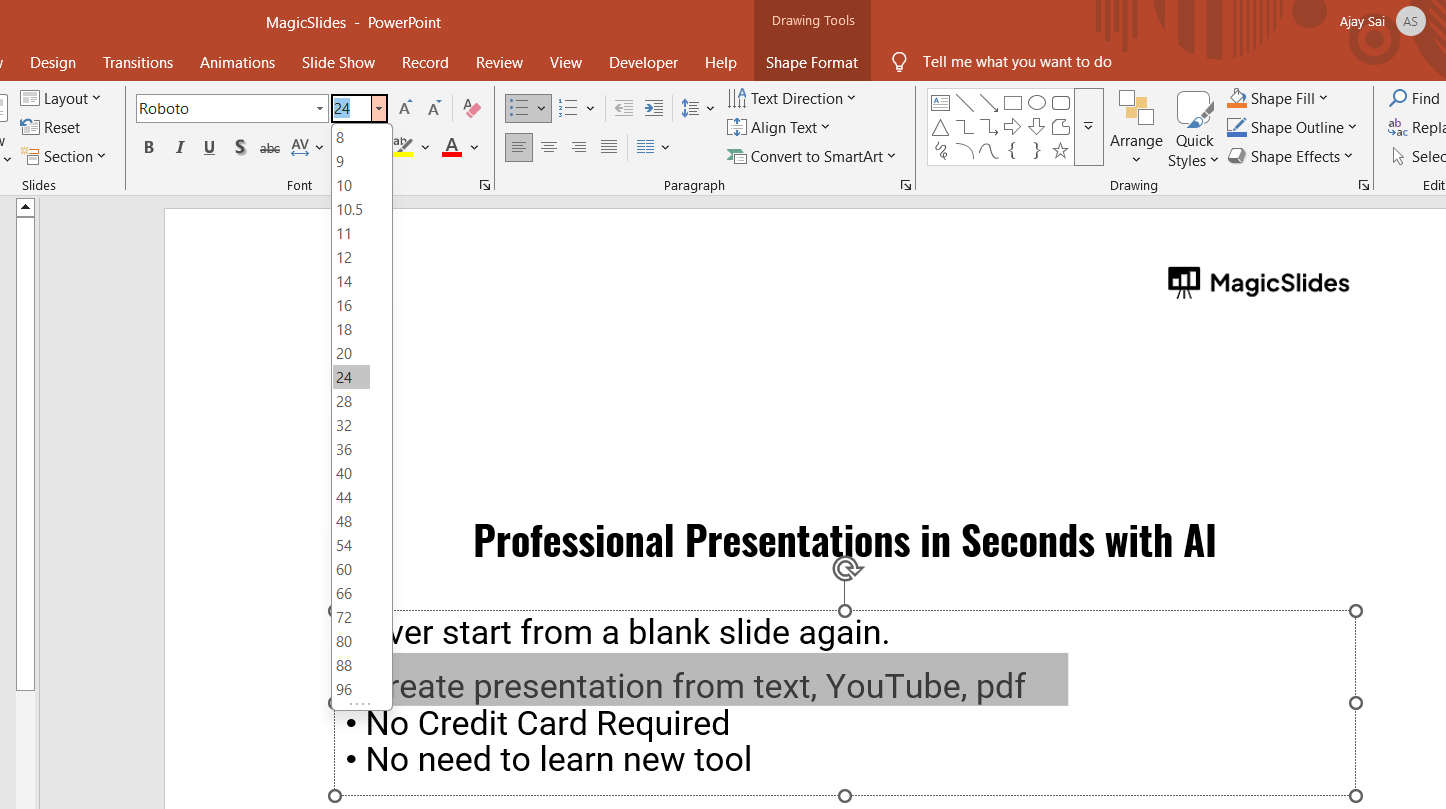
Choose a font size from the dropdown menu, or manually enter a specific size.
Apply this size to all text boxes that need to match by repeating this step.
Step 4: Set the Text Color
Select the text you want to change. In the Font group on the Home tab, click the Font Color button (the "A" with a color bar underneath).
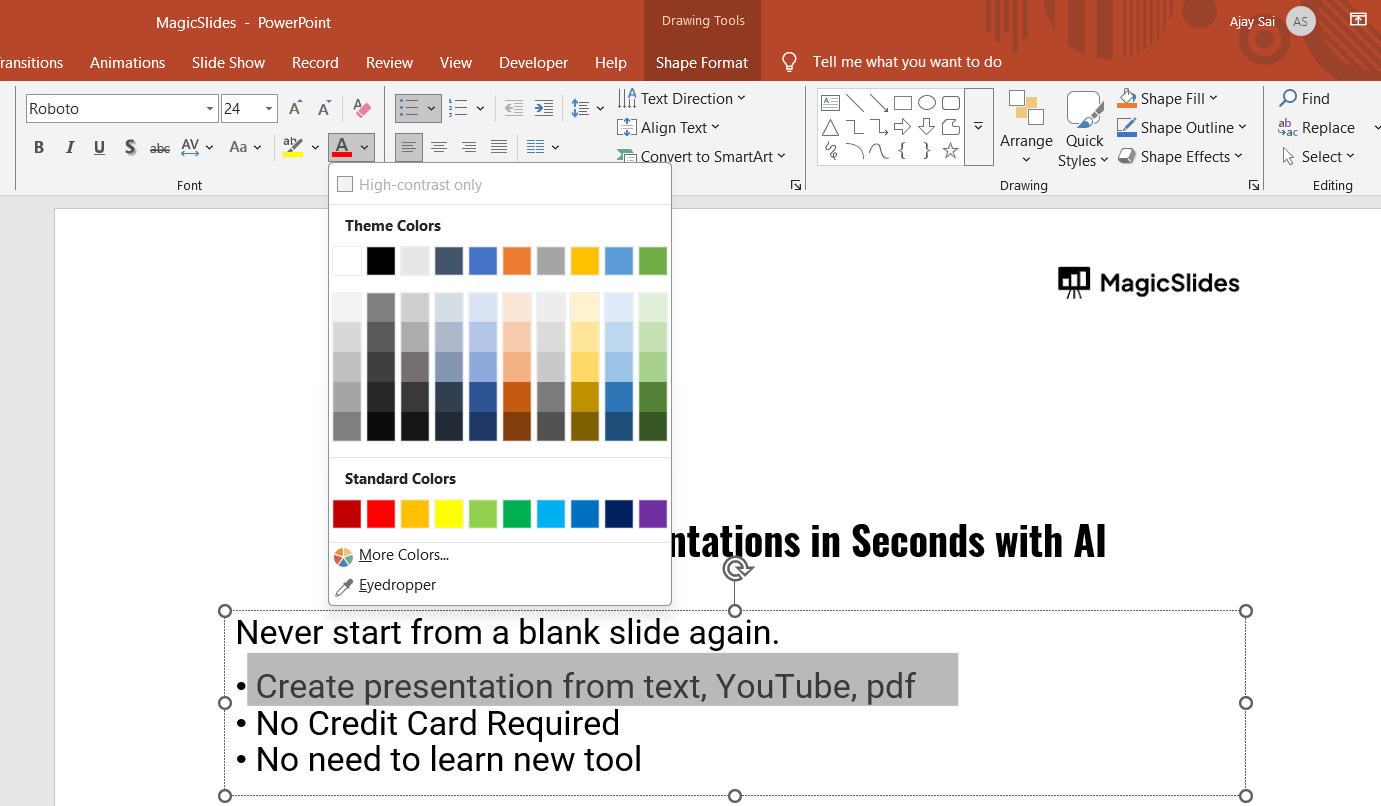
Choose your desired color from the palette. Repeat for other text boxes that need the same color.
Step 5: Apply Consistent Line Spacing
Select the text box. On the Home tab, in the Paragraph group, click Line Spacing.
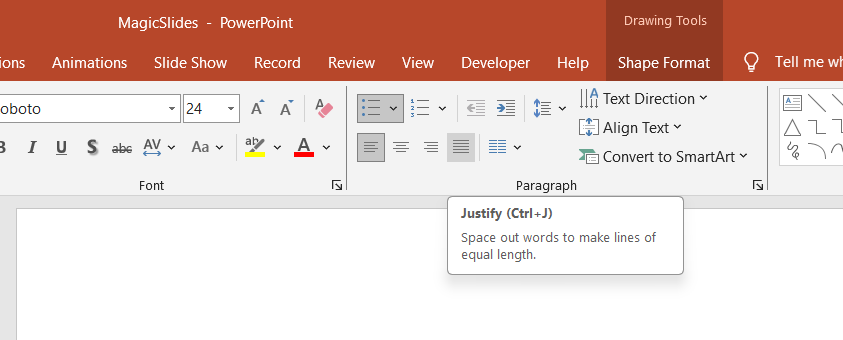
Choose the appropriate line spacing (e.g., 1.0, 1.5, or 2.0) to ensure consistency across all slides.
Step 6: Use the Format Painter Tool (Optional)
To quickly copy the formatting of one text box to others, select the text box with the desired formatting.
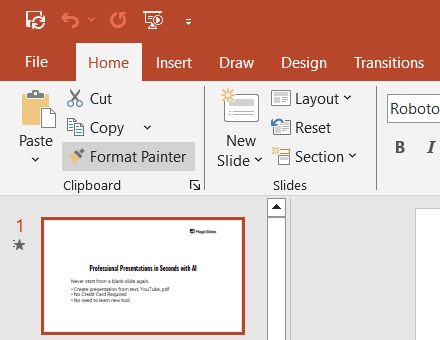
On the Home tab, click the Format Painter button (the paintbrush icon).
Drag the painter over the text boxes you want to apply the formatting to. This will make the text the same across all selected text boxes.
Step 7: Use Slide Master for Consistent Formatting
If you want to apply uniform text formatting across the entire presentation, use the Slide Master.
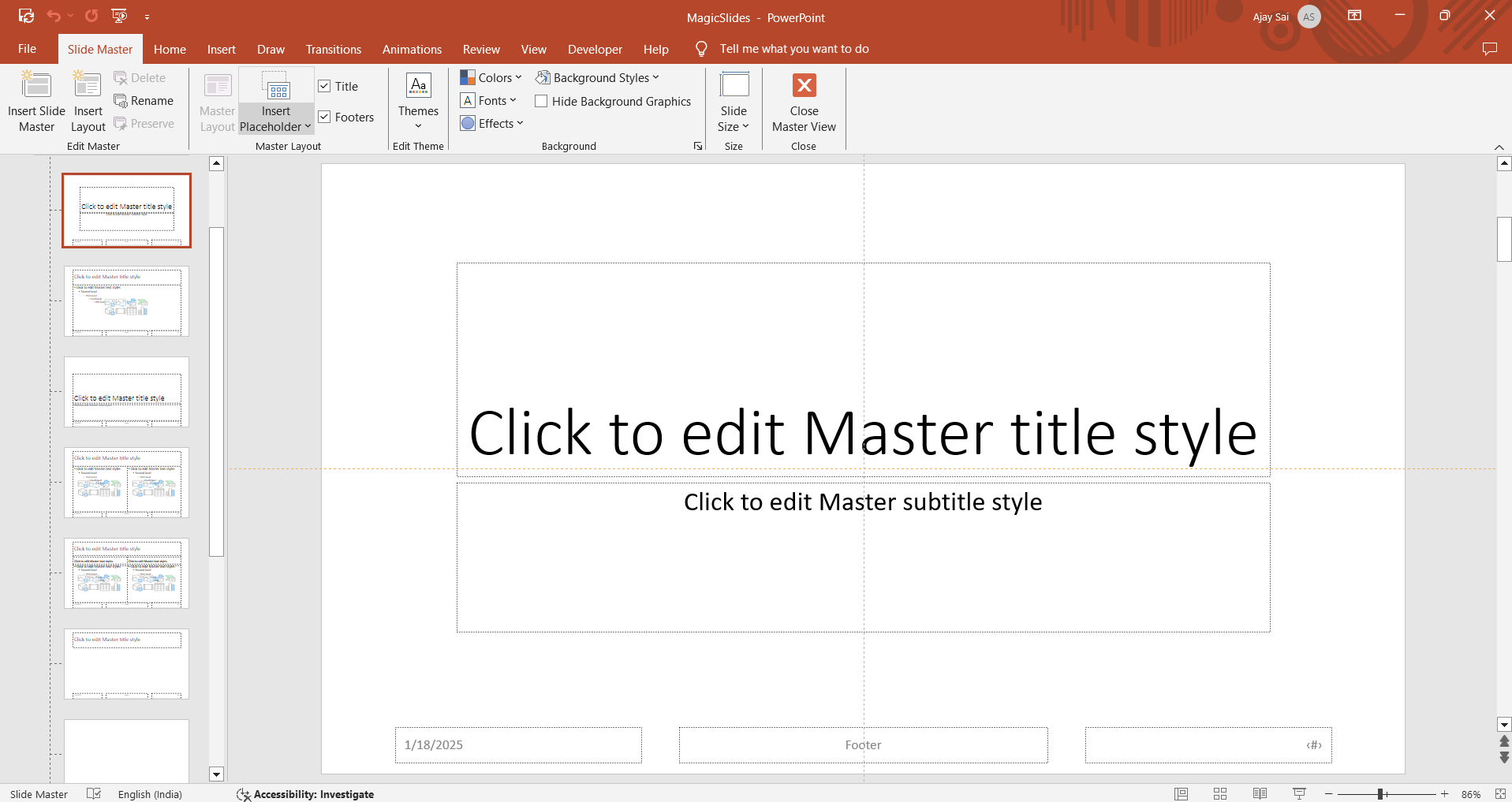
Go to the View tab and click Slide Master. In the Slide Master view, select the layout or title slide you want to adjust.
Modify the font style, size, and color, and it will automatically apply to all slides using that layout. Once you've learned how to make text consistent in PowerPoint, explore how to use the Slide Master feature to streamline formatting across your slides.
Standardizing text in PowerPoint can be tedious, but MagicSlides.app simplifies the entire presentation process. With its AI-powered features, you can create polished presentations in seconds, complete with professionally formatted text. Just enter your topic or upload a file, and MagicSlides.app does the rest. Try it today for effortless slide creation!
Conclusion
Making text consistent in PowerPoint is a simple but effective way to ensure your presentation looks polished and professional.
Whether you’re manually adjusting each slide or using tools like the Format Painter or Slide Master, maintaining uniform text formatting will improve the overall impact of your presentation.
By following these steps, you can ensure that your text looks cohesive and aligned throughout your slides.
FAQs on Making Text the Same in PowerPoint
Can I make text consistent across all slides automatically?
Yes, you can use the Slide Master feature to apply consistent text formatting across all slides.
How do I copy text formatting from one slide to another?
Use the Format Painter tool to quickly copy and apply the formatting from one text box to another.
How can I ensure text stays the same after adding new slides?
By using the Slide Master, any new slides based on that layout will automatically use the same text formatting.
Consistency in your PowerPoint text will make your presentation more professional, ensuring all slides look cohesive and polished.


