How do you put your videos in Reverse on PowerPoint


Reverse videos in PowerPoint using external tools to create engaging, dynamic, and visually appealing presentations easily
How to Reverse a Video in PowerPoint
PowerPoint is a great tool for presentations, but it does not have a built-in feature to reverse videos.
However, you can still achieve this effect by using external tools before inserting the reversed video into your PowerPoint slide.
This guide will walk you through the process step by step.
Steps to Reverse a Video for PowerPoint
Step 1: Choose a Video Editing Tool
Since PowerPoint doesn’t support reversing videos, you’ll need to use an external tool such as:
- Kapwing (Online)
- Clideo (Online)
- iMovie (Mac)
- Adobe Premiere Pro or Camtasia (Advanced users)
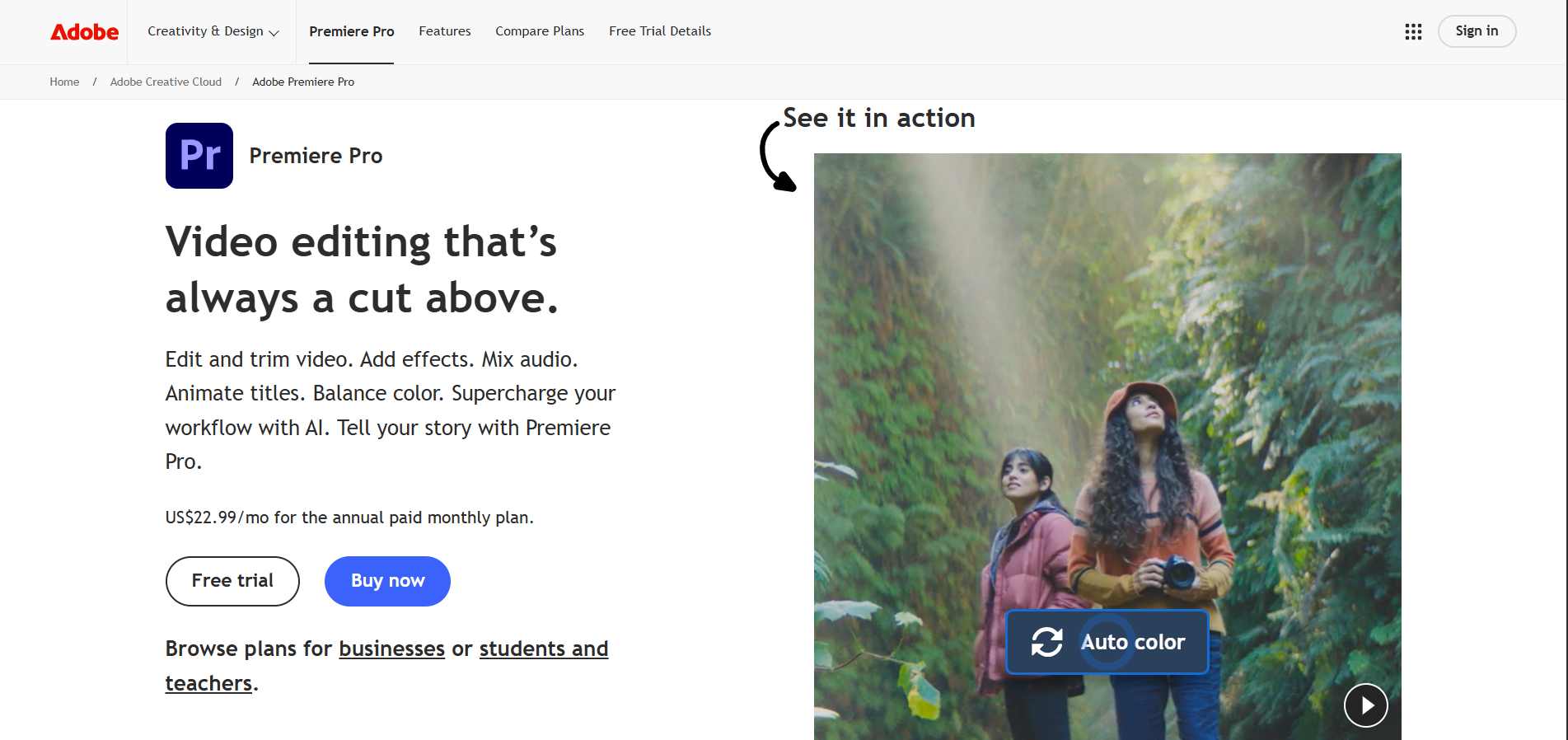
Step 2: Upload Your Video
Go to your selected tool and upload the video you want to reverse. Most online tools allow you to drag and drop or select a file from your computer.
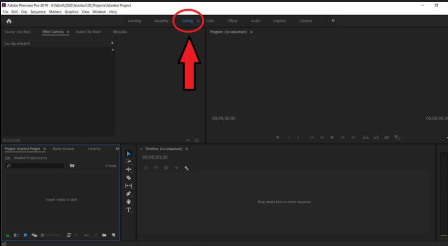
Step 3: Apply the Reverse Effect
Once the video is uploaded, look for the Reverse Video option. In tools like Kapwing or Clideo, this option is available in the editing settings. Click on it and let the tool process the video.
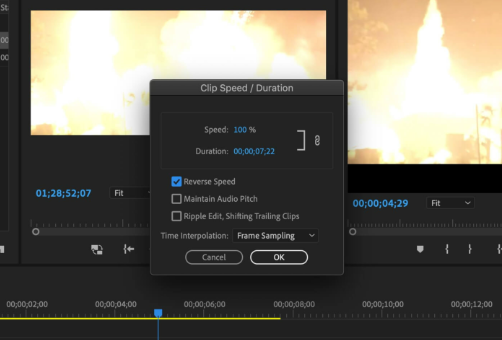
Step 4: Download the Reversed Video
After processing, download the reversed video to your computer in a format compatible with PowerPoint (e.g., MP4, WMV).
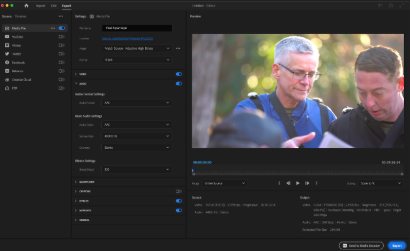
Step 5: Open PowerPoint and Insert the Reversed Video
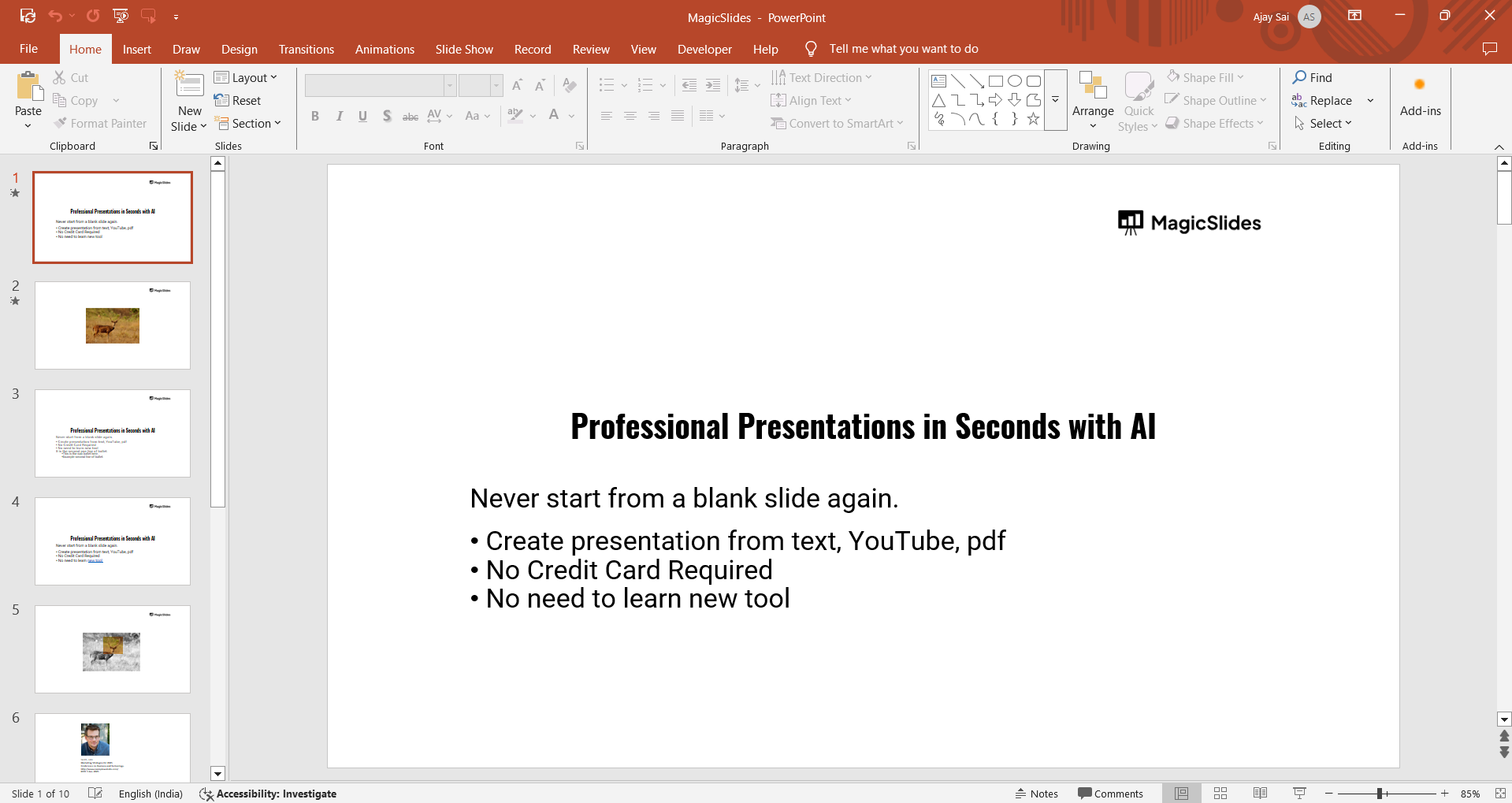
Open your PowerPoint presentation. Navigate to the slide where you want to insert the video.
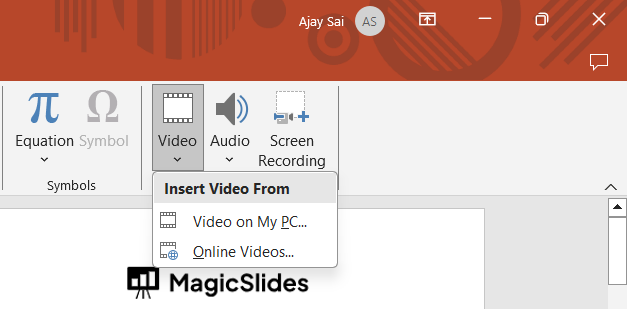
Click on Insert > Video > This Device and select the reversed video.
Step 6: Adjust Video Settings (Optional)
- Resize or reposition the video on your slide.
- Set it to play automatically by selecting the video, clicking on Playback, and choosing Start Automatically.
- Add effects like fade-in or out under the Animations tab.
Step 7: Save and Present
After inserting the reversed video, save your PowerPoint file and preview the presentation to ensure it plays as expected.
PowerPoint doesn’t have a built-in reverse video feature, but if you need to create stunning, AI-powered slides quickly, MagicSlides.app can help! Just enter a topic, and it generates polished slides instantly!
Conclusion
While PowerPoint doesn’t offer a direct way to reverse videos, using external tools makes it easy to create and insert reversed clips.
By following these steps, you can enhance your presentations with unique and engaging effects.
FAQs can come handy!
Can I reverse a video directly in PowerPoint?
No, PowerPoint does not have a built-in reverse video feature. You need to use an external video editing tool.
What video formats work best in PowerPoint?
PowerPoint supports MP4, WMV, AVI, and MOV formats. MP4 is the most recommended for compatibility.
Are there free tools to reverse videos online?
Yes, tools like Kapwing, Clideo, and Ezgif offer free video reversing features with some limitations.


