How to Add BGM in Google Slides


Enhance your Google Slides presentation by adding background music for a more engaging and dynamic experience
How to Add Background Music (BGM) in Google Slides
Adding background music (BGM) to your Google Slides presentation can make it more engaging and dynamic.
Whether you're creating a business presentation, a school project, or a personal slideshow, background music can enhance the overall experience.
In this guide, we’ll walk you through the step-by-step process of adding BGM to your Google Slides.
Step-by-Step Guide to Adding BGM in Google Slides
Step 1: Open Your Google Slides Presentation
Go to Google Slides and open the presentation where you want to add background music.
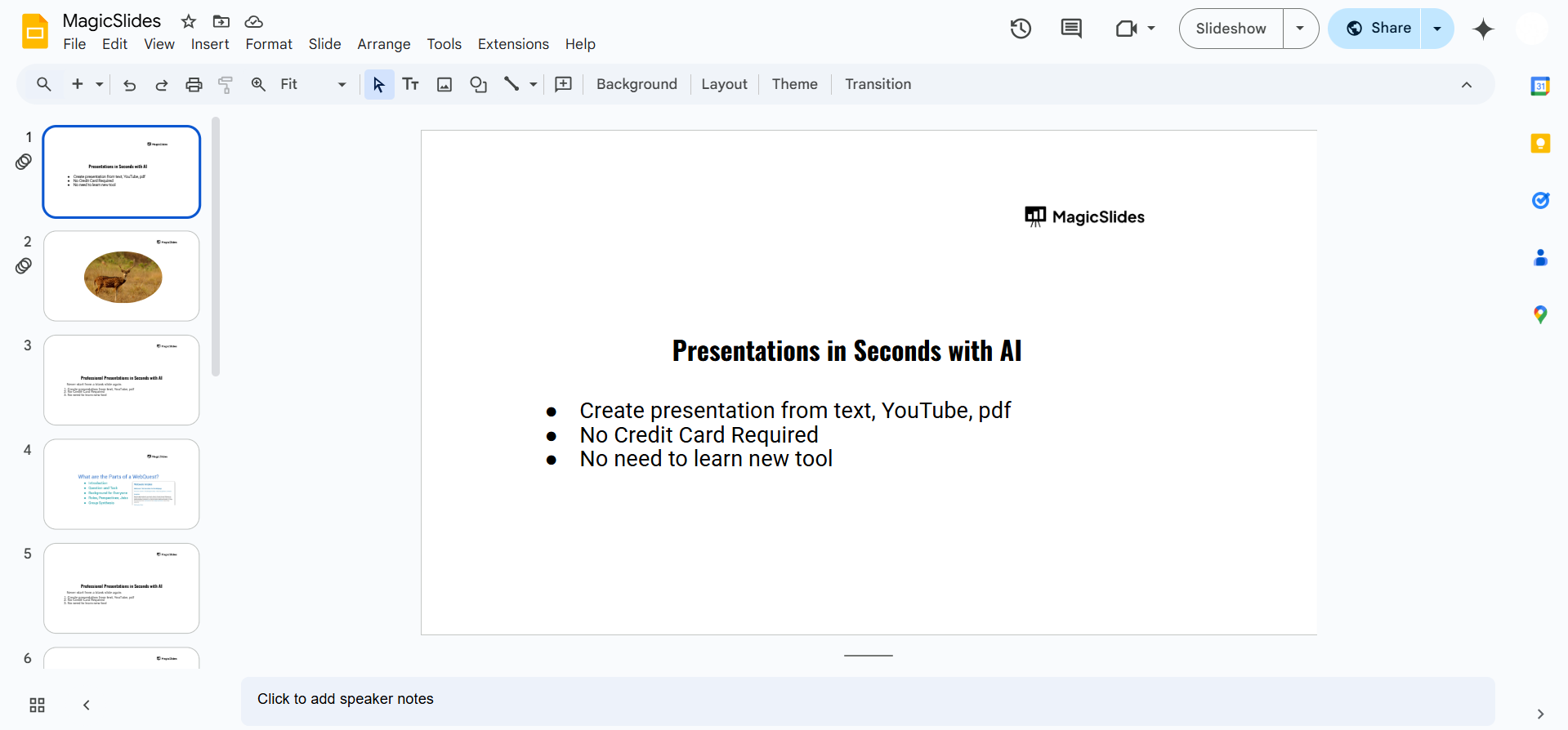
Ensure you have editing access to modify the slides.
Step 2: Select the Slide Where You Want to Add Music
Background music can be added to a single slide or multiple slides depending on your needs.
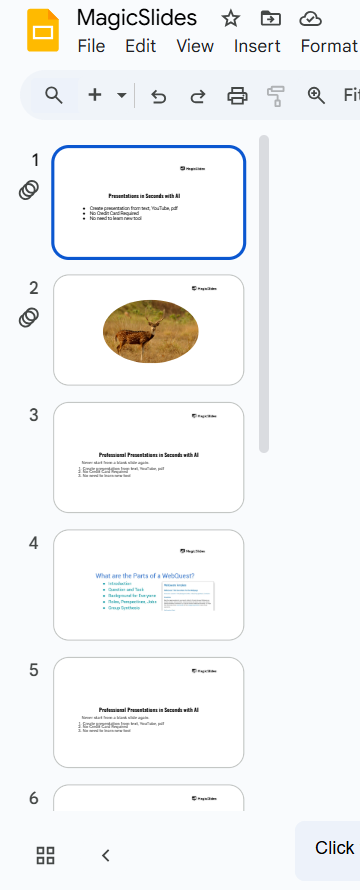
If you want continuous music throughout the presentation, you’ll need to add the music to the first slide and adjust settings.
Step 3: Insert an Audio File from Google Drive
Google Slides allows you to add audio files stored in Google Drive.
Upload your music file (MP3 or WAV) to Google Drive. In Google Slides, click on Insert > Audio.
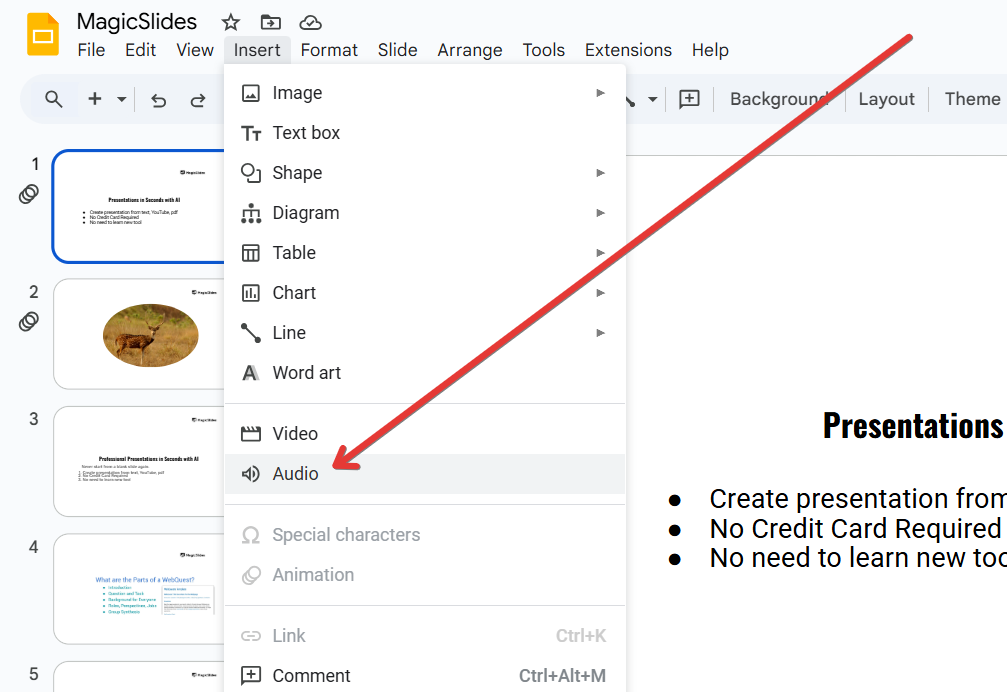
Select the uploaded audio file from your Google Drive. Click Insert to add the audio to your slide.
Step 4: Adjust Audio Playback Settings
Click on the audio icon in your slide. A toolbar will appear with playback options.
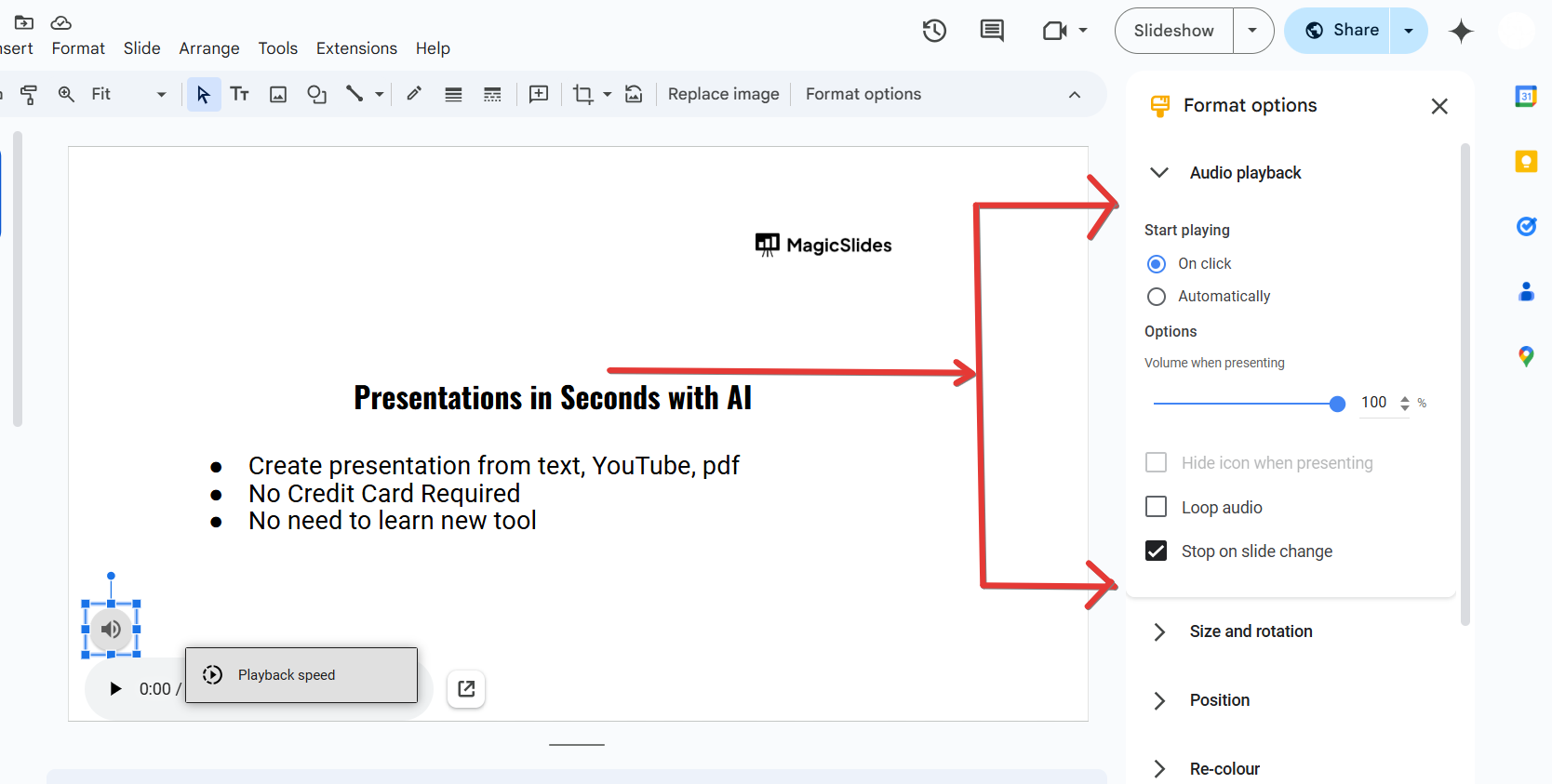
Set playback mode to:
- "Play automatically" – Music starts as soon as the slide opens.
- "Loop until stopped" – Music keeps playing throughout the presentation.
- "Hide icon when presenting" – Hides the audio icon from the slide during the presentation.
Step 5: Add Music from YouTube (Alternative Method)
If you don’t have an audio file, you can use a YouTube video as background music.
Click Insert > Video and search for a YouTube video with the desired background music.
Select the video and click Insert. Resize and move the video off-screen so it doesn’t distract viewers.
Click on the video, then select Format options > Autoplay when presenting.
Step 6: Test Your Presentation
Click Present to check if the background music plays correctly. Adjust volume settings or reposition the audio icon if needed.
Adding background music enhances your Google Slides, but if you need to create a full presentation effortlessly, check out MagicSlides.app. Simply enter a topic, and it generates AI-powered slides instantly!
Conclusion
Adding background music to Google Slides enhances engagement and creates a better experience for your audience.
Whether using an audio file from Google Drive or embedding a YouTube video, you can easily add music to your presentation with the right settings.
FAQs About Adding BGM in Google Slides
Can I play music across multiple slides in Google Slides?
Yes, select Loop until stopped and ensure the audio file is placed on the first slide.
What audio formats are supported in Google Slides?
Google Slides supports MP3 and WAV files uploaded to Google Drive.
Can I add Spotify music to Google Slides?
No, but you can add a Spotify link by inserting a clickable text or image directing to the song.
Now you’re ready to add background music and make your presentations more engaging! 🎶🚀


