How to Add Transitions in Canva


Adding transitions in Canva enhances presentations with smooth effects, creating a polished, engaging viewer experience
Adding transitions in Canva can elevate your presentations, making them more engaging and visually appealing.
Canva offers a variety of transitions that allow you to animate slides smoothly, creating a dynamic flow from one slide to the next.
Follow these steps to learn how to add transitions to your Canva project easily.
How to Add Transitions in Canva: A Step-by-Step Guide
Step 1: Open Your Canva Project
Log into your Canva account and open the presentation or design project where you want to add transitions.

Make sure your project has multiple pages or slides, as transitions will apply between them.
Step 2: Select the Slide Where You Want to Add a Transition
In your Canva project, go to the slide where you want to apply a transition.
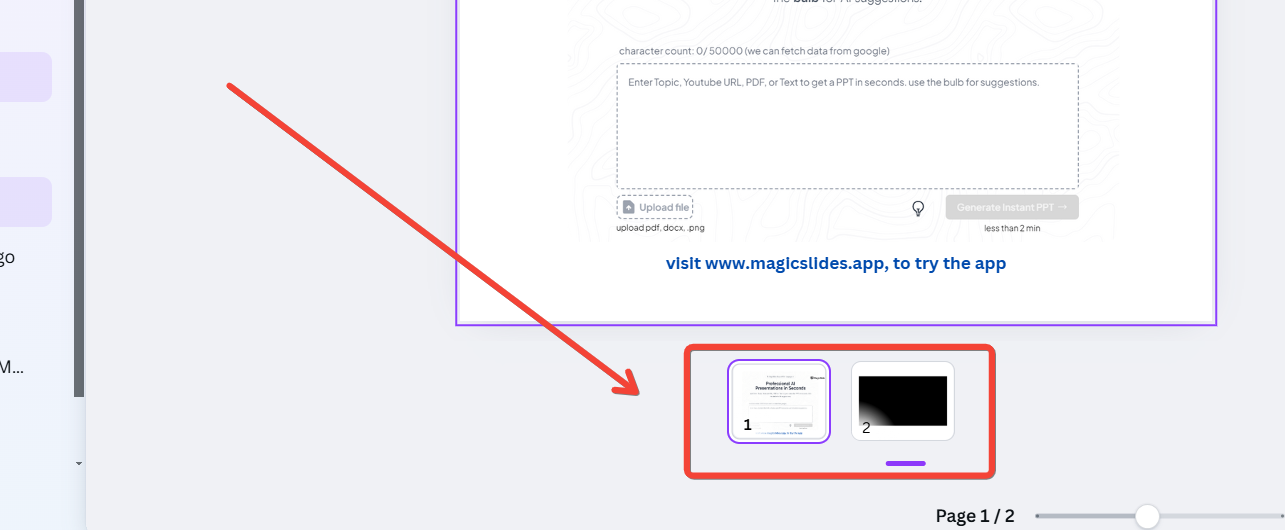
You can select a slide by clicking on its thumbnail in the left-hand sidebar. This slide will act as the starting point for your transition.
Step 3: Click on the "Animate" Button
With the slide selected, look at the top of your Canva workspace and click on the "Animate" button.
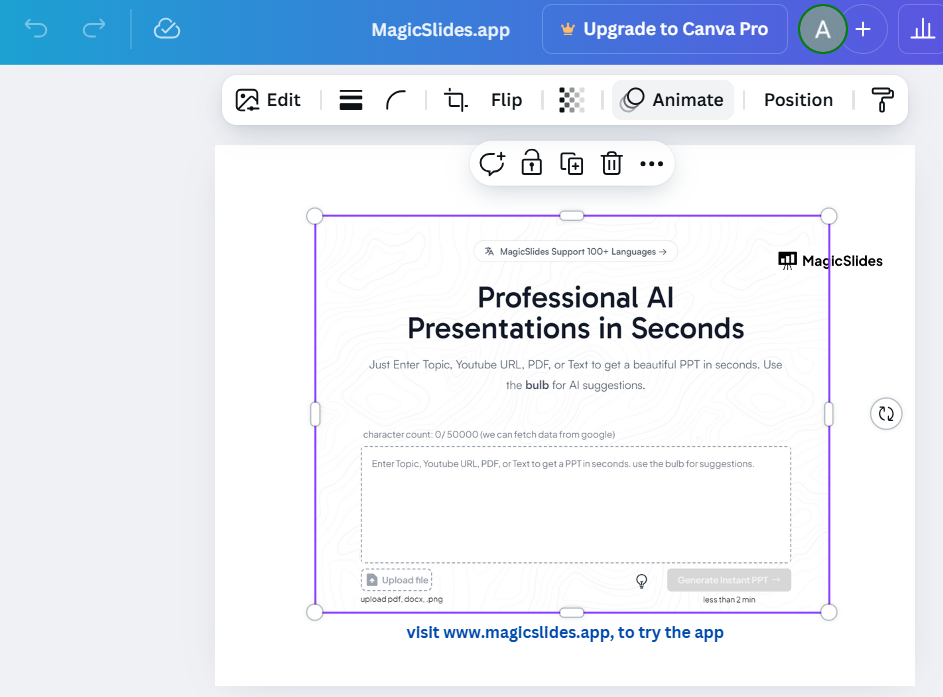
This will open a panel on the left side of the screen, showing various animation options, including transitions and slide animations.
Step 4: Choose a Transition Effect
In the "Animate" panel, scroll down to the "Page Animations" or "Slide Transitions" section.
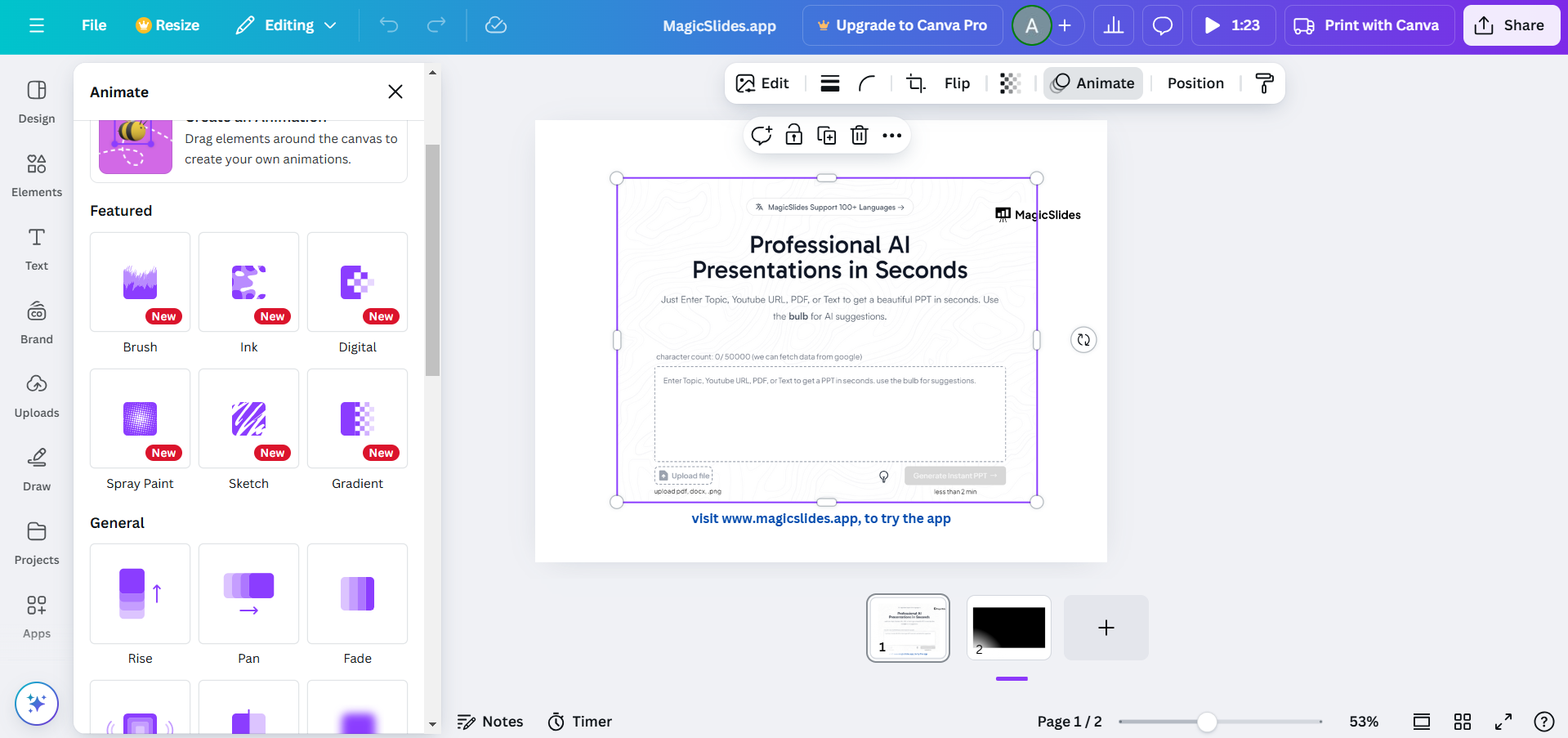
Here, you’ll find different transition effects like "Slide," "Fade," "Pan," and more.
Click on a transition to preview how it will look between slides. Select the one that best fits your presentation style.
Step 5: Apply the Transition to All Slides (Optional)
If you want the same transition effect across all slides, select the "Apply to All Pages" option, usually located in the "Animate" panel.
This will save you time by applying the chosen transition to every slide in your project.
Once you've added transitions in Canva, take your design further by learning how to overlap images in Google Slides for a layered effect.
Conclusion
Adding transitions in Canva is a simple yet powerful way to make your presentations more engaging and cohesive.
By following these steps, you can seamlessly guide your audience through your content with smooth, visually appealing transitions.
Experiment with different effects to find the perfect look for your presentation!
FAQs are here to help!
Can I remove or change a transition after adding it?
Yes, you can return to the "Animate" panel at any time to remove or select a different transition effect for each slide.
Are all transition effects available for free in Canva?
Some transitions may be limited to Canva Pro users, but there are many free options available as well.
Can I apply different transitions to different slides?
Yes, you can apply unique transitions to individual slides by selecting each slide and choosing a specific effect for each.


