How to Add Transitions on Google Slides Mobile


Enhance your Google Slides on mobile by adding smooth transitions for a polished, engaging presentation experience
Adding transitions on Google Slides using the mobile app can enhance your presentation, making it more visually engaging.
While the mobile app has limited features compared to the desktop version, you can still apply slide transitions for smooth, professional-looking presentations.
Here’s a quick guide to help you add transitions on Google Slides mobile.
How to Add Transitions on Google Slides Mobile: A Step-by-Step Guide
Step 1: Open the Google Slides App and Your Presentation
Launch the Google Slides app on your mobile device, then open the presentation where you want to add transitions.
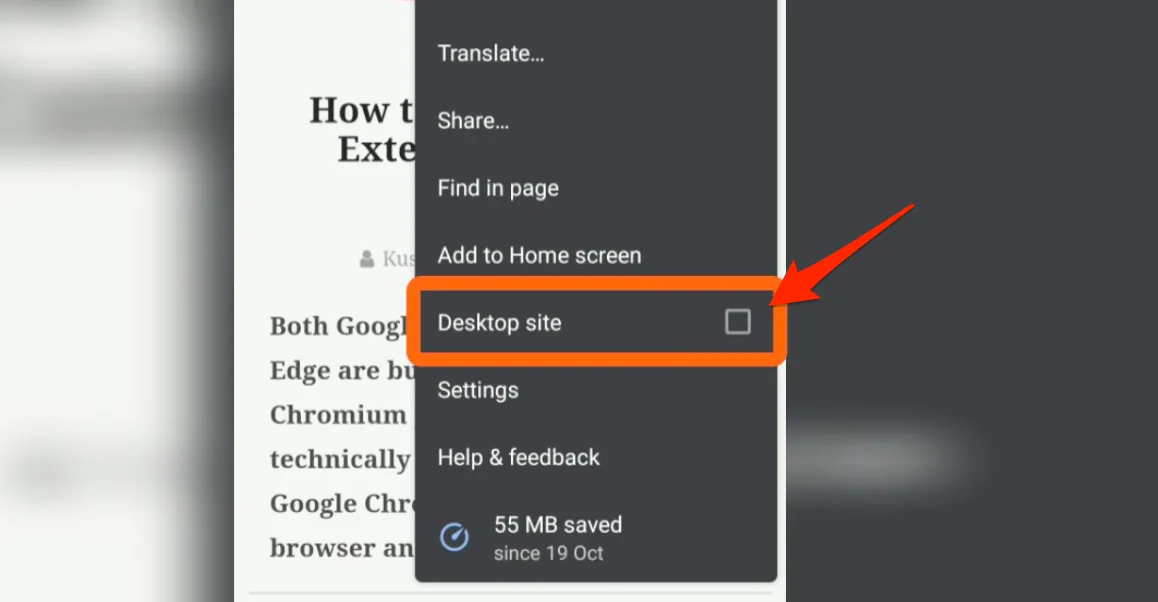
Navigate to the slide you want to apply the transition to by swiping through your slides.
Step 2: Access Transition Options
In the upper right corner, tap the three vertical dots to open the menu options.
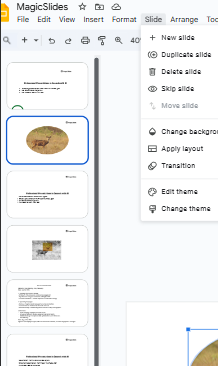
From the dropdown, select "Transition" to enter the transition settings for that particular slide.
Step 3: Choose Your Transition Type
Once you’re in the transition settings, tap on the "Transition" option to view available transition effects.
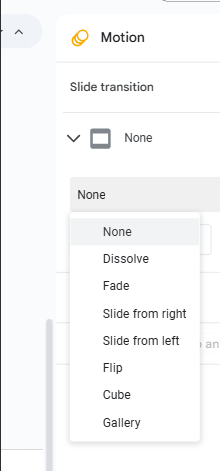
Select the transition effect you prefer, such as "Fade," "Slide from Right," or "Slide from Left," to create a specific transition effect when moving to the slide.
Step 4: Adjust the Transition Speed (Optional)
After selecting the transition type, you can adjust the transition speed to your preference, such as "Fast," "Medium," or "Slow."
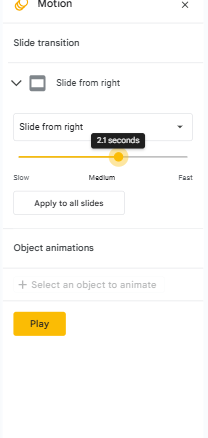
Adjusting the speed can add emphasis to certain slides or create a smoother viewing experience.
Step 5: Apply to All Slides (Optional)
If you want to use the same transition for every slide in your presentation, select the "Apply to all slides" option.
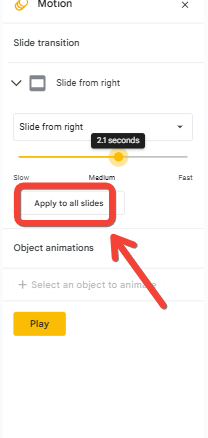
This will automatically add the selected transition to all slides, saving you time.
After mastering transitions on Google Slides mobile, learn how to rotate a slide in Google Slides to add a creative twist to your presentation flow.
Conclusion
Adding transitions in Google Slides mobile is a quick way to elevate your presentation's quality, even on the go.
With a few taps, you can create smooth transitions between slides, adding a professional touch to your work.
Try experimenting with different transition styles and speeds to find the perfect effect for your presentation.
FAQs can clear your doubts!
Can I use multiple transition types in one presentation on mobile?
Yes, you can apply different transitions to individual slides by selecting a unique effect for each slide.
Are the transitions visible on all devices?
Yes, any transitions you add on the mobile app will be visible on other devices, including desktop and tablet.
Can I remove transitions in the Google Slides mobile app?
Yes, you can remove transitions by selecting the slide, going to "Transition" settings, and choosing "None" as the effect.


