How to Bend Words in PowerPoint


Easily bend words in PowerPoint using WordArt and text effects to create visually appealing designs
How to Bend Words in PowerPoint
Adding curved or bent text in PowerPoint enhances visual appeal and creativity.
Whether for logos, titles, or decorative elements, PowerPoint’s WordArt and text effect features make bending words easy.
Here’s a step-by-step guide to achieve this effect.
Step 1: Insert a Text Box
Open your PowerPoint presentation and navigate to the slide where you want to add bent text.
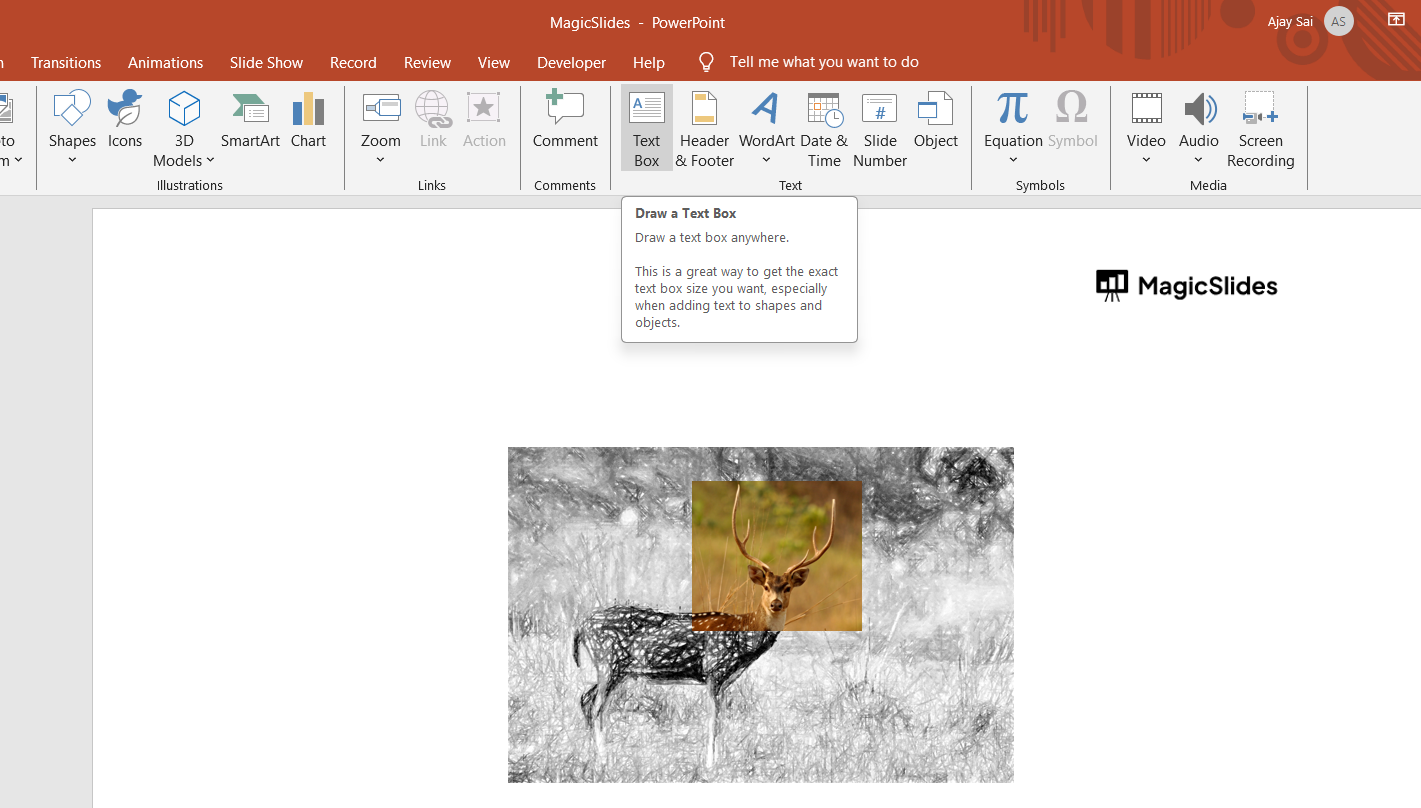
Click on Insert in the top menu. Select Text Box, then click anywhere on the slide to create one.
Type your desired text inside the text box.
Step 2: Convert Text to WordArt
Select the text inside the text box. Click on the Drawing Tools Format tab at the top.
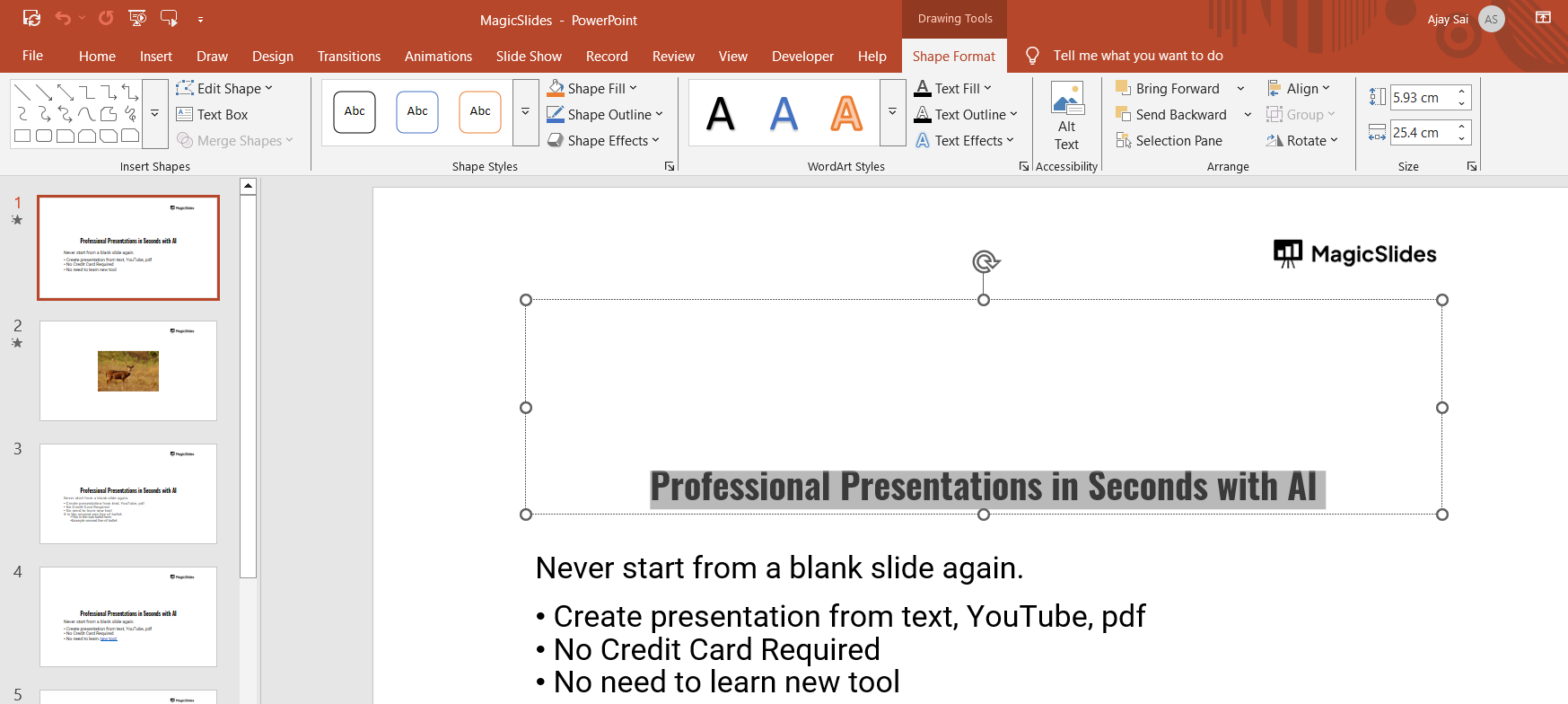
Select WordArt and choose a style that fits your design.
Step 3: Apply the Text Effects
With the WordArt text selected, go to Drawing Tools Format > Text Effects. Hover over Transform to see various text effect options.
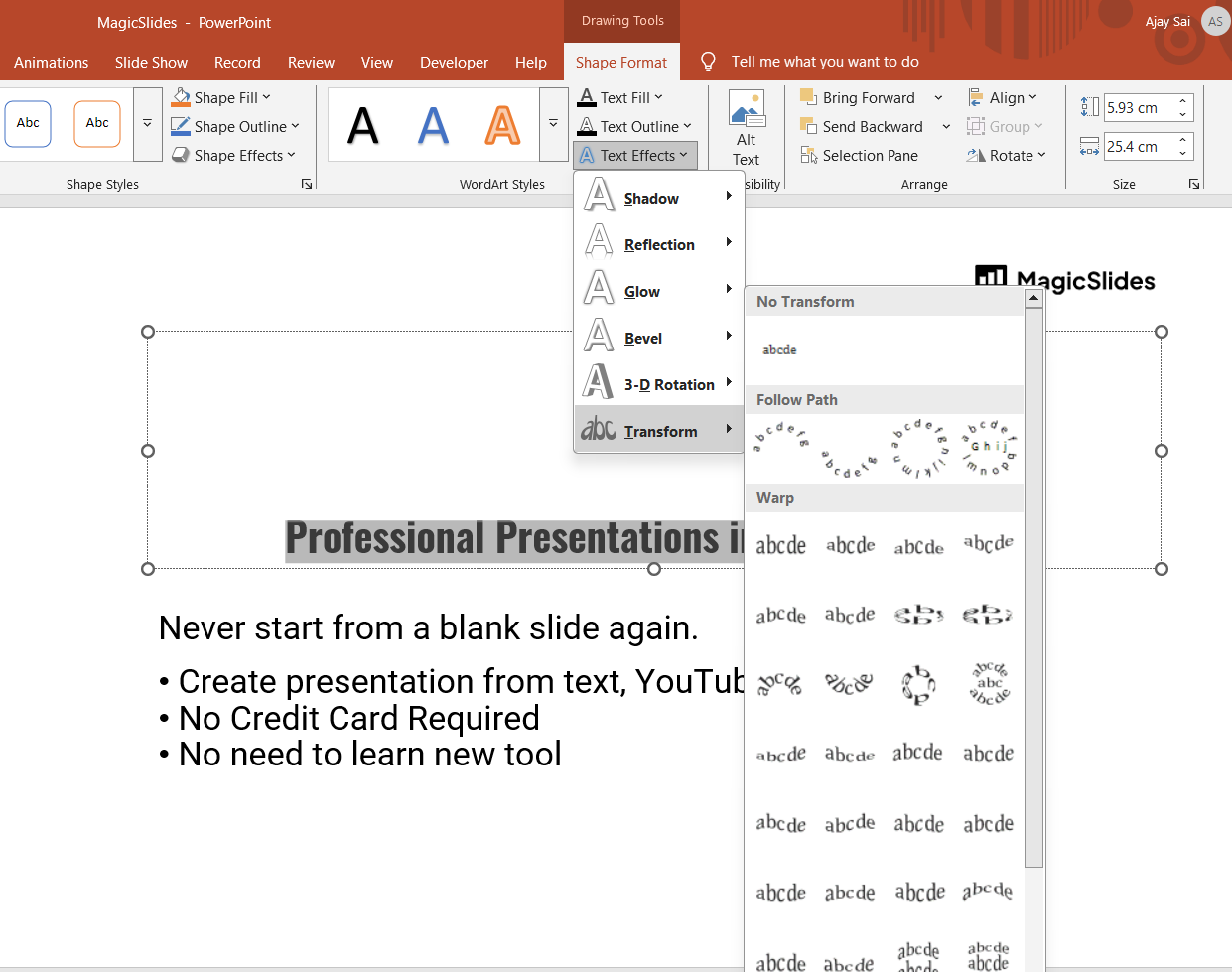
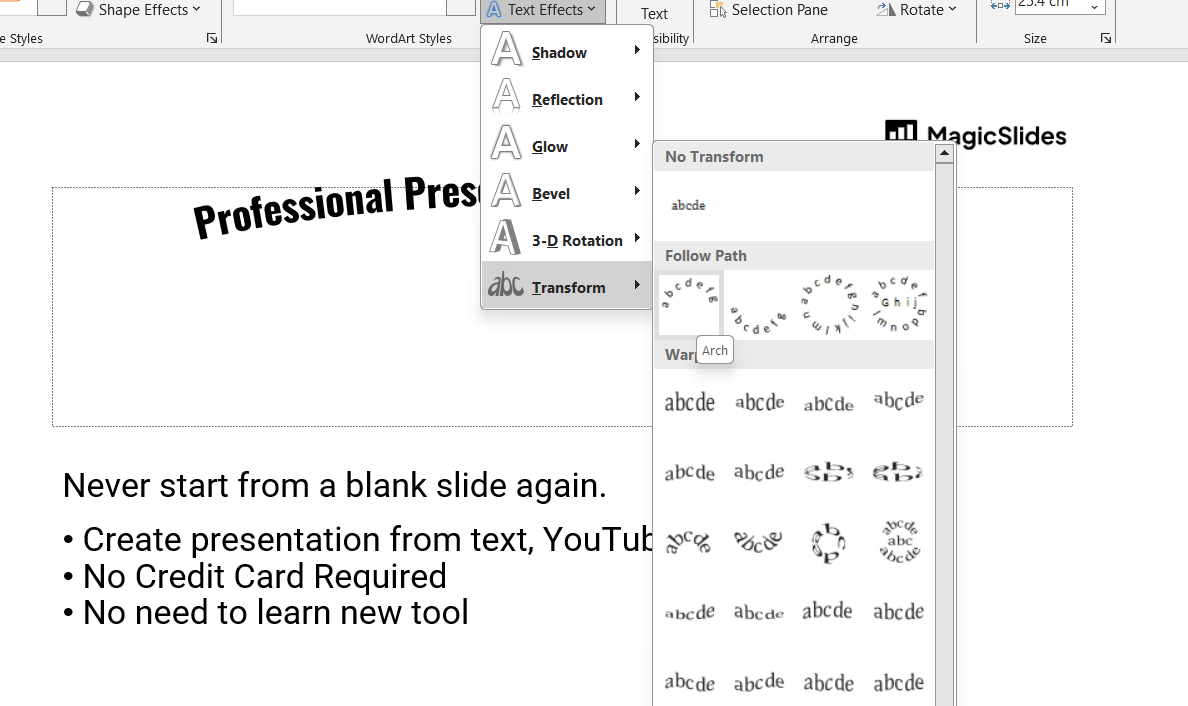
Under the Follow Path section, select a bending style such as Arch, Arch Up, or Arch Down.
Your text will automatically bend according to the selected shape.
Step 4: Adjust the Bend Effect
Click and drag the adjustment handle (a yellow dot) that appears on the text. Move it left or right to increase or decrease the curve.
Resize the text box if needed to refine the curvature of your text.
Step 5: Customize the Text Appearance
Change the font style, size, and color from the Home tab. Apply additional effects like shadows or outlines using Text Effects under Drawing Tools Format.
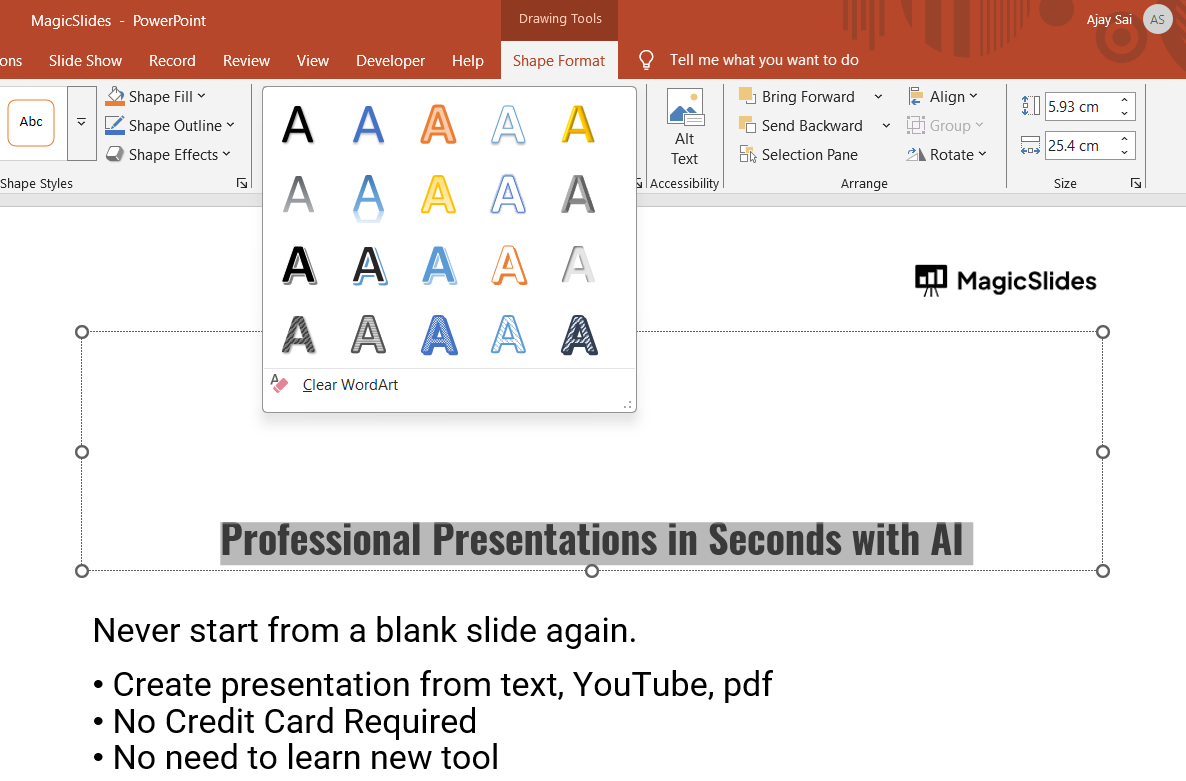
Adjust the alignment or spacing to fit your design requirements.
Bending text in PowerPoint adds a creative touch, but if you want an AI-powered tool to generate entire presentations with perfectly formatted text, try MagicSlides.app your slides, ready in seconds!
Conclusion
Bending words in PowerPoint is a simple yet powerful way to enhance your presentation.
With WordArt and text transformation tools, you can create professional-looking curved text in just a few clicks.
Experiment with different effects to make your slides visually appealing.
FAQs can come handy!
Can I bend text into a custom shape in PowerPoint?
Yes! After applying a curve, you can manually adjust it using the yellow adjustment handle or use Edit Shape under the Format tab.
Can I bend text without using WordArt?
No, PowerPoint does not allow direct text bending. You must use WordArt and Text Effects to achieve this effect.
Can I apply a gradient or texture to bent text?
Yes, go to Format Shape and apply gradient fills or textures under the Text Fill option for a unique look.


