How to cancel Canva Pro Subscription


Learn how to cancel your Canva Pro subscription easily with this straightforward step-by-step guide
Canva Pro offers a wide range of features for enhanced design capabilities, but you might find it necessary to cancel your subscription due to changing needs or budget constraints.
Canceling Canva Pro is a straightforward process, whether you signed up on the Canva website, through an app store, or another platform.
This step-by-step guide will help you cancel your subscription without any hassle.
How to Cancel Canva Pro Subscription | Steps to Cancel Canva Pro Subscription
Step 1: Log in to Your Canva Account
Visit the Canva website or open the Canva app on your device.
Log in with the account associated with your Canva Pro subscription. Check out this detailed blog for more info on canceling you plan.
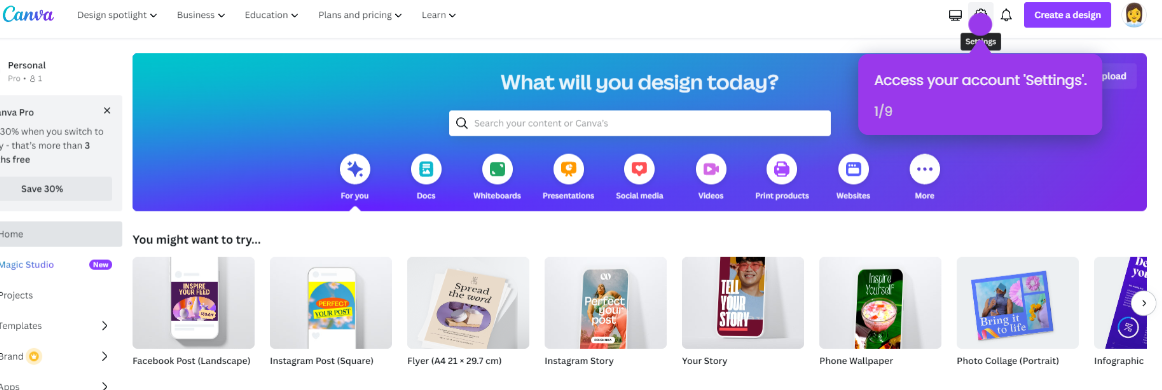
Step 2: Access the Account Settings
Click on your profile photo or initials in the top-right corner of the screen.
From the dropdown menu, select “Account settings.”
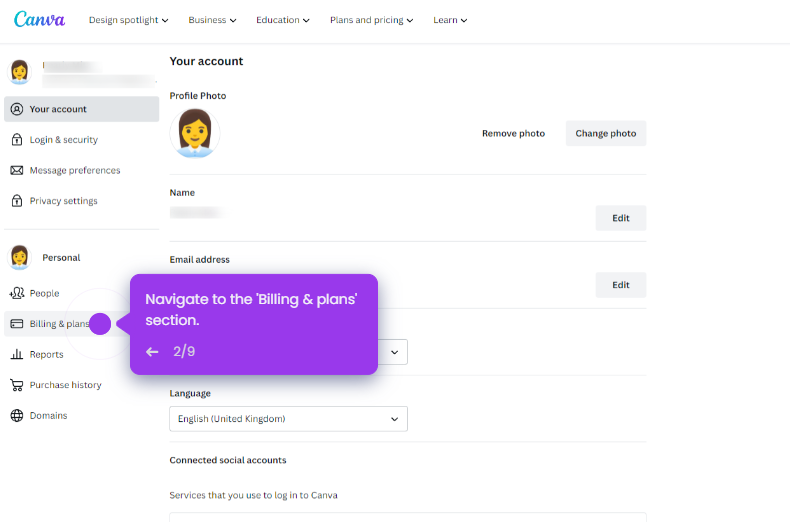
In the settings menu, navigate to the “Billing & Teams” or “Subscription” tab.
Step 3: Locate Your Canva Pro Plan
Under the subscription details, you will see your active Canva Pro plan.
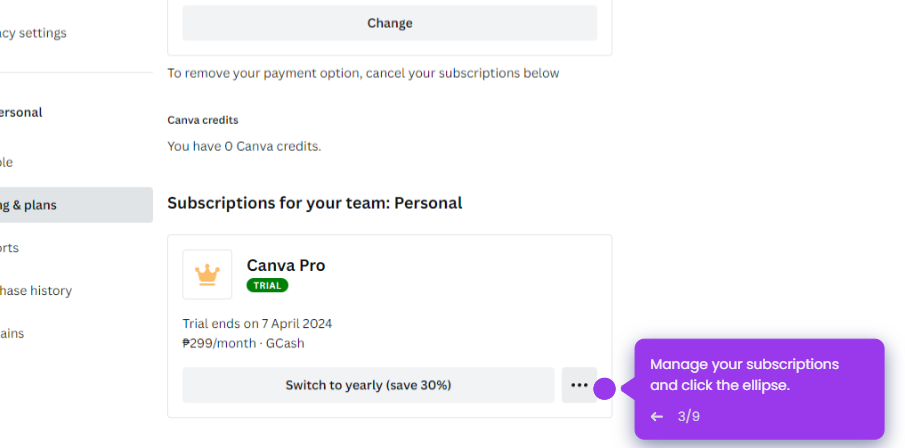
Look for the option labeled “Cancel Subscription” or “Cancel Plan.”
Step 4: Confirm the Cancellation
Click the cancel option, and Canva will prompt you with a confirmation message.
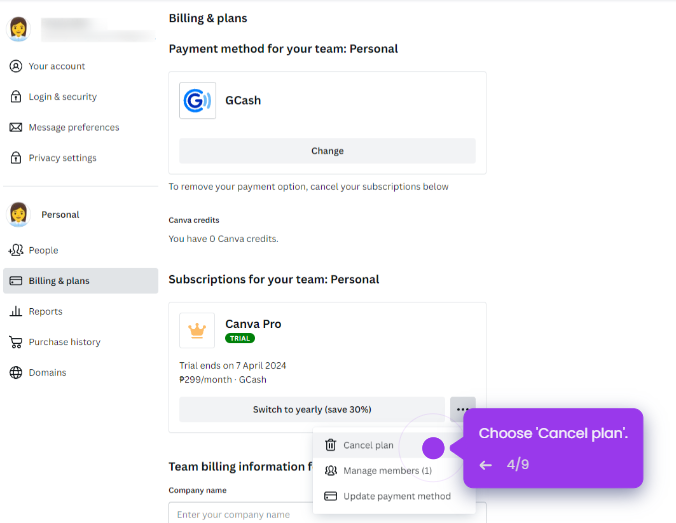
Follow the on-screen instructions to complete the cancellation process.
If asked, provide feedback on why you are canceling to help Canva improve its services.
Step 5: Verify the Cancellation
After canceling, you will receive a confirmation email from Canva stating that your subscription has been canceled.
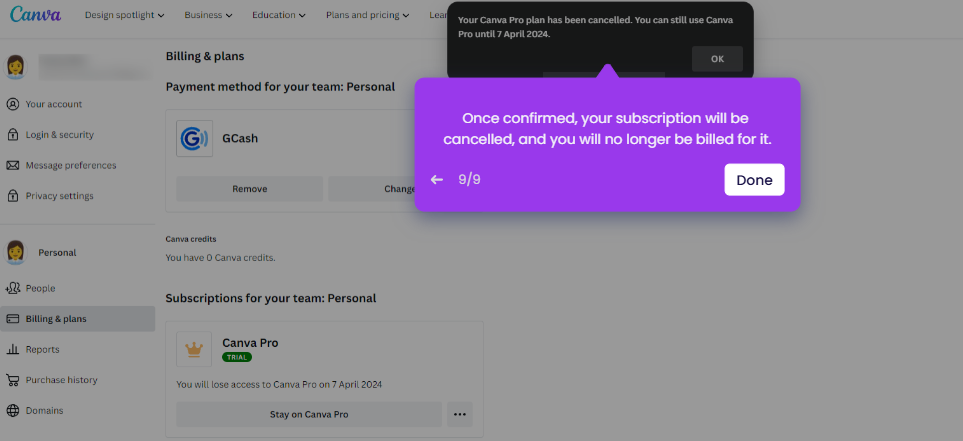
Check the Billing & Teams section again to ensure that your subscription status is updated to "Free" or "Canceled."
Step 6: Cancel via App Store (If Applicable)
If you subscribed to Canva Pro through an app store (e.g., Apple App Store or Google Play Store), cancel the subscription directly in your app store account.
Open the app store, go to Subscriptions, locate Canva Pro, and select Cancel Subscription.
Conclusion
Canceling your Canva Pro subscription is a simple process, whether done through the Canva website or an app store.
By following these steps, you can avoid future charges while still having access to Canva’s free features.
Remember, your Pro features will remain available until the end of your billing cycle, so take advantage of them before the cancellation takes effect.
FAQs on Cancelling Canva Pro Subscription
Can I still use Canva after canceling my Pro subscription?
Yes, you can continue using Canva's free version, but Pro features will no longer be accessible.
Will I get a refund after canceling Canva Pro?
Refunds depend on Canva’s refund policy and your subscription plan. Typically, you won’t be refunded for the remaining period but can use Pro features until the end of the billing cycle.
How do I reactivate my Canva Pro subscription after canceling?
You can reactivate your Canva Pro subscription anytime by logging in, visiting the billing section, and selecting a Pro plan.
With these instructions, you can confidently manage your Canva subscription based on your needs!


