how to change power point template


Is your presentation lacking visual appeal? Learn how to change PowerPoint templates and give it a fresh look.
Imagine this scenario: you've put together a PowerPoint presentation, but it doesn't quite have the visual appeal you desire. The solution? Changing your PowerPoint template!
In this blog post, we'll guide you through the steps to switch your presentation's template, allowing you to refresh its look, match your brand's style, or tailor it to a specific audience.
Unveiling a Fresh Look: How to Change PowerPoint Templates
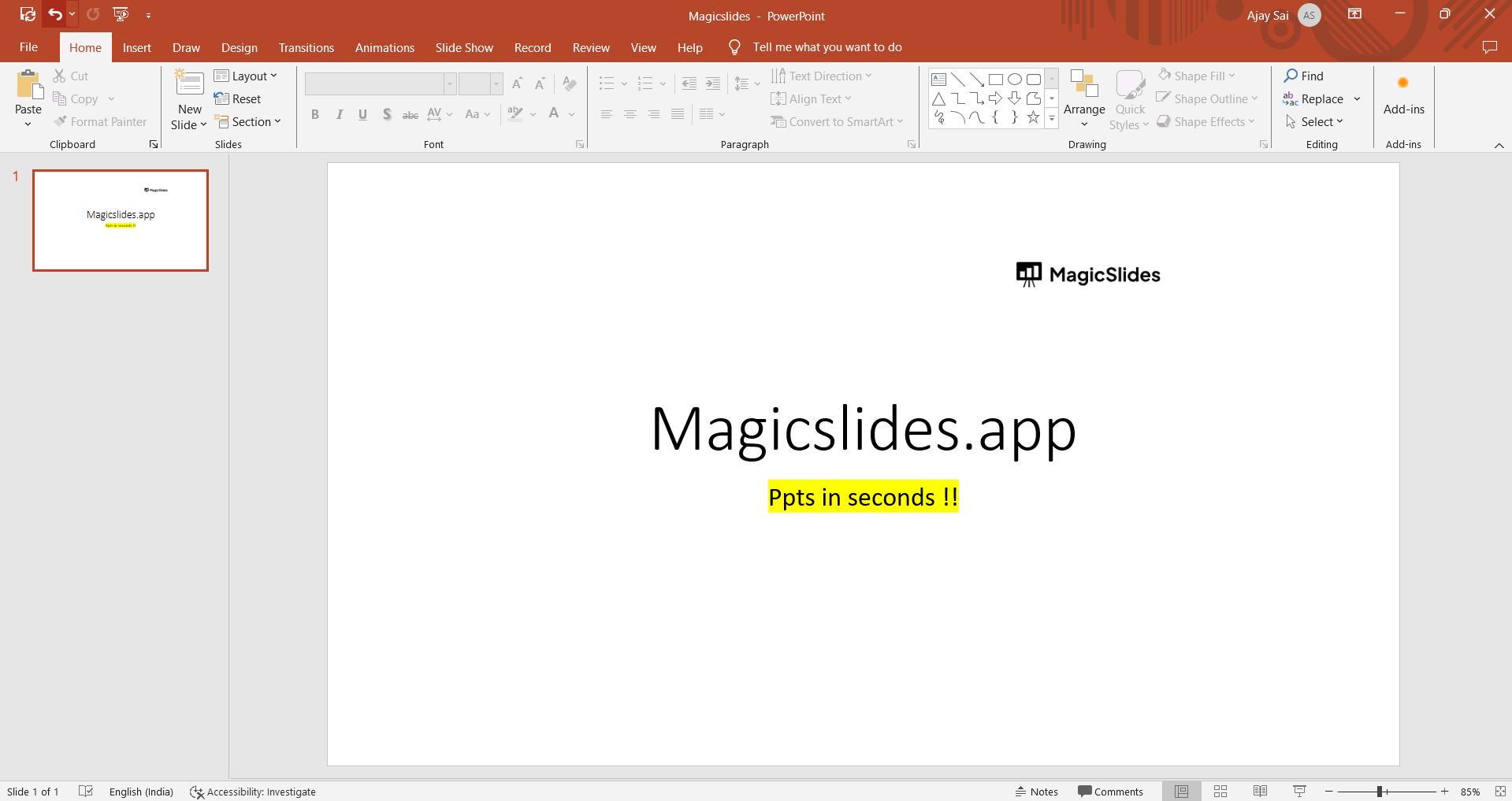
Step 1: Open Your PowerPoint Presentation
- Access Your Creation: Start by opening your existing PowerPoint presentation that you want to give a fresh look.
Step 2: Go to the "Design" Tab
- Where Magic Happens: In the PowerPoint ribbon at the top, click on the "Design" tab. This is where the design and template options reside.
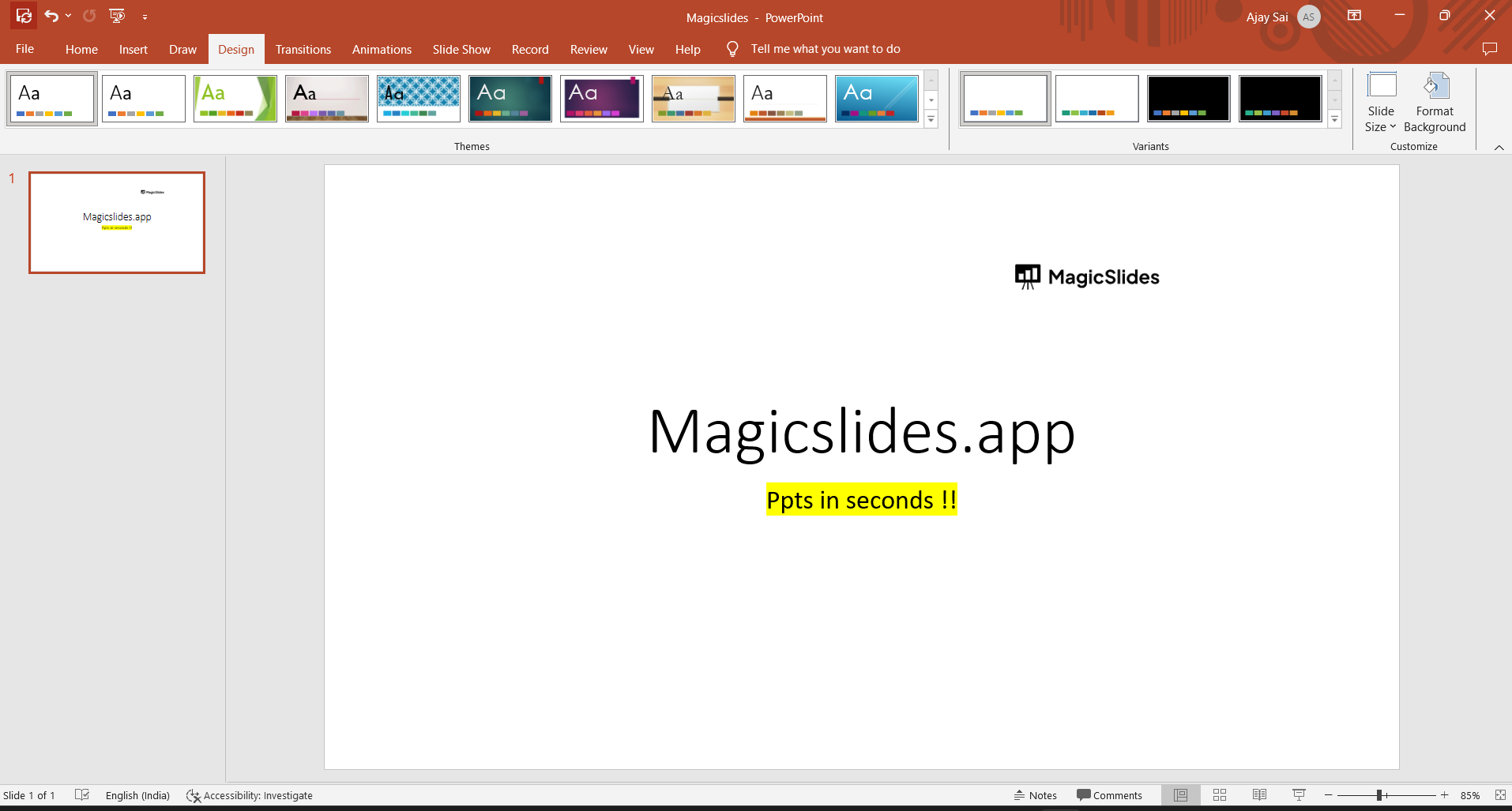
Step 3: Browse Template Options
- Explore the Gallery: In the "Design" tab, you'll see a gallery of available templates. Hover over each to preview how your slides would look with that template.
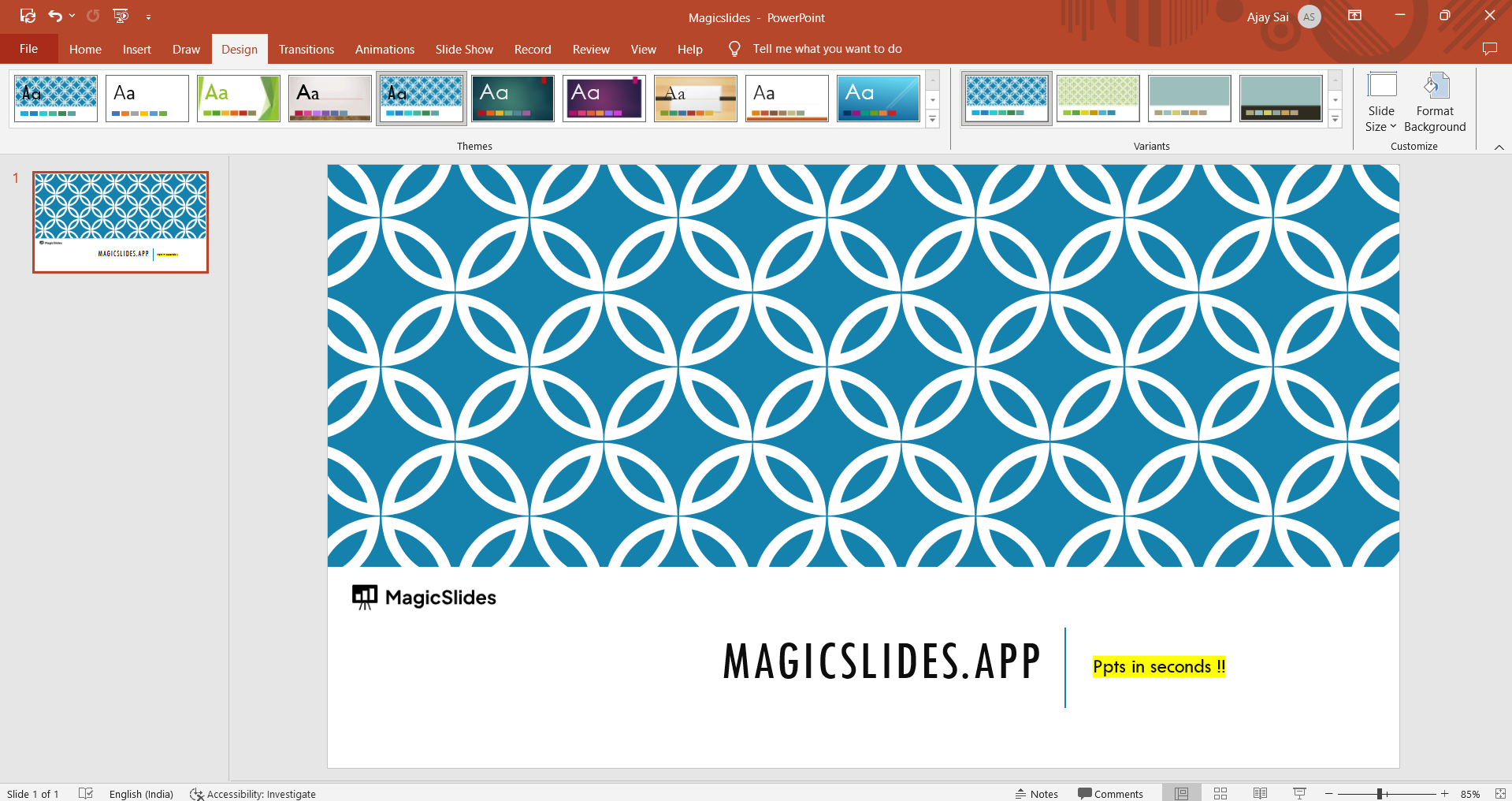
Step 4: Select Your New Template
- Choose Wisely: Click on the template that appeals to you the most. Your presentation will be instantly transformed.
Step 5: Save Your Updated Presentation
- Preserve Your Changes: Once you're satisfied with the new template, don't forget to save your presentation to keep your fresh design intact.
Conclusion:
Changing a PowerPoint template is a simple yet effective way to breathe new life into your presentations.
Whether you're revamping an outdated slide deck, aligning your presentation with your brand's visual identity, or tailoring it to a specific audience, this transformation can make a significant impact.
By following the steps outlined in this article, you can easily switch your PowerPoint template and give your content a vibrant and professional makeover. So, go ahead, explore the design options, and watch your presentation come to life in a brand-new way. Wondering how to make a copy of your powerpoint: click_here


