Addon google slides iconPPT with AISlide TemplatesPPT TemplatesPricingBlog
PPT with AISlide TemplatesPPT TemplatesPricingBlog
  1. Home
  2. Blog
  3. How to make a copy of a power point

How to make a copy of a power point

magicslides app

Published By

magicslides app
Mohit Kumar Jha

Approved By

Mohit Kumar Jha

Published On

July 23th, 2024

Reading Time

2 min read

Duplicate your PowerPoint presentation effortlessly with these simple steps to ensure your content's safety and versatility.

Making a copy of a PowerPoint presentation is a straightforward process. Here's a step-by-step guide on how to do it:
Step-by-Step Guide to Making a Copy of a PowerPoint Presentation:
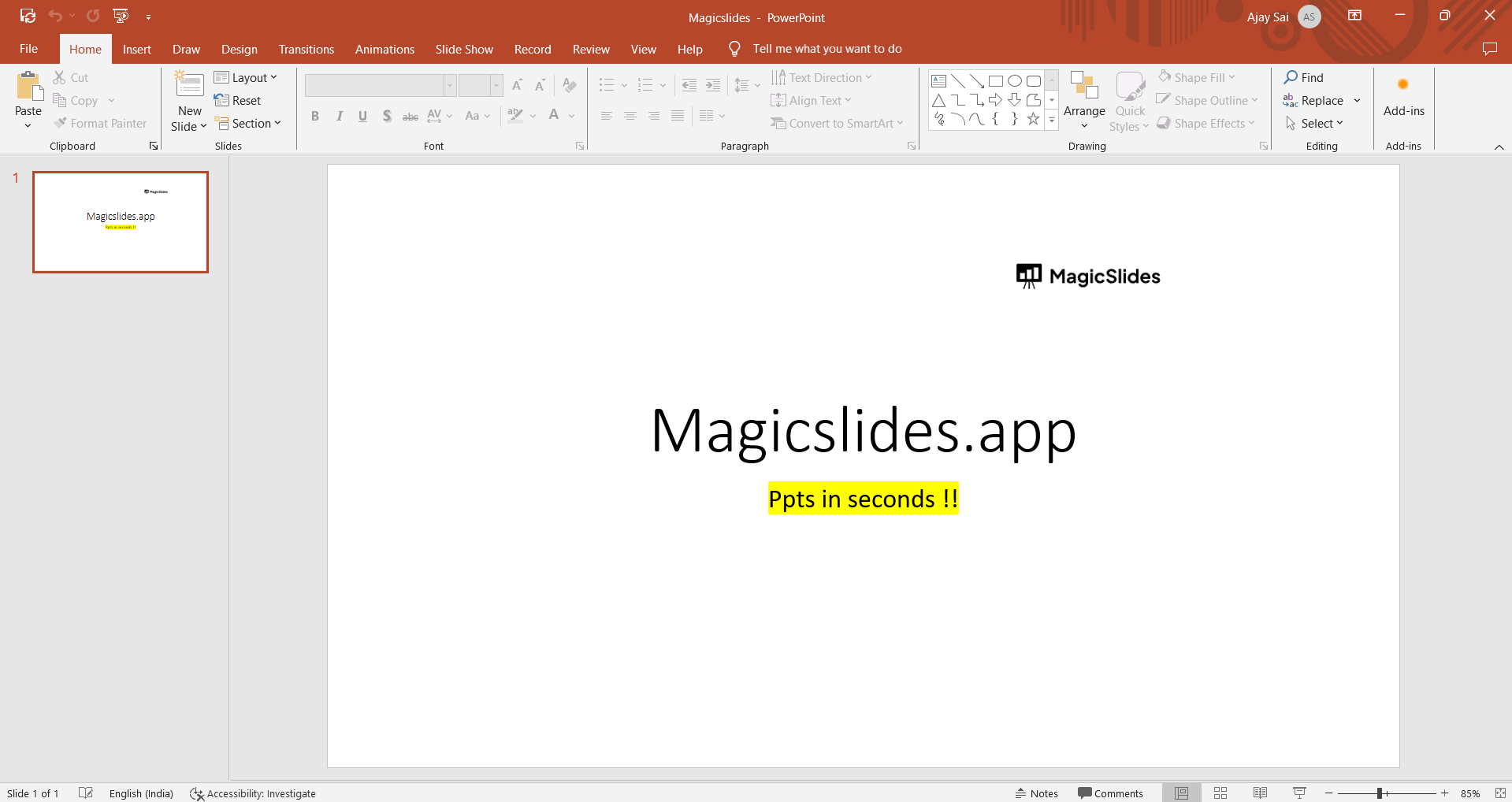
Open the Presentation: If your presentation is not already open, open it by going to "File" > "Open" and browsing for the presentation on your computer.
notion image
Save As a Copy: Click on "File" in the top menu bar.
Select "Save As": From the dropdown menu, choose "Save As."
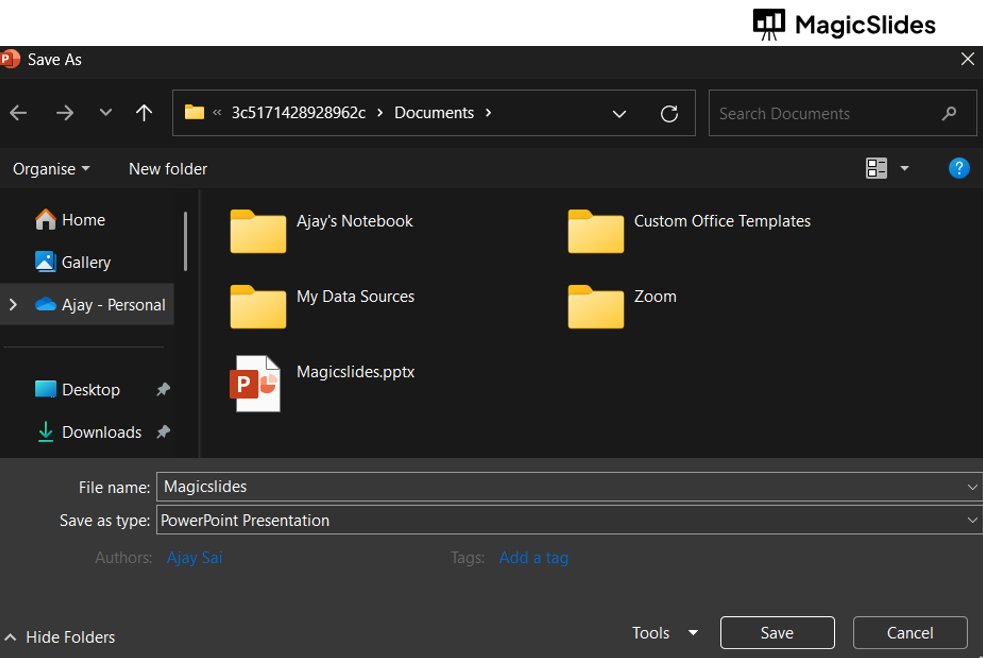
Choose the Location: A dialog box will appear. Select the location on your computer where you want to save the copy of the presentation.
Rename the Copy: In the "File name" field, give the copy of the presentation a new name to distinguish it from the original. This step is optional, but it's a good practice to provide a clear and unique name for the copy. Here in this example you can save the renamed copy as magicslides_1.pptx for easy reference,
notion image
Choose the File Format (Optional): You can choose the file format for the copy. By default, it will save as a PowerPoint (.pptx) file, but you can also save it as a different format if needed (e.g., PowerPoint 97-2003 format, PDF, etc.).
Click "Save": After choosing the location and, if necessary, the file format, click the "Save" button to create a copy of your presentation.
Conclusion:
Making a copy of a PowerPoint presentation is a useful practice, whether you want to create a backup, work on a different version, or make variations of the same presentation.
By following the steps outlined in this guide, you can easily save a copy of your presentation with a new name and in the location of your choice.
 
Wondering how to change power point template: click_here

Share on socials

About the author

Sanskar Tiwari profile photo
Sanskar Tiwari— Founder at MagicSlides

Sanskar is Founder at IAG Tech, For the past 3 years sanskar have build more than 24+ products, taught 100k students how to code.

More from Sanskar

More from the blog

    How to add a hanging indent in google slides

    24 February 2026

    How to make images transparent on google slides

    24 February 2026

    How to add slide numbers in google slides

    24 February 2026

    How to send gifs in slack application

    24 February 2026

    How to make picture background transparent in powerpoint

    24 February 2026

    How to put text over an image in google slides

    24 February 2026

    How to Crop an Image in PowerPoint

    24 February 2026

    How to make a PowerPoint presentation into a video

    24 February 2026

    How to time google slides for 20 seconds

    24 February 2026

Table of Contents

Create Presentations in Seconds

Transform your ideas into professional presentations with AI. No design skills needed.

Try MagicSlides Free

Create Stunning Presentations with AI in Seconds ✨

Transform any topic, text, YouTube video, PDF or URL into beautiful presentations instantly with MagicSlides AI.

Try MagicSlides AI Presentation Maker
MagicSlides AI Presentation

Footer

Solutions

  • MagicSlides App
  • Google Slides Add-on
  • MagicSlides in Chrome
  • MagicSlides in Figma
  • MagicSlides in ChatGPT
  • MagicSlides in Telegram
  • MagicSlides in Zapier
  • MagicSlides in Figma Slides

Tools

  • AI PPT Tools
  • QR Code Generator
  • Design Tools
  • PPT Templates
  • Slide Templates
  • PDF Tools

Examples

  • AI Presentations
  • PPT by MagicSlides
  • Quizzes
  • Charts
  • Coloring Pages

Resources

  • Changelog
  • Documentation
  • API Docs

Top Blogs

  • How to Create Presentation Using ChatGPT
  • 100+ Best Seminar Topics for Students in 2025

Company

  • Help
  • MCP
  • Blog
  • Pricing
  • Affiliate Program
  • Manage Subscription
  • Privacy Policy
  • Contact Us
  • Terms & Conditions
  • Refund & Cancellation Policy

We also built

  • SheetAI - GPT For Sheets
  • MagicForm - GPT For Google Forms
  • SecondBrain.fyi
  • BlogBee - Free Blogging Platform

© 2026 IndianAppGuy Tech Pvt Ltd. All rights reserved.

