How to change snap options on Canva


Adjust Canva’s snap options to control alignment, enhance precision, or allow creative freedom in designs
Snap options in Canva help align and position elements precisely by automatically snapping them to guides, grids, or other elements.
Adjusting these snap options allows for more creative freedom or stricter alignment as needed.
This guide walks you through how to modify these settings to suit your design needs.
How to Change Snap Options on Canva | Steps to Change Snap Options on Canva
Step 1: Open Canva and Access Your Design
Log in to your Canva account.
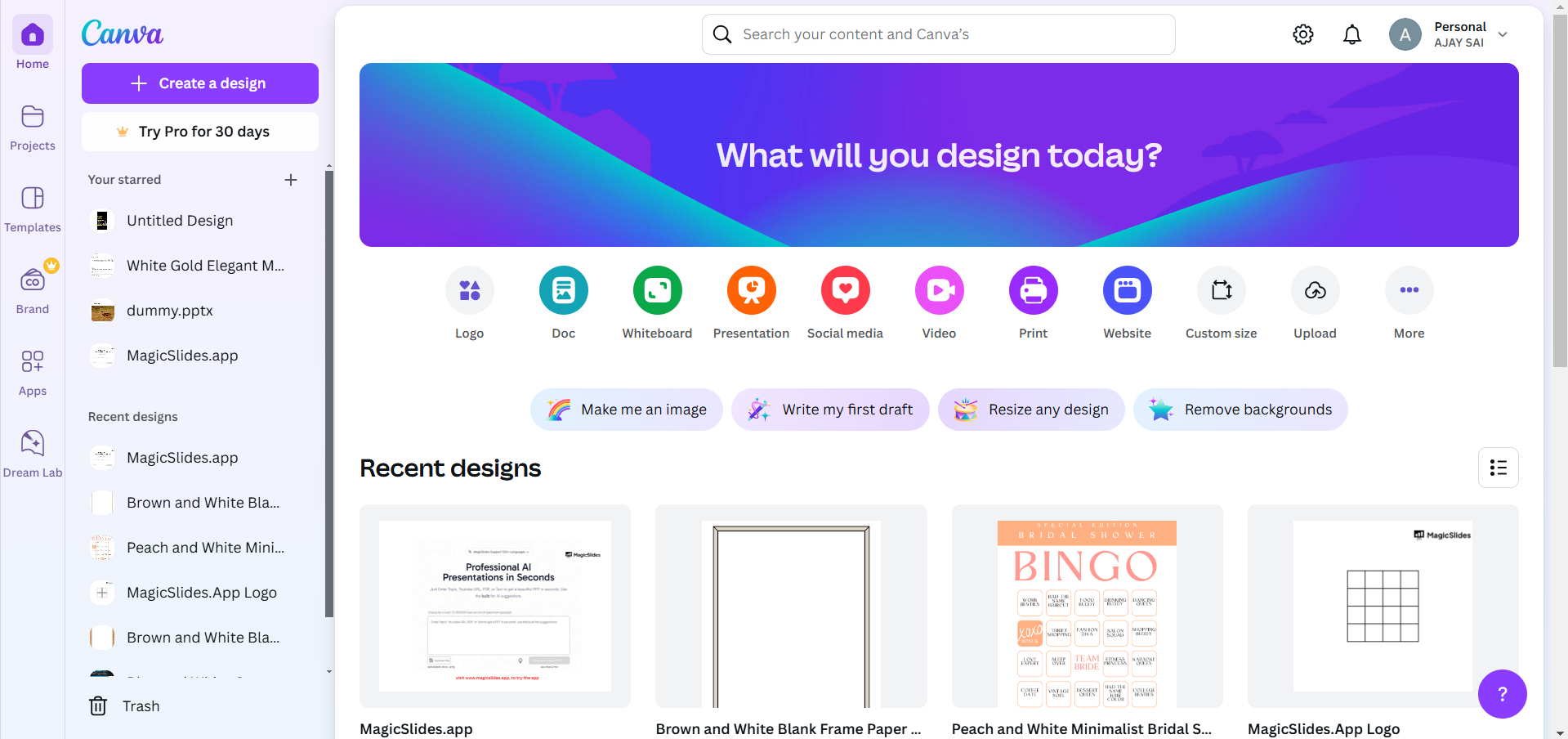
Open an existing design or start a new one where you want to adjust the snap settings.
Step 2: Access the Snap Settings
Click on the “File” menu in the toolbar at the top of the Canva editor.
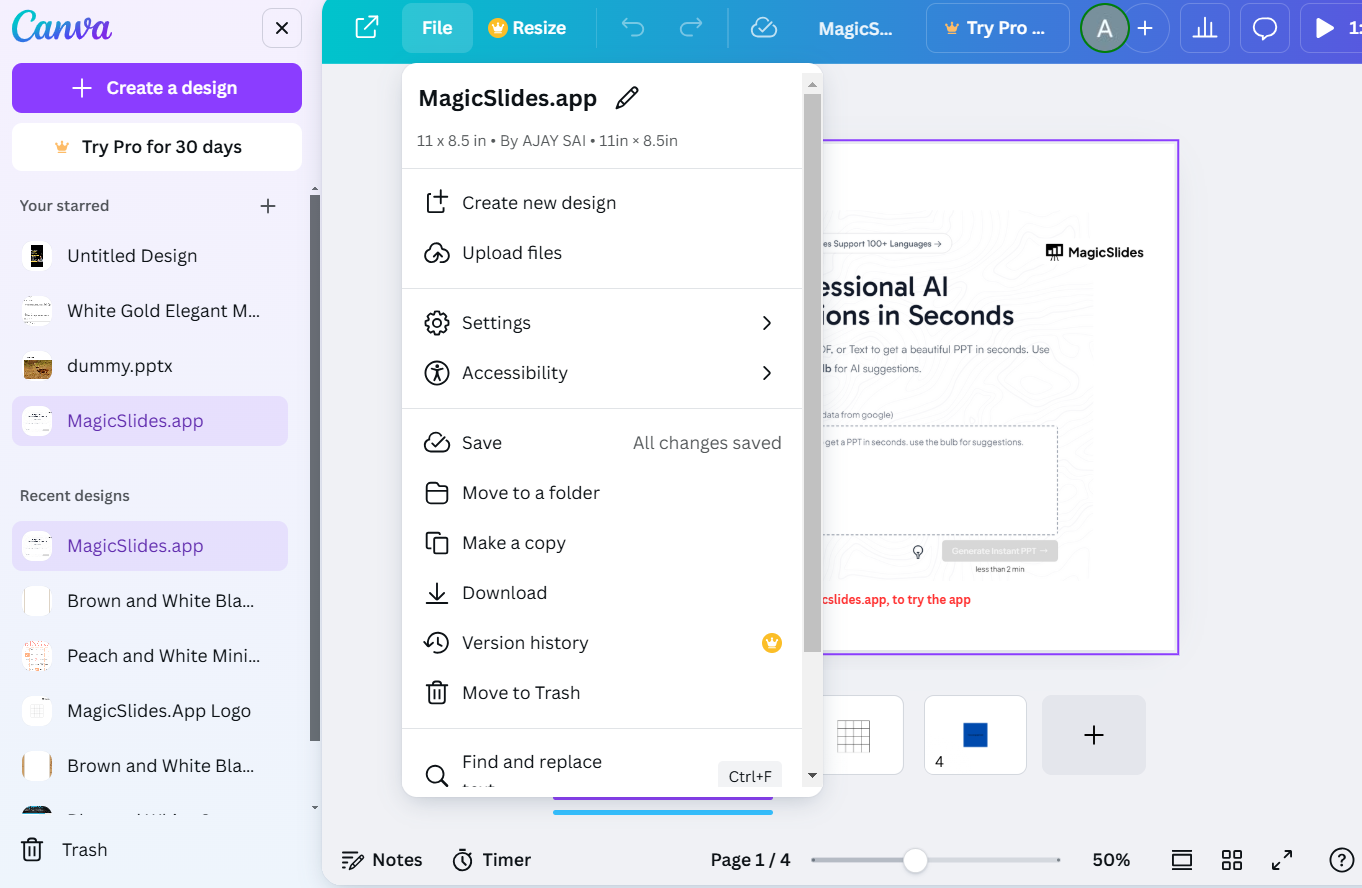
From the dropdown menu, look for the “View Settings” or “Snap Settings” option (names may vary slightly).
Step 3: Enable or Disable Snap Options
To enable snapping:
- Check the options such as “Snap to Grid” or “Snap to Element” depending on the design requirements.
To disable snapping:
- Uncheck the respective options to allow free movement of elements without automatic alignment.
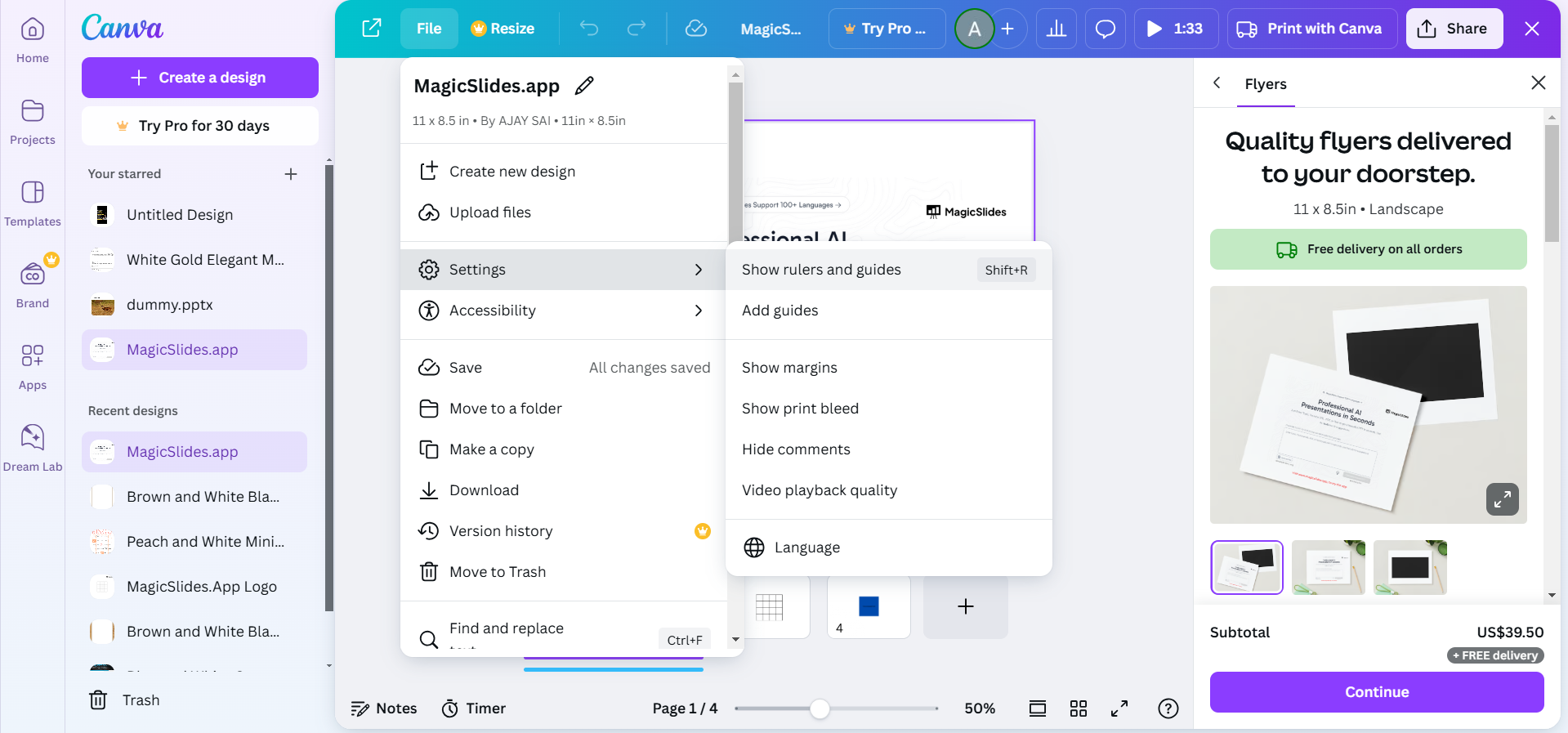
Step 4: Customize Grids and Guides (Optional)
If snapping to a grid or guide is active, you can customize the grid spacing by:
- Selecting “Show Grid” from the same menu and adjusting the spacing to your preference.
You can also manually add guides by dragging them from the rulers (if enabled) for precise alignment.
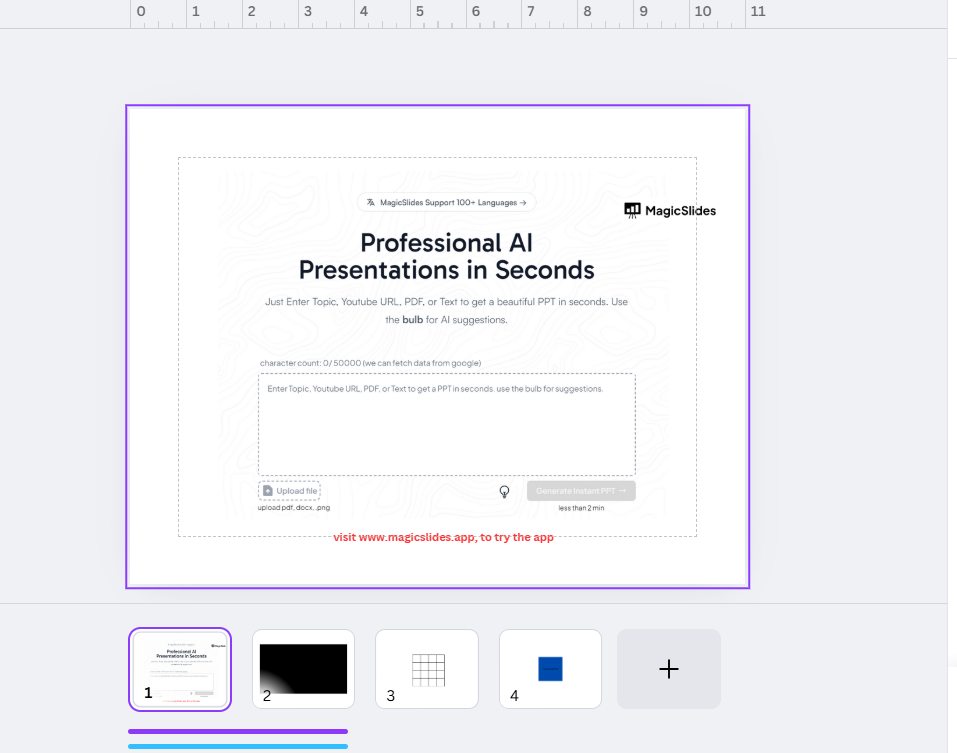
Step 5: Test and Adjust the Settings
Move an element within your design to see how the snapping behaves.
If needed, revisit the snap settings to fine-tune the options for optimal usability.
Now that you've mastered changing snap options in Canva, take your designs further by learning how to create a repeated pattern in Canva, perfect for custom backgrounds.
Conclusion
Changing snap options in Canva gives you better control over the alignment and positioning of elements in your designs.
Whether you want to enable strict alignment for precision or disable snapping for creative freedom, these easy steps will help you customize your settings effortlessly.
FAQs on Changing Snap Options in Canva
Can I use snap options on the mobile version of Canva?
Snap options are more accessible on the desktop version, but mobile users may have limited settings.
How do I enable rulers and guides in Canva?
Go to File > View Settings > Show Rulers and Guides to enable these features for better alignment.
Can I change grid spacing in Canva?
Yes! Under Snap Settings or View Settings, adjust the grid spacing to fit your design needs.
With these steps, adjusting snap options in Canva becomes an intuitive process, enhancing your design workflow!


