How to download powerpoint on mac


Discover the quick steps to download PowerPoint on your Mac for seamless presentation creation and editing.
Embark on a seamless journey to empower your Mac with the dynamic capabilities of Microsoft PowerPoint. This step-by-step guide ensures that you not only download PowerPoint securely from the official Microsoft Office website but also navigate through essential choices, making your installation process a tailored and efficient experience. Elevate your presentation game by bringing the power of PowerPoint to your Mac effortlessly.
How to download powerpoint on mac
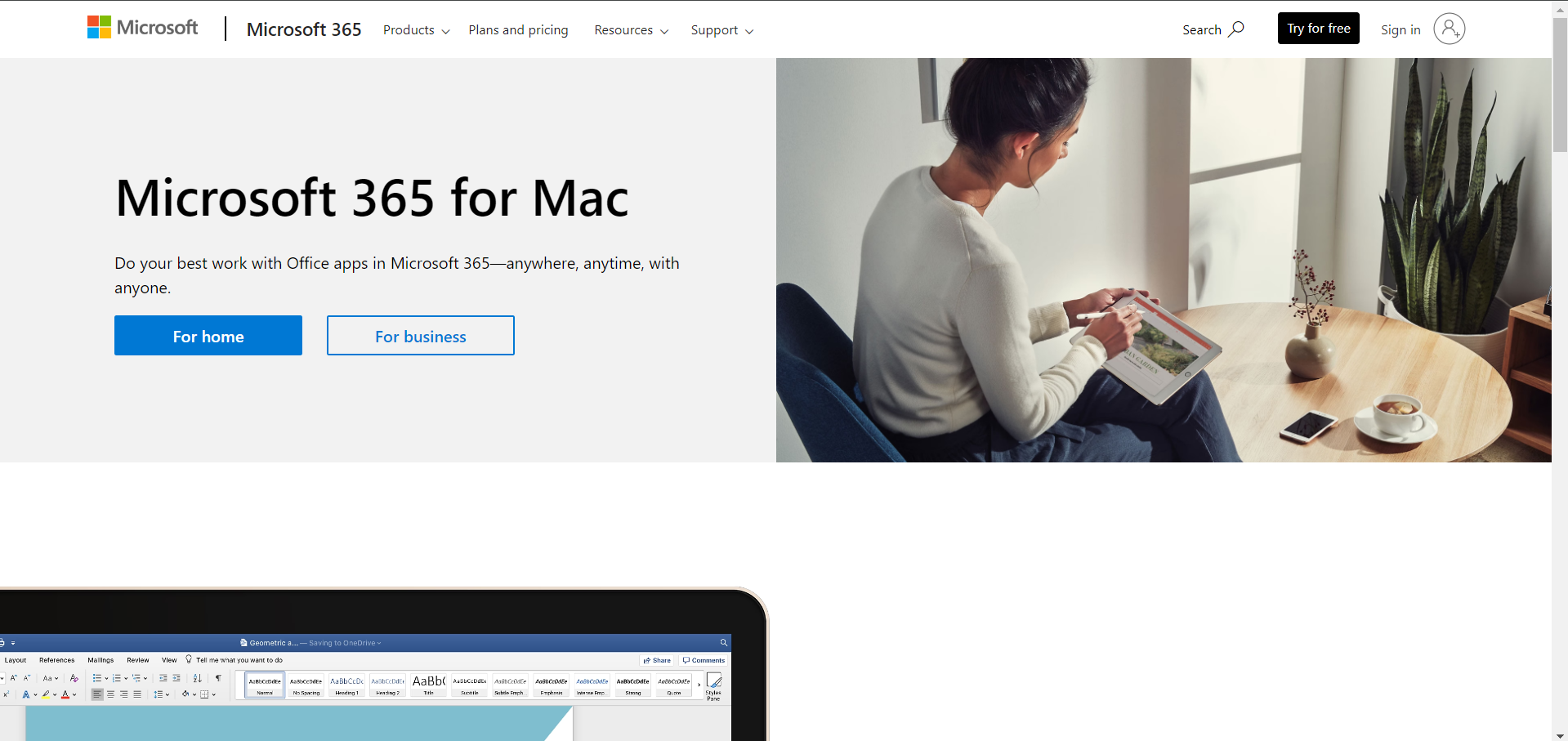
Visit the Microsoft Office Website:
Link: https://www.microsoft.com/en-AU/microsoft-365/mac/microsoft-365-for-mac/
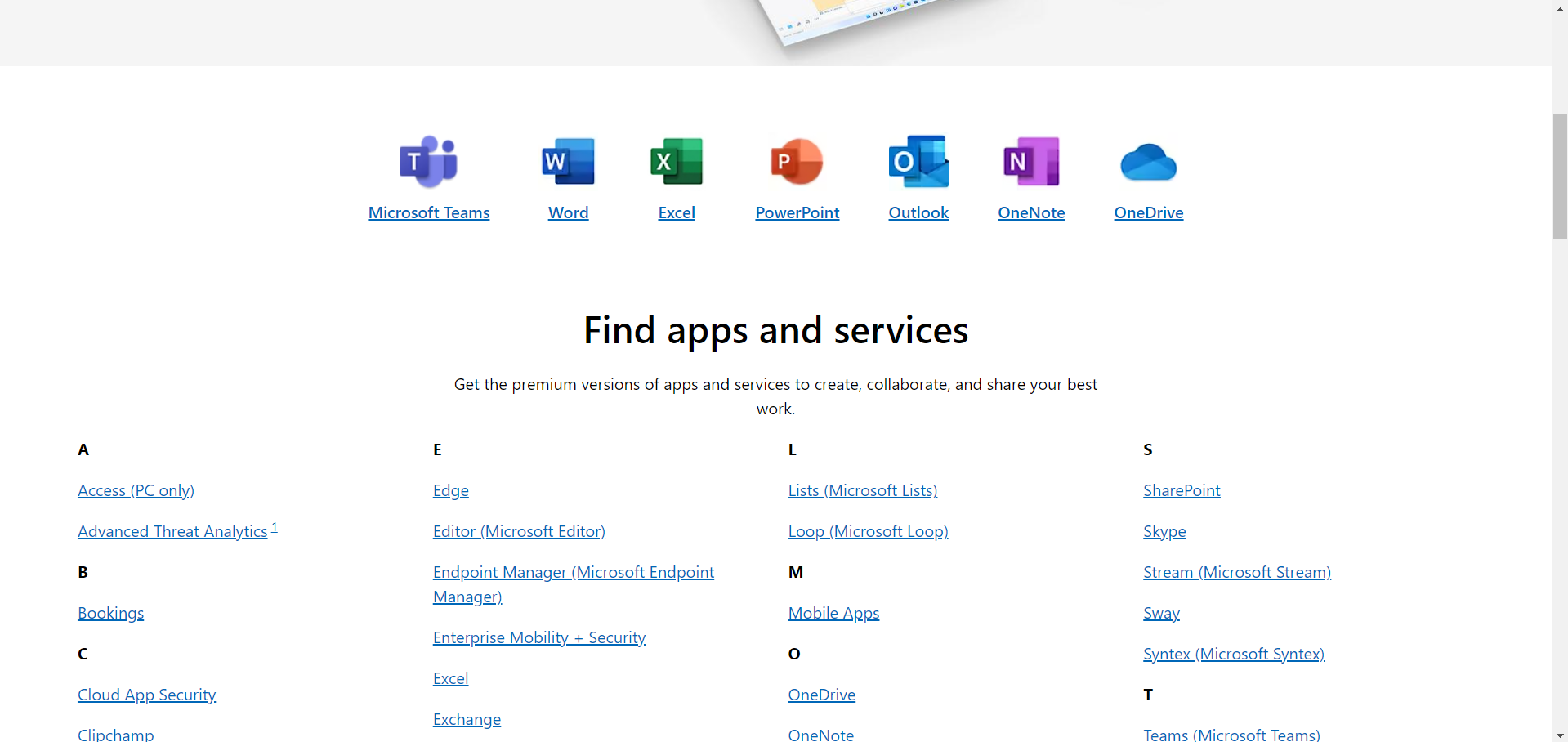
Begin the process by opening your preferred web browser and navigating to the official Microsoft Office website. This ensures that you download the software directly from the official source, guaranteeing its authenticity and security.
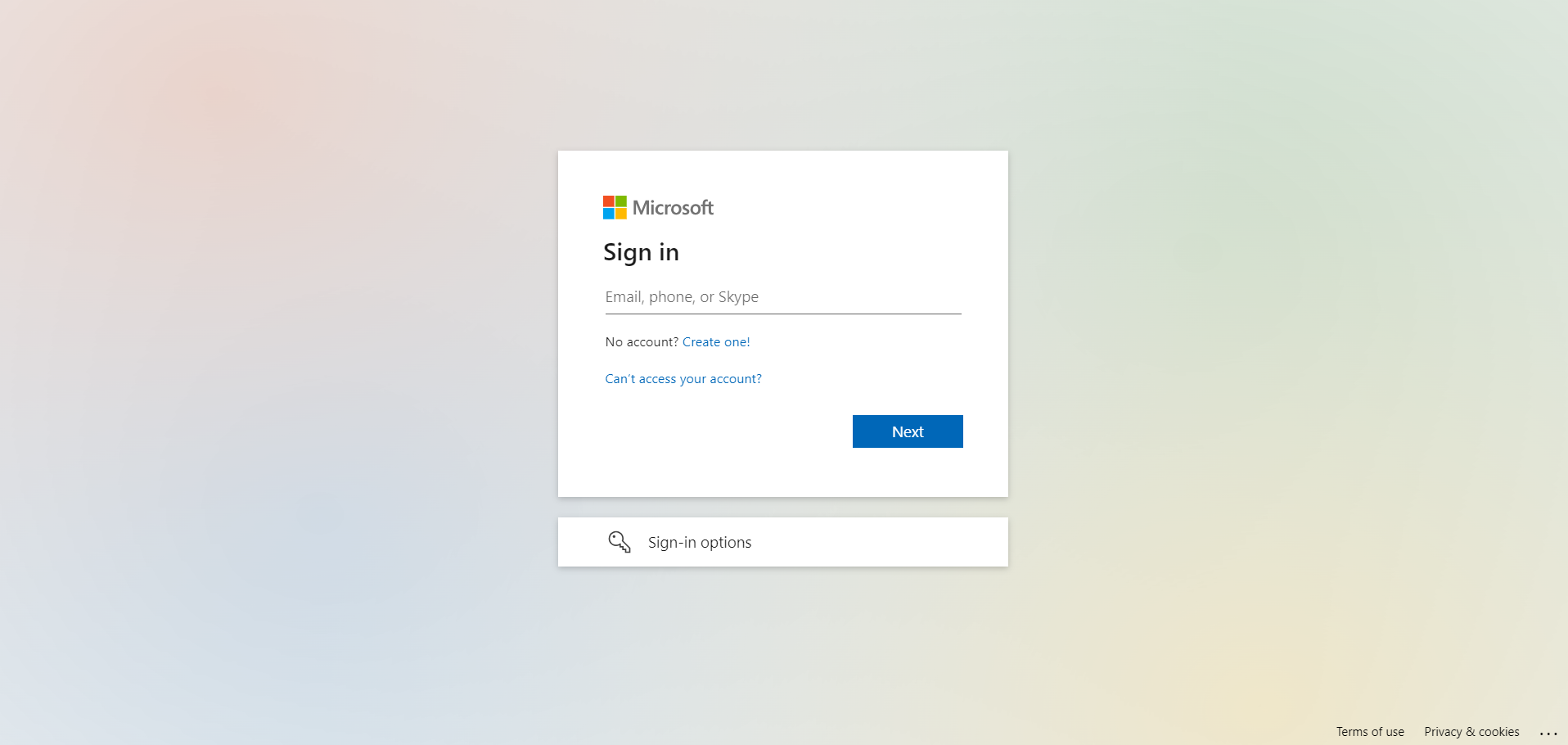
Sign in or Create a Microsoft Account:
To access the download options, sign in with your existing Microsoft account. If you don't have one, take a moment to create a new account. Your Microsoft account is not only essential for downloading PowerPoint but also for managing other Office applications and services.
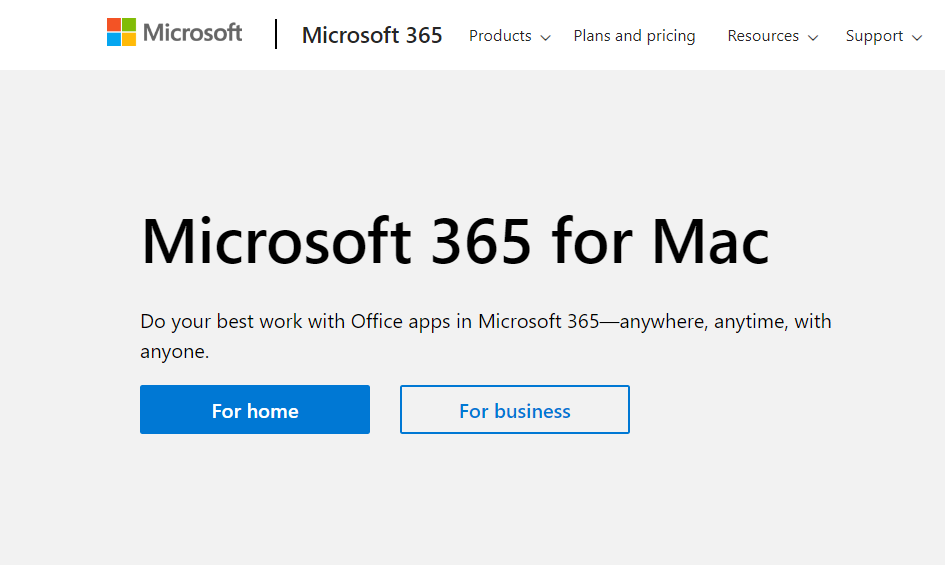
Explore Microsoft Office Options:
Once signed in, explore the Microsoft Office options available. Navigate to the section specifically designated for Mac users, often labeled "Office for Mac" or a similar category.
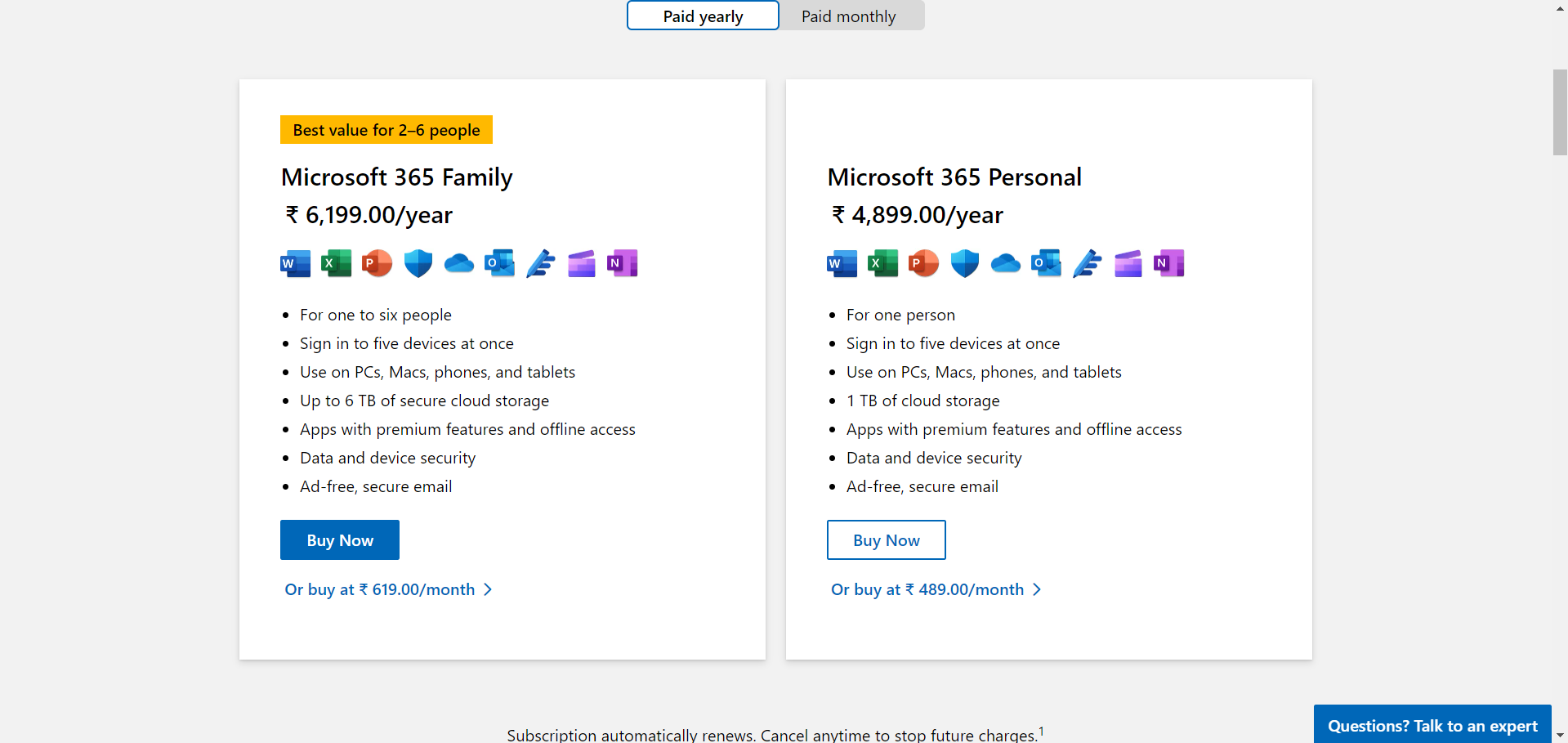
Select Office Plan:
Tailor your Office experience by selecting the subscription plan that best aligns with your needs. Options may include Microsoft 365 for Home, Personal, or various business plans. Carefully review the features offered in each plan before making your selection.
Start the Download:
Locate the prominent download button on the website and initiate the download process. The download button is usually clearly labeled and may prompt you to choose between different versions of the Office suite. Select the version compatible with your Mac operating system.
Follow on-screen Instructions:
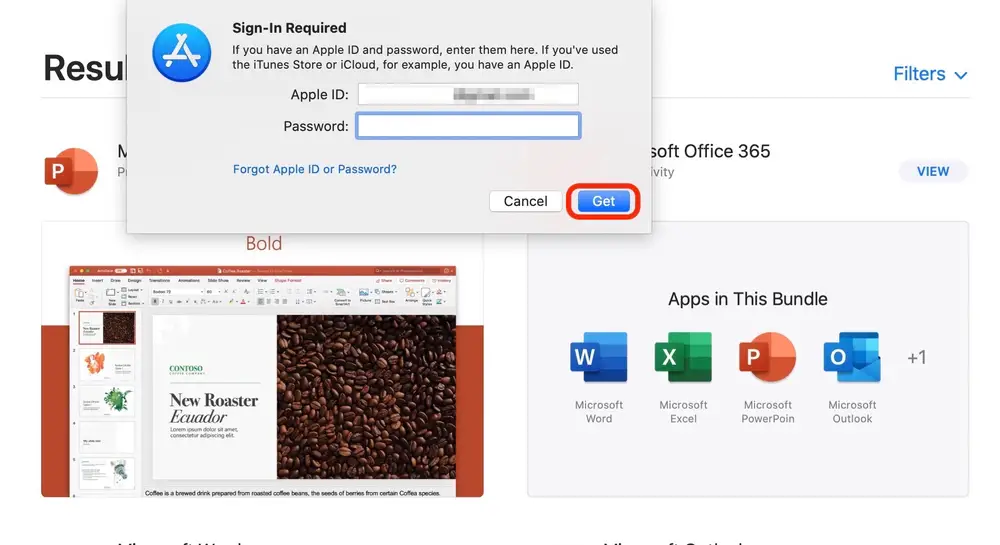
As the download progresses, follow the on-screen instructions provided by the Microsoft Office installer. This may include confirming your account details, agreeing to the terms of service, and customizing your installation preferences. Pay close attention to these prompts to ensure a smooth installation process.
Install Office Applications:
Once the download is complete, navigate to the Downloads folder on your Mac and locate the installer file. Double-click on the file to launch the installer. Follow the installation prompts to install the complete suite of Office applications, including PowerPoint, on your Mac.
Launch PowerPoint:
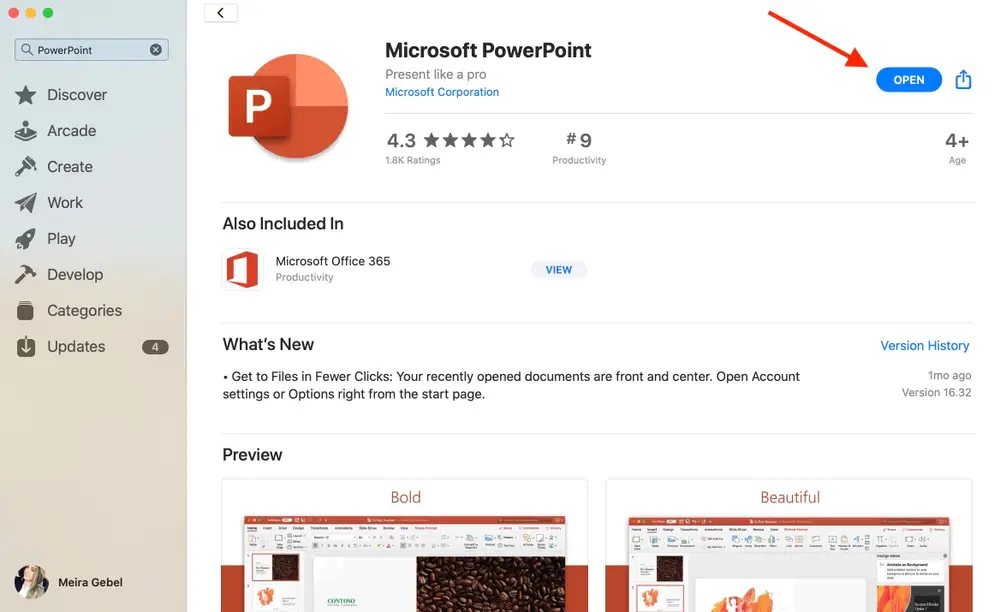
With the installation complete, locate the PowerPoint icon in your Applications folder or Launchpad. Double-click on the icon to launch PowerPoint on your Mac. The first launch may take a moment as the application initializes.
Sign in to PowerPoint:
Upon opening PowerPoint, sign in using the Microsoft account credentials you used for the download. This step ensures that you have access to additional features, cloud storage, and personalized settings within PowerPoint.
Start Creating Presentations:
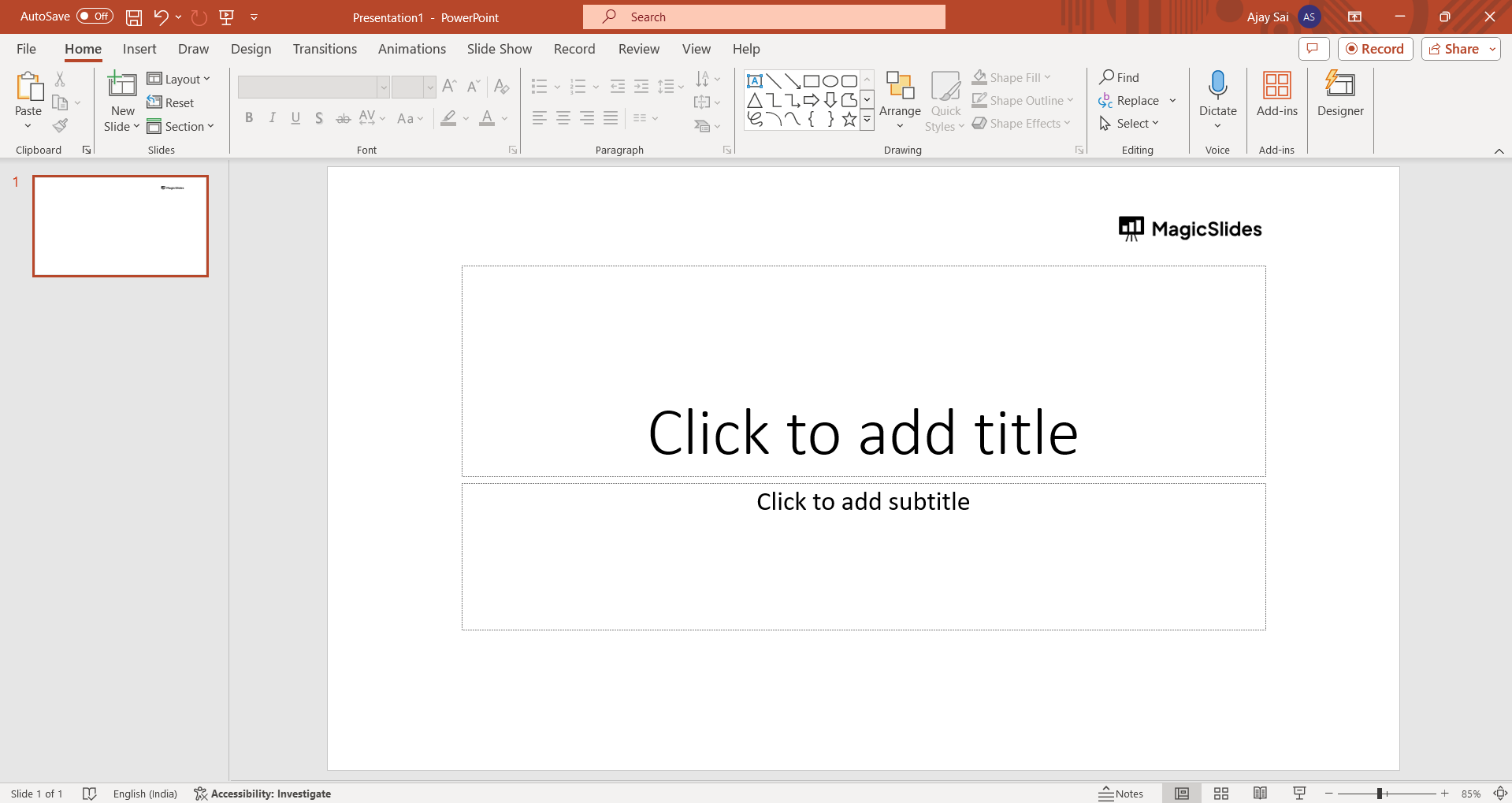
With PowerPoint successfully installed on your Mac, you are now ready to unleash your creativity and start crafting engaging and visually stunning presentations. Explore the features and tools available to make the most out of your PowerPoint experience.
Pro Tip💡:
Maximize your PowerPoint experience on Mac by exploring the abundance of templates and design options. From captivating themes to interactive elements, leveraging PowerPoint's built-in features can elevate your presentations effortlessly. Customize layouts, experiment with animations, and integrate multimedia for a polished and engaging delivery that leaves a lasting impression on your audience.
Conclusion 💁♂️:
As you reach the culmination of this guide, your Mac is now equipped with the influential presentation tool, Microsoft PowerPoint. By following the detailed steps, you've not only ensured the authenticity and security of your download but have also gained insights into customization options and subscription plans. Now, armed with PowerPoint, unleash your creativity and captivate your audience with compelling and visually striking presentations. Cheers to the beginning of your enhanced presentation journey on Mac!
Frequently Asked Questions 🤔:
1. Can I use the online version of PowerPoint on my Mac instead of downloading it?
A) Absolutely! Microsoft offers a web-based version of PowerPoint through Office Online. Simply log in to your Microsoft account and access PowerPoint directly from your web browser without the need for installation.
2. What happens if I switch to a different Mac or device? Do I need to reinstall PowerPoint?
A) No need for repeated installations. With Microsoft 365 subscription plans, you can install PowerPoint on multiple devices. Sign in with your Microsoft account on the new device, and you'll have access to PowerPoint with your personalized settings.
3. Are there additional benefits to a Microsoft 365 subscription beyond PowerPoint?
A) Indeed! Microsoft 365 provides a suite of applications, including Word, Excel, and Outlook, along with cloud storage on OneDrive. Subscribers also enjoy regular software updates, ensuring access to the latest features and improvements across the entire Office suite.
Have a look @these tutorial blogs by us:
- How To Flip An Image In Powerpoint In 2024: https://www.magicslides.app/blog/How-to-mirror-an-image-in-powerpoint
- How To Add A Background In Powerpoint: https://www.magicslides.app/blog/How-to-add-a-background-in-powerpoint
- How To Add Mp4 Audio To Google Slides: https://www.magicslides.app/blog/How-to-add-mp4-audio-to-google-slides
- How To Automatically Play Your Google Slides: https://www.magicslides.app/blog/How-to-automatically-play-google-slides


