How to edit background Graphics in PowerPoint


Learn how to edit background graphics in PowerPoint for a more personalized and professional presentation
Background graphics play a significant role in enhancing the visual appeal of your PowerPoint slides.
However, there may be times when you need to modify, reposition, or remove these graphics to suit your presentation.
This guide provides a step-by-step process for editing background graphics effectively, whether they are part of the slide master or added individually.
How to Edit Background Graphics in PowerPoint | Steps to Edit Background Graphics in PowerPoint
Step 1: Open the PowerPoint Presentation
Launch PowerPoint and open the presentation that contains the background graphics you want to edit.
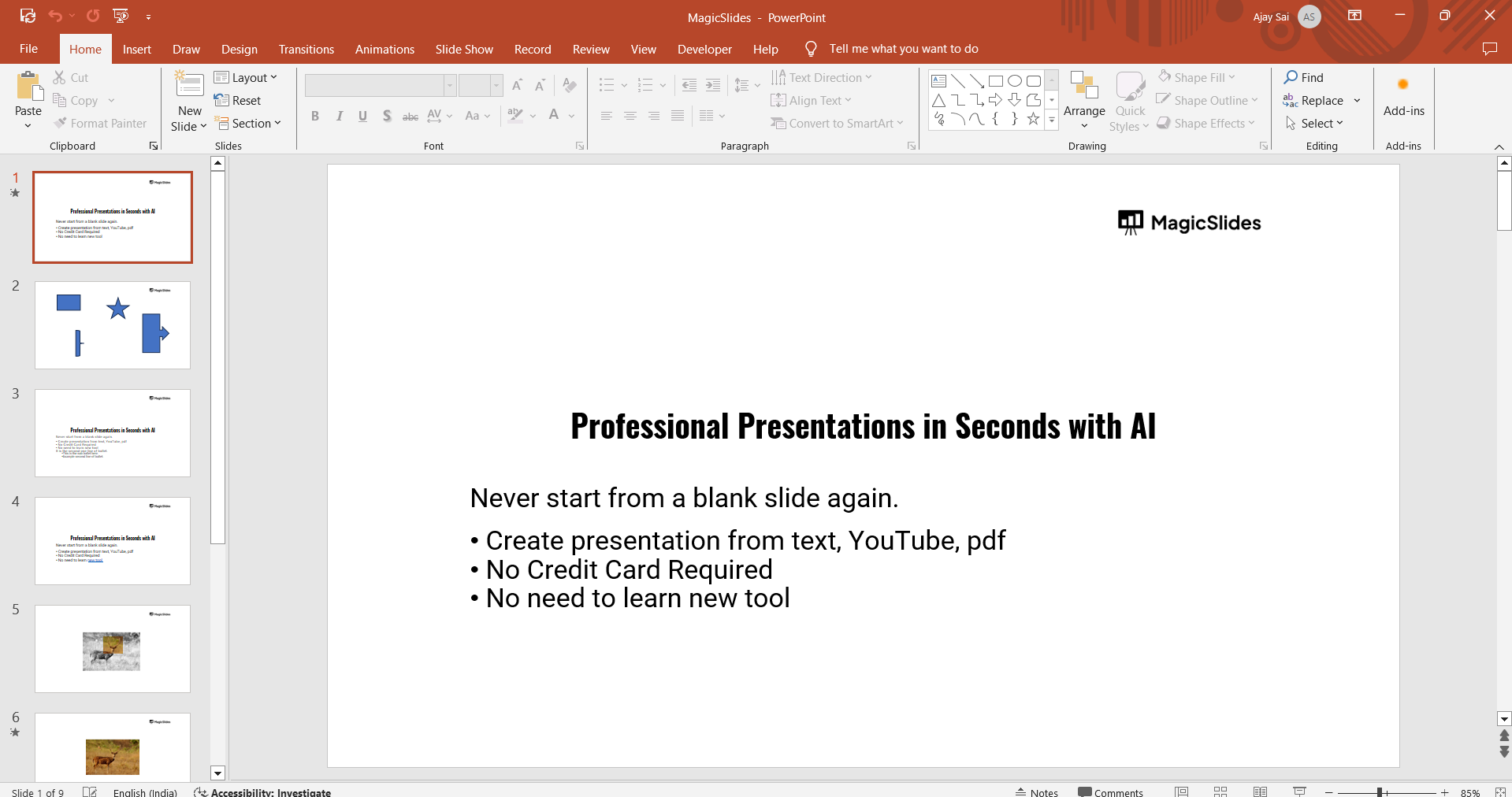
Navigate to the slide with the background graphic.
Step 2: Determine if the Background Graphic is Editable
Right-click anywhere on the slide and select “Format Background.”
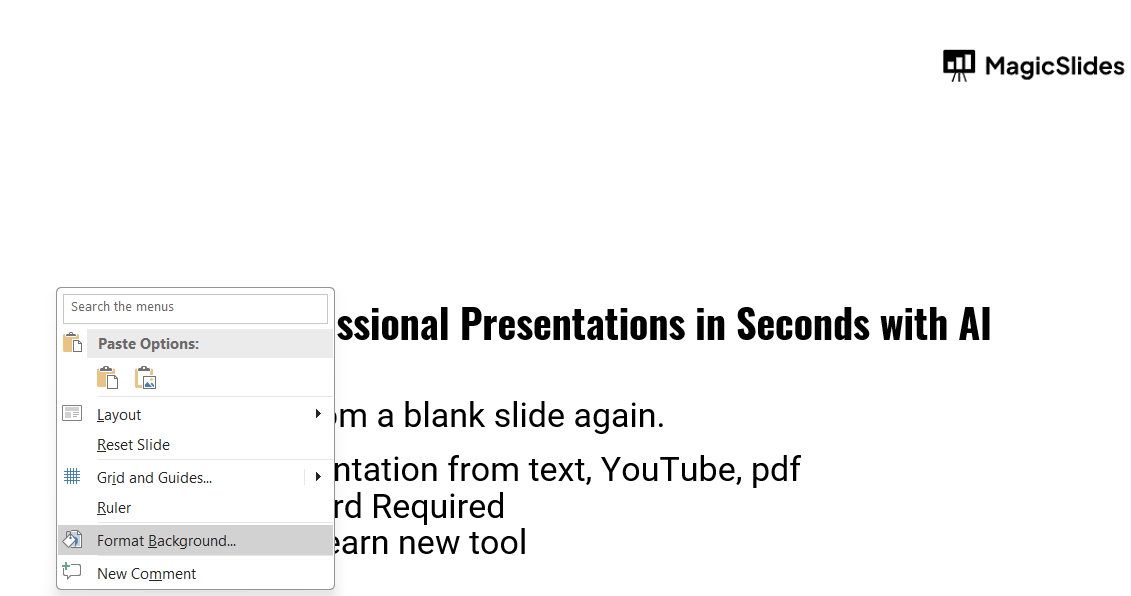
Check if the background graphic is locked as part of the Slide Master or added separately.
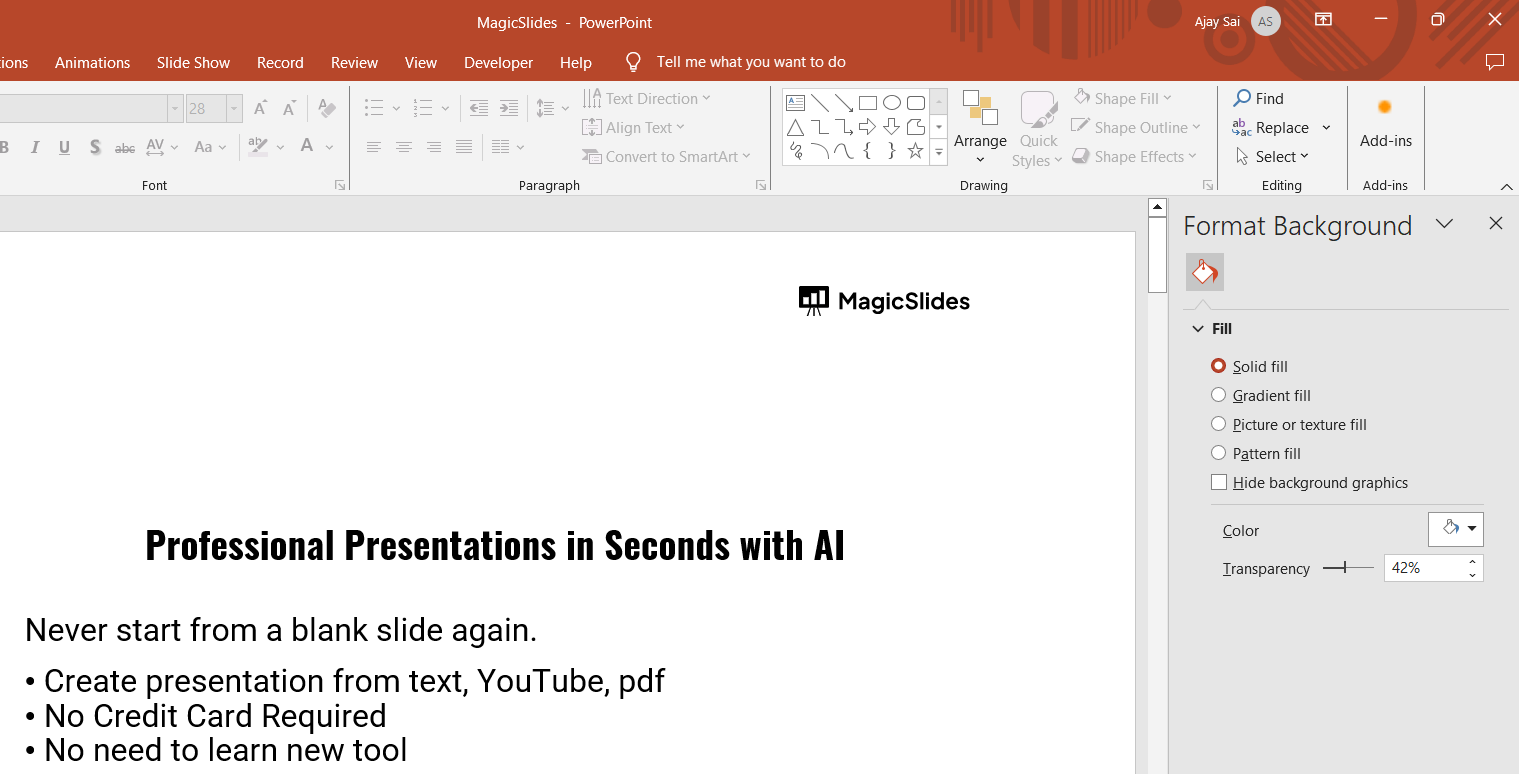
- If it is uneditable, proceed to Step 3 to access the Slide Master.
- If it is editable, simply click on the graphic and modify it directly.
Step 3: Access the Slide Master for Locked Graphics
Go to the “View” tab on the ribbon and select “Slide Master.”
Locate the layout with the background graphic you wish to modify.
Click on the graphic to edit, reposition, or delete it.
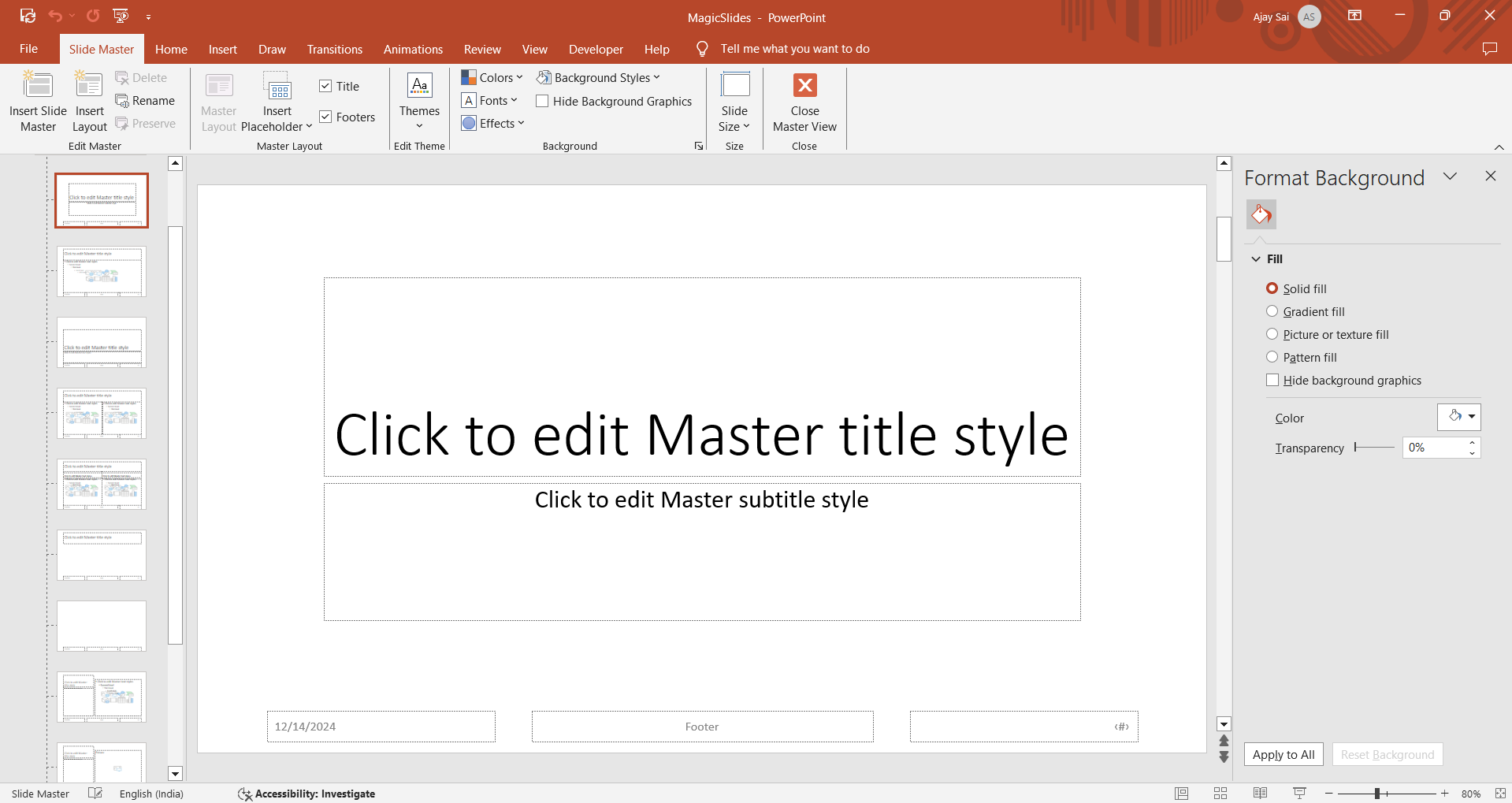
Step 4: Save and Apply Changes
After making your edits in the Slide Master, click “Close Master View” in the ribbon.
Review your slides to ensure the changes have been applied correctly.
Step 5: Customize Background Graphics for Individual Slides
If you want to customize a background graphic for a specific slide without affecting the rest of the presentation:
- Go to “Design” and click “Format Background.”
- Choose an option like Solid Fill, Gradient Fill, Picture, or Pattern Fill to modify the background.
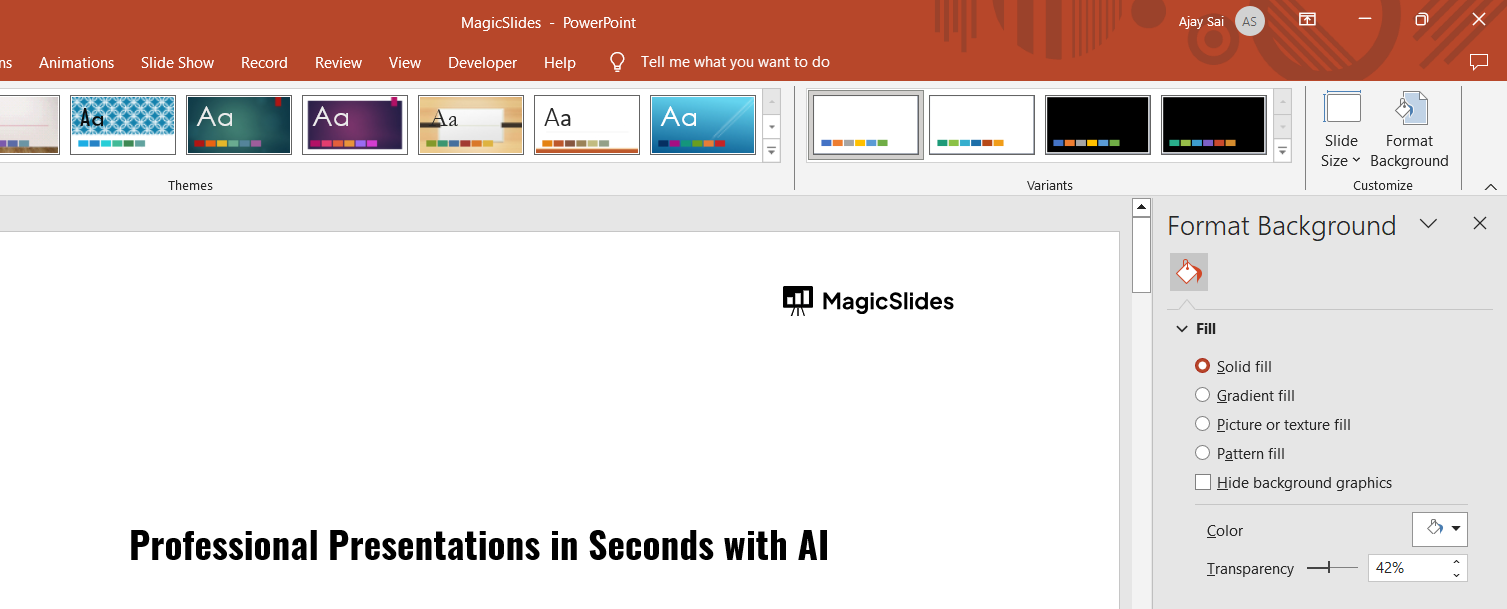
Adjust transparency or size as needed for a unique look.
Conclusion
Editing background graphics in PowerPoint is a simple yet powerful way to personalize your slides and ensure they align with your presentation’s theme.
Whether the graphic is part of the Slide Master or added to individual slides, these steps help you take full control of your design.
By mastering these techniques, you can create presentations that look professional and polished.
FAQs on Editing Background Graphics in PowerPoint
Why can’t I select or edit the background graphic on a slide?
This happens when the graphic is part of the Slide Master. Access the Slide Master to edit or remove it.
Can I add a background graphic to one slide only?
Yes, go to “Format Background” in the “Design” tab and apply the desired changes to a single slide.
How do I reset the background graphic if I make a mistake?
Click on “Reset Background” in the “Format Background” pane to revert changes to the original design.
By following this guide, you can confidently edit and customize background graphics to create impactful PowerPoint presentations!


