How to Email a PowerPoint Presentation


Learn how to email a PowerPoint presentation efficiently with these straightforward steps and tips.
In today's digital age, sharing information and presentations has become an integral part of our professional and academic lives. Emailing a PowerPoint presentation is a common task that ensures your content reaches your audience efficiently and effectively.
Whether you're sending a proposal to a client, sharing a lecture with students, or collaborating on a project with colleagues, knowing how to email a PowerPoint presentation is essential.
This guide will take you through each step of the process to ensure your presentation is delivered smoothly and professionally.
Emailing a PowerPoint Presentation: A Step-by-Step Guide
Step 1: Prepare Your PowerPoint Presentation
Before sending your presentation, ensure it is complete and polished. Here’s what to do:
Review and Edit: Go through each slide to check for any errors, inconsistencies, or outdated information. Make sure your content is clear and concise.
Design Check: Ensure that the design elements, such as fonts, colors, and images, are consistent throughout the presentation.
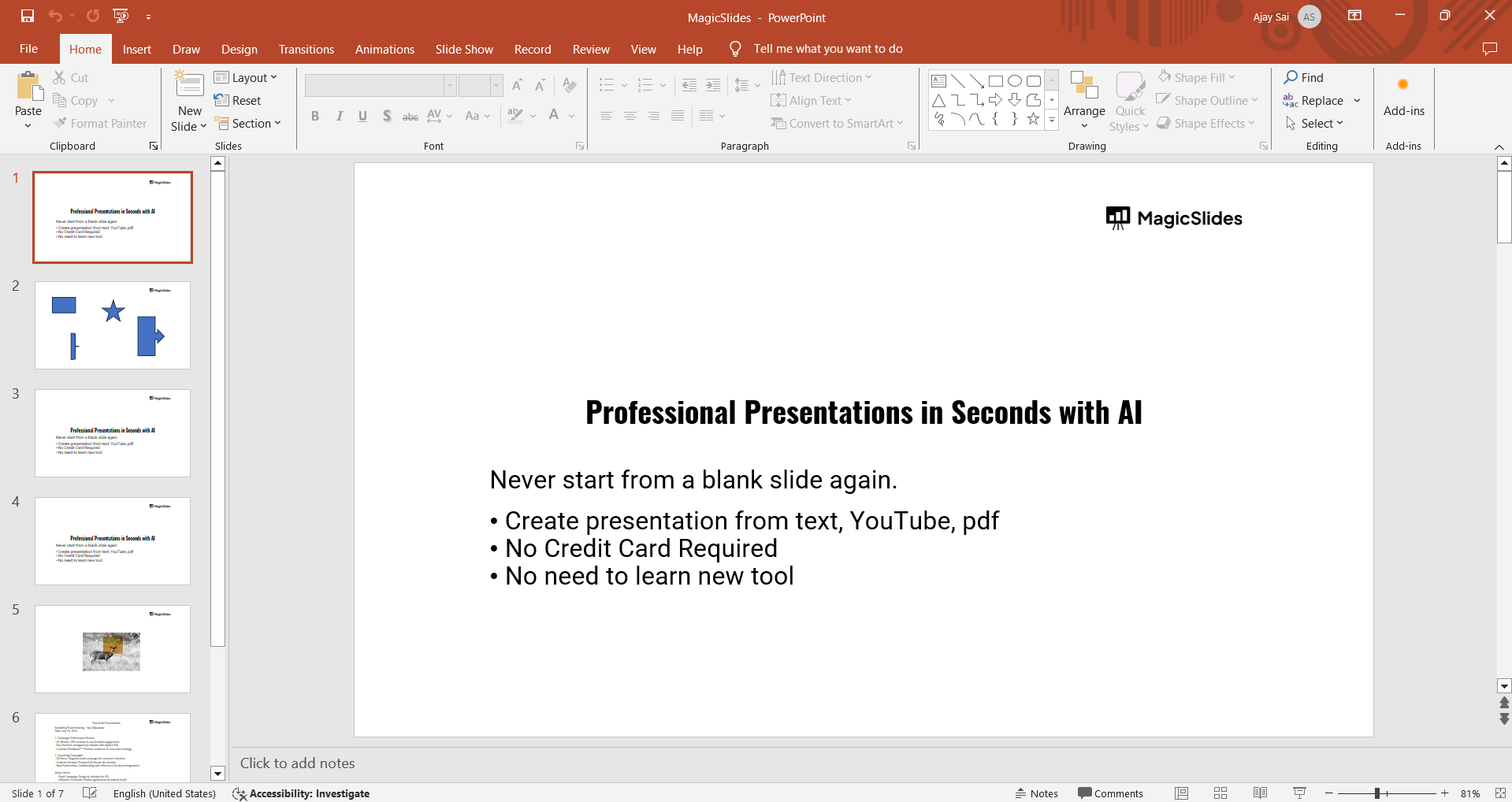
Save Your File: Save the presentation in the appropriate format (e.g., .pptx) and name it clearly to avoid confusion. If you are using any special fonts or multimedia files, make sure they are embedded.
Step 2: Compress the File (if necessary)
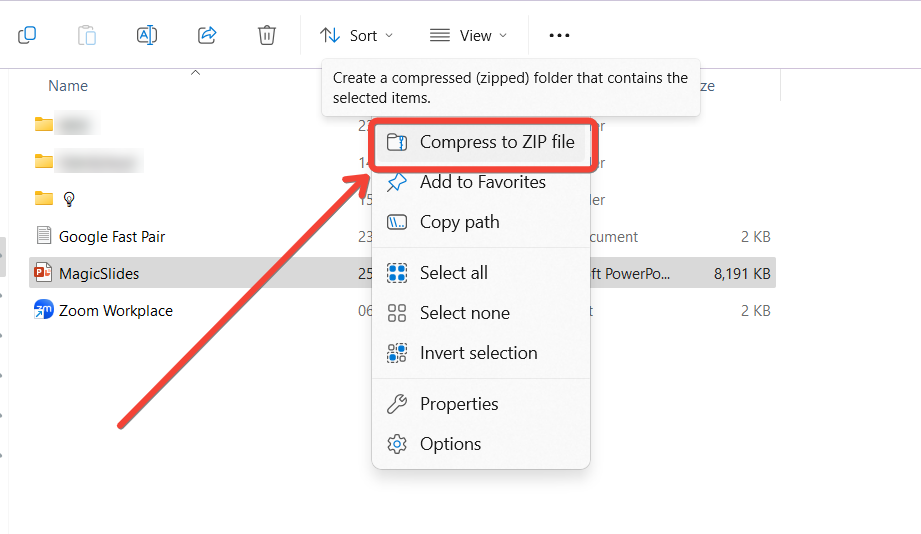
Large PowerPoint files can be difficult to email due to size restrictions. Compressing the file can help. Zip the File: Right-click the PowerPoint file, select "Send to," and then "Compressed (zipped) folder." This will create a zipped version of your file which helps you save a lot of memory space.
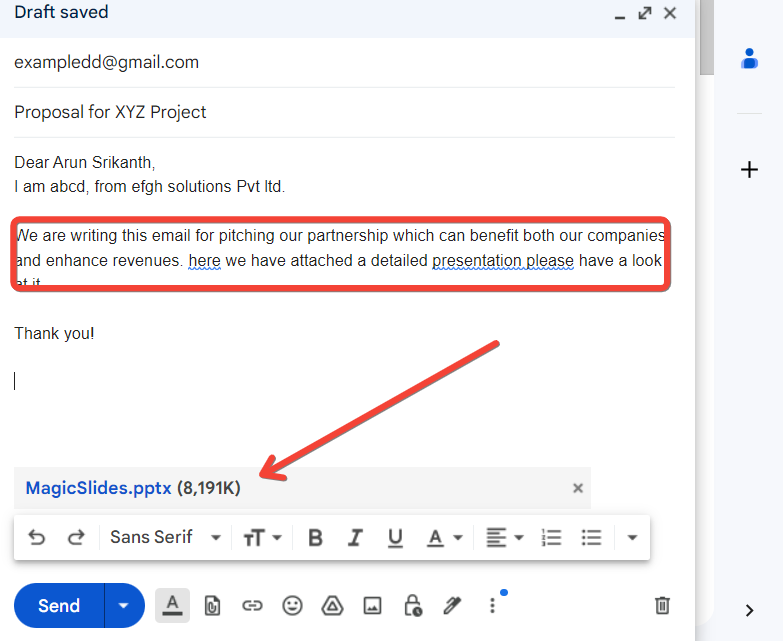
Step 3: Write a Professional Email
Your email should be professional and concise, providing the necessary context for your recipient:
Subject Line: Write a clear and specific subject line, such as "Q2 Sales Presentation" or "Proposal for XYZ Project."
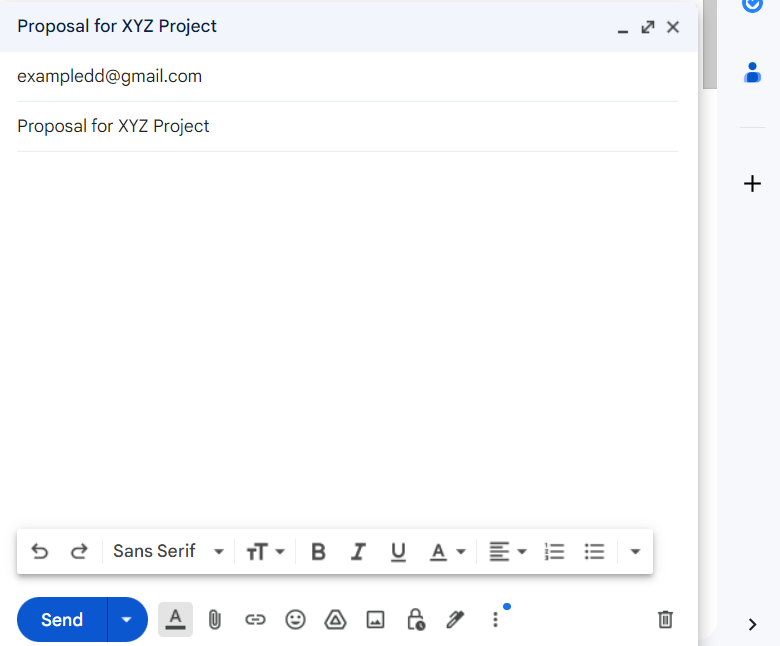
Greeting: Address the recipient by name.
Introduction: Briefly introduce yourself and the purpose of the email.
Body: Provide a brief overview of the attached presentation, highlighting key points or sections. If there are any specific instructions or notes, mention them here.
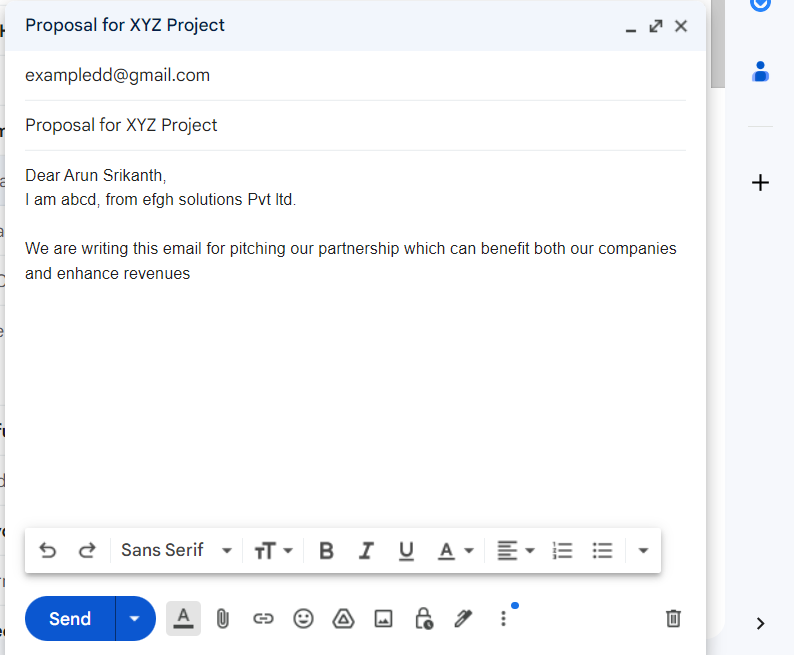
Attachment Notification: Clearly state that you have attached the PowerPoint presentation.
Closing: End with a polite closing, such as "Best regards" or "Sincerely," followed by your name and contact information.
Step 4: Attach the PowerPoint Presentation
Now it's time to attach your presentation to the email:
Attach the File: Click on the paperclip icon or the "Attach File" option in your email client. Browse for your PowerPoint file (or the zipped folder) and attach it.
Verify Attachment: Double-check that the correct file is attached. Ensure the attachment is not corrupted by opening it once more before sending.
Step 5: Send a Test Email (optional)
Sending a test email to yourself can help ensure everything is in order:
Check for Errors: Verify that the email is free of spelling or grammatical errors.
Verify Attachment: Make sure the presentation is attached correctly and opens without issues.
Test on Different Devices: If possible, check how the email looks on different devices (desktop, mobile) to ensure compatibility.
Step 6: Send the Email
After verifying everything, send the email to your intended recipient:
Confirm Email Address: Double-check the recipient's email address to avoid sending it to the wrong person.
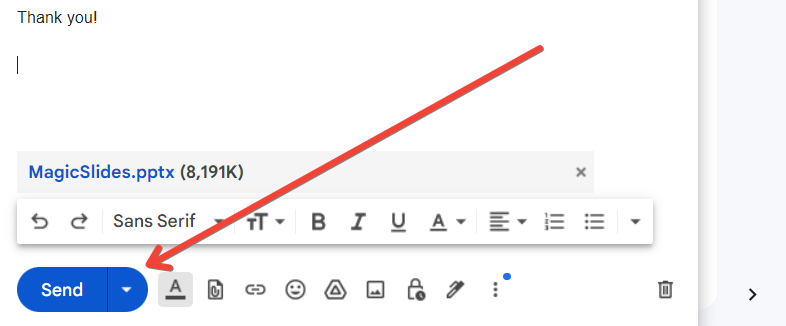
Send: Click the "Send" button and wait for the email to be dispatched.
Conclusion
Emailing a PowerPoint presentation is a straightforward process that requires attention to detail to ensure your content is delivered effectively. By following these steps preparing your presentation, compressing the file if necessary, writing a professional email, attaching the file correctly, and sending a test email you can confidently share your work with your audience.
Properly managing this process reflects your professionalism and enhances the impact of your presentation. Happy sharing!
Now that you’ve learnt sending a presentation via mail, you might also want to collect responses to know the feedback, to ease the process check out how to attach a google form to an email.
Frequently Asked Questions:
How do I reduce the size of my PowerPoint file for emailing?
To reduce the size, you can compress images within the presentation, save the file in a compressed format (like a .zip), or use online compression tools like Smallpdf or WeCompress.
What should I include in the email body when sending a PowerPoint presentation?
Include a clear subject line, a polite greeting, a brief introduction and overview of the presentation, any specific instructions or notes, and a closing with your contact information.
What if my email client has a file size limit for attachments?
If your file exceeds the limit, consider using cloud storage services like Google Drive, Dropbox, or OneDrive. Upload the presentation and share the link in your email.
How can I ensure the recipient can view my PowerPoint presentation?
Save your presentation in a widely compatible format (.pptx or PDF). It's also a good idea to send a test email to yourself to ensure everything opens correctly before sending it to the recipient.


