How to Fix Google Slides Insert video Not Working


Fix Google Slides insert video issues easily with these troubleshooting steps for seamless presentations
How to Fix Google Slides Insert Video Not Working
Inserting videos into Google Slides enhances presentations, but sometimes users face issues when adding a video.
If you’re struggling with the “Insert Video” feature not working, follow these step-by-step solutions to resolve the problem quickly.
Steps to Fix Google Slides Insert Video Not Working
Step 1: Check Your Internet Connection
Google Slides requires an active internet connection to insert videos from YouTube or Google Drive.
Refresh your browser and try again. If your connection is slow, switch to a stable network.
Step 2: Ensure the Video Format is Supported
Google Slides only supports YouTube videos and Google Drive videos (MP4, MOV, or AVI).
If you’re uploading from Google Drive, ensure the file format is compatible.
Step 3: Verify Video Privacy Settings
If inserting a video from Google Drive, check its sharing settings.
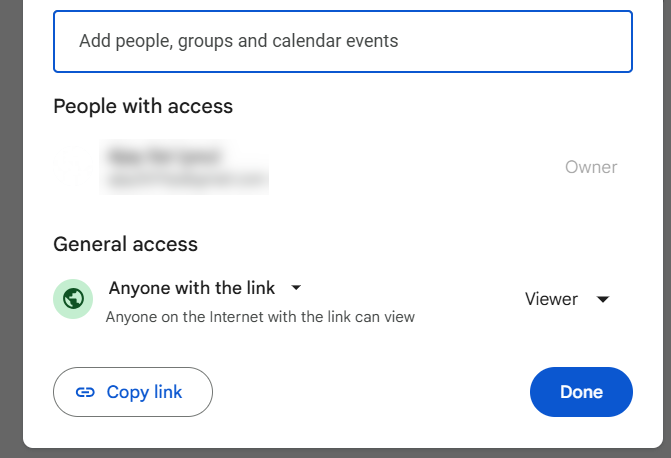
Right-click the video in Drive, select “Get link”, and change the access to “Anyone with the link” if needed.
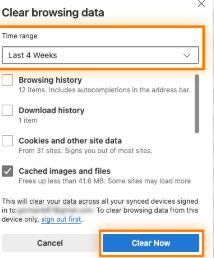
Step 4: Clear Browser Cache and Cookies
Go to your browser settings and clear cache and cookies. Restart the browser and try inserting the video again.
Step 5: Try a Different Browser or Device
If the issue persists, switch to another browser like Google Chrome, Mozilla Firefox, or Microsoft Edge.
You can also try using a different device to see if the issue is specific to your current setup.
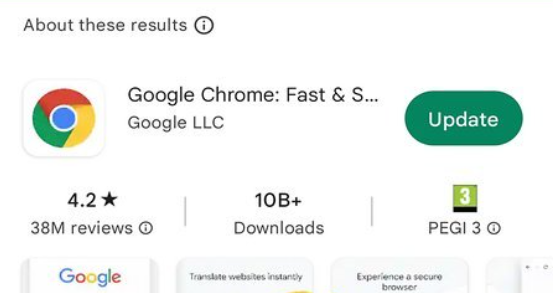
Step 6: Update Your Browser
An outdated browser may cause compatibility issues. Check for updates in your browser settings and install the latest version.
Step 7: Disable Browser Extensions
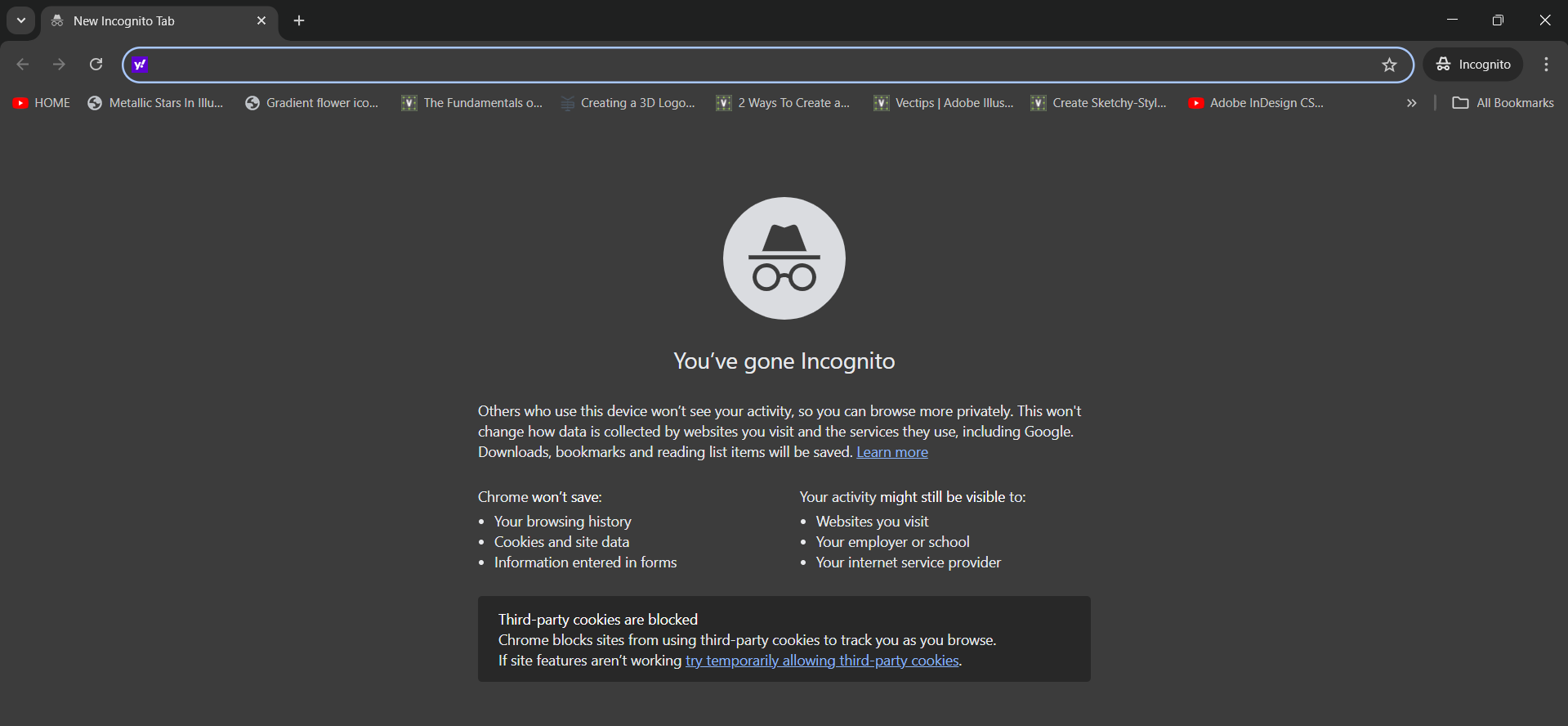
Some extensions might interfere with Google Slides.
Open your browser in Incognito Mode or disable extensions temporarily to check if this resolves the problem.
Step 8: Re-upload the Video to Google Drive
If the video is from Google Drive, delete and re-upload it. Wait for it to process fully before inserting it into Google Slides.
Facing issues inserting videos into Google Slides? While troubleshooting, check out MagicSlides.app, which lets you generate AI-powered slides from YouTube videos, PDFs, and more—saving you time and effort!
Conclusion
If Google Slides’ “Insert Video” function isn’t working, it’s likely due to internet issues, unsupported formats, or privacy settings.
By following these steps, you can resolve the issue and seamlessly add videos to your presentation.
FAQs on Google Slides Insert Video Issues
Why is my YouTube video not inserting into Google Slides?
Ensure your internet is stable, and the video is publicly available on YouTube. Private or deleted videos cannot be inserted.
Why is my Google Drive video not playing in Google Slides?
Check if the video has finished processing in Google Drive and adjust the sharing settings to “Anyone with the link.”
Can I insert a video from my computer into Google Slides?
No, Google Slides only supports videos from YouTube or Google Drive. You must first upload your video to Drive before inserting it.
Now you can troubleshoot and fix any issues related to inserting videos in Google Slides! 🎥🚀


