How to Flip a Slide in Google Slides


Easily flip images, text, and shapes in Google Slides using simple rotate and format options
How to Flip a Slide in Google Slides
Google Slides doesn’t have a direct feature to flip an entire slide, but you can flip individual elements such as text boxes, images, and shapes.
By using the rotate and flip options, you can achieve a mirrored effect for your content. Follow these simple steps to flip elements in Google Slides.
Step-by-Step Guide to Flipping a Slide in Google Slides
Step 1: Open Your Google Slides Presentation
Go to Google Slides. Open an existing presentation or create a new one by visiting slide.new.
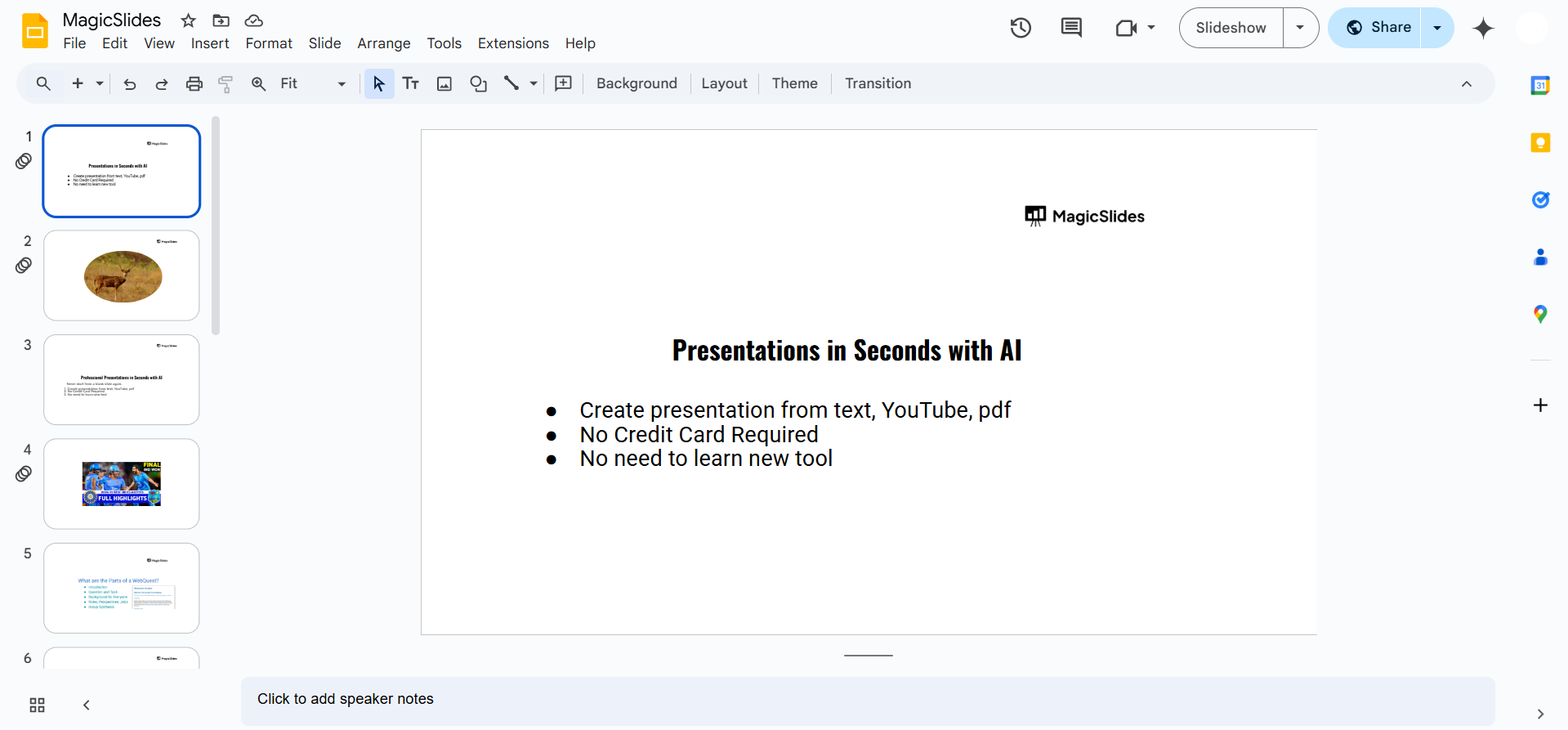
Step 2: Select the Object to Flip
Click on the text box, image, or shape you want to flip. Ensure the object is selected with a blue bounding box around it.
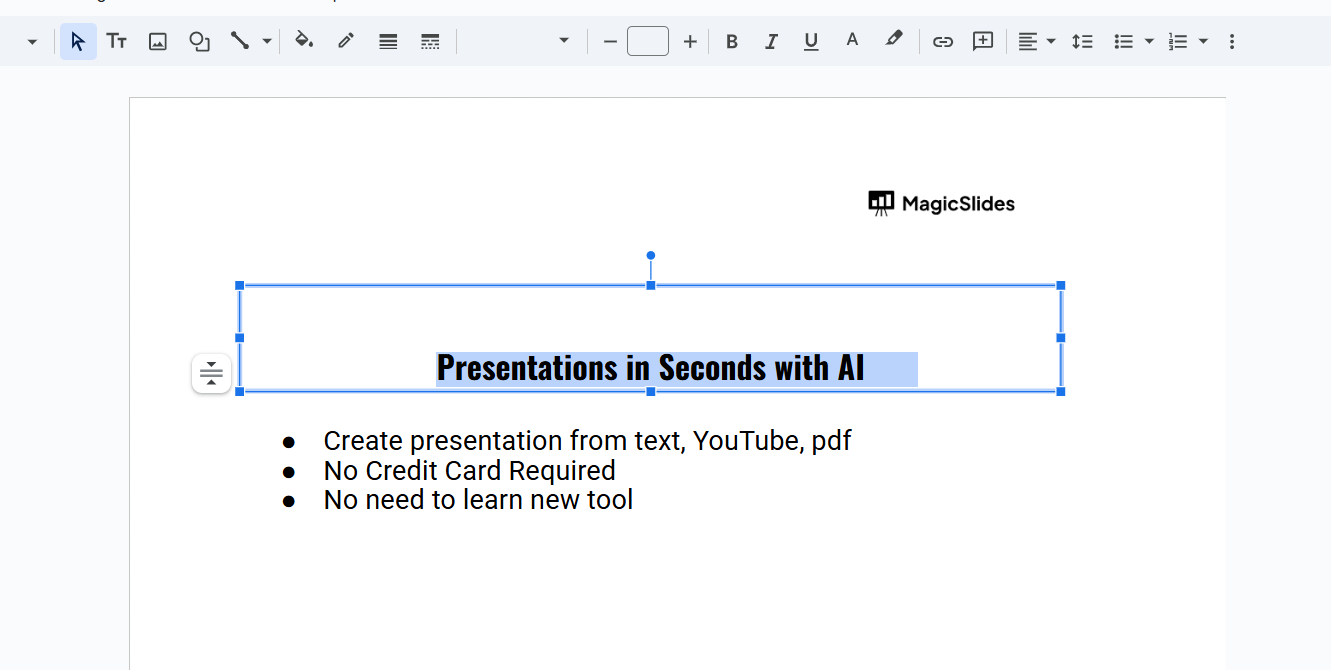
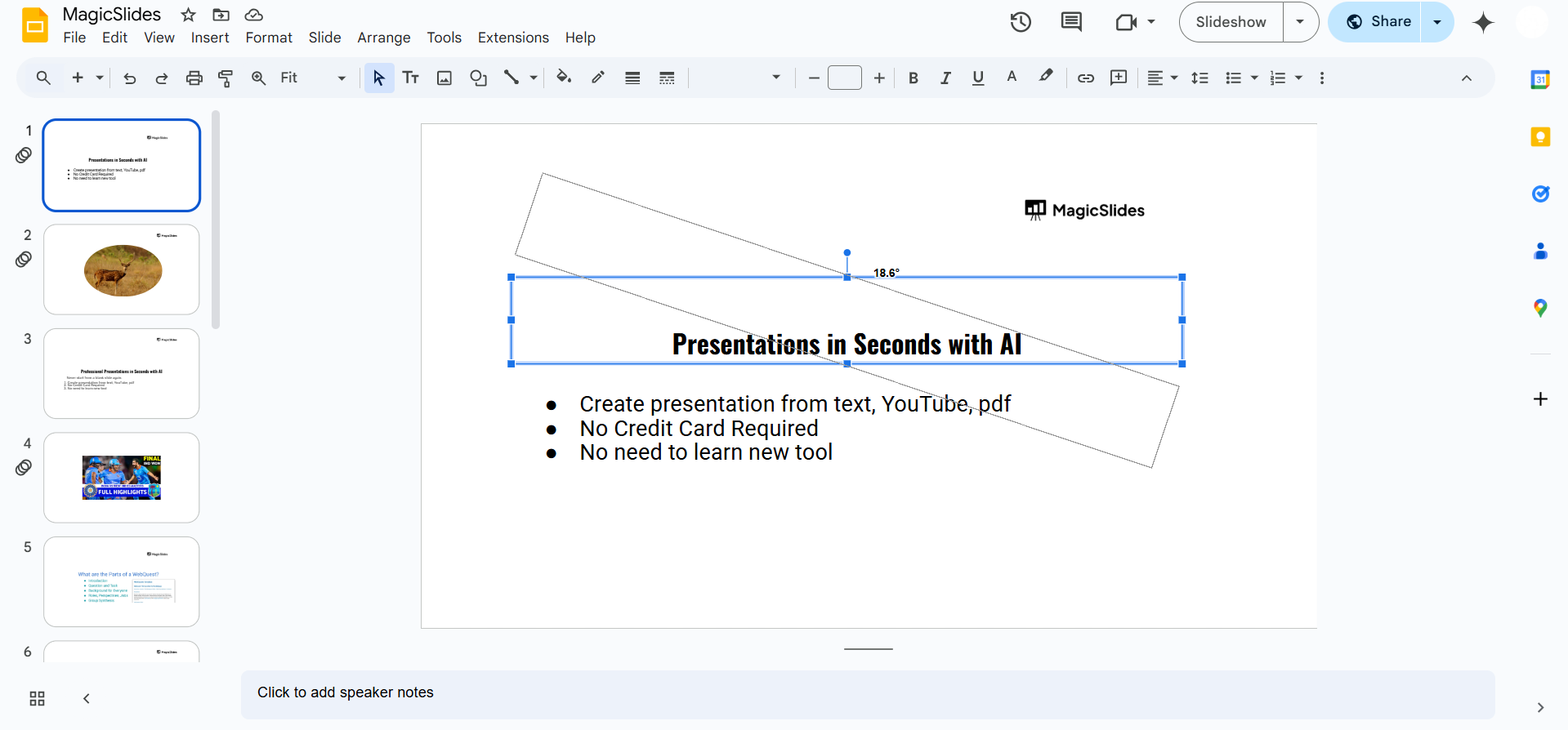
Step 3: Flip the Object Horizontally or Vertically
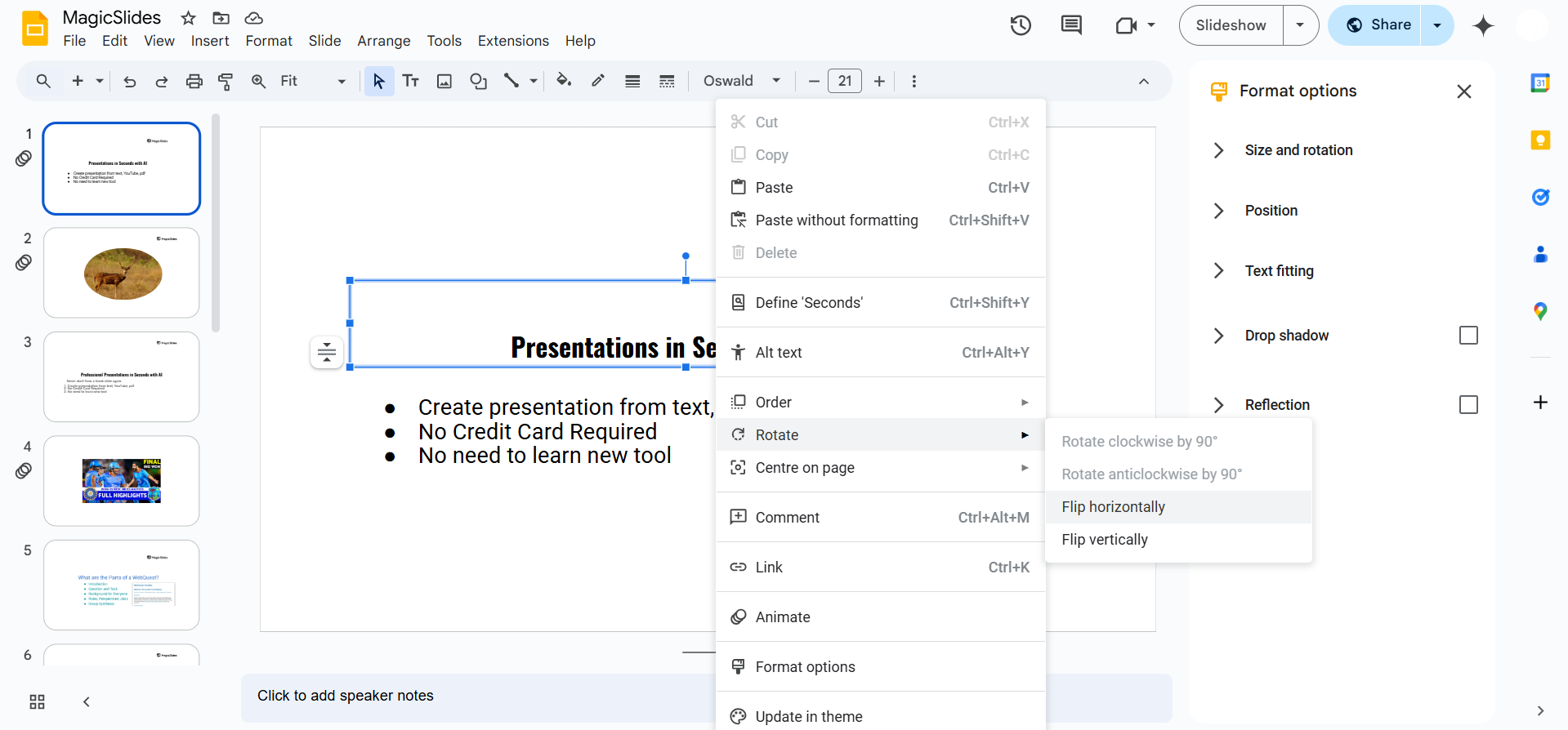
Right-click on the selected object. Hover over Rotate in the dropdown menu.
Choose one of the following options:
- Flip horizontally – Creates a mirror effect from left to right.
- Flip vertically – Turns the object upside down.
Step 4: Use Format Options for Precise Flipping
Select the object and click Format options in the toolbar.
Expand the Size & Rotation section.
Enter a negative width or height value to manually flip the object:
- Example: Set Width to -100% to flip horizontally.
- Example: Set Height to -100% to flip vertically.
Press Enter to apply the changes.
Step 5: Adjust and Reposition the Flipped Object
After flipping, move the object to its correct position on the slide. Resize or rotate if necessary to fit your design.
Flipping slides can add a unique visual effect, but if you’re looking for a smarter way to design presentations, try MagicSlides.app AI-generated slides, ready in seconds!
Conclusion
While Google Slides doesn’t allow you to flip an entire slide, you can easily flip text, images, and shapes using the rotate and format options.
This technique helps you create mirrored effects and unique layouts in your presentations.
FAQs are here to guide!
Can I flip an entire slide in Google Slides?
No, but you can manually flip each object on the slide to achieve a mirrored effect.
How do I flip a text box in Google Slides?
Right-click on the text box, select Rotate, and choose Flip horizontally or Flip vertically.
Will flipping an image affect its quality?
No, flipping an image in Google Slides maintains its original resolution and quality.


