How to Insert Canva into Google Slides


Easily insert stunning Canva designs into Google Slides to enhance your presentations with creative visuals
How to Insert Canva into Google Slides
Want to enhance your Google Slides with beautiful designs from Canva?
Canva offers powerful design tools, and inserting your Canva creations into Google Slides is easy.
Follow these simple steps to seamlessly integrate Canva into your presentation.
Step-by-Step Guide to Insert Canva into Google Slides
Step 1: Create Your Design in Canva
Go to Canva and log in to your account. Select a template or start a new design.
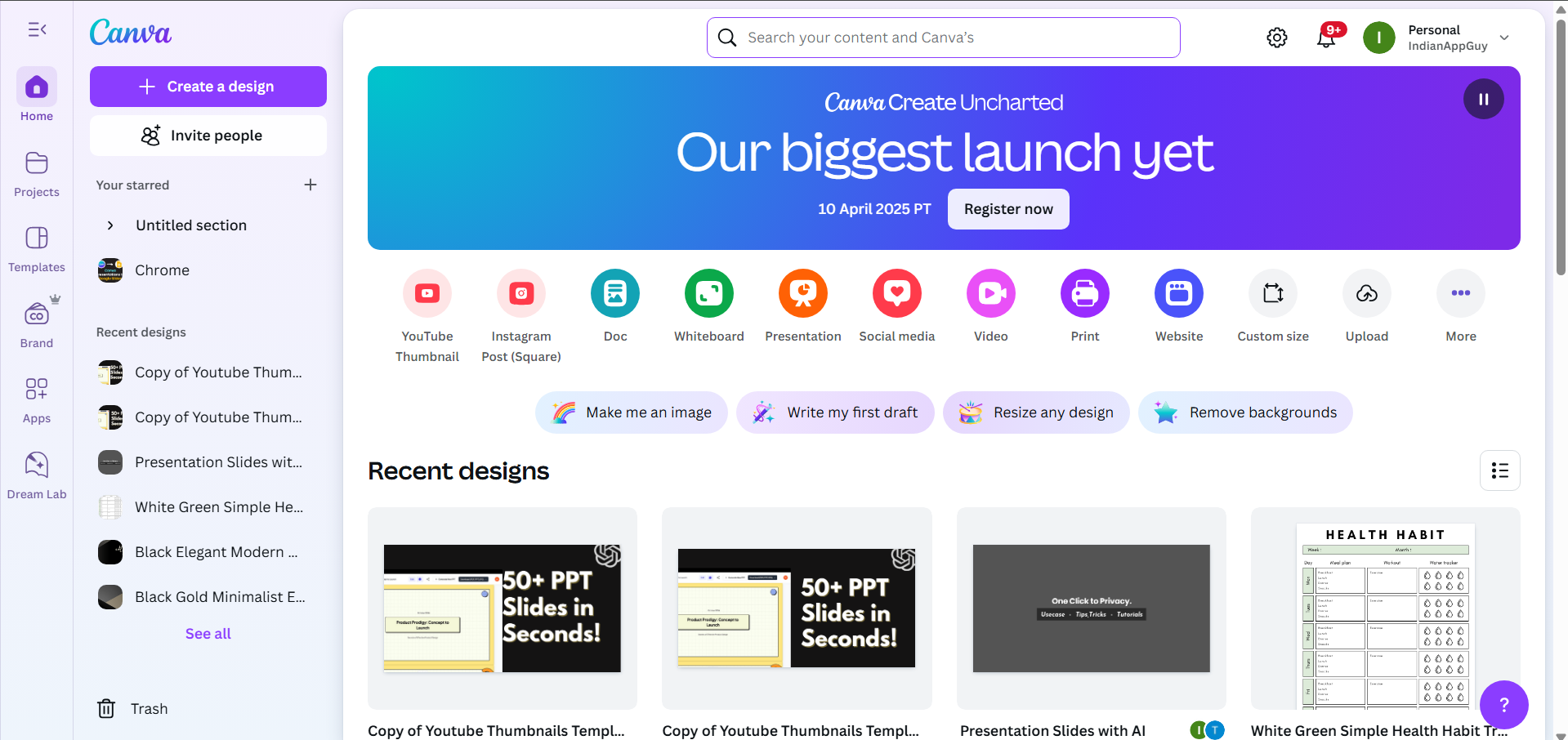
Customize your design with text, images, and other elements.
Step 2: Download Your Canva Design
Click on the Share button at the top right corner of Canva. Select Download and choose the file format:
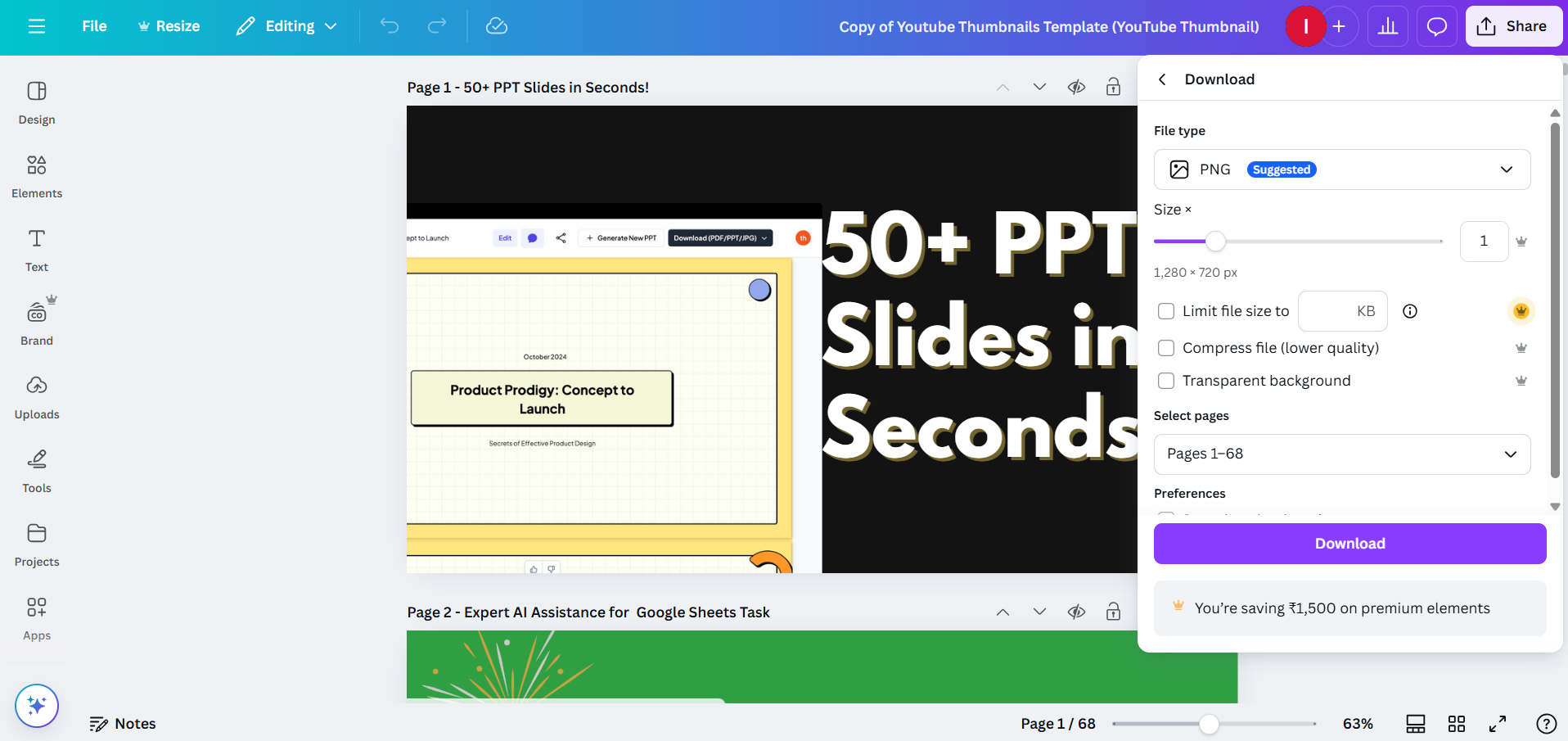
- PNG/JPEG (for images)
- PDF (if you're uploading a document)
Click Download to save the file to your computer.
Step 3: Open Google Slides
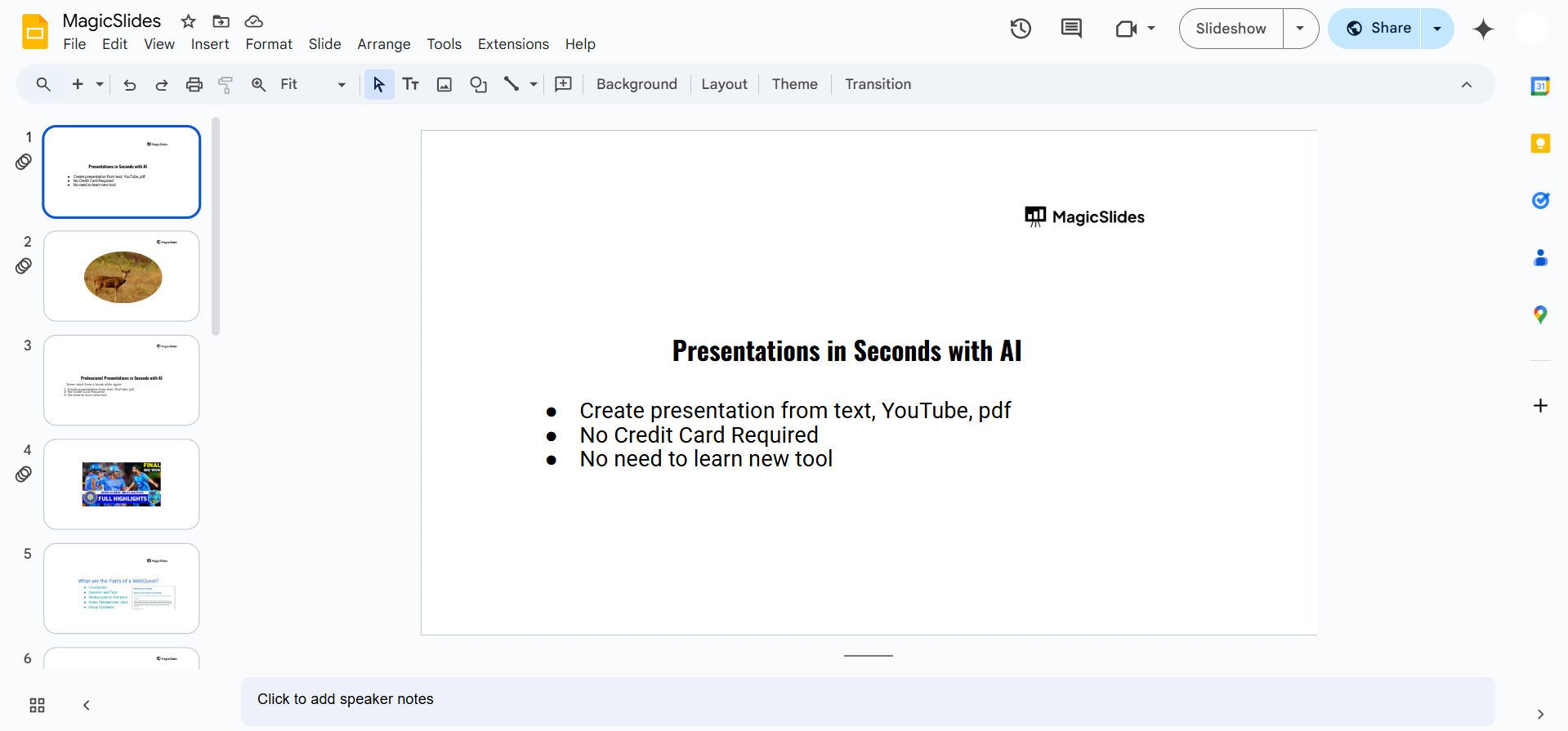
Visit Google Slides and open your presentation. Choose the slide where you want to insert your Canva design.
Step 4: Insert Your Canva File into Google Slides
For PNG or JPEG Images:
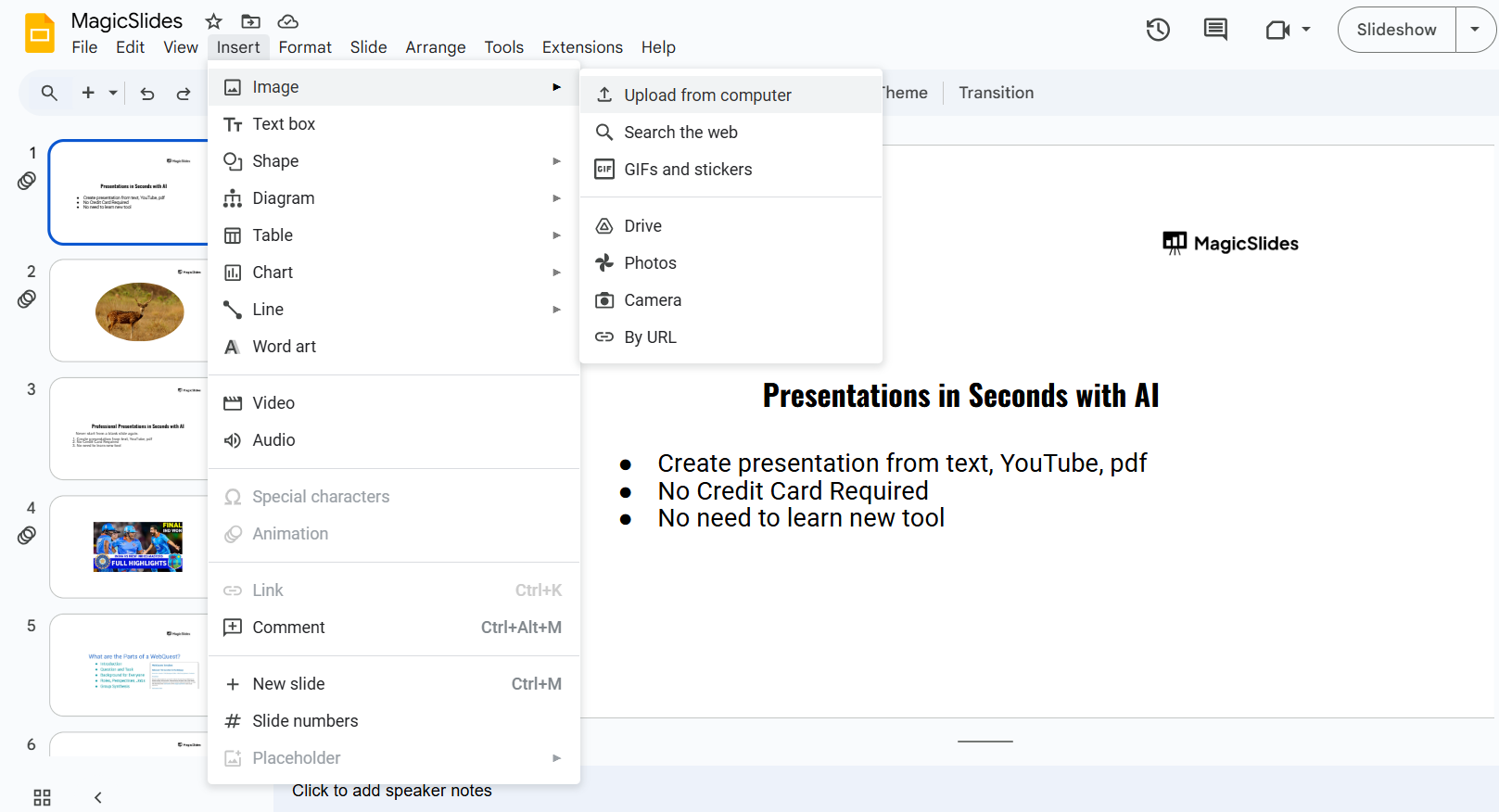
Click on Insert → Image → Upload from computer. Select the downloaded Canva file and insert it into your slide.
Resize and position it as needed.
For PDFs:
Convert the PDF to an image using an online converter if needed. Follow the same steps as above to insert the converted image.
Step 5: Adjust and Finalize Your Slide
Resize, crop, or adjust transparency if necessary. Add animations or effects to enhance your presentation.
Save your Google Slides presentation.
Integrating Canva designs into Google Slides can enhance your presentation. But for a faster way to create AI-powered slides, check out MagicSlides.app turn topics, PDFs, and even YouTube videos into presentations instantly!
Conclusion
Inserting Canva designs into Google Slides is a simple way to make your presentations visually appealing.
By following these steps, you can seamlessly integrate professional graphics and elevate the look of your slides.
FAQs can come handy!
Can I edit my Canva design after inserting it into Google Slides?
No, you’ll need to edit it in Canva, download it again, and reinsert it into Google Slides.
What is the best file format to use when inserting Canva designs?
PNG is recommended for high-quality images with transparency, while JPEG works for regular images.
Can I insert animated elements from Canva into Google Slides?
Yes! Download the design as an MP4 or GIF and insert it into Google Slides as a video.


