How to make a Graph Appear and Disappear in PowerPoint


Learn how to animate graphs in PowerPoint to make them appear and disappear effortlessly
How to Make a Graph Appear and Disappear in PowerPoint
Adding animations to graphs in PowerPoint can make your presentations more engaging and interactive.
By making a graph appear and disappear on a slide, you can draw attention to key points or simplify complex information.
This guide will walk you through the steps to animate your graph effectively in PowerPoint.
Steps to Make a Graph Appear and Disappear in PowerPoint
Step 1: Insert or Select Your Graph
Open your PowerPoint presentation and navigate to the slide where you want the graph.
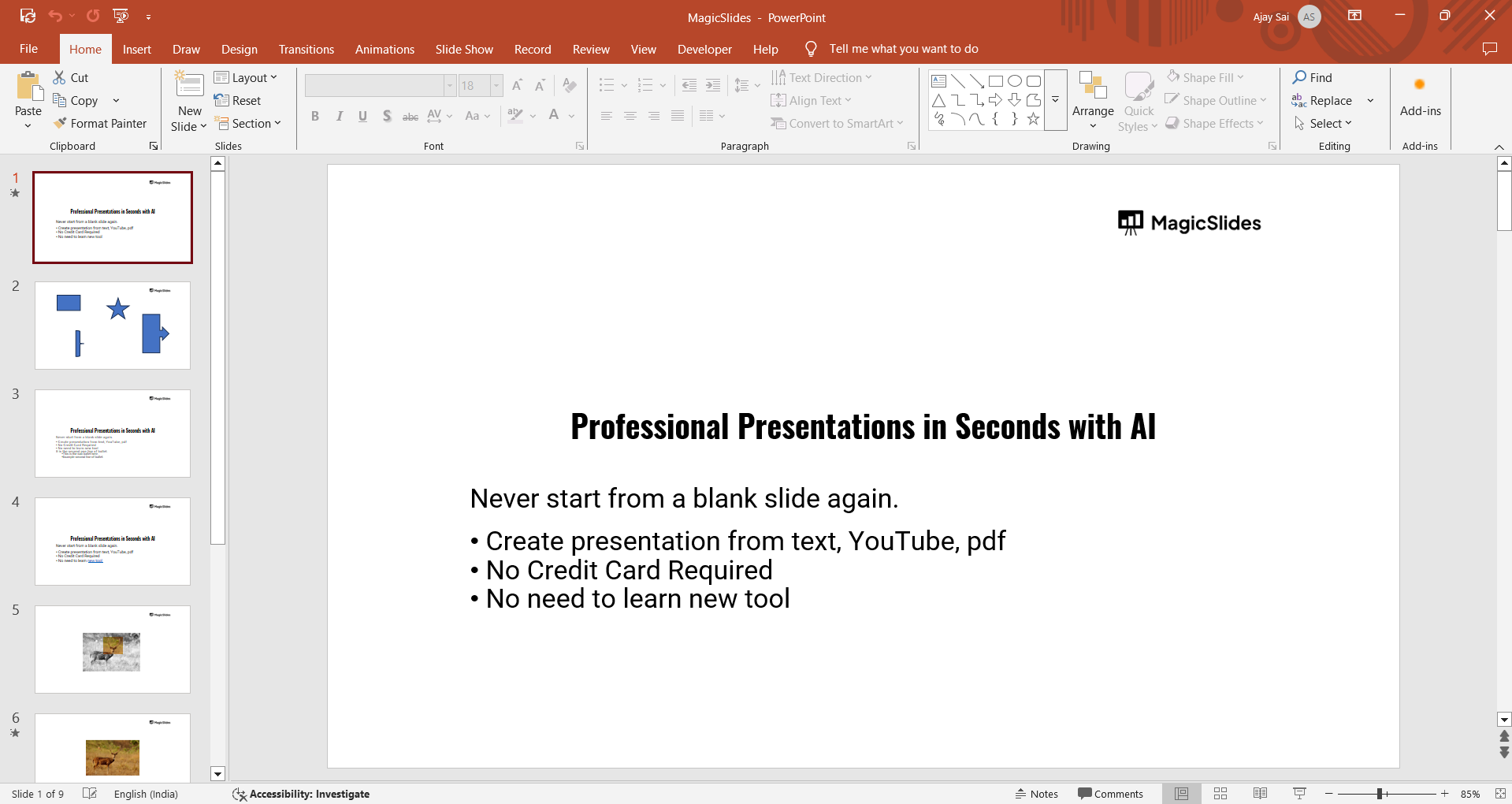
Insert your graph using the Insert tab or select an existing graph.
Step 2: Access the Animation Tab
With the graph selected, go to the Animations tab in the PowerPoint toolbar.

This tab contains various animation options for your graph.
Step 3: Apply the “Appear” Animation
From the animation gallery, choose the Appear effect.
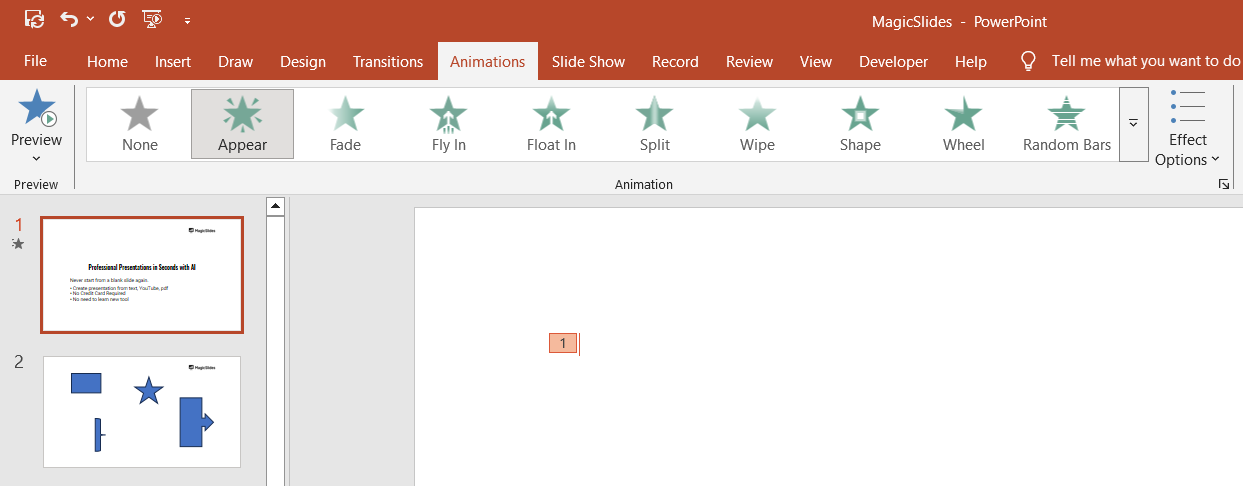
Customize the animation using the Animation Pane to control the timing and trigger.
Step 4: Add the “Disappear” Animation
With the same graph still selected, go back to the animation gallery and select the Disappear effect.
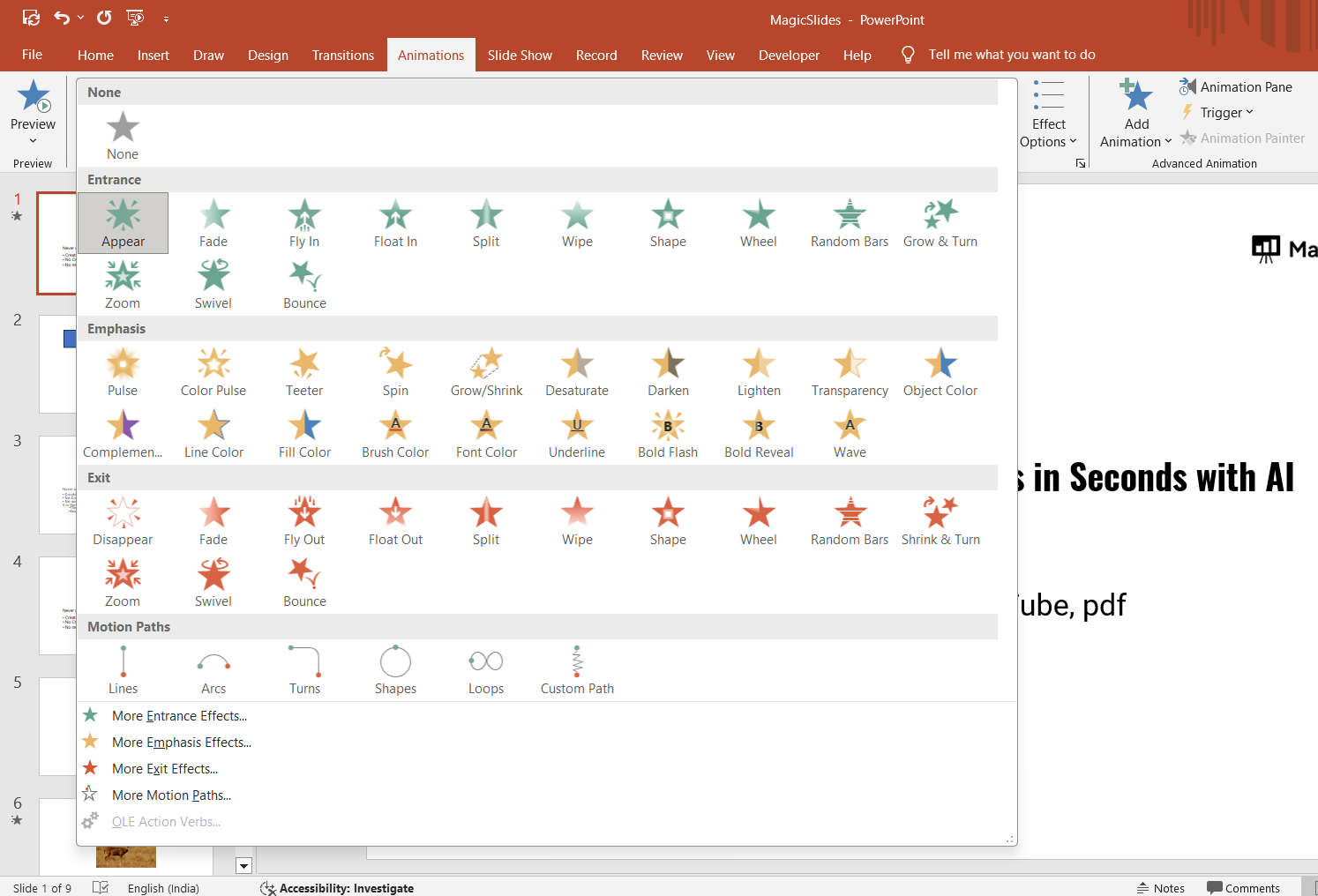
Ensure both animations are listed in the Animation Pane for the same graph.
Step 5: Set Triggers for the Animations
Open the Animation Pane by clicking on its option in the toolbar.

Assign specific triggers to the appear and disappear effects, such as On Click or After Previous.
Step 6: Preview and Adjust Timing
Use the Play All button in the Animation Pane to preview your graph’s animations.
Adjust the timing and sequence for smooth transitions. Once you've learned how to animate graphs in PowerPoint, check out how to make slides automatically transition in PowerPoint to streamline your presentations.
Conclusion
Animating a graph to appear and disappear in PowerPoint is a simple yet effective way to enhance your presentation’s clarity and engagement.
By following these steps, you can seamlessly incorporate animations that highlight important data and maintain your audience’s attention.
Experiment with triggers and timing to achieve the best results.
FAQs on Making a Graph Appear and Disappear in PowerPoint
Can I add different animations for multiple graphs on the same slide?
Yes, you can animate each graph individually by selecting and applying unique animations to each.
How do I ensure smooth transitions between animations?
Use the Animation Pane to adjust the sequence and timing for a seamless flow.
Is this feature available in all versions of PowerPoint?
Yes, most versions of PowerPoint, including older ones, support animation features for graphs and charts.
By animating graphs in PowerPoint, you can elevate your presentation’s visual appeal and improve how your audience understands your data.


