How to Make Fonts Taller in Canva


Learn how to make fonts taller in Canva to enhance your designs’ visual appeal and readability
Adjusting font height is a great way to enhance your design’s visual appeal and readability.
Canva provides easy-to-use tools to make fonts taller, either by increasing the size or using advanced spacing options.
This guide walks you through step-by-step instructions to create a professional and polished design by making fonts taller in Canva.
How to Make Fonts Taller in Canva | Steps to Make Fonts Taller in Canva
Step 1: Open Your Canva Project
Log in to your Canva account.
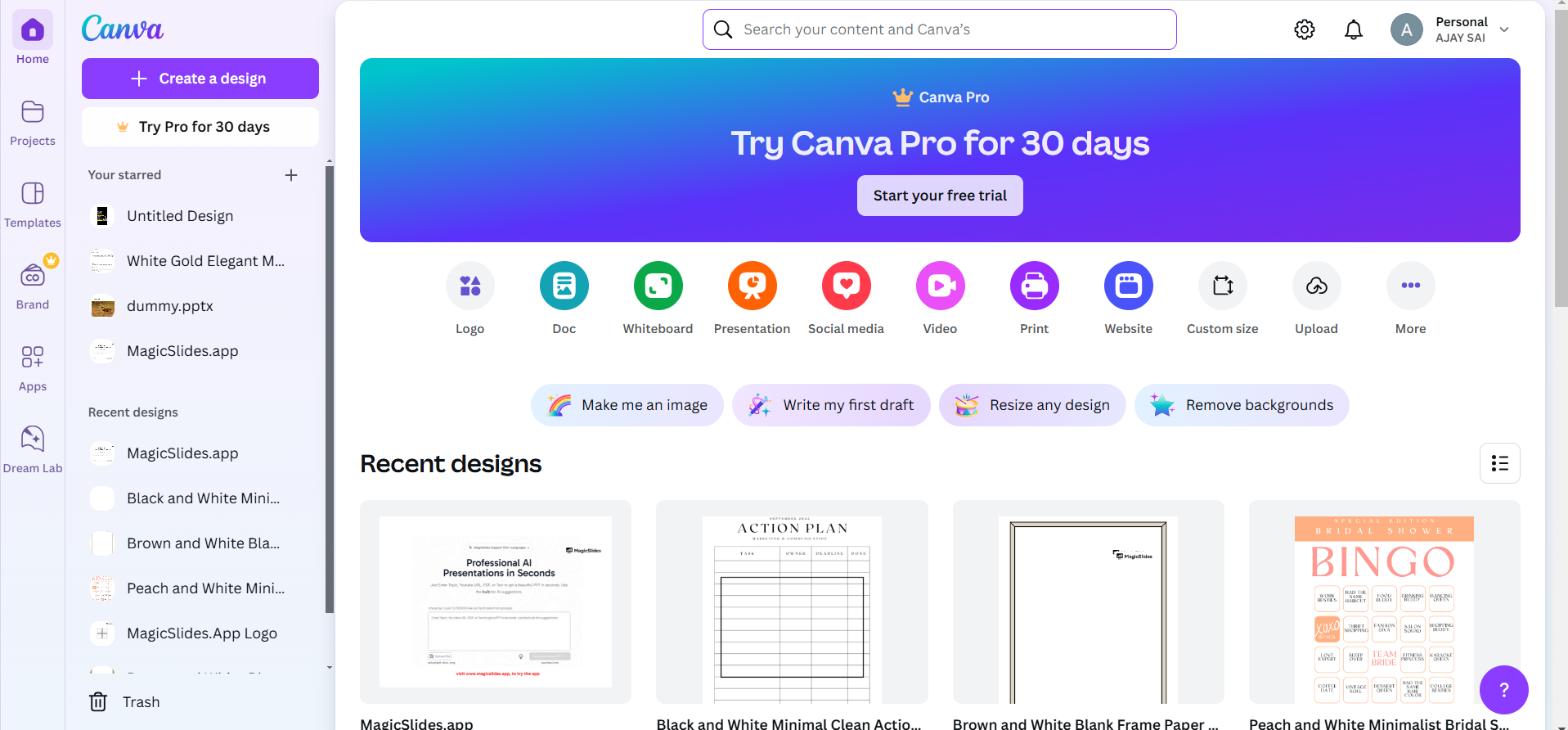
Select the project where you want to adjust the font height or create a new design.
Step 2: Add or Select Text
Click on the “Text” tool from the left panel to add a text box.
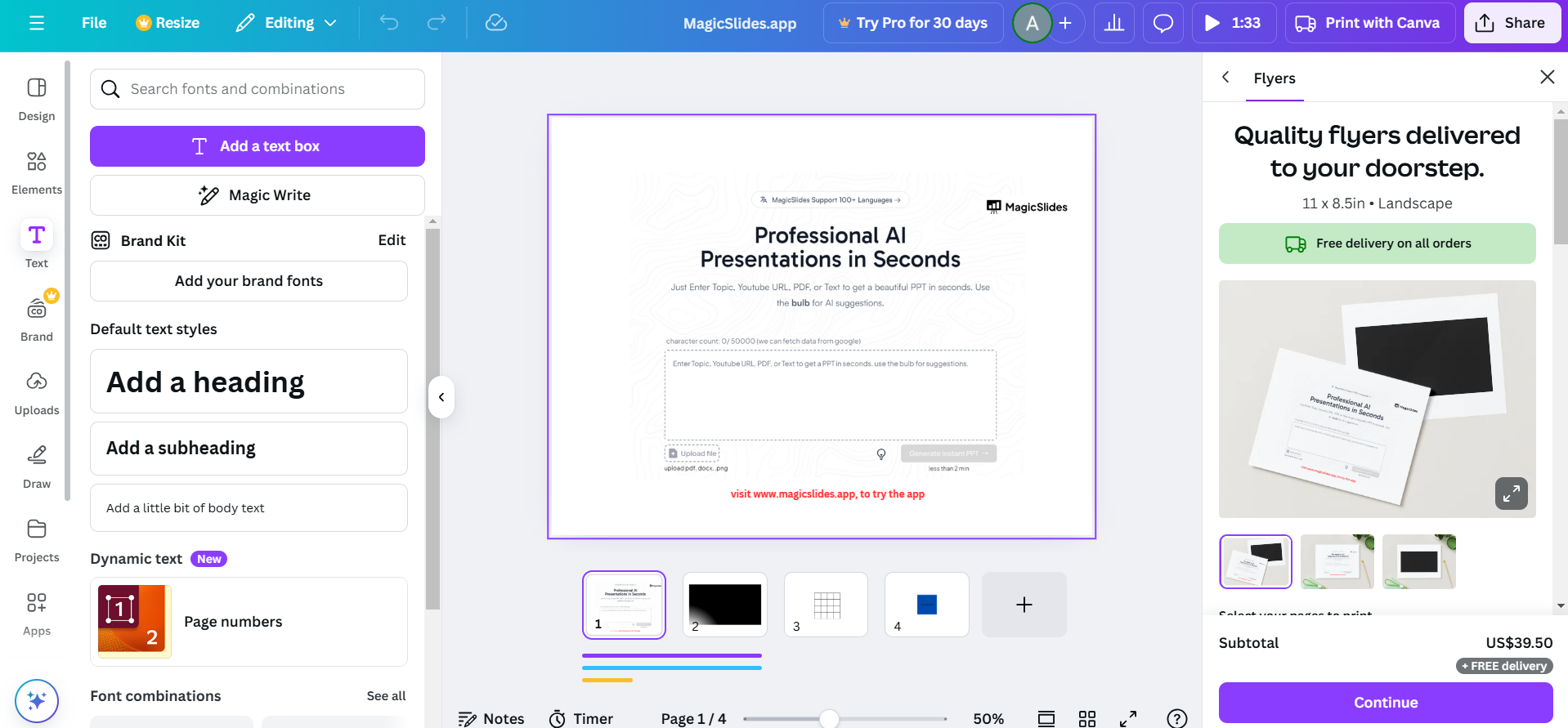
If you’re working with existing text, click on the text box you want to adjust.
Step 3: Increase Font Size
Locate the font size option in the top toolbar. Use the dropdown menu or type a custom value to make the text taller.
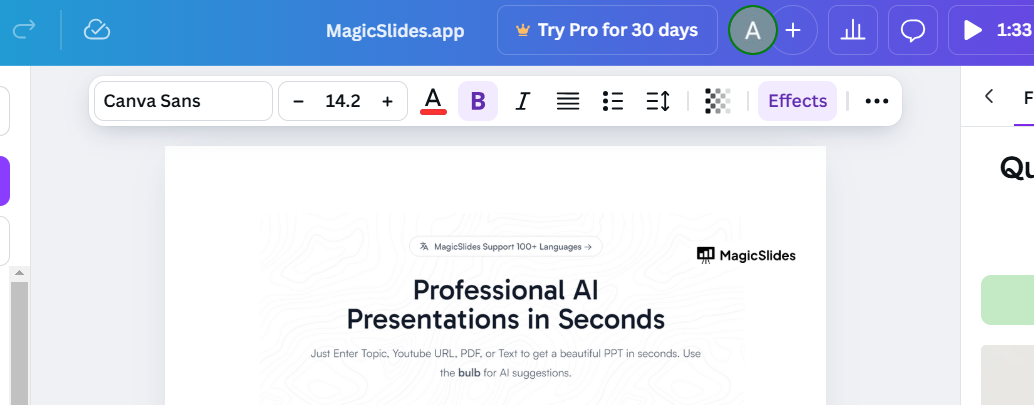
Ensure the text fits within your design layout.
Step 4: Adjust Line Spacing
Click on the “Spacing” option in the top toolbar. Use the “Line Height” slider to increase the vertical space between lines, making the text appear taller.
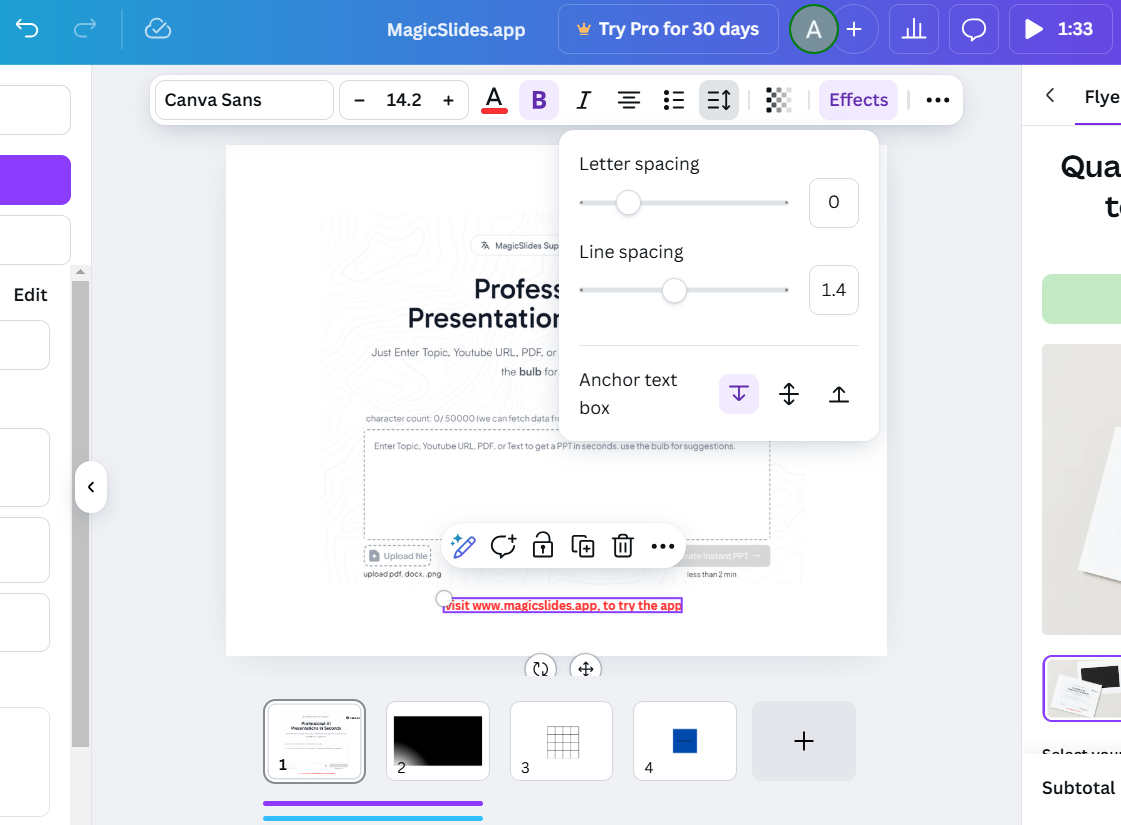
Experiment with different values to achieve the desired look.
Step 5: Use Bold or Narrow Fonts
Navigate to the font style dropdown menu and explore options for narrow fonts.
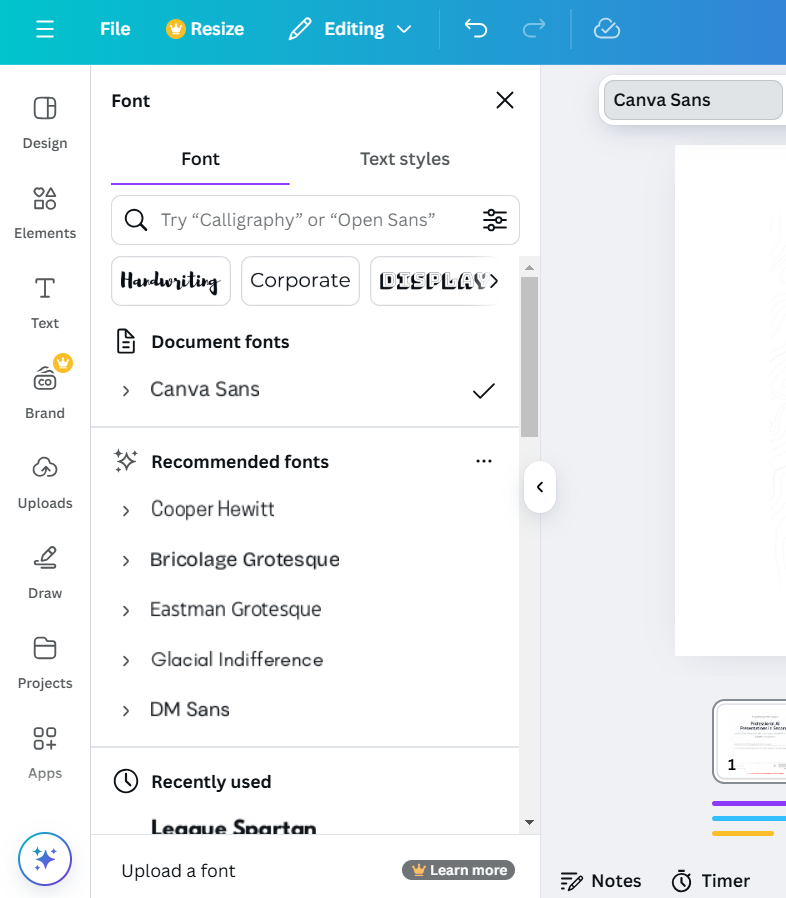
Narrow fonts naturally look taller while maintaining readability. Combine this with font size adjustments for the best results.
Step 6: Align Text for Better Visuals
Use the alignment options (left, center, or right) to position the text perfectly within your design.
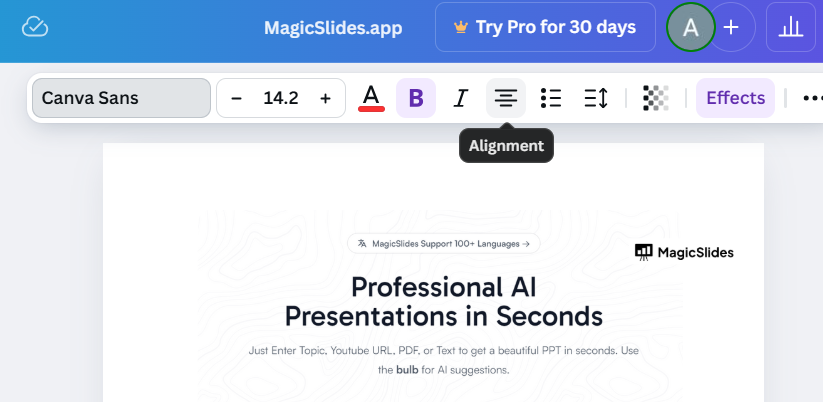
Adjust the text box size if necessary to complement the taller font. After making fonts taller in Canva, check out how to curve text in PowerPoint to add creative flair to your presentations.
Adjusting font height in Canva adds a touch of personalization, but creating presentations can be even simpler. MagicSlides.app takes your input be it text, PDFs, or even a topic and instantly generates professional slides, including AI-crafted layouts for text and visuals. Try MagicSlides.app today and see how easy it can be!
Conclusion
Making fonts taller in Canva is an excellent way to customize your designs and grab attention.
By adjusting font size, line spacing, or selecting specific fonts, you can achieve a unique and professional look that enhances your message.
Experiment with these tools to create designs that stand out while maintaining visual harmony.
FAQs on Making Fonts Taller in Canva
Can I adjust font height without changing the font size?
Yes, you can use the line spacing feature to make fonts appear taller without altering their size.
Are all fonts in Canva suitable for taller adjustments?
Not all fonts will look good when adjusted. Opt for narrow or bold fonts for a naturally taller appearance.
How do I maintain readability when making fonts taller?
Balance font size, line spacing, and design layout to ensure your text remains visually appealing and easy to read.
With these steps, you’re ready to make your fonts taller in Canva and elevate your design game!


