How to make Inverted Pyramid in Google Slides


Create an inverted pyramid in Google Slides to visually structure information using simple shapes and formatting tools
How to Make an Inverted Pyramid in Google Slides
An inverted pyramid is a great way to visually represent information in a hierarchical format, often used in journalism, marketing, and education.
Creating one in Google Slides is simple using basic shapes and formatting tools.
Follow this step-by-step guide to design an inverted pyramid in Google Slides.
Steps to Make an Inverted Pyramid in Google Slides
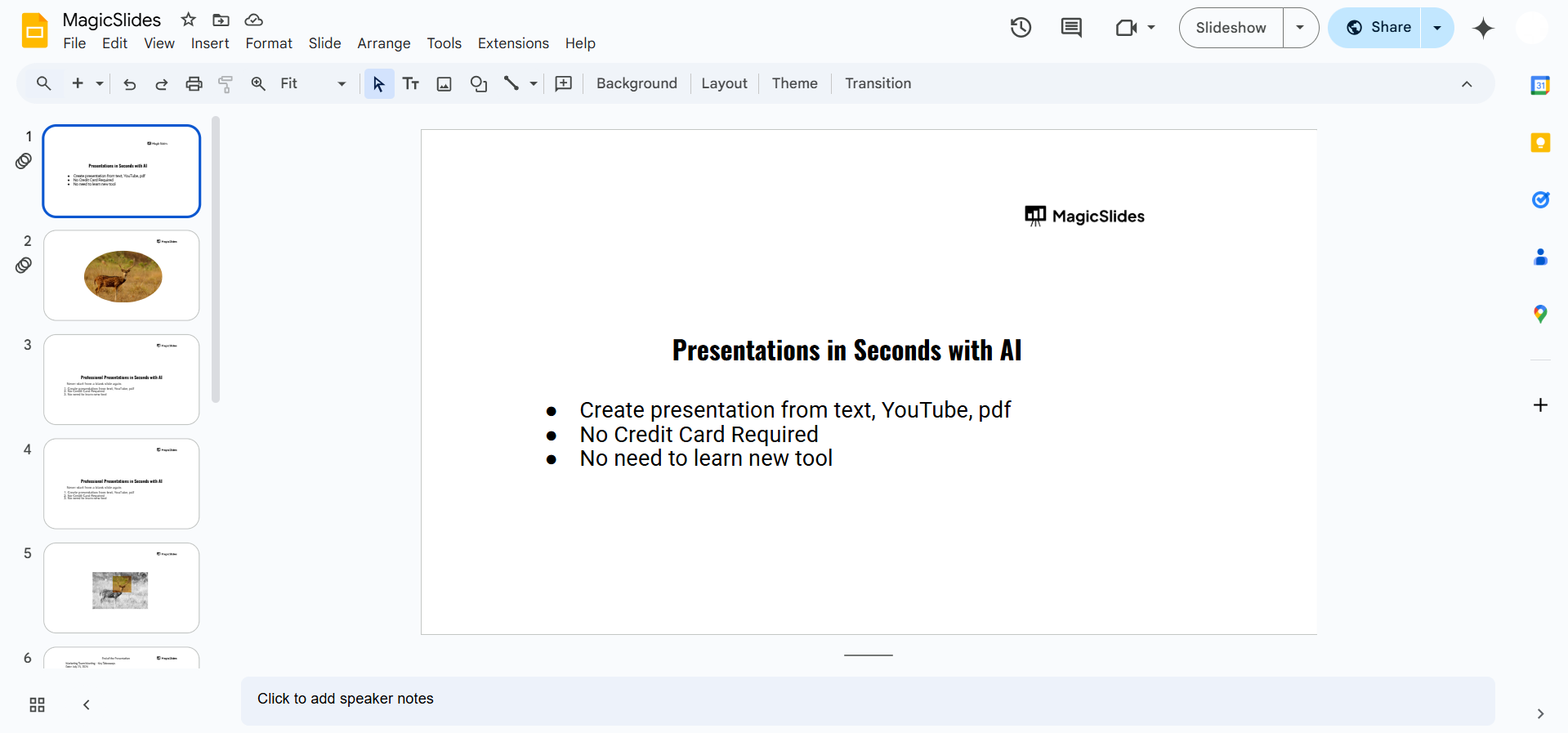
Step 1: Open Your Google Slides Presentation
Go to Google Slides and sign in to your Google account. Open an existing presentation or create a new one.
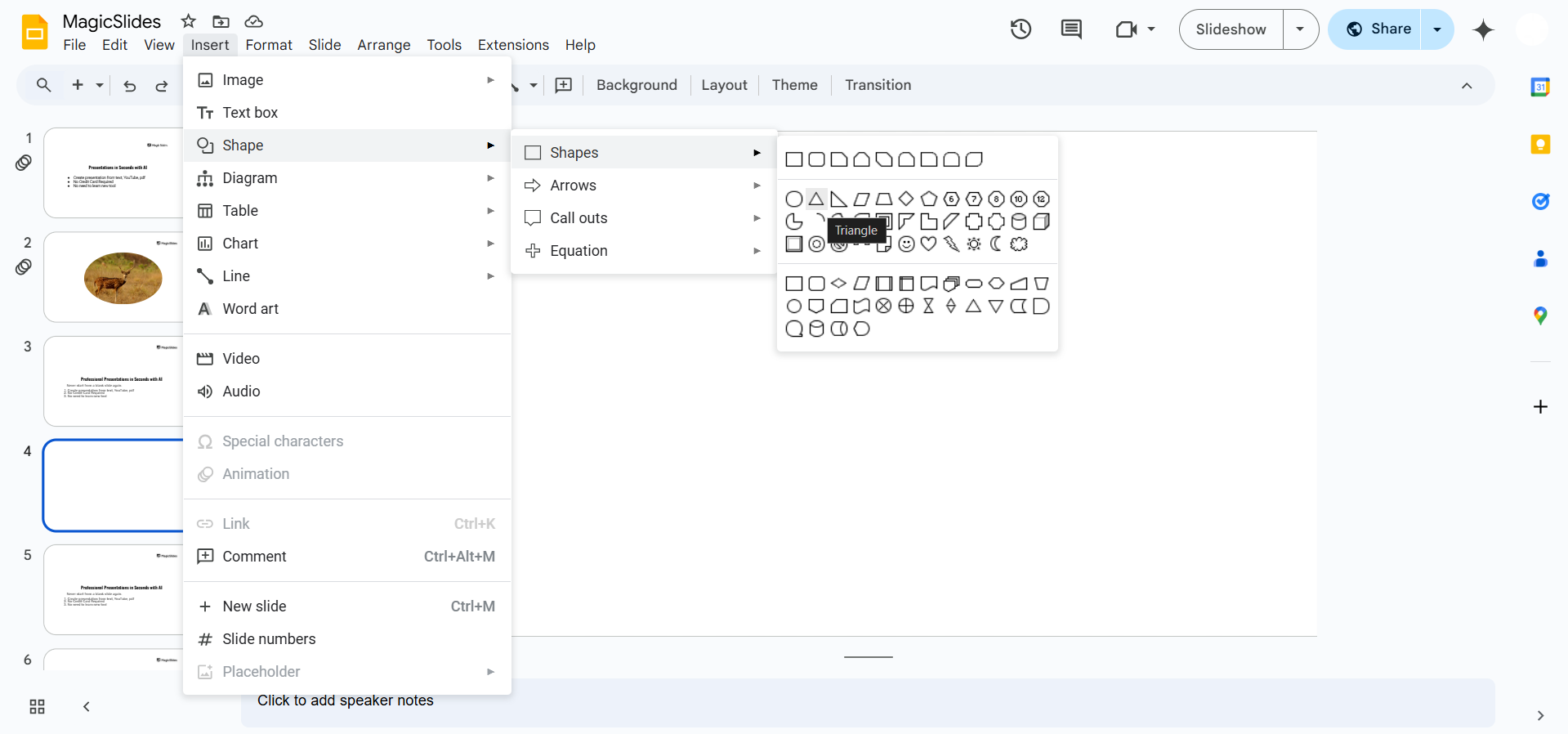
Step 2: Insert a Triangle Shape
Click on "Insert" in the top menu. Select "Shape" > "Shapes" and choose the triangle shape.
Click and drag on the slide to create a triangle.
Step 3: Rotate the Triangle to Form an Inverted Pyramid
Click on the triangle to select it.
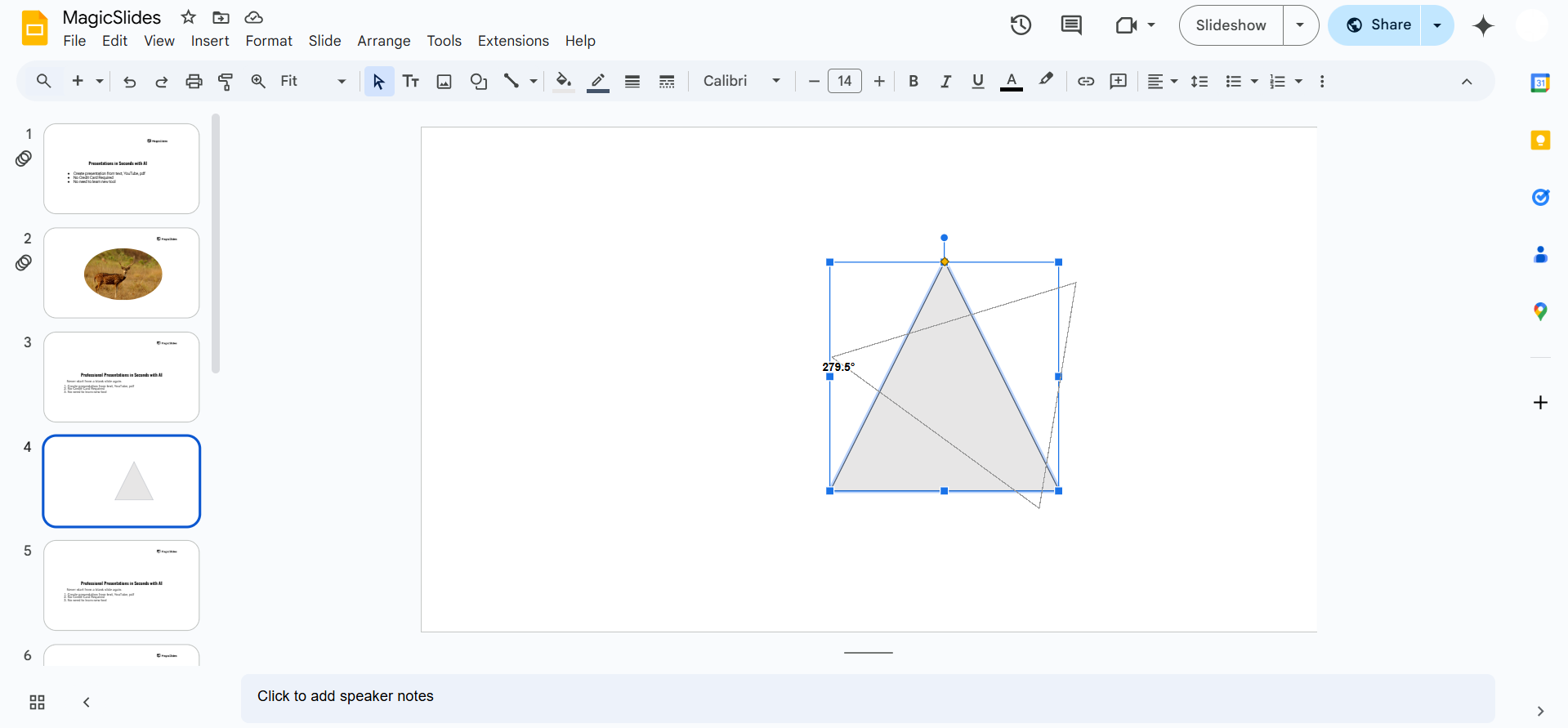
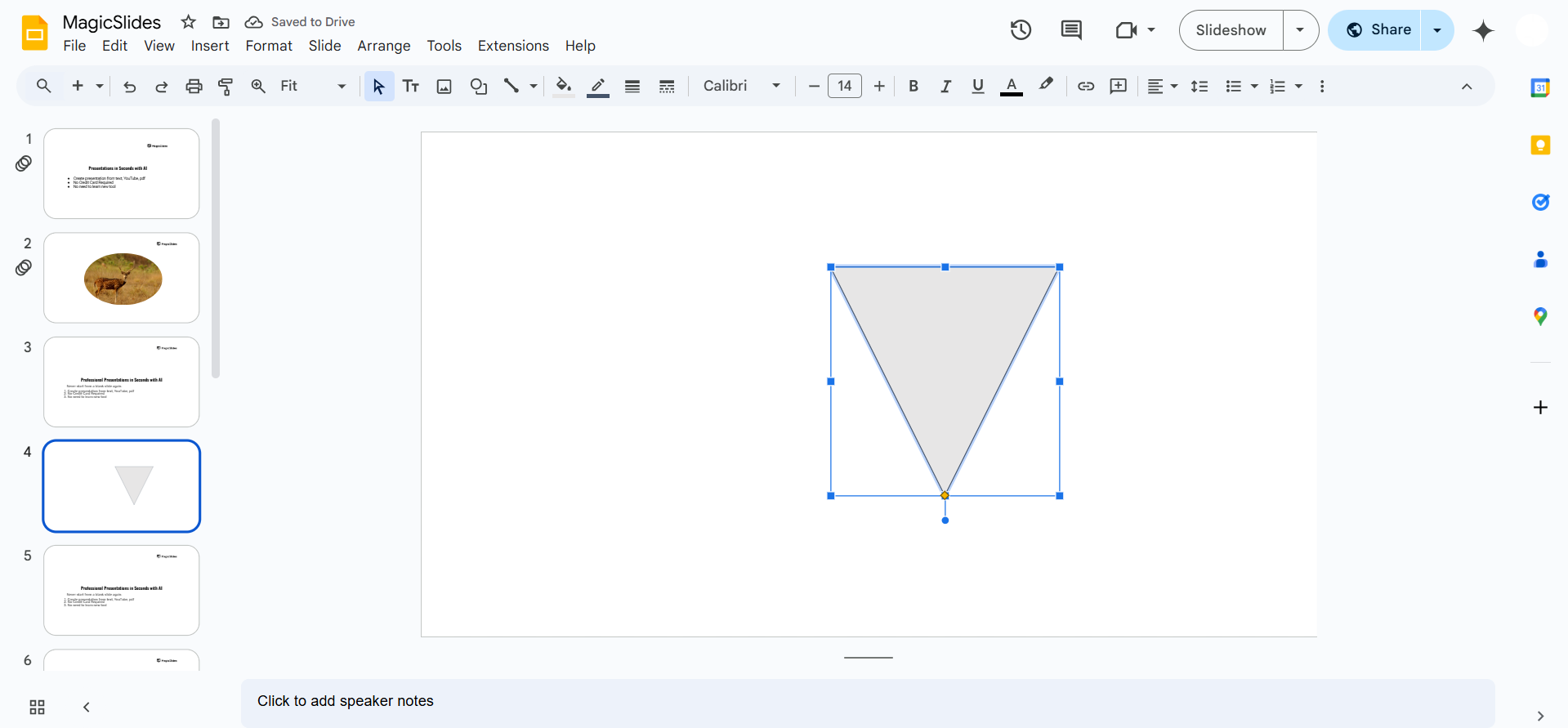
Look for the rotation handle (circular arrow above the shape) and drag it to rotate the triangle 180 degrees so it points downward.
Step 4: Resize and Adjust the Pyramid Shape
Click and drag the corners of the triangle to resize it as needed. Move it to the desired position on the slide.
Step 5: Add Additional Layers (Optional)
If you want a multi-section inverted pyramid, insert more triangles and stack them below each other.
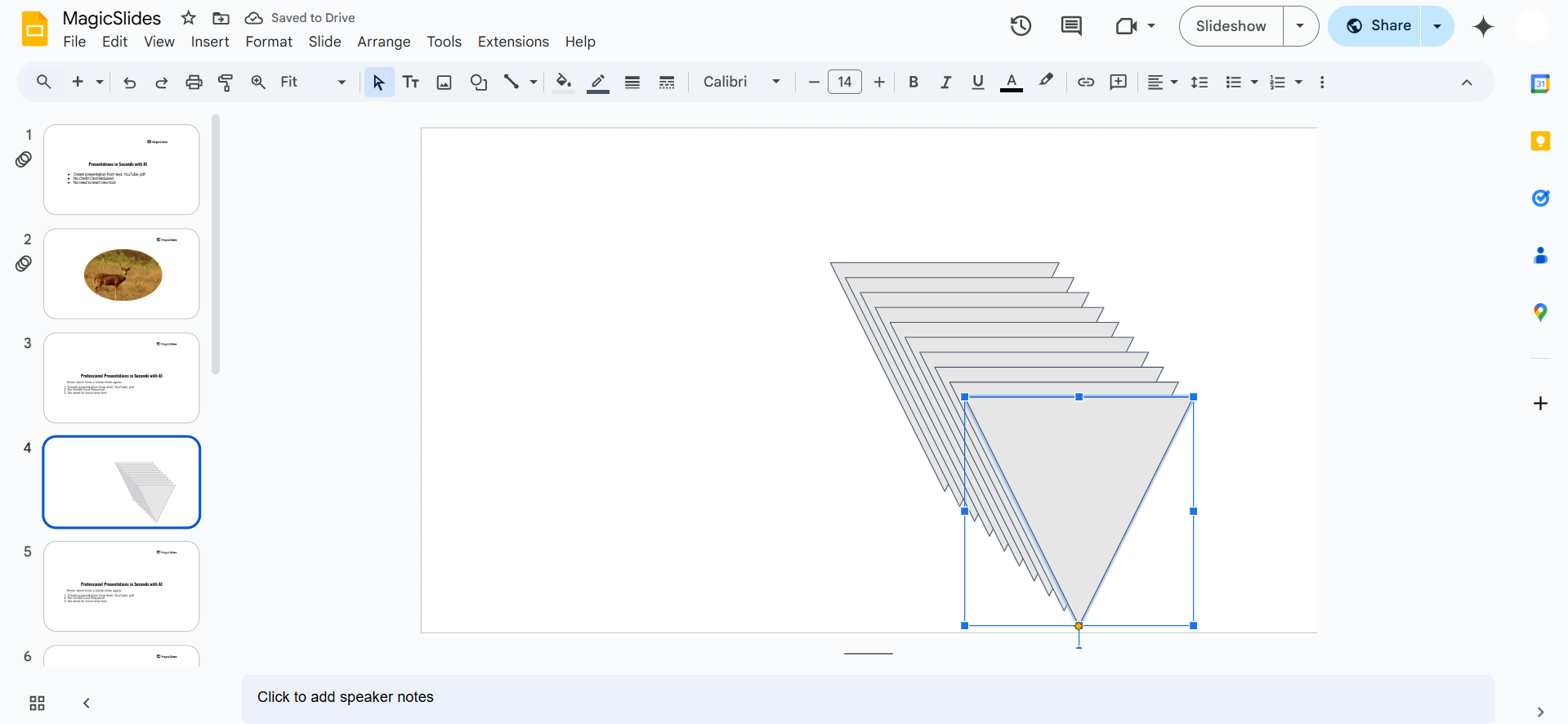
Adjust the sizes to show a decreasing hierarchy.
Step 6: Customize the Design
Change the fill color by selecting the triangle and clicking on the paint bucket icon.
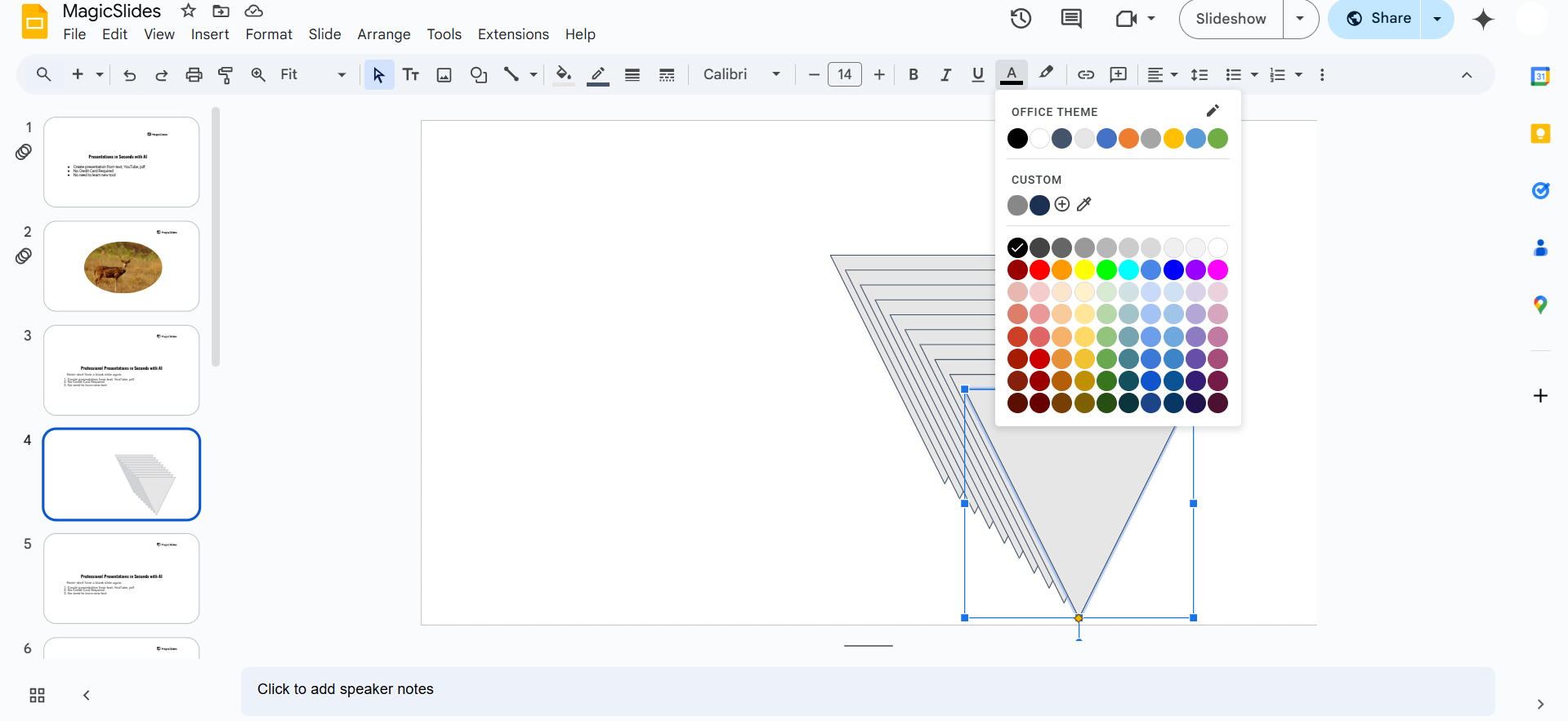
Adjust the border color and thickness for better visibility. Add text boxes inside the triangle to label different sections.
Step 7: Group the Shapes (Optional)
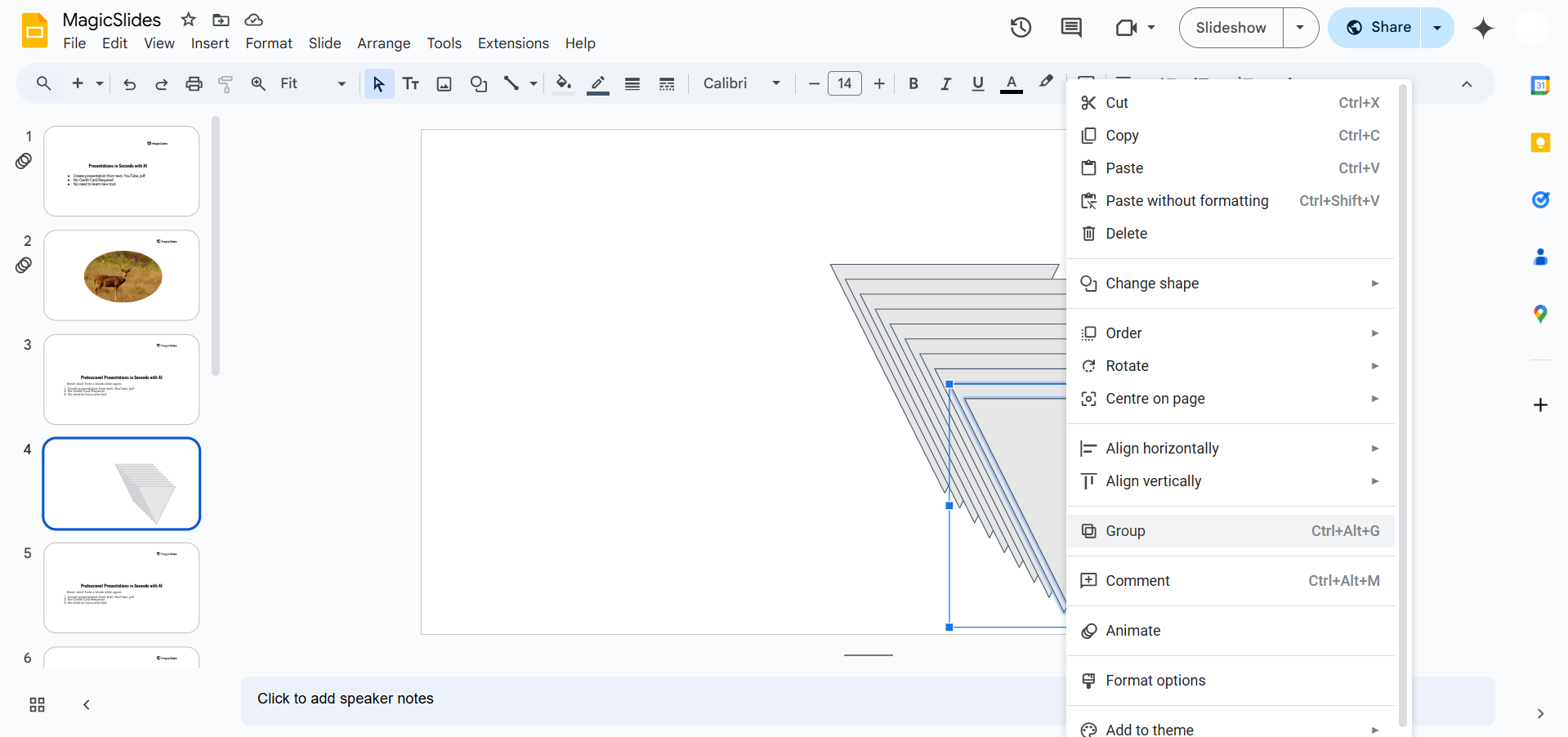
To keep the pyramid structure intact, select all the triangles. Right-click and choose "Group" to lock them together as a single unit.
Conclusion
Creating an inverted pyramid in Google Slides is a simple yet effective way to present structured information.
Whether for business reports, marketing strategies, or storytelling, this visual tool enhances clarity and engagement.
FAQs on Making an Inverted Pyramid in Google Slides
Can I use an inverted pyramid for text-based content?
Yes! You can add text inside the pyramid by inserting text boxes over the shapes.
How do I make a three-tiered inverted pyramid?
Use three different triangles in decreasing sizes and stack them to create a tiered effect.
Can I animate my inverted pyramid?
Yes! Use Slide Animations to make each section appear one by one for an engaging effect.
Now you can easily create an inverted pyramid in Google Slides for better visual storytelling! 🚀


