how to make power point full screen


Learn how to captivate your audience by making your PowerPoint presentation go full screen with these steps.
Making a PowerPoint presentation go full screen is a common step when you're ready to present your slides to an audience. Here's a step-by-step guide on how to do it:
→ Open Your PowerPoint Presentation: Start by opening your PowerPoint presentation on your computer. Make sure you have the latest version of PowerPoint installed.
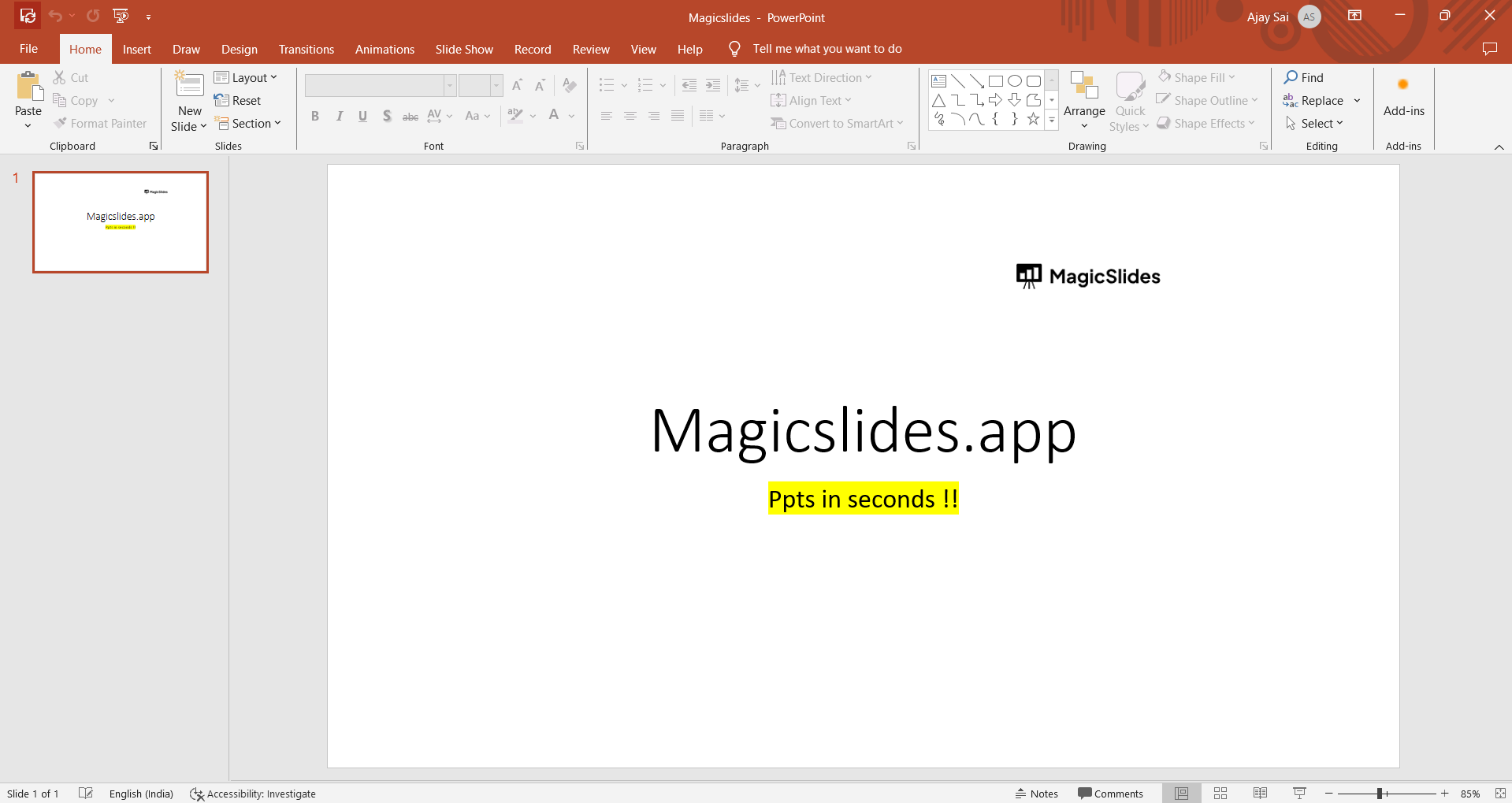
→ View the Slide Show: With your presentation open, go to the "Slide Show" tab in the PowerPoint ribbon at the top of the window.
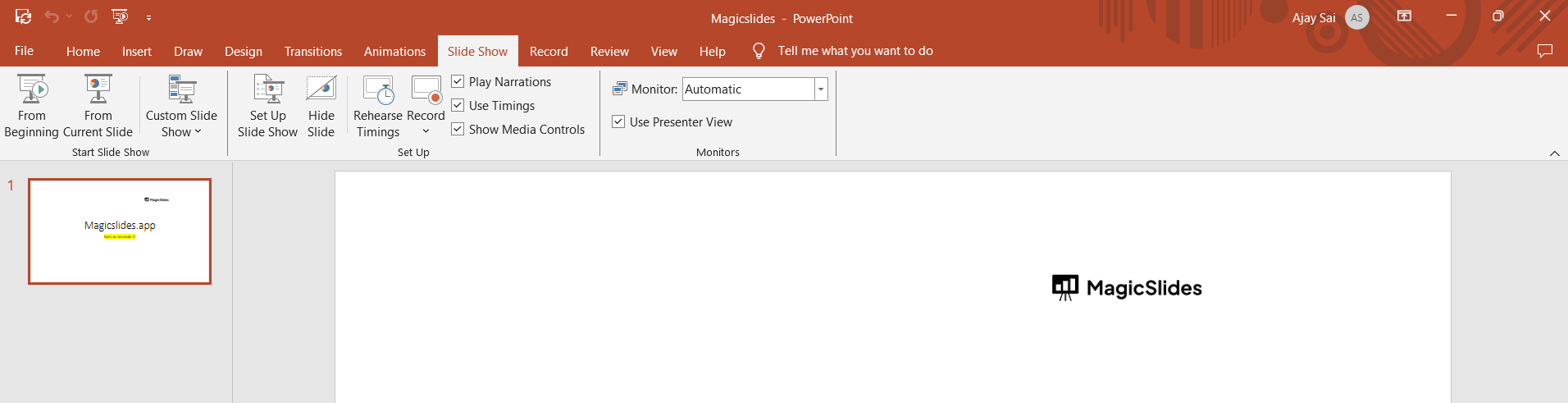
→ Start the Slide Show: Click on the "From Beginning" button if you want to start your presentation from the beginning. If you want to begin from the current slide, select "From Current Slide."

→ Keyboard Shortcut (Optional): You can also use a keyboard shortcut to start the slide show. Press "F5" to start from the beginning, or press "Shift + F5" to start from the current slide.
→ Navigate Through Slides: During the presentation, use the arrow keys on your keyboard, the spacebar, or the mouse to navigate through the slides.
→ End the Slide Show: To exit the full-screen slide show, press the "Esc" key on your keyboard, or right-click on the slide and select "End Show."
Tips for great presentation:
- Custom Slide Show (Optional): You can create custom slide shows within your presentation by selecting specific slides to include in a custom sequence. To start a custom slide show, go to the "Slide Show" tab, click on "Custom Slide Show," and select the custom show you want to present.
Conclusion:
Running a PowerPoint presentation in full-screen mode is a straightforward process and is crucial for delivering a professional and engaging presentation to your audience.
Whether you're in a meeting, a classroom, or a conference, following the steps outlined in this guide will help you make your PowerPoint slides fill the screen and captivate your viewers.


