How to open pdf in powerpoint


Seamlessly integrate PDFs into your PowerPoint presentations for dynamic content. Learn the quick steps here.
In the realm of presentations, the seamless integration of diverse content formats is crucial. PowerPoint, a versatile tool, allows you to effortlessly incorporate PDF files into your presentations. Let's embark on a step-by-step journey to open PDFs within PowerPoint, offering a harmonious blend of text and visuals.
How to open pdf in powerpoint
Step 1: Launch PowerPoint and Open Your Presentation
Initiate the process by launching Microsoft PowerPoint and opening the presentation where you wish to embed a PDF. Ensure you're working in the presentation where the PDF integration is desired.
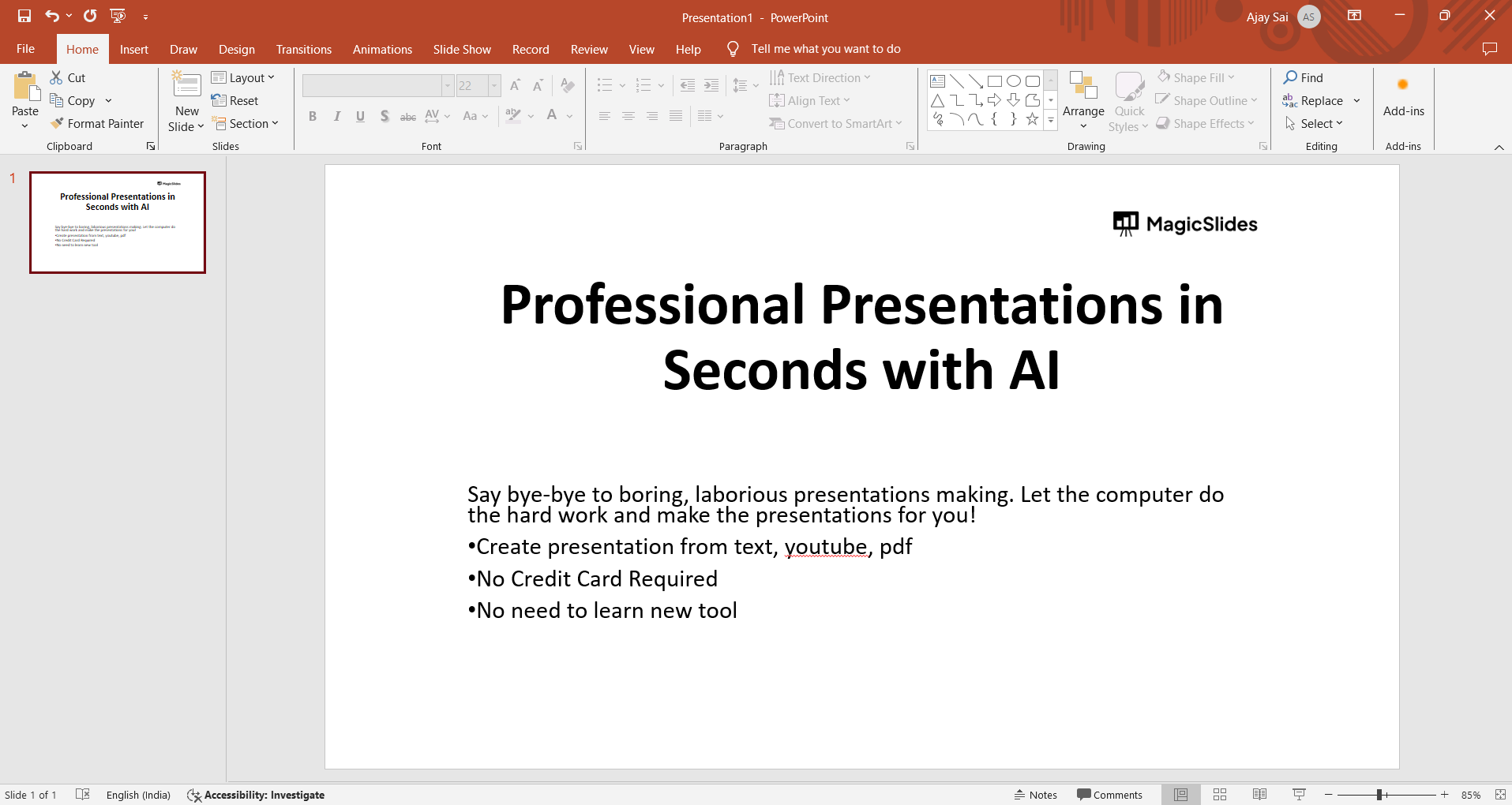
Step 2: Navigate to the Slide Where You Want to Insert the PDF
Once within your presentation, navigate to the specific slide where you intend to include the PDF content. This strategic positioning ensures the PDF seamlessly integrates into your overall narrative.
Step 3: Access the "Insert" Tab
Locate and click on the "Insert" tab in the PowerPoint ribbon. This tab serves as a hub for various multimedia and content insertion options, including the integration of PDF files.
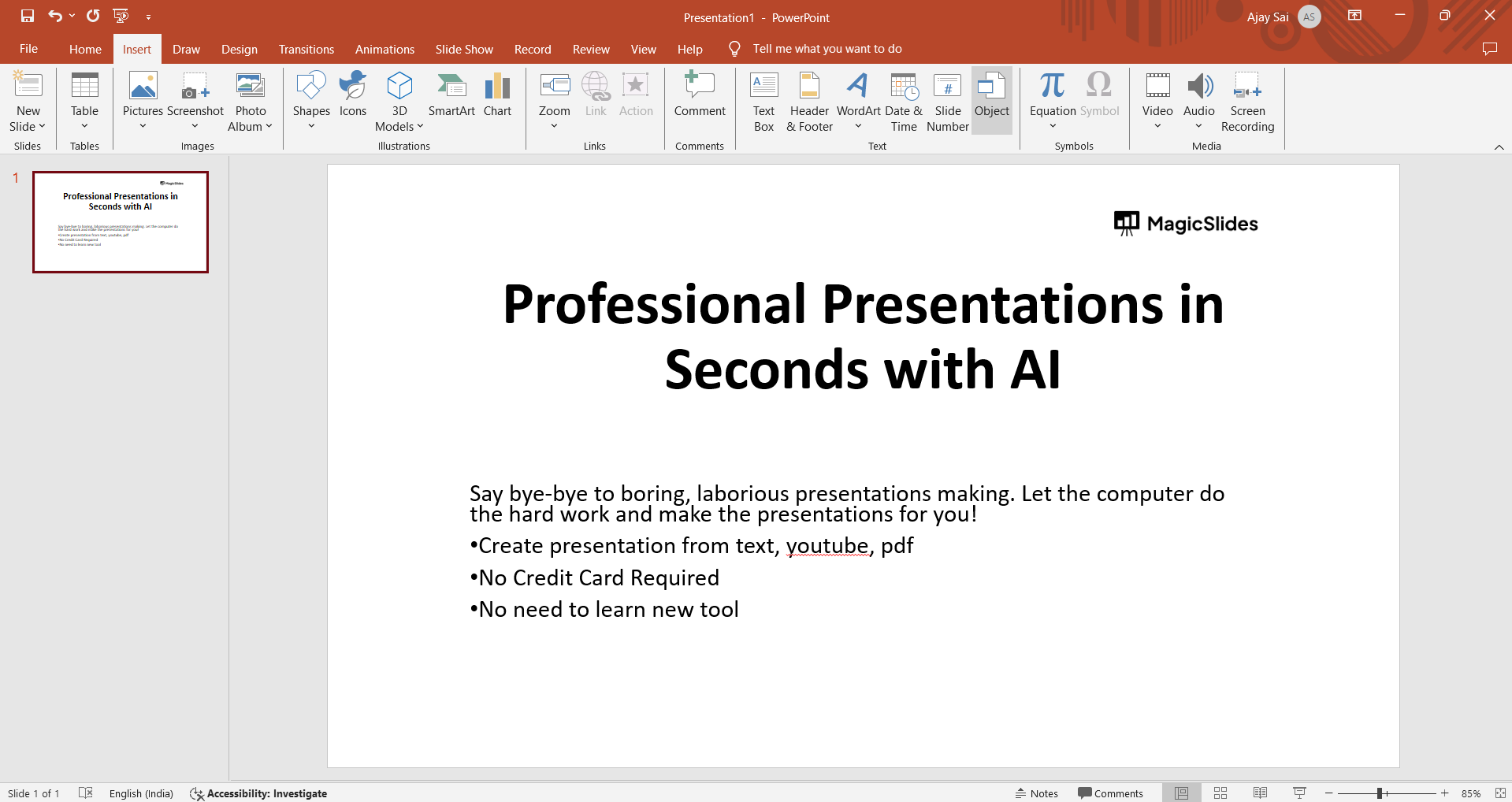
Step 4: Choose "Object" from the Insert Menu
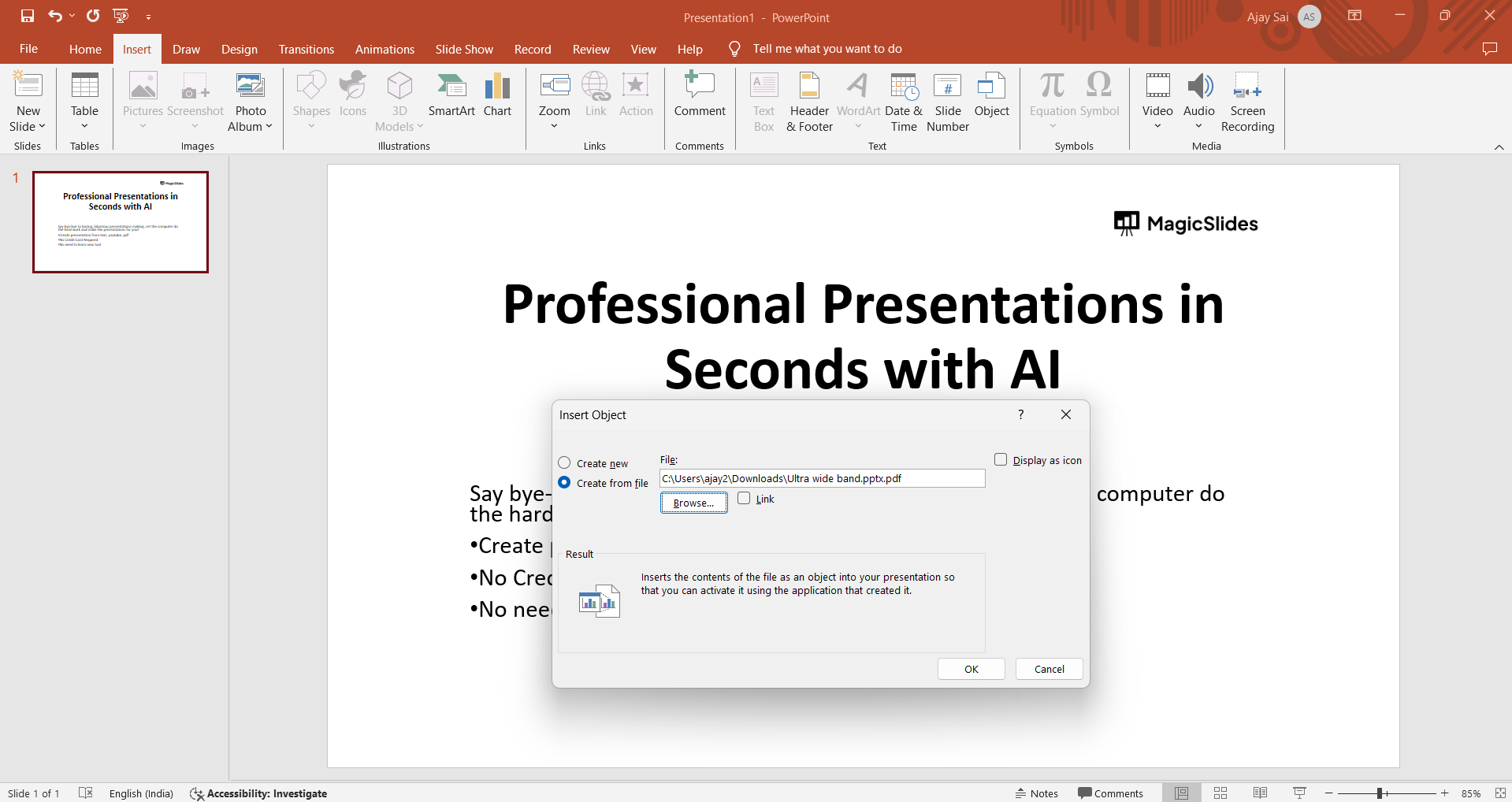
Within the "Insert" tab, find and click on the "Object" option. This action prompts a dropdown menu with various embedding options, including those for PDF files.
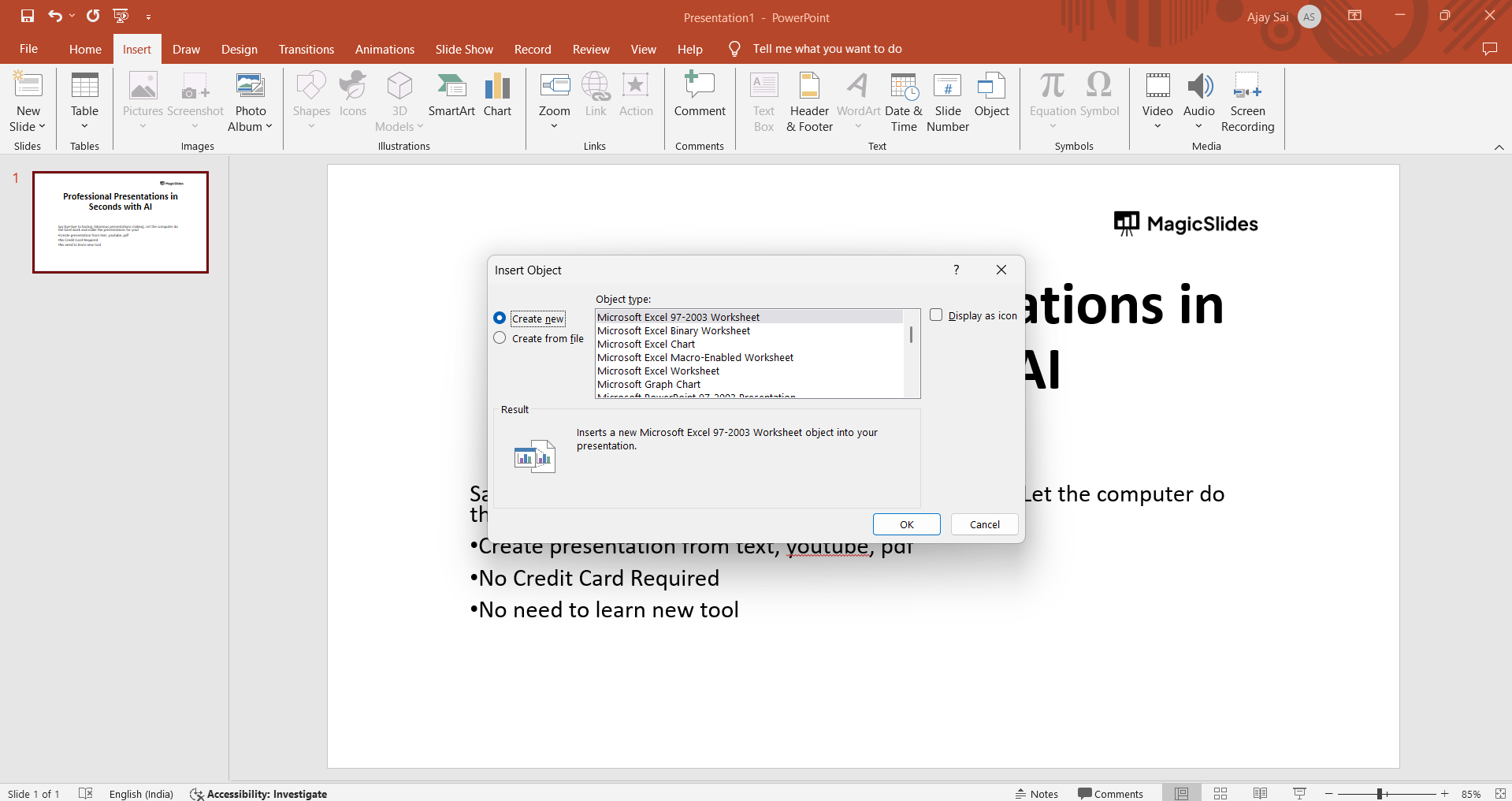
Step 5: Select "Create from File" from the Object Types
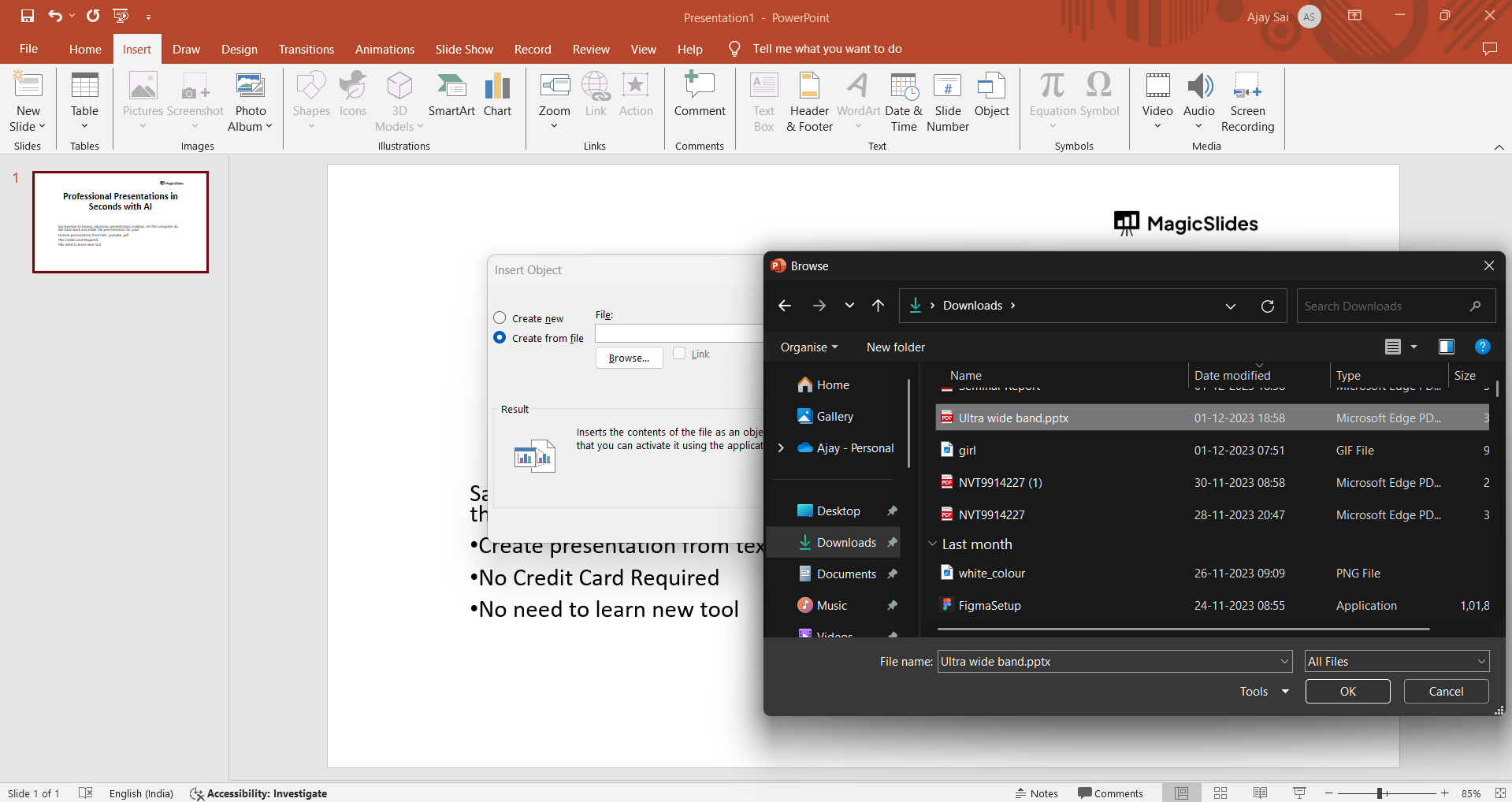
In the "Object" dialogue box, choose "Create from File" from the list of available Object Types. This specific selection indicates that you're integrating afile of your choice into your PowerPoint presentation, now choose the pdf file that you would like to integrate.
Step 6: Locate and Embed the Desired PDF File
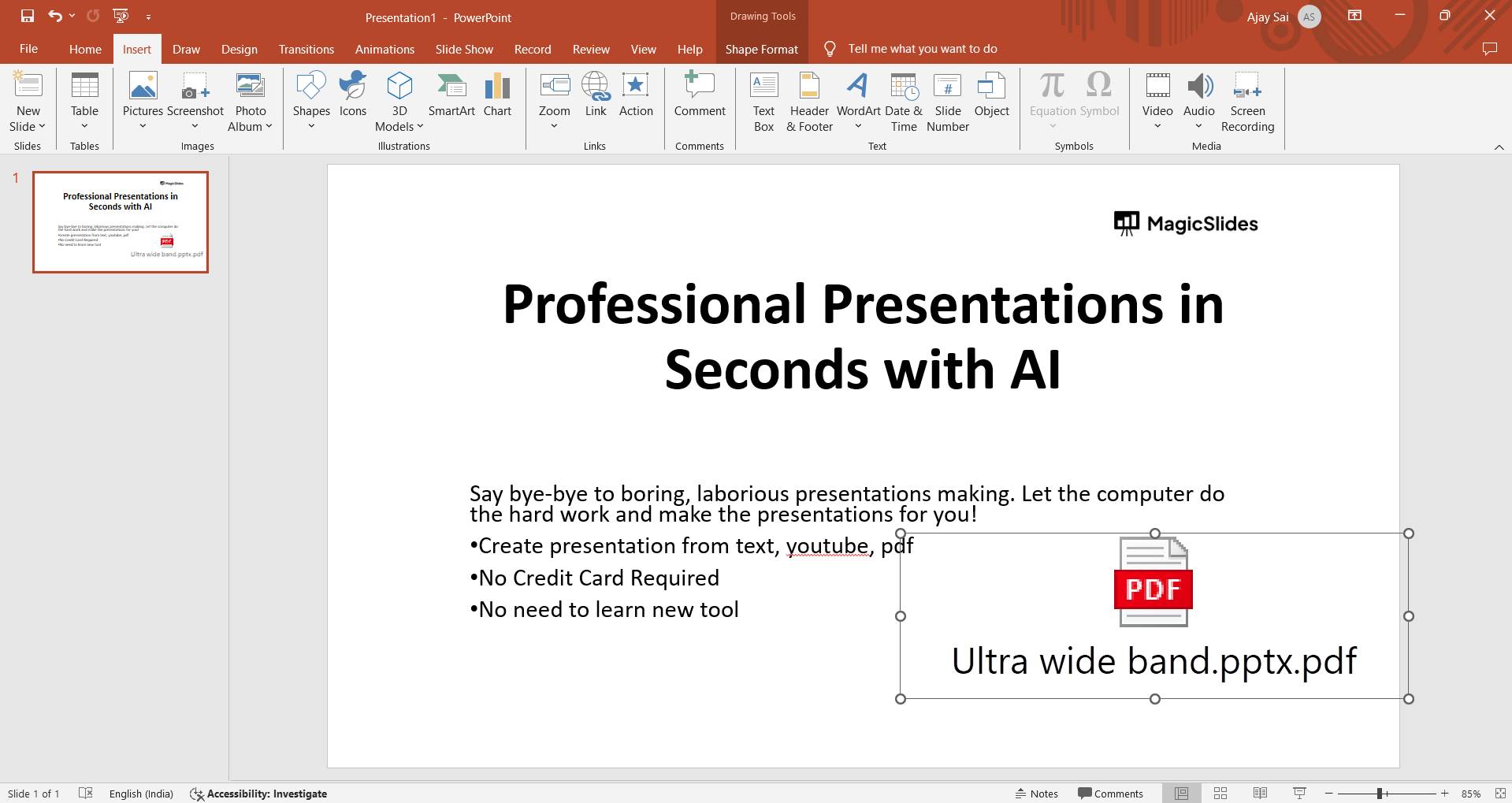
Upon selecting "Adobe Acrobat Document," click "OK" to open a new window. Here, locate and embed the desired PDF file by navigating to its location on your computer. Select the PDF and click "Open."
Step 7: Resize and Adjust the Embedded PDF as Needed
Post-embedding, you can resize and adjust the embedded PDF to fit seamlessly into your slide. Click and drag the corners to resize, ensuring optimal visibility and alignment with your presentation layout.
Step 8: Fine-Tune Display Options if Necessary
For additional customization, right-click on the embedded PDF and explore options such as "Open," "Edit," or "Object Properties." These choices allow you to fine-tune the display settings to meet your specific requirements.
Conclusion:
By following these meticulous steps, you've successfully opened a PDF within your PowerPoint presentation, creating a cohesive and enriched visual narrative. This integration adds depth and versatility to your presentation, ensuring a captivating and comprehensive audience experience.
Frequently Asked Questions:
Q1: Can I edit the content of the embedded PDF within PowerPoint?
A: No, PowerPoint allows you to embed a PDF as an object, but you cannot directly edit the content. To make changes, edit the original PDF file and re-embed it.
Q2: Is there a limit to the number of PDFs I can embed in a PowerPoint presentation?
A: PowerPoint does not impose a specific limit on the number of embedded PDFs. However, consider the file size and complexity for optimal performance.
Q3: Can I navigate through the pages of an embedded PDF during a presentation?
A: While you can't directly navigate through embedded PDF pages in PowerPoint, you can link to the PDF itself for more interactive presentations.
Q4: Are there alternative methods for embedding PDFs in PowerPoint?
A: Yes, another method involves using screenshot tools to capture PDF content and then inserting the images into PowerPoint. However, this doesn't maintain PDF interactivity.
Have a look @these info blogs:
- How To Mirror Images In Powerpoint: https://www.magicslides.app/blog/How-to-mirror-images-in-powerpoint
- How To Add Gif In Google Slides: https://www.magicslides.app/blog/How-to-add-gif-in-google-slides
- How To Turn A Powerpoint Into Google Slides: https://www.magicslides.app/blog/How-to-turn-a-powerpoint-into-google-slides
- How To Group Objects In Powerpoint: https://www.magicslides.app/blog/How-to-group-objects-in-powerpoint


