How to Pause Animated GIFs in PowerPoint? Explained


Learn how to pause a GIF in PowerPoint using keyboard shortcuts, animation controls, and simple workarounds to manage GIF playback during presentations.
Animated GIFs add a dynamic touch to presentations, but PowerPoint doesn’t provide a built-in pause function for GIFs.
However, you can control GIF animations using workarounds like adding a duplicate slide, using a still image, or converting the GIF into a video.
Follow these step-by-step methods to pause an animated GIF in PowerPoint.
Why Would You Need to Pause an Animated GIF in PowerPoint?
Animated GIFs can make presentations more engaging, but continuous looping isn’t always ideal. In some situations, a constantly moving image can distract your audience from the message you’re trying to deliver. Learning How to Pause Animated GIF in PowerPoint gives you greater control over the timing and flow of your presentation.
Pausing a GIF can be useful when:
-
You want viewers to focus on a particular frame or visual detail.
-
You need the animation to align with your explanation or speaking pace.
-
You’re presenting important information and want to minimize distractions.
-
You prefer to reveal motion only at specific points during your slideshow.
By controlling when a GIF plays or stops, you can create a more polished and professional presentation experience. Let’s explore the simplest methods to do it.
Steps to Pause an Animated GIF in PowerPoint
Method 1. Pause an Animated GIF Using PowerPoint Keyboard Shortcuts
If you’re looking for a quick solution for how to puse animated GIF in PowerPoint during a live presentation, keyboard shortcuts can help. Instead of modifying the GIF itself, PowerPoint allows you to temporarily stop animations while presenting.
Pause the GIF
While running your slideshow, press the 1 key on your keyboard. This pauses the animations currently playing on the slide, including animated GIFs.
Resume the Animation
To start the animation again, press the ~ (tilde) key. This restarts the GIF without advancing to the next slide, allowing you to continue your presentation smoothly.
Things to Keep in Mind
-
The shortcut pauses all animations on the active slide, not just the GIF.
-
If your slide contains multiple animated elements, they will stop as well.
-
These shortcuts work best in modern versions of PowerPoint, such as PowerPoint 2016, 2019, PowerPoint 2021, and Microsoft 365.
-
Some older PowerPoint versions may not support this functionality consistently.
This is the fastest method when you need to stop an animation temporarily during a presentation without making any changes to the original GIF file.
Method 2. Use a Duplicate Slide with a Still Image
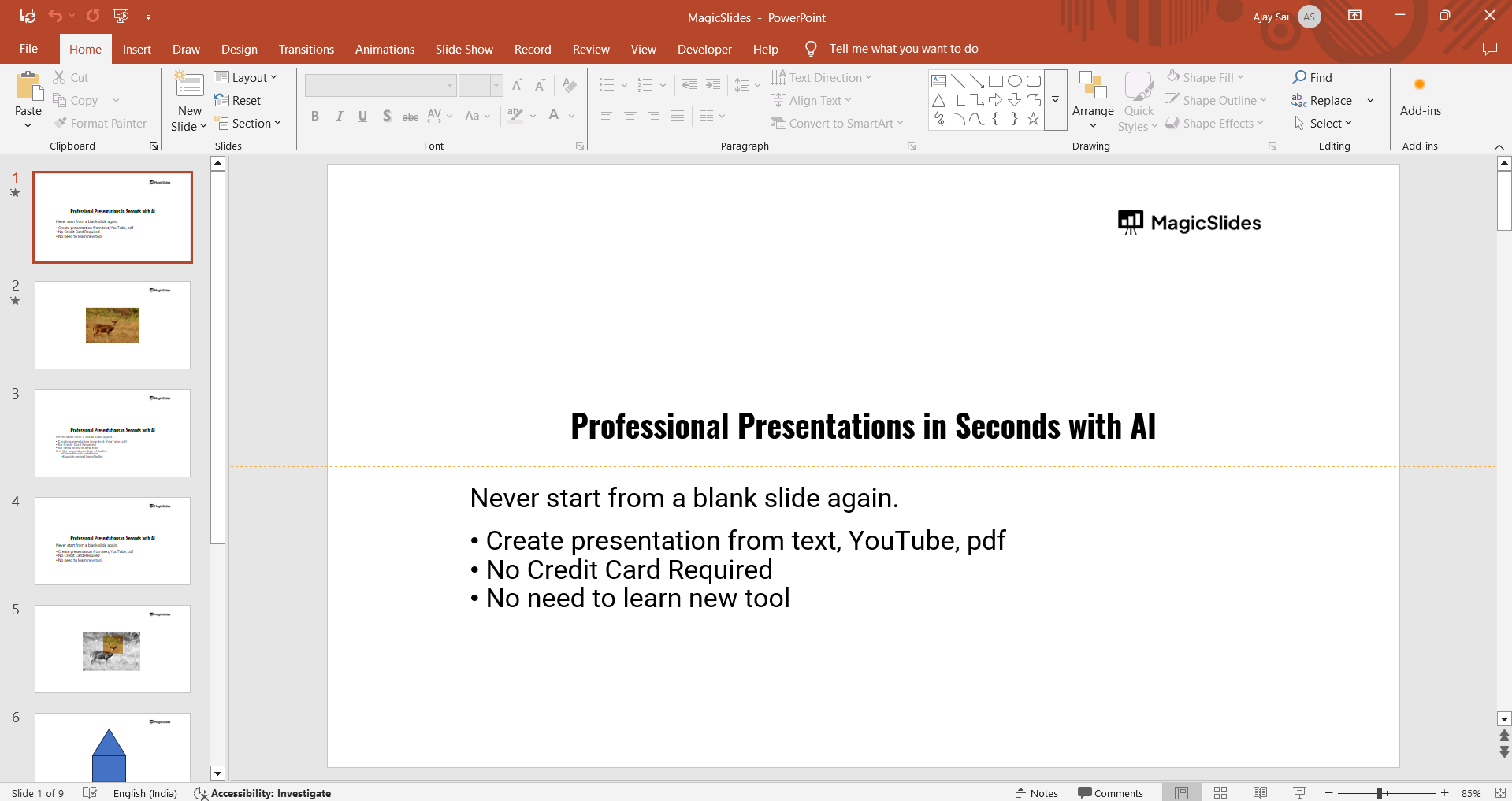
Insert the GIF
- Open PowerPoint and go to the slide where you want the GIF.
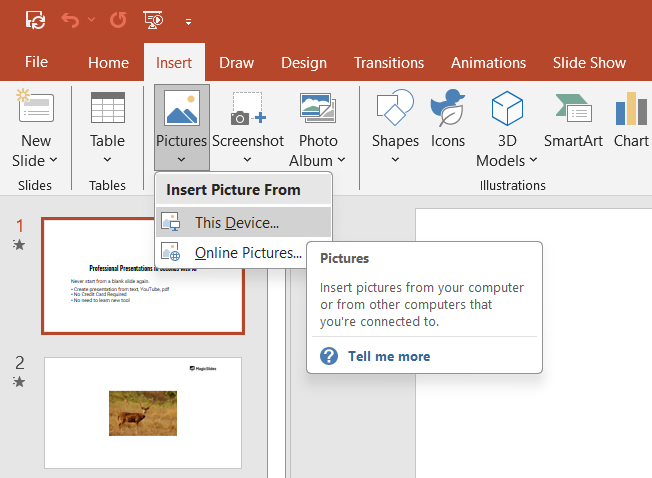
- Click Insert > Pictures > This Device, then select your animated GIF.
Create a Duplicate Slide
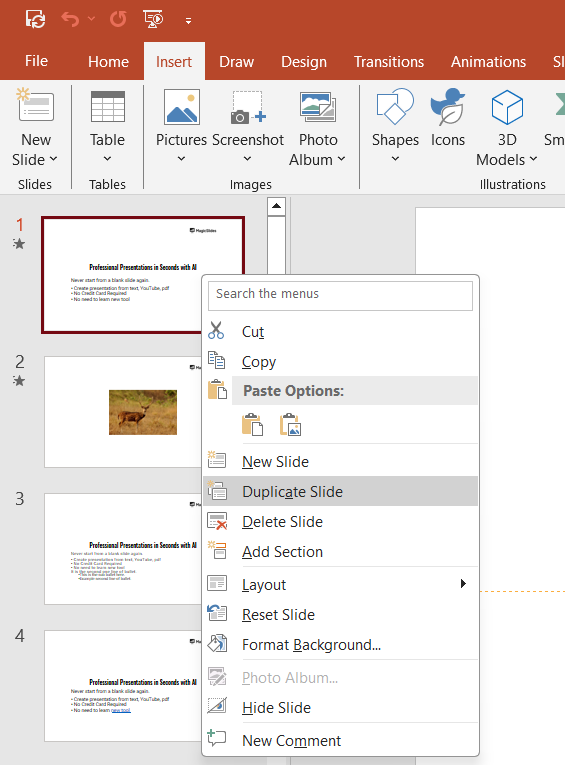
- Right-click on the slide and select Duplicate Slide from the menu.
Replace the GIF with a Still Image on the Second Slide
- Play the slideshow and pause it at the desired frame.
- Take a screenshot (Windows:
PrtScorWindows + Shift + S, Mac:Command + Shift + 4).
- Replace the GIF with the saved screenshot on the duplicated slide.
Use Slide Transition to Pause the GIF
- During your presentation, switch to the second slide when you want to pause the GIF.
- Resume animation by returning to the original slide.
Method 3. Manually Pause the Presentation
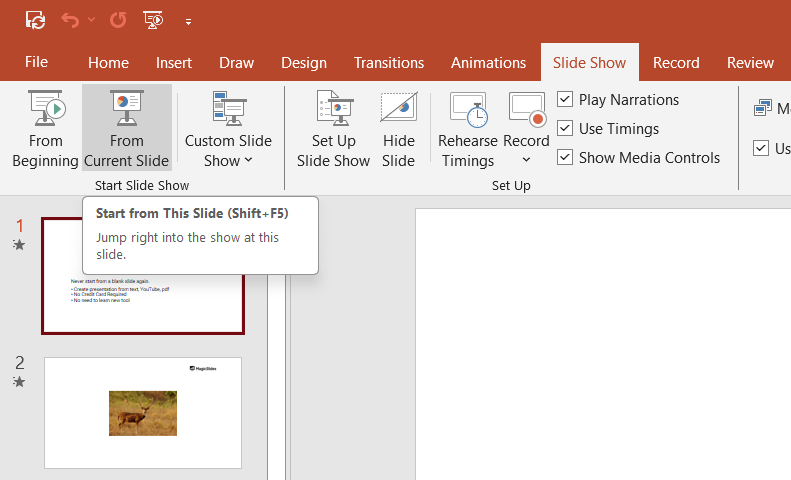
Start the Slideshow Mode (F5 or Shift + F5).
When the GIF reaches the frame where you want to pause, press S to freeze the screen.
Press any key to resume the animation.
Create Presentations Faster with MagicSlides
While learning how to pause aimated GIF in PowerPoint can help you control animations during presentations, creating the presentation itself doesn’t have to be time-consuming.
MagicSlides AI Presentation maker can turn your ideas into professional presentations in minutes. Simply provide a topic, document, URL, or prompt, and MagicSlides generates well-structured slides automatically. This lets you spend less time designing slides and more time focusing on your content.
Create worry-free presentations with MagicSlides AutoPPT. Turn your ideas into slides quickly while keeping them 100% yours!
Conclusion
Although PowerPoint doesn’t have a direct pause function for GIFs, using duplicate slides, video conversion, or slideshow freezing can help you control GIF animation effectively.
Try these methods to enhance your presentation with better timing and flow.
FAQs on Pausing Animated GIFs in PowerPoint
Can I pause a GIF directly in PowerPoint?
No, PowerPoint doesn’t offer a built-in pause button for GIFs, but you can use workarounds.
Will converting a GIF to a video reduce quality?
It may slightly reduce quality, but using a high-resolution GIF minimizes any loss.
Can I loop and pause a GIF at specific points?
Only if you convert it to a video; GIFs in PowerPoint automatically loop without direct controls.


