How to Record the Animation while recording on PowerPoint


Learn how to record animations in PowerPoint while capturing your presentation for a seamless video output
How to Record the Animation While Recording on PowerPoint
PowerPoint allows you to create dynamic presentations using animations and also provides a built-in screen recording feature.
However, if you want to record your presentation along with the animations, you need to ensure that the animations play as expected while capturing the screen.
This guide will walk you through the steps to record animations while recording in PowerPoint.
Step-by-Step Guide to Recording Animations in PowerPoint
Step 1: Open Your PowerPoint Presentation
Launch Microsoft PowerPoint on your computer.
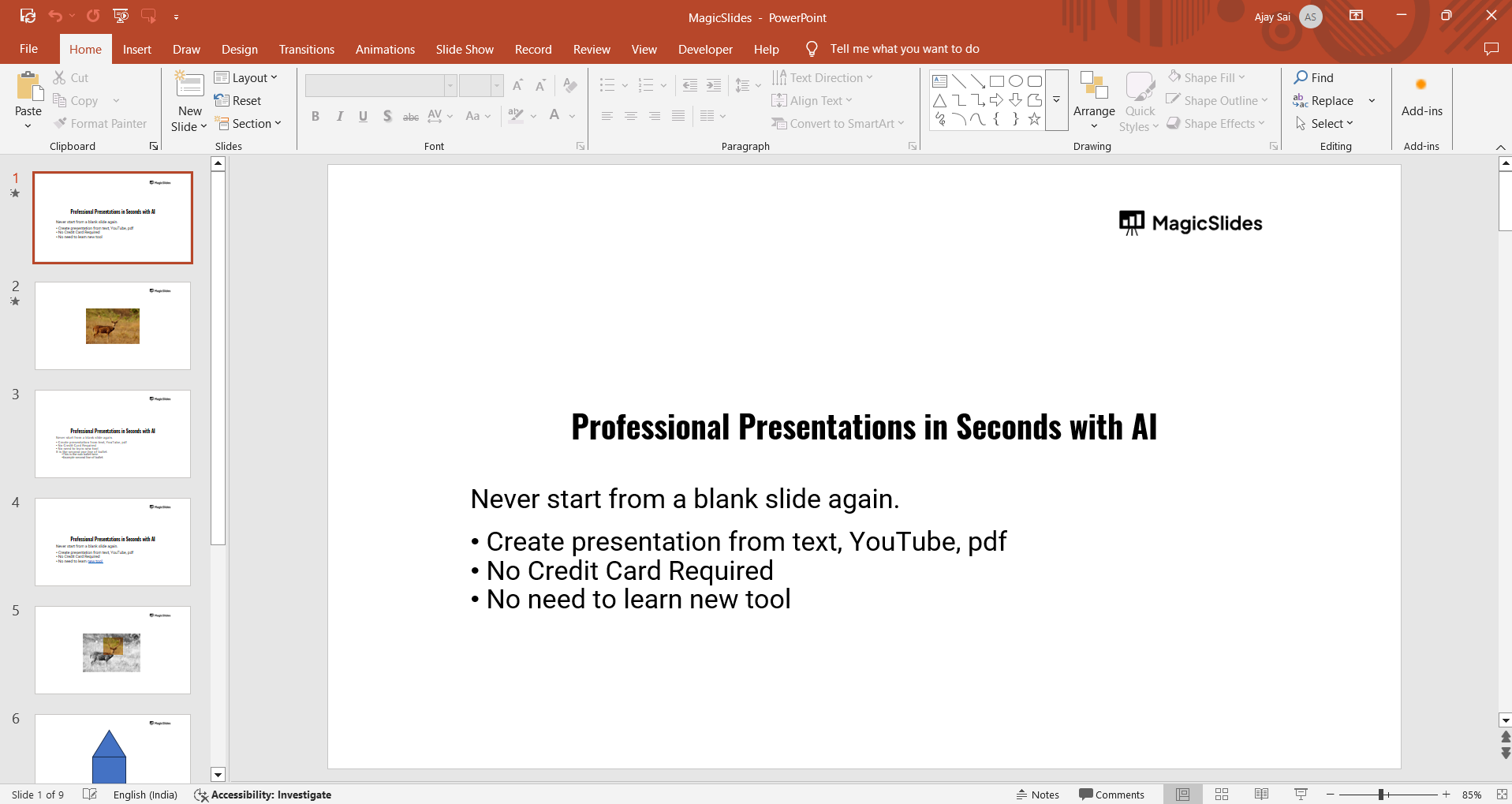
Open the presentation that contains animations you want to record.
Step 2: Set Up Your Animations
Click on the Animations tab in the toolbar.
Ensure that all animations are properly set using the Animation Pane.
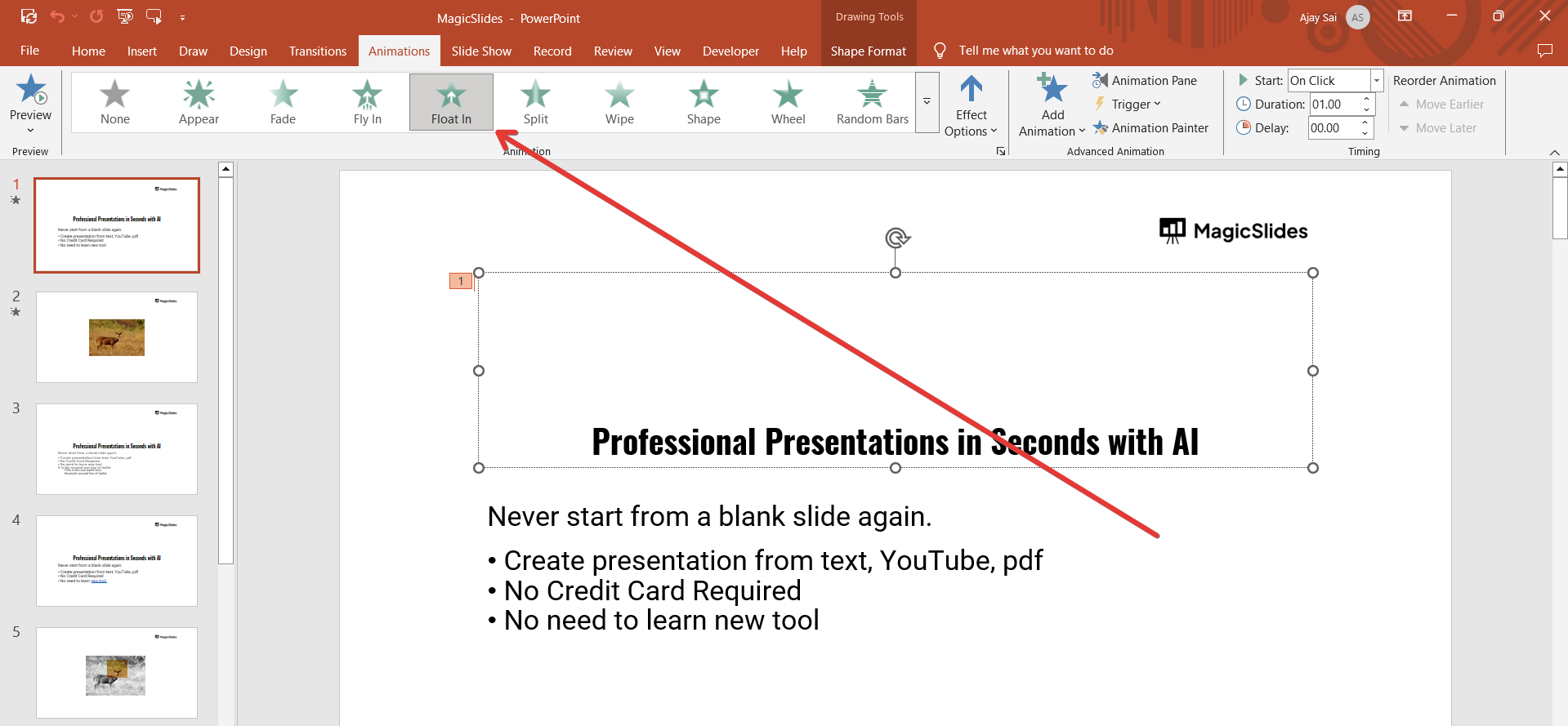
If you want them to play automatically, set the Start option to With Previous or After Previous instead of On Click to ensure smooth playback during recording.

Step 3: Go to the Recording Feature
Click on the Slideshow tab in the menu.
Select Record Slide Show from the options.
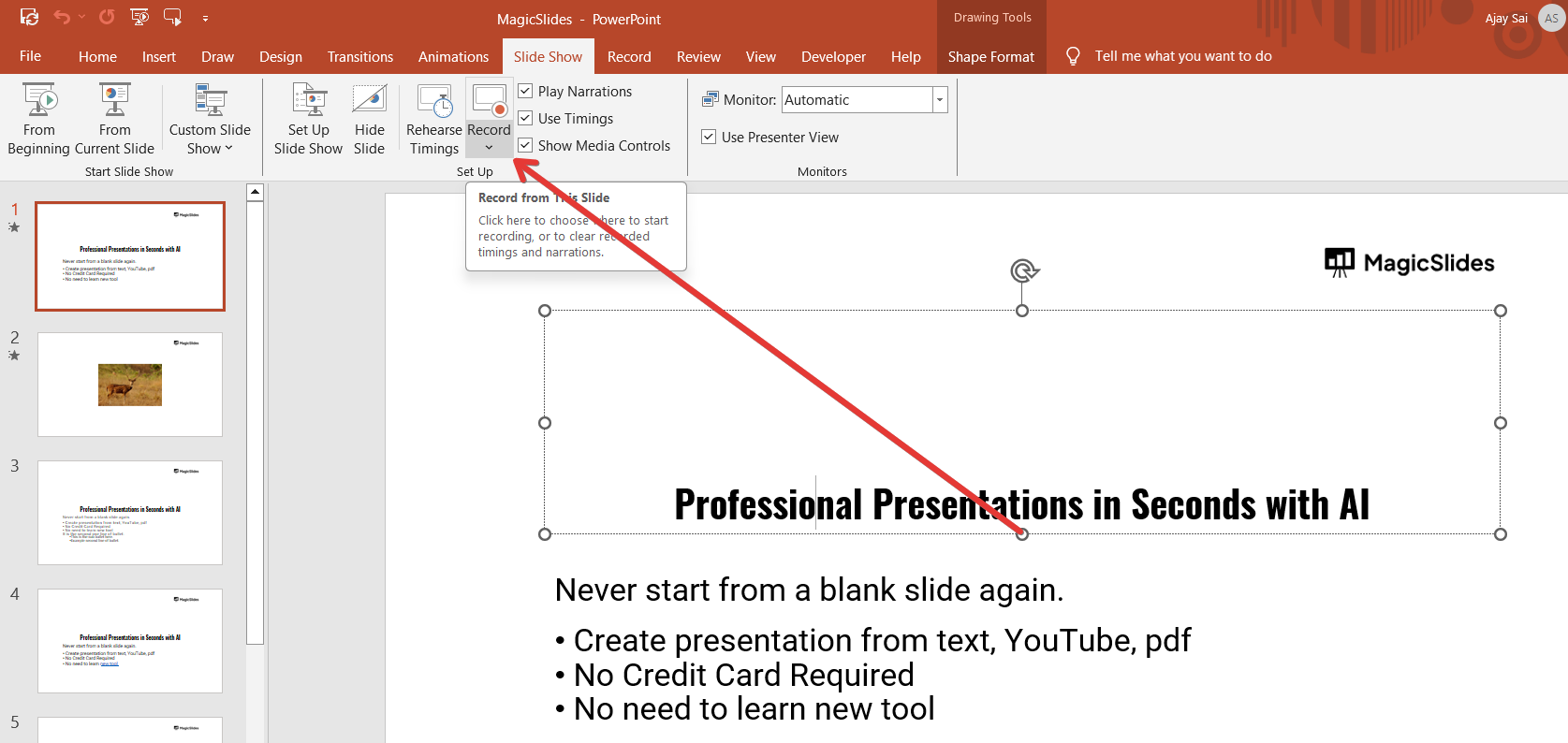
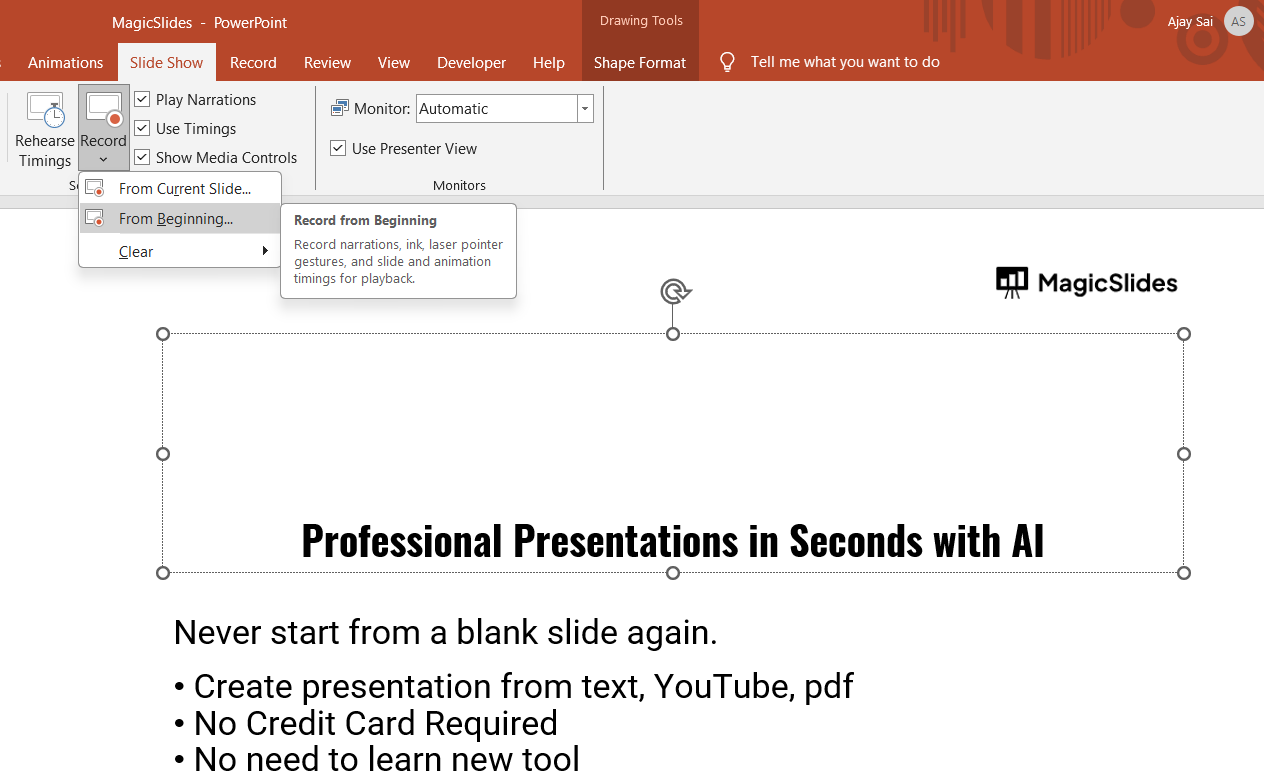
Choose Record from Beginning or Record from Current Slide based on where you want to start recording.
Step 4: Enable Animations in the Recording
A recording window will appear with different options.
Click on the Settings (gear icon) to ensure animations and transitions are included.
Enable the Show slide animations option if necessary.
Step 5: Start Recording
Click the Record button to start capturing your presentation.
Advance through your slides as you normally would, ensuring that animations play in real-time.
You can use the Pause button if you need to stop temporarily.
Step 6: Save and Export the Recording
Once finished, click Stop Recording.
Click File > Export > Create a Video to save the presentation as a video file.
Choose the desired resolution and click Create Video to finalize your recording.
Conclusion
Recording animations while recording a PowerPoint presentation ensures a more engaging and professional output.
By following these steps, you can seamlessly capture animations along with your narration and transitions for better presentations or tutorials.
FAQs About Recording Animations in PowerPoint
Why are my animations not playing while recording in PowerPoint?
Ensure that animations are set to With Previous or After Previous instead of On Click for automatic playback.
Can I record my voice while capturing animations?
Yes! PowerPoint allows you to record your narration along with animations. Use a microphone for better audio quality.
How do I save my recorded PowerPoint with animations as a video?
Go to File > Export > Create a Video, choose the quality, and save the presentation as an MP4 or WMV file.
Now you can record and capture animations in PowerPoint effortlessly! 🎥🚀


