Addon google slides iconPPT with AISlide TemplatesPPT TemplatesPricingBlog
PPT with AISlide TemplatesPPT TemplatesPricingBlog
  1. Home
  2. Blog
  3. How to UnIndent in Bullet Points in PowerPoint


How to UnIndent in Bullet Points in PowerPoint

Ajay Sai

Published By

Ajay Sai

Approved By

Admin

Published On

November 12th, 2025

Reading Time

2 min read

Easily unindent bullet points in PowerPoint to improve slide readability and maintain a clean layout

How to Unindent Bullet Points in PowerPoint

When working with bullet points in PowerPoint, you may find that some text is indented too far.
Unindenting helps improve the slide’s readability and structure. Follow this simple step-by-step guide to adjust bullet points correctly.

Steps to Unindent Bullet Points in PowerPoint

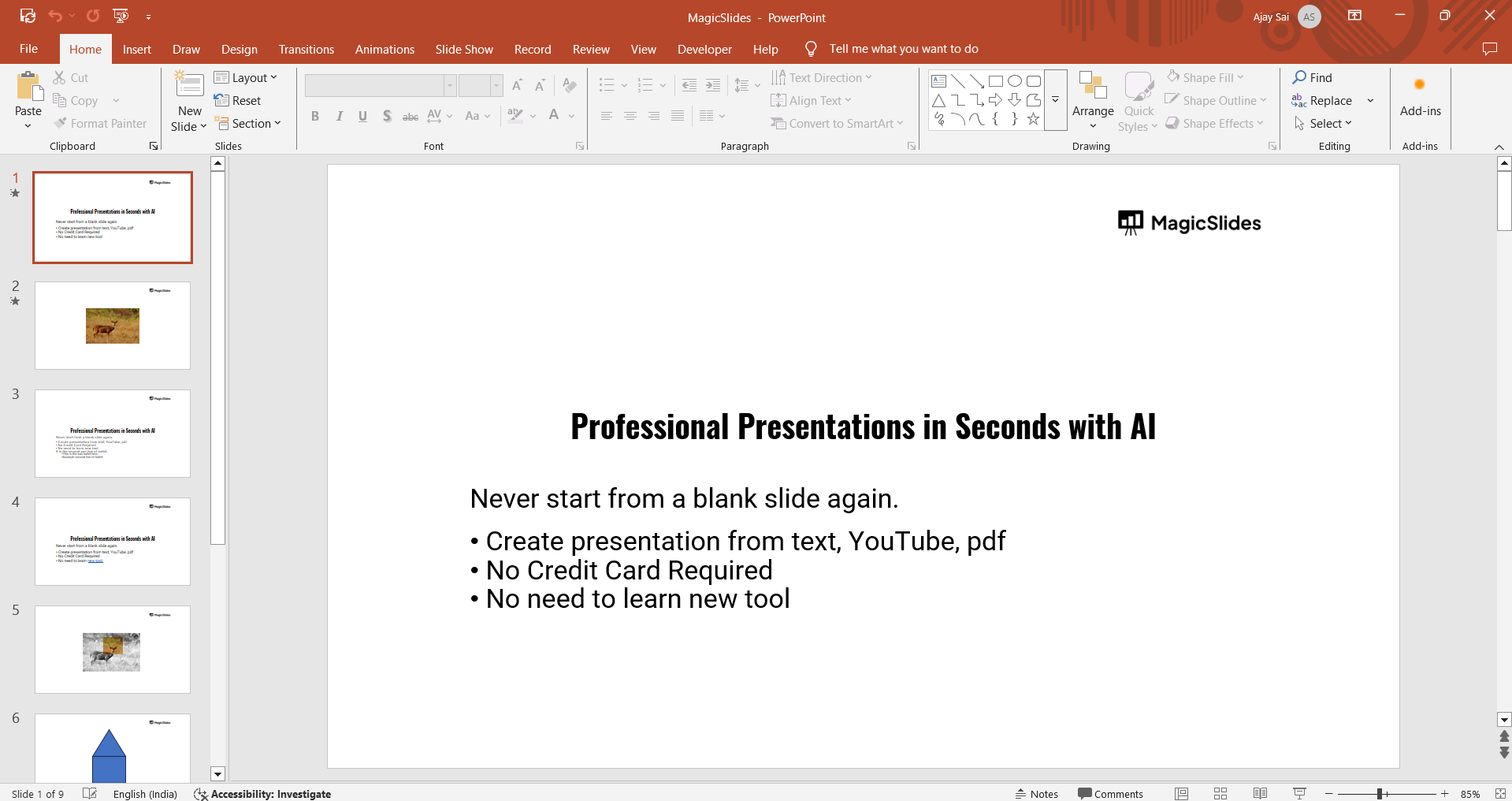
Step 1: Open Your PowerPoint Presentation

Launch PowerPoint and open the slide that contains the bulleted text you want to adjust.
notion image

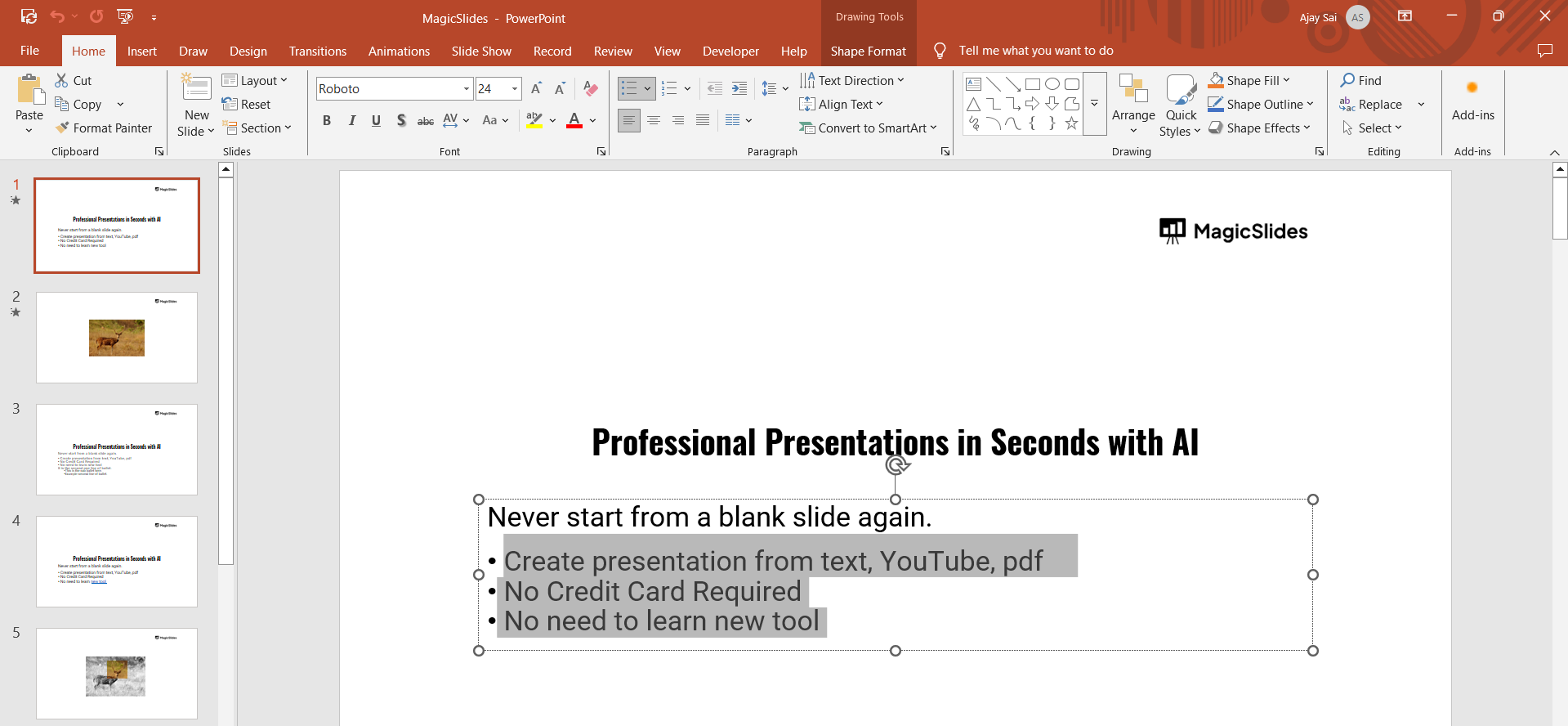
Step 2: Select the Bulleted Text

Click on the text box containing the bulleted list. Highlight the bullet point(s) that you want to unindent.
notion image

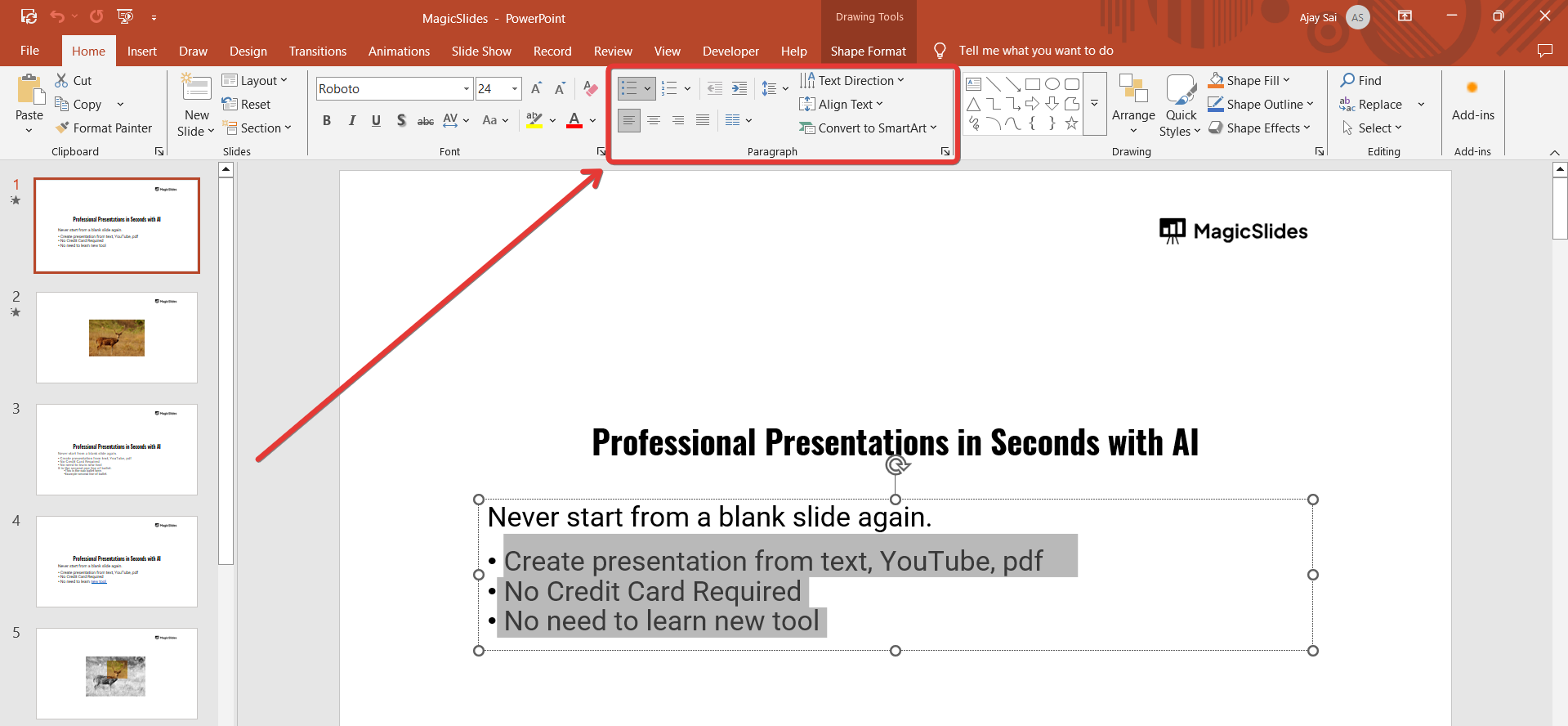
Step 3: Use the Decrease List Level Button

Navigate to the Home tab on the ribbon. Locate the Paragraph section.
notion image
Click on the Decrease List Level button (an arrow pointing to the left). The selected bullet points will move one level to the left, reducing the indentation.

Step 4: Use Keyboard Shortcuts for Quick Unindenting

Place your cursor on the bullet point you want to move. Press Shift + Tab to unindent (move the bullet point to the left).
If you want to indent it again, press Tab instead.

Step 5: Adjust the Bullet Spacing (If Needed)

If the bullet points don’t align correctly after unindenting, adjust the spacing:
  • Click on the View tab and select Ruler to enable it.
notion image
  • Drag the indent markers on the ruler to adjust the bullet positioning manually.

Now that you've learned how to adjust bullet point indentation in PowerPoint, why not make slide creation even easier? With MagicSlides.app, you can generate AI-powered presentations in seconds just enter a topic, and your slides are ready!

Conclusion

Unindenting bullet points in PowerPoint is easy using the toolbar, keyboard shortcuts, or manual adjustments with the ruler.
Proper indentation improves readability and makes your slides look well-structured and professional.

FAQs on Unindenting Bullet Points in PowerPoint

What if the bullet point doesn’t move when I press Shift + Tab?

Make sure your cursor is placed at the beginning of the bullet point before pressing Shift + Tab.

Can I unindent multiple bullet points at once?

Yes! Select multiple bullet points and press Shift + Tab or click Decrease List Level to unindent them all together.

How do I reset bullet indentations to default?

Go to Home → Paragraph → Click the small arrow in the bottom-right → Adjust the indentation settings.
Now you know how to unindent bullet points in PowerPoint like a pro! 🚀

Share on socials

About the author

Ajay Sai profile photo
Ajay Sai— writer at MagicSlides.app

Ajay have been a techincal writer for more than 2+ years. from coding tutorials to using day to day apps he have helped 100k+ visitors with their various queries

More from Ajay

More from the blog

    How to add a hanging indent in google slides

    24 February 2026

    How to make images transparent on google slides

    24 February 2026

    How to add slide numbers in google slides

    24 February 2026

    How to send gifs in slack application

    24 February 2026

    How to make picture background transparent in powerpoint

    24 February 2026

    How to put text over an image in google slides

    24 February 2026

    How to Crop an Image in PowerPoint

    24 February 2026

    How to make a PowerPoint presentation into a video

    24 February 2026

    How to time google slides for 20 seconds

    24 February 2026

Table of Contents

Create Presentations in Seconds

Transform your ideas into professional presentations with AI. No design skills needed.

Try MagicSlides Free

Create Stunning Presentations with AI in Seconds ✨

Transform any topic, text, YouTube video, PDF or URL into beautiful presentations instantly with MagicSlides AI.

Try MagicSlides AI Presentation Maker
MagicSlides AI Presentation

Footer

Solutions

  • MagicSlides App
  • Google Slides Add-on
  • MagicSlides in Chrome
  • MagicSlides in Figma
  • MagicSlides in ChatGPT
  • MagicSlides in Telegram
  • MagicSlides in Zapier
  • MagicSlides in Figma Slides

Tools

  • AI PPT Tools
  • QR Code Generator
  • Design Tools
  • PPT Templates
  • Slide Templates
  • PDF Tools

Examples

  • AI Presentations
  • PPT by MagicSlides
  • Quizzes
  • Charts
  • Coloring Pages

Resources

  • Changelog
  • Documentation
  • API Docs

Top Blogs

  • How to Create Presentation Using ChatGPT
  • 100+ Best Seminar Topics for Students in 2025

Company

  • Help
  • MCP
  • Blog
  • Pricing
  • Affiliate Program
  • Manage Subscription
  • Privacy Policy
  • Contact Us
  • Terms & Conditions
  • Refund & Cancellation Policy

We also built

  • SheetAI - GPT For Sheets
  • MagicForm - GPT For Google Forms
  • SecondBrain.fyi
  • BlogBee - Free Blogging Platform

© 2026 IndianAppGuy Tech Pvt Ltd. All rights reserved.