How to unskip a slide in google slides


Unlocking the Secret: Learn How to Reverse a Skipped Slide in Google Slides with Ease!
Embarking on a journey of captivating presentations often involves meticulous attention to detail. If you've found yourself wondering how to seamlessly reintegrate a skipped slide in Google Slides, worry not! In this comprehensive guide, we'll walk you through each step, ensuring that your presentations flow effortlessly without missing a beat. Let's dive into the art of unskipping slides and elevate your Google Slides experience.
How to unskip a slide in google slides
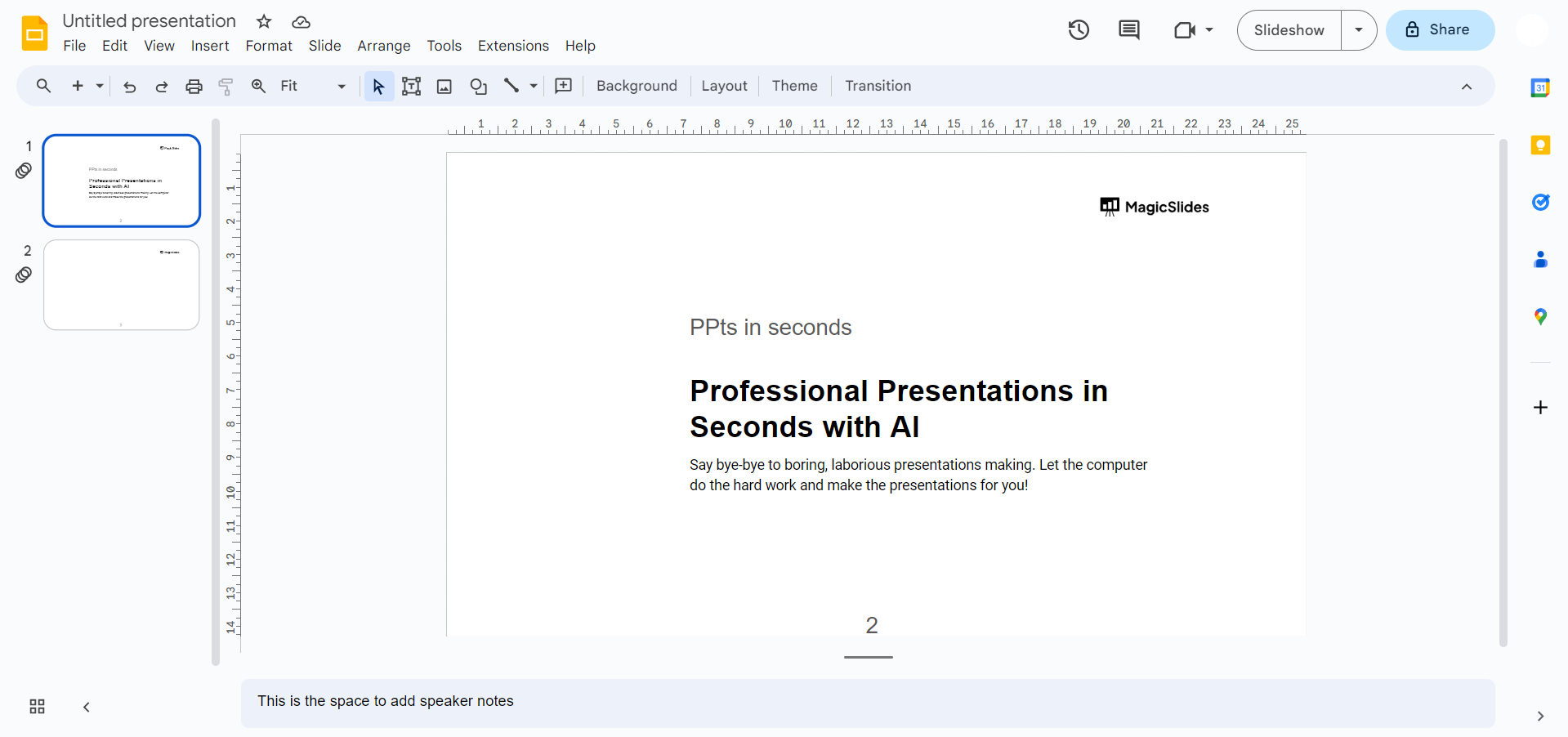
Access Your Presentation:
Open your web browser and navigate to Google Slides. Log in with your Google account and locate the presentation you want to edit.
Locate the Skipped Slide:
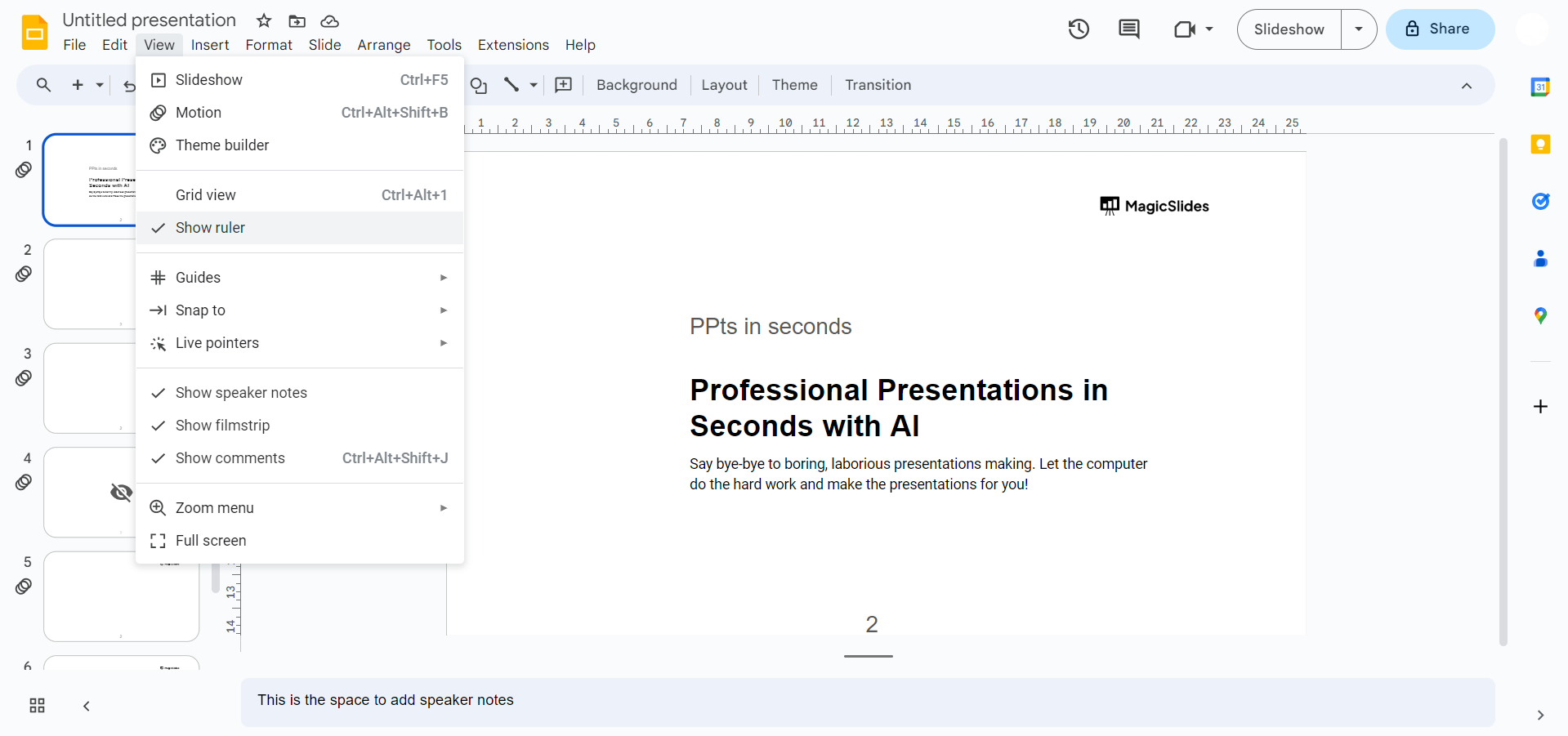
Once in your presentation, enter the slide sorter or normal view to easily identify the skipped slide. You can do this by clicking on the thumbnail icon in the left corner or selecting "View" and choosing "Slide Sorter."
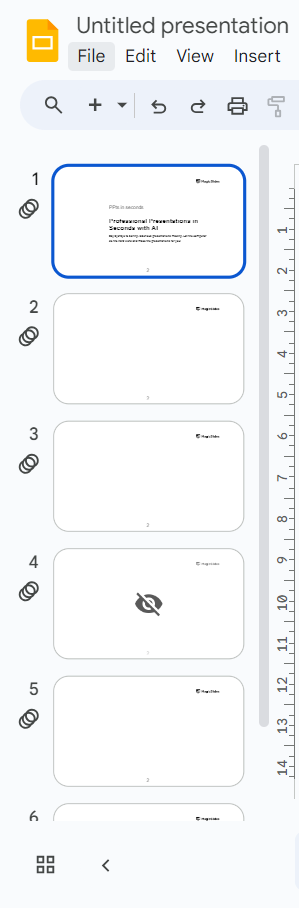
Select the Skipped Slide:
Click on the skipped slide to highlight it. You'll see a distinct outline around the selected slide, indicating that it's ready for modification.
Right-Click on the Slide:
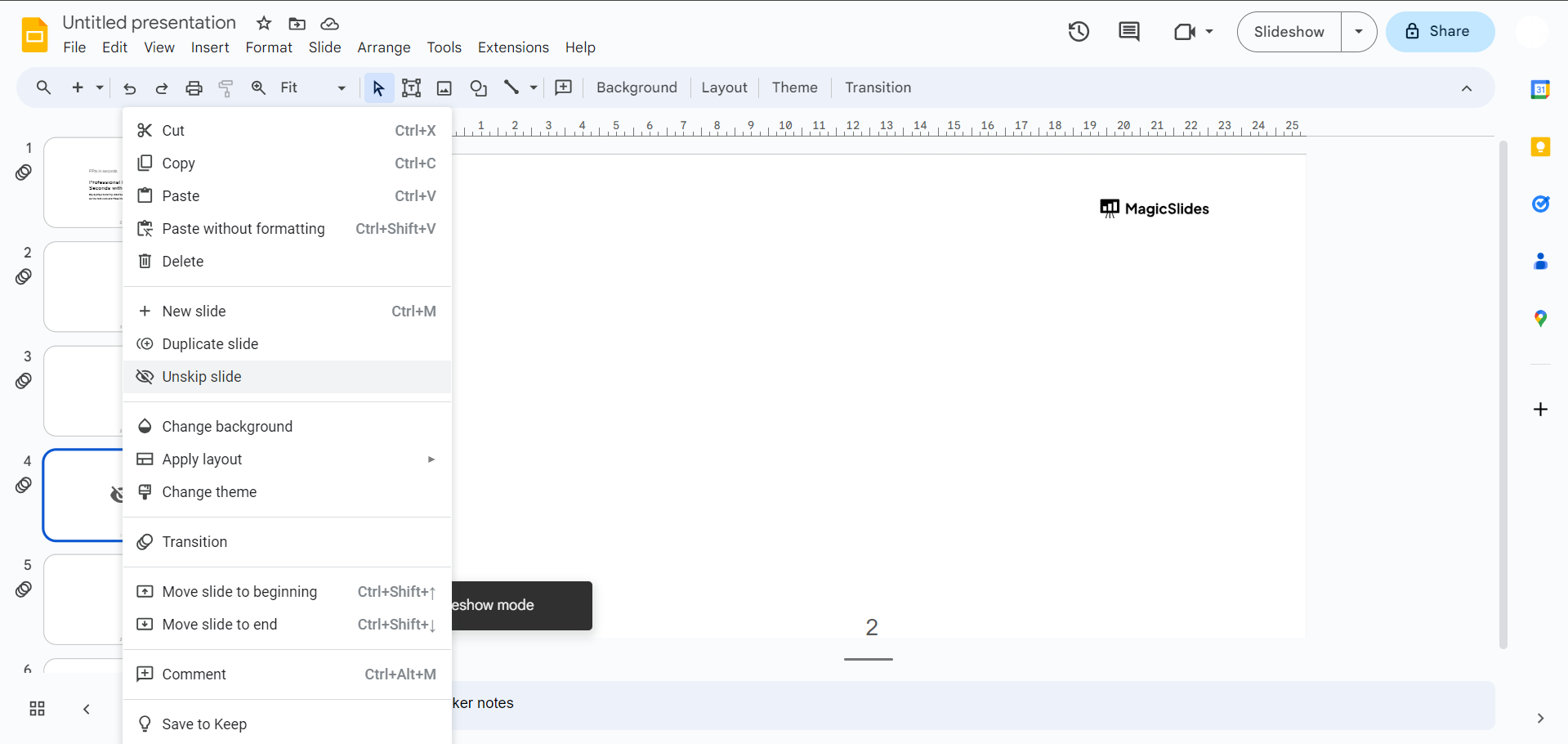
Perform a right-click on the selected slide to reveal a context menu. This menu provides various options for slide manipulation.
Choose "Skip Slide":
In the context menu, check if the option "Skip Slide" is currently enabled. If it is, click on it to toggle off the skipping status. This action instantly integrates the slide back into your presentation sequence.
Verify Slide Status:
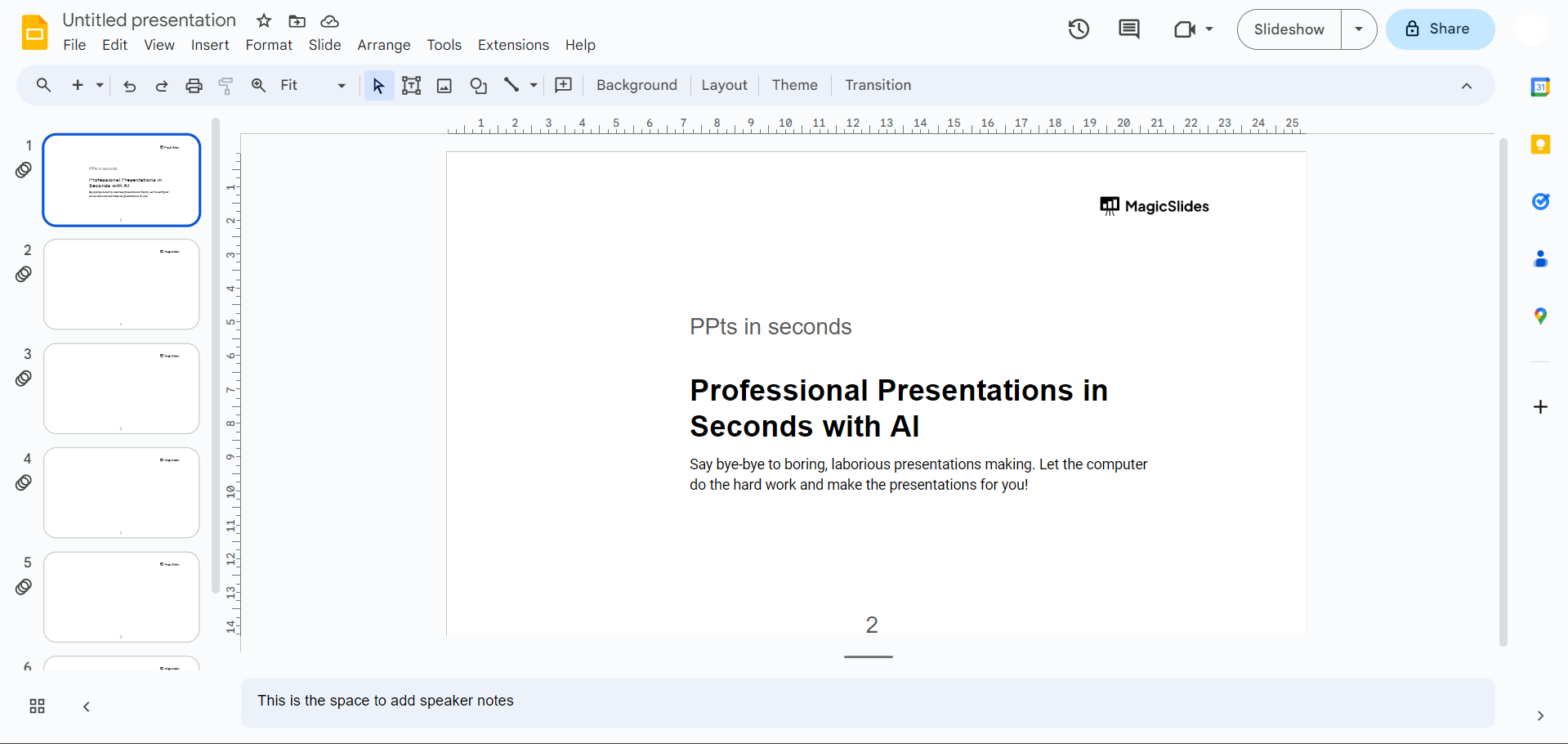
To confirm that the slide is no longer skipped, glance at the left navigation panel. The thumbnail of the previously skipped slide should now be in line with the other slides.
Save Your Changes:
After making adjustments, always save your presentation. Navigate to the "File" menu and choose "Save" or "Save As" to preserve the recent modifications.
Pro Tip 💡:
By following these detailed steps, you can effortlessly unskip a slide in Google Slides and maintain a seamless presentation flow. To add a personalized touch to your presentations, consider incorporating visual elements such as custom transitions or engaging animations. This not only captures your audience's attention but also reinforces your message. Just remember, subtlety is key – aim for enhancements that complement your content rather than overshadow it.
Conclusion 💁♂️:
In the dynamic realm of presentations, every slide plays a crucial role in conveying your message effectively. With the ability to effortlessly unskip a slide in Google Slides, you can maintain a polished and professional presentation flow. Remember to double-check the navigation panel, utilize keyboard shortcuts for efficiency, and always save your changes to preserve your masterpiece. Armed with these insights, you're now equipped to navigate the intricacies of Google Slides with confidence. Happy presenting!
Frequently Asked Questions 🤔:
Q: Can I unskip a slide in Google Slides without affecting the rest of my presentation?
Absolutely! Unskipping a slide in Google Slides is a localized action. It won't disrupt the sequence of your entire presentation. Simply follow the steps to unskip, and your flow remains intact.
Q: Is there a quicker way to unskip a slide in Google Slides?
Certainly! Utilize keyboard shortcuts for a swift solution. With the desired slide selected, press "Ctrl + M" (Windows) or "Command + M" (Mac) to toggle the skipping status efficiently.
Q: How do I ensure the unskipped slide seamlessly integrates into my presentation?
After unskipping, verify the slide's position in the left navigation panel and scroll through your presentation. This ensures the slide is smoothly reintegrated, maintaining the desired flow.
Q: Can I customize the appearance of the unskipped slide for a more polished presentation?
Absolutely! Once unskipped, consider adding a personal touch. Experiment with custom transitions or subtle animations to enhance visual appeal without overshadowing your core message. It's the perfect way to make your presentation both informative and visually captivating.
Have a look @these tutorial blogs by us:
- How To Flip An Image In Powerpoint In 2024: https://www.magicslides.app/blog/How-to-mirror-an-image-in-powerpoint
- How To Add A Background In Powerpoint: https://www.magicslides.app/blog/How-to-add-a-background-in-powerpoint
- How To Add Mp4 Audio To Google Slides: https://www.magicslides.app/blog/How-to-add-mp4-audio-to-google-slides
- How To Automatically Play Your Google Slides: https://www.magicslides.app/blog/How-to-automatically-play-google-slides


