How to achieve landscape mode in Google Slides in few simple steps


Switching from landscape to portrait or vice versa could be one the most important feature while creating presentations here is a guide to do so.
Step 1: Open Google Slides: Log in to your Google Drive account and open the Google Slides application.
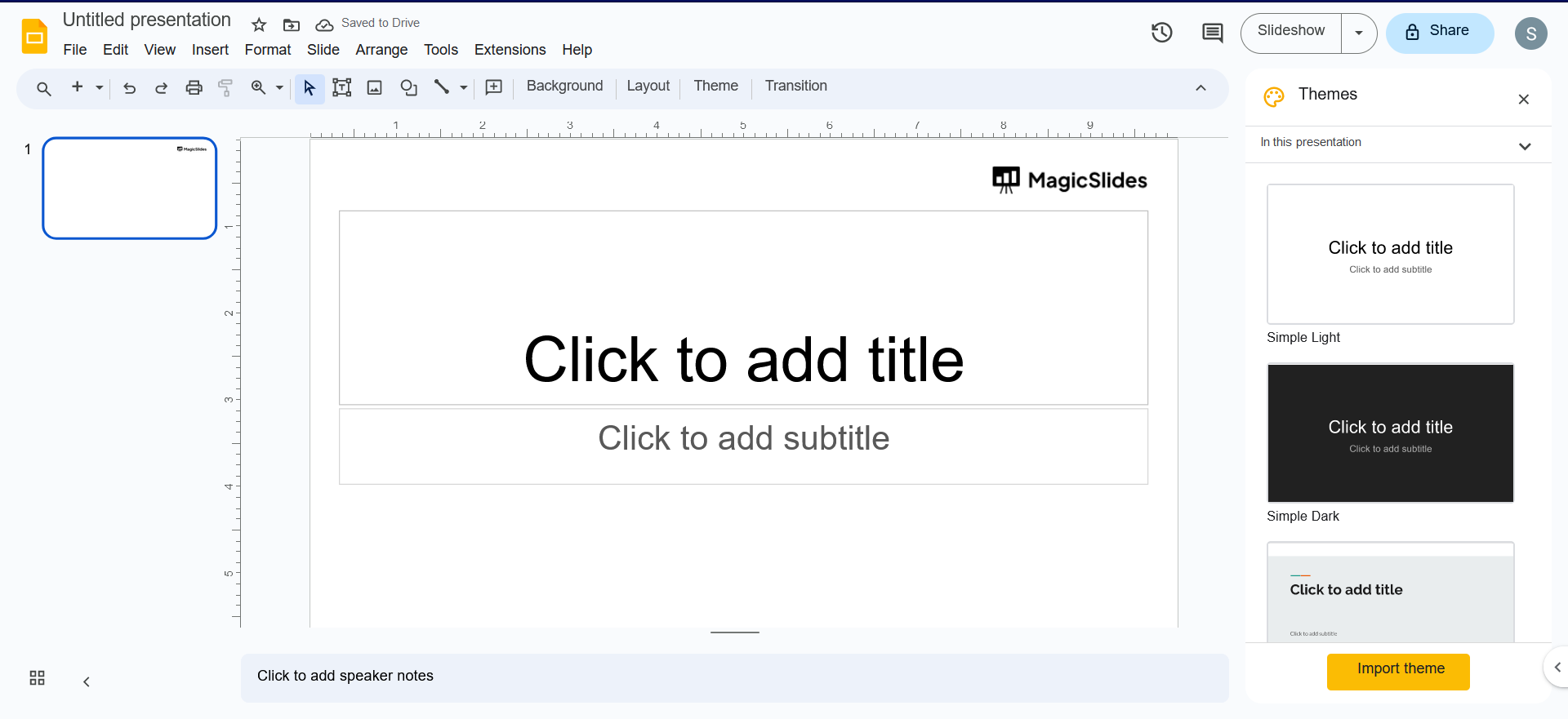
Step 2: Create a New Presentation: Click the "+ New" button and choose "Google Slides" to create a new presentation.
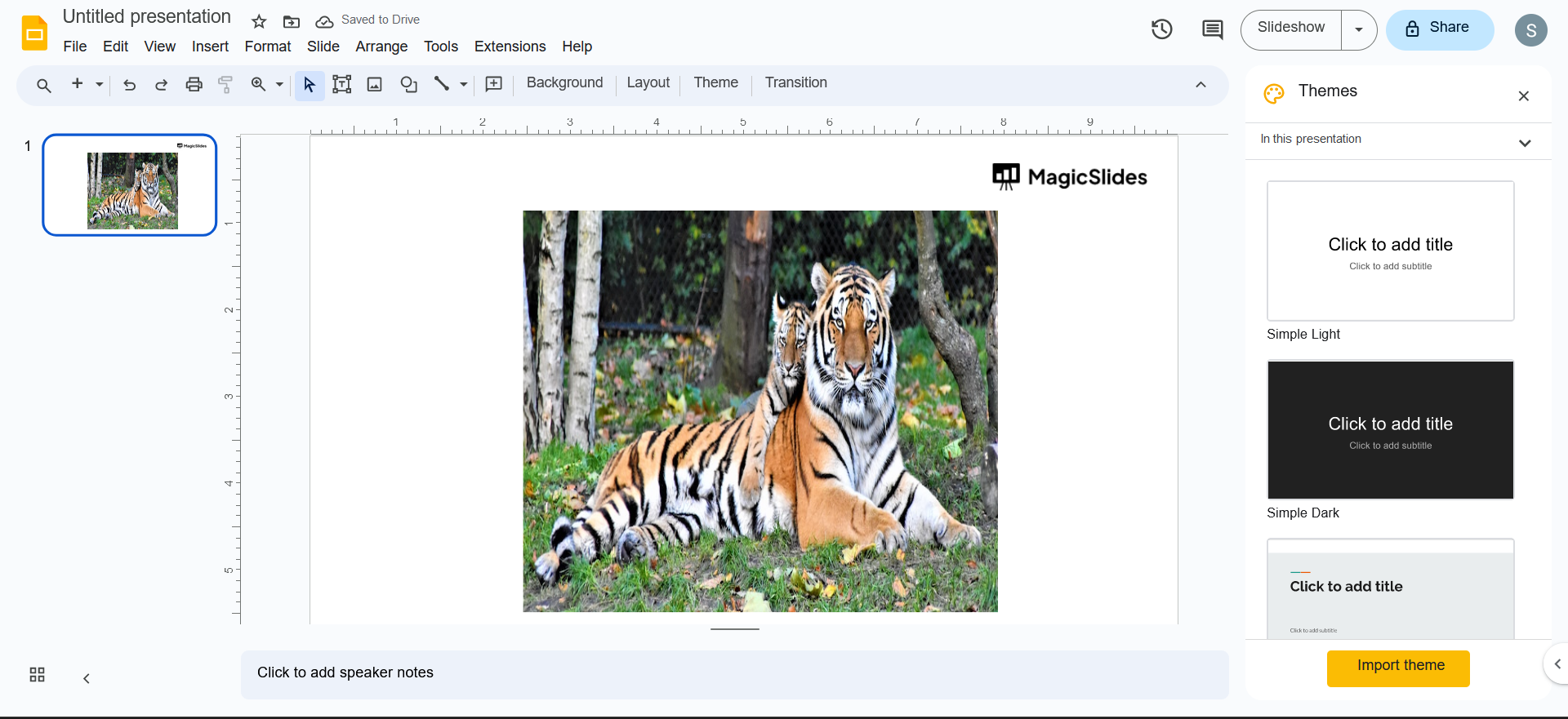
Step 3: Adjust Slide Size: By default, Google Slides uses a standard slide size that is in portrait orientation. To change this to landscape:
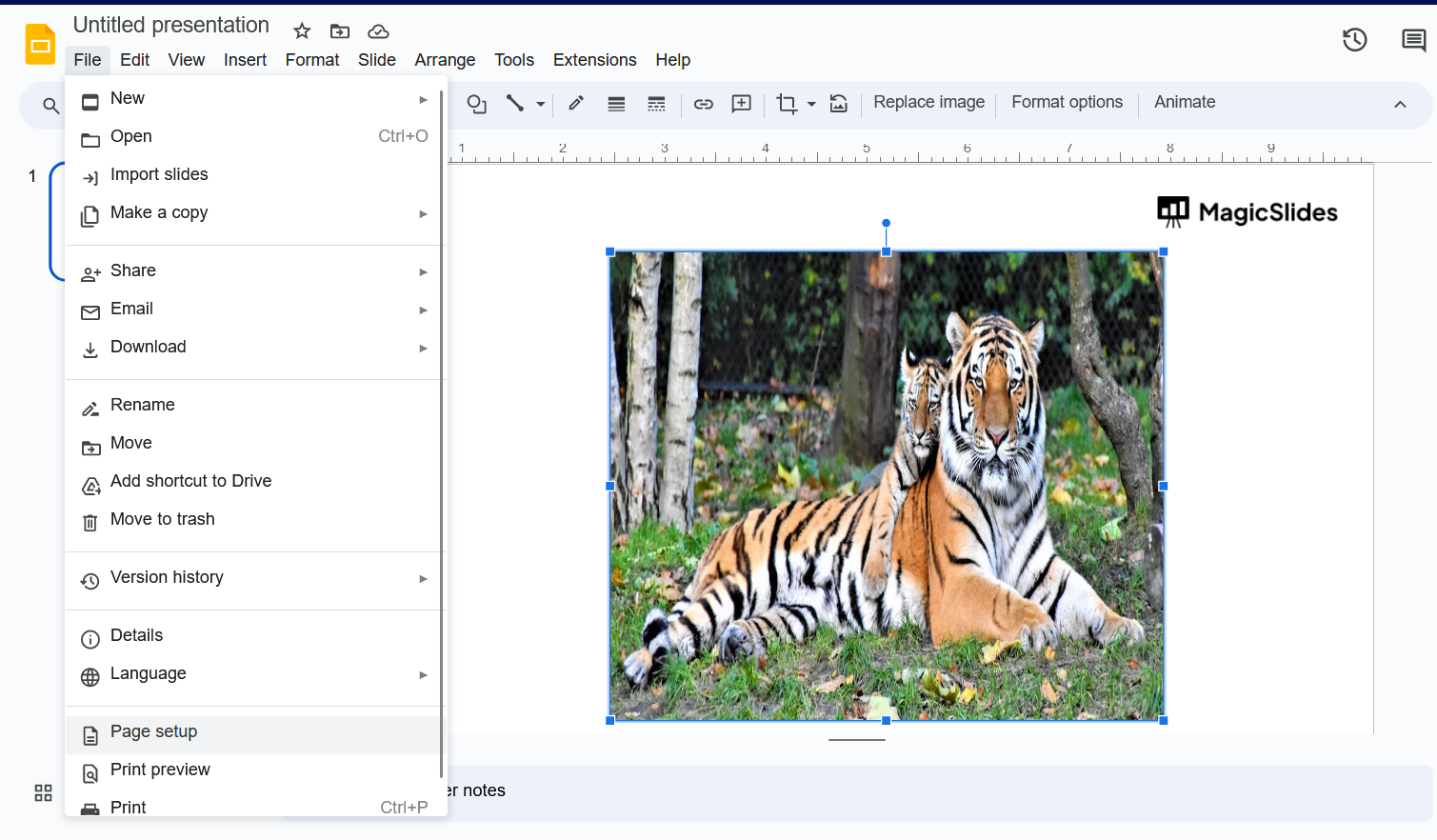
a. Click on the "file" menu at the top of the screen. b. Choose "Page setup" from the dropdown menu.
Step 4: Select Landscape Orientation: In the "Page setup" dialog box, you'll see options for "Slides" and "Custom." Click on the "Slides" tab.
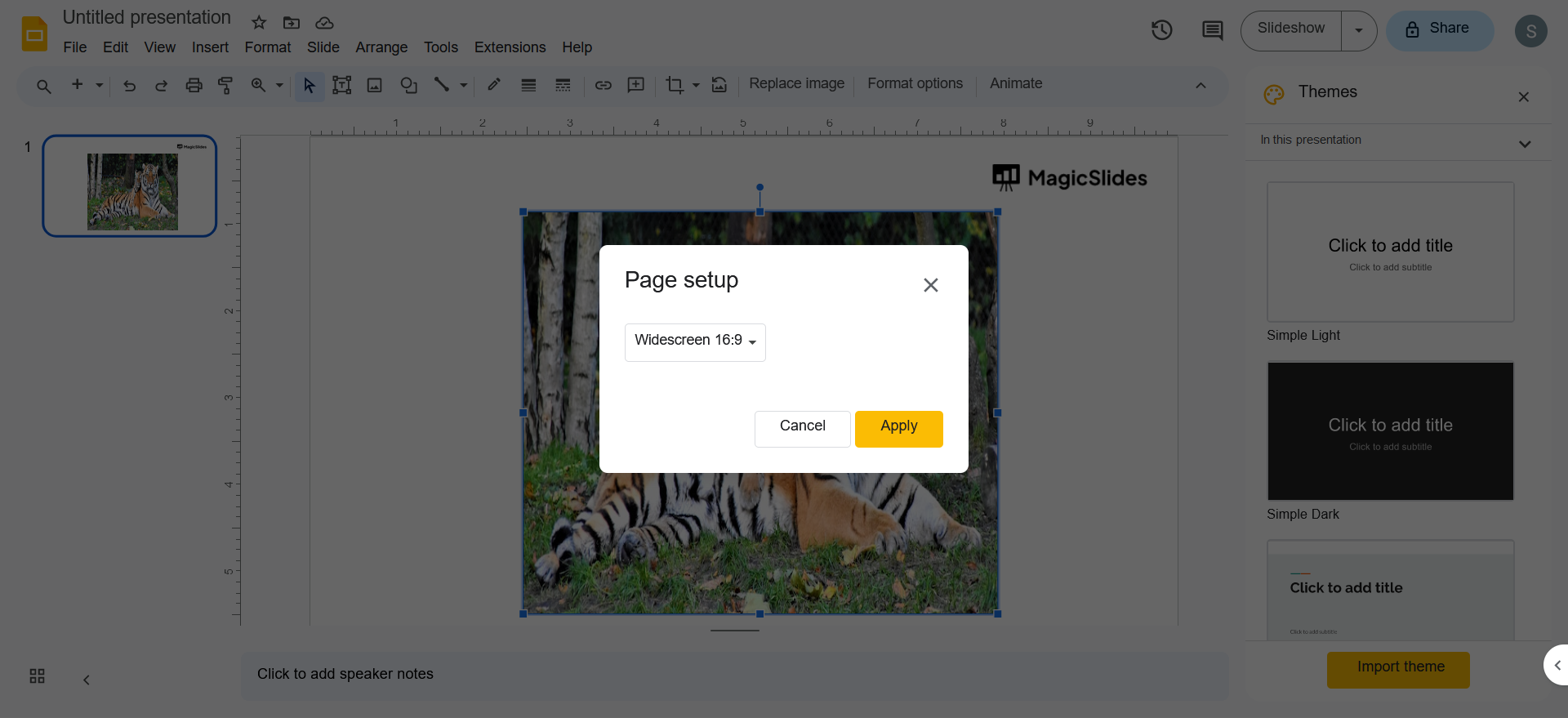
Step 5: Choose Landscape Orientation: In the "Slides" tab, you should see options for "Standard (4:3)," "Widescreen (16:9)," and "Custom." Select the "Widescreen (16:9)" option, which is the landscape orientation.
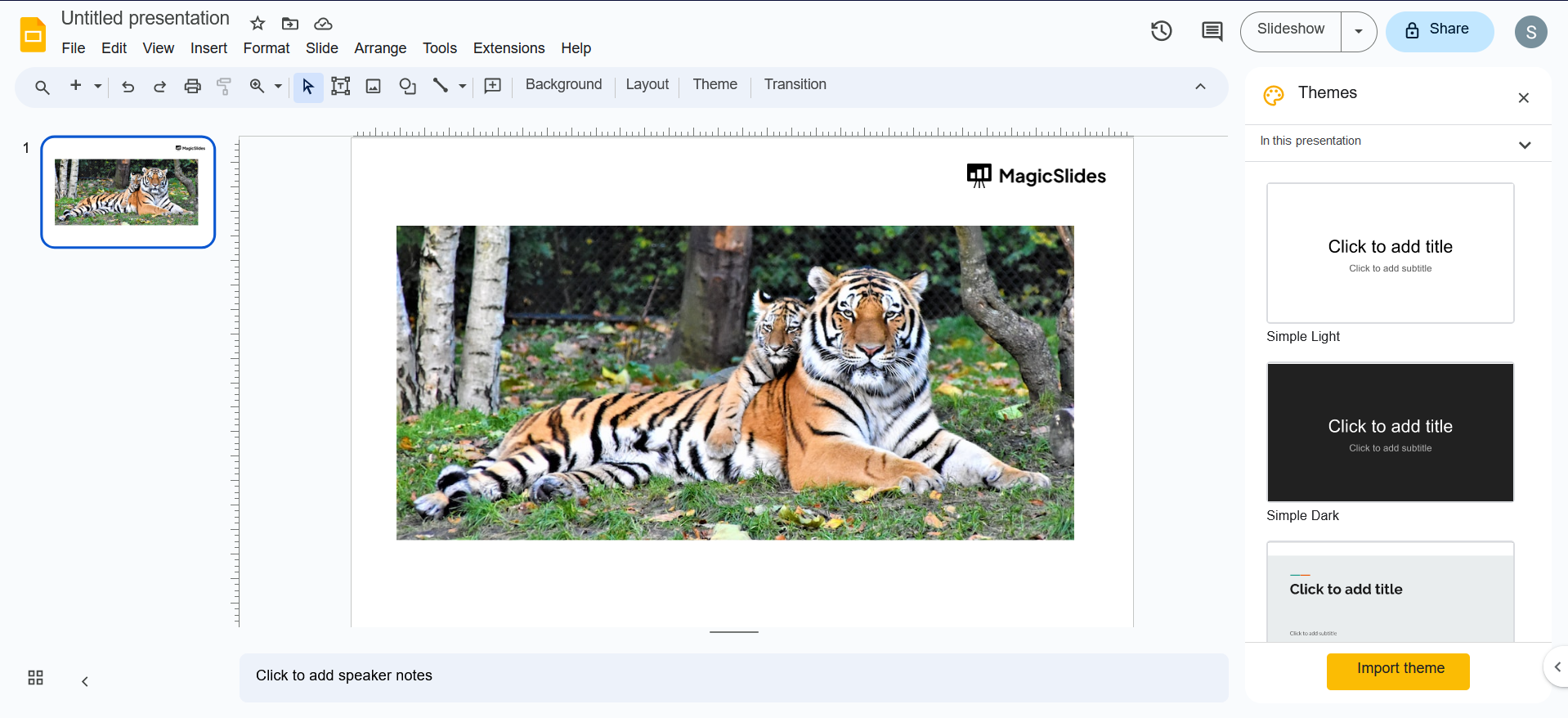
Step 6: Create and Edit Slides: You can now create and edit your slides in landscape orientation.


