What Format is Google Slides Presentation?


Discover what format is Google Slides presentation, supported file types, and how to create instant presentations effortlessly using MagicSlides.app for professional slides.
Google Slides is one of the most popular tools for creating presentations online. Whether you’re a student, a business professional, or an educator, Google Slides makes it easy to design visually appealing presentations with minimal effort. But have you ever wondered what format is Google Slides presentation is saved in? If not, let’s discuss it.
In this guide, we will explore the formats supported by Google Slides, how you can download and convert them, and an efficient way to generate high-quality presentations effortlessly using advance software.
What Format is Google Slides Presentation Saved In?
By default, when you create a presentation in Google Slides, it is saved as a .GSLIDES file. However, this is not a traditional file format like PowerPoint’s .PPTX or PDFs. Instead, a .GSLIDES file is just a shortcut that links to the actual presentation stored on Google Drive.
Since Google Slides is a cloud-based tool, the real content remains online, and the .GSLIDES file cannot be opened outside Google Drive. But don’t worry—Google Slides allows you to download your presentations in several different formats.
Supported Formats for Exporting Google Slides
Google Slides presentations can be exported in multiple formats depending on your needs:
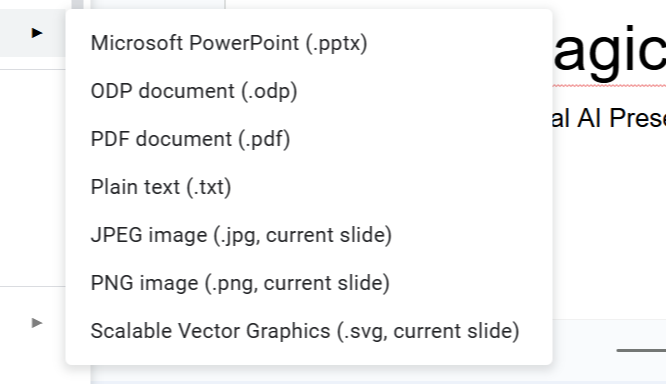
- .PPTX (PowerPoint Format): This is the most common format when sharing presentations with Microsoft PowerPoint users.
- .PDF (Portable Document Format): Best for non-editable, print-friendly versions of your presentation.
- .JPEG / .PNG / .SVG (Image Formats): Allows you to save individual slides as high-quality images.
- .TXT (Plain Text): Extracts all text content from your slides.
- .ODP (OpenDocument Format): Useful for compatibility with OpenOffice and LibreOffice.
By using these formats, you can share and present your slides across different platforms without any compatibility issues.
The Best Way to Create Presentations Instantly – MagicSlides.app
Creating a professional presentation from scratch can be time-consuming. If you're looking for an easier and faster way to generate high-quality presentations, MagicSlides.app is the perfect tool for you.
MagicSlides.app uses AI technology to create well-structured presentations instantly. Whether you need a business pitch, an educational slideshow, or a project presentation, it saves you hours of work.
How to Use MagicSlides.app to Generate a Google Slides Presentation
Follow these simple steps to create a complete presentation in seconds:
1. Visit the software application
Go to MagicSlides.app on your browser.
2. Enter Your Topic
Type in the subject of your presentation, such as "Digital Marketing Trends 2024" or "History of Space Exploration."
3. Click "Generate Instant PPT"
The AI will analyze your topic and start creating a structured PowerPoint presentation.
4. Select Slide Theme and Number of Slides
Choose a professional slide design and specify the number of slides you need for your presentation.
5. Click "Generate"
This will instantly create a visually appealing, well-organized presentation with relevant content.
6. Your PPT is Ready!
You can now download your presentation as a Google Slides file or PowerPoint (.PPTX) format.
Why Use MagicSlides.app for Google Slides Presentations?
- Saves Time: No need to spend hours designing slides manually.
- AI-Powered Content: Generates structured slides with relevant points.
- Customizable: Choose your preferred theme and layout.
- Compatible with Google Slides & PowerPoint: Download in multiple formats.
- User-Friendly: No technical skills required.
Final Thoughts
Now that you know what format is Google Slides presentation, you can easily create, download, and share your slides in different formats. While Google Slides offers flexibility, creating a compelling presentation from scratch can still take time.
If you want to generate high-quality presentations effortlessly, MagicSlides.app is your best solution. It allows you to create instant presentations with AI in just a few clicks. Try it today and experience a smarter way to build presentations!


