What is Padding in Canva


Padding in Canva creates space around elements, improving readability, design balance, and overall visual appeal
What is Padding in Canva?
Padding in Canva refers to the space between text, images, or elements and the edges of their containers.
It ensures proper spacing, improves readability, and enhances the overall design by creating a balanced layout.
Understanding how to use padding effectively helps in making professional and visually appealing designs.
Step-by-Step Guide to Understanding and Using Padding in Canva
Step 1: Understanding the Importance of Padding
Padding creates breathing room around text and elements, preventing them from looking cramped.
It enhances legibility and visual hierarchy, making the design more aesthetically pleasing.
Proper padding helps maintain a consistent and clean layout.
Step 2: Adjusting Text Padding in Canva
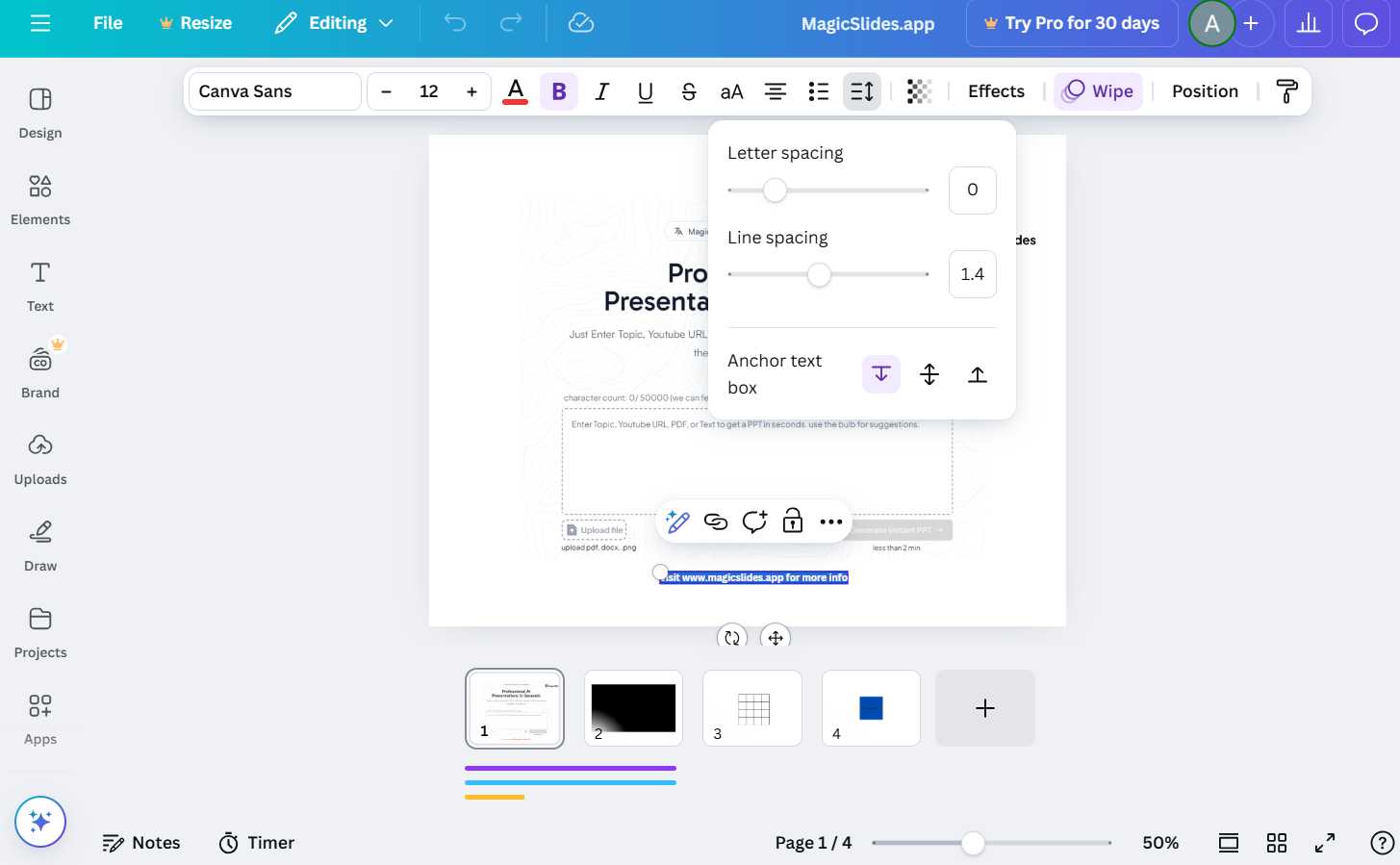
Select your text box and click on the “Spacing” option in the toolbar. Use the “Padding” sliders to adjust the space inside the text box.
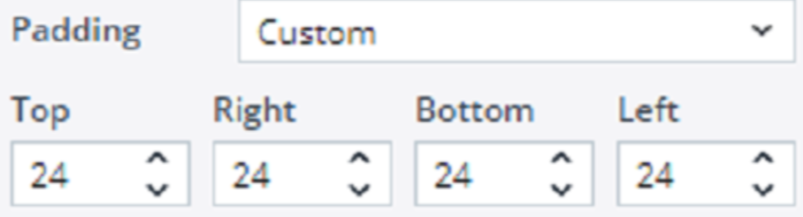
Increase or decrease padding to ensure text doesn’t touch the edges.
Step 3: Using Padding with Shapes and Elements
When using shapes or frames, ensure there is enough padding around text or images inside them.
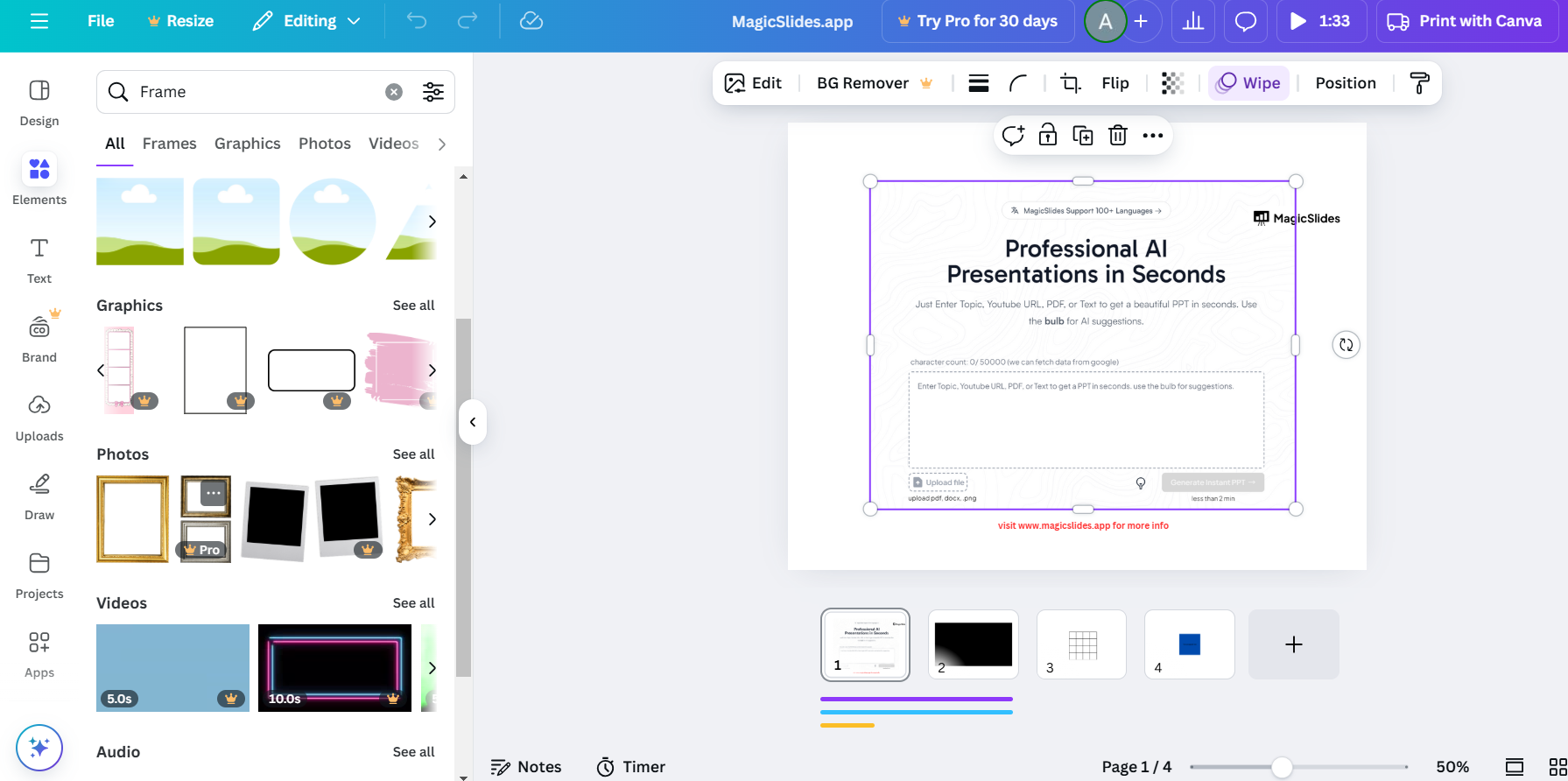
Drag the edges of elements or use the alignment tool to center content properly. Padding helps in creating emphasis and drawing attention to key elements.
Step 4: Maintaining Consistency Across Your Design
Ensure uniform padding across multiple elements for a balanced and professional look.
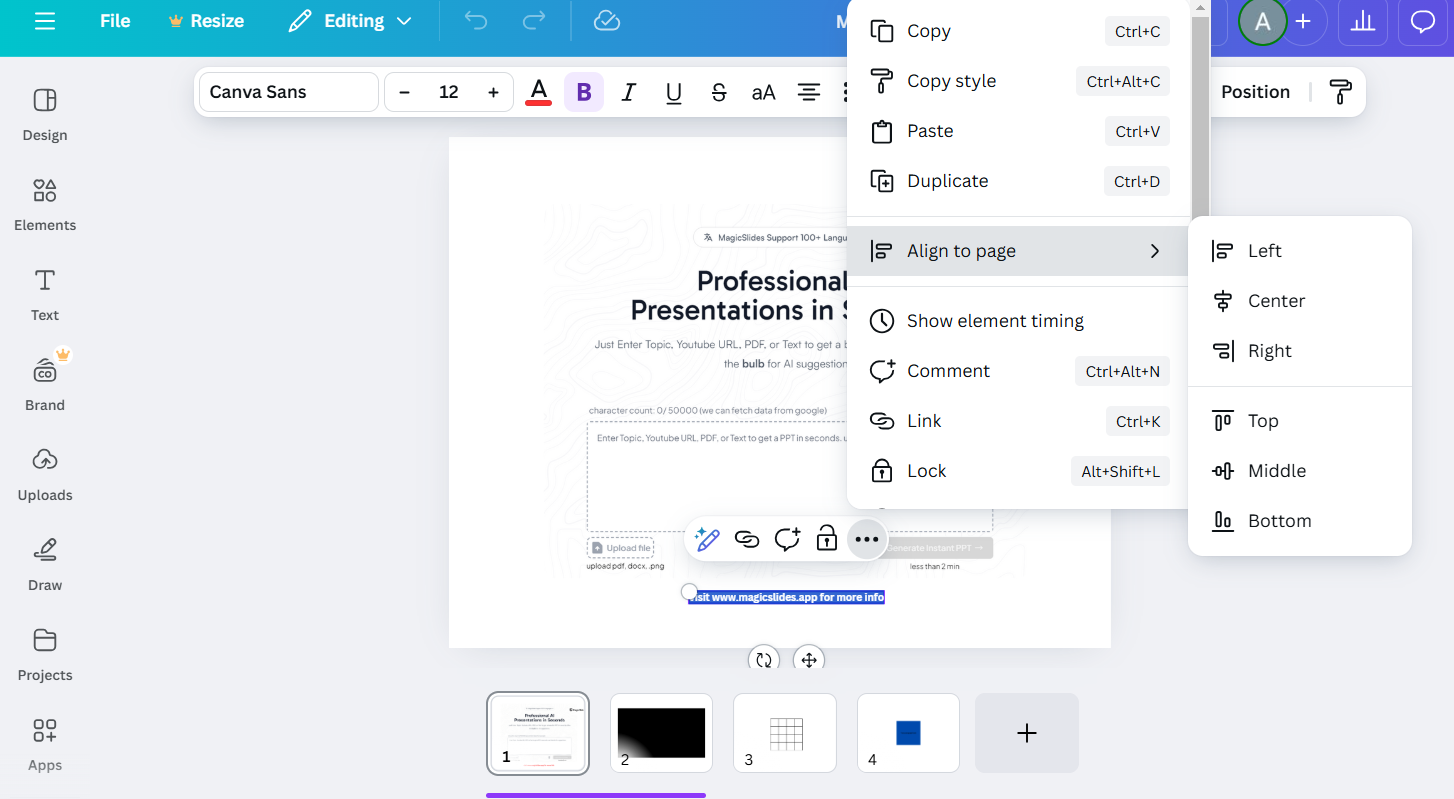
Use guidelines and rulers in Canva to align elements with equal spacing. Consistent padding helps in branding and visual appeal.
Step 5: Testing and Adjusting for the Final Look
Preview your design to check if the padding looks balanced. Make necessary adjustments to avoid overcrowded or empty spaces.

Ensure padding does not interfere with readability or visual appeal.
Padding helps create balanced and visually appealing designs in Canva. But if you want to save time on slide formatting and design, try MagicSlides.app AI-powered slides with perfect layouts, ready in seconds!
Conclusion
Padding in Canva plays a crucial role in design aesthetics and readability.
By adjusting spacing properly, you can make your designs look more structured, elegant, and easy to understand.
Mastering padding ensures a polished and professional final product.
FAQs on Padding in Canva
How do I add padding around an image in Canva?
Use a frame or shape around the image and adjust its size to create padding.
What is the difference between padding and margin in Canva?
Padding is the space inside an element’s border, while margin is the space outside it.
Why is padding important in Canva designs?
Padding improves readability, spacing, and overall design balance, making elements look well-organized and professional.
Now, you’re ready to use padding effectively in your Canva designs! 🎨✨


