What is the default PowerPoint standard layout


PowerPoint’s default “Title and Content” layout offers a versatile foundation for creating organized presentations
PowerPoint provides a variety of slide layouts to help you organize content effectively in your presentations. Among these layouts, the "Title and Content" layout is considered the default standard layout in PowerPoint.
This layout is versatile, allowing you to present a title along with content that can include text, images, charts, videos, and more.
Understanding the default standard layout is crucial for creating well-structured presentations that convey your message clearly.
In this blog post, we’ll explore what the default PowerPoint standard layout is and guide you through its features and uses.
What is the default PowerPoint standard layout
Step 1: Open PowerPoint
Start by opening Microsoft PowerPoint on your computer.
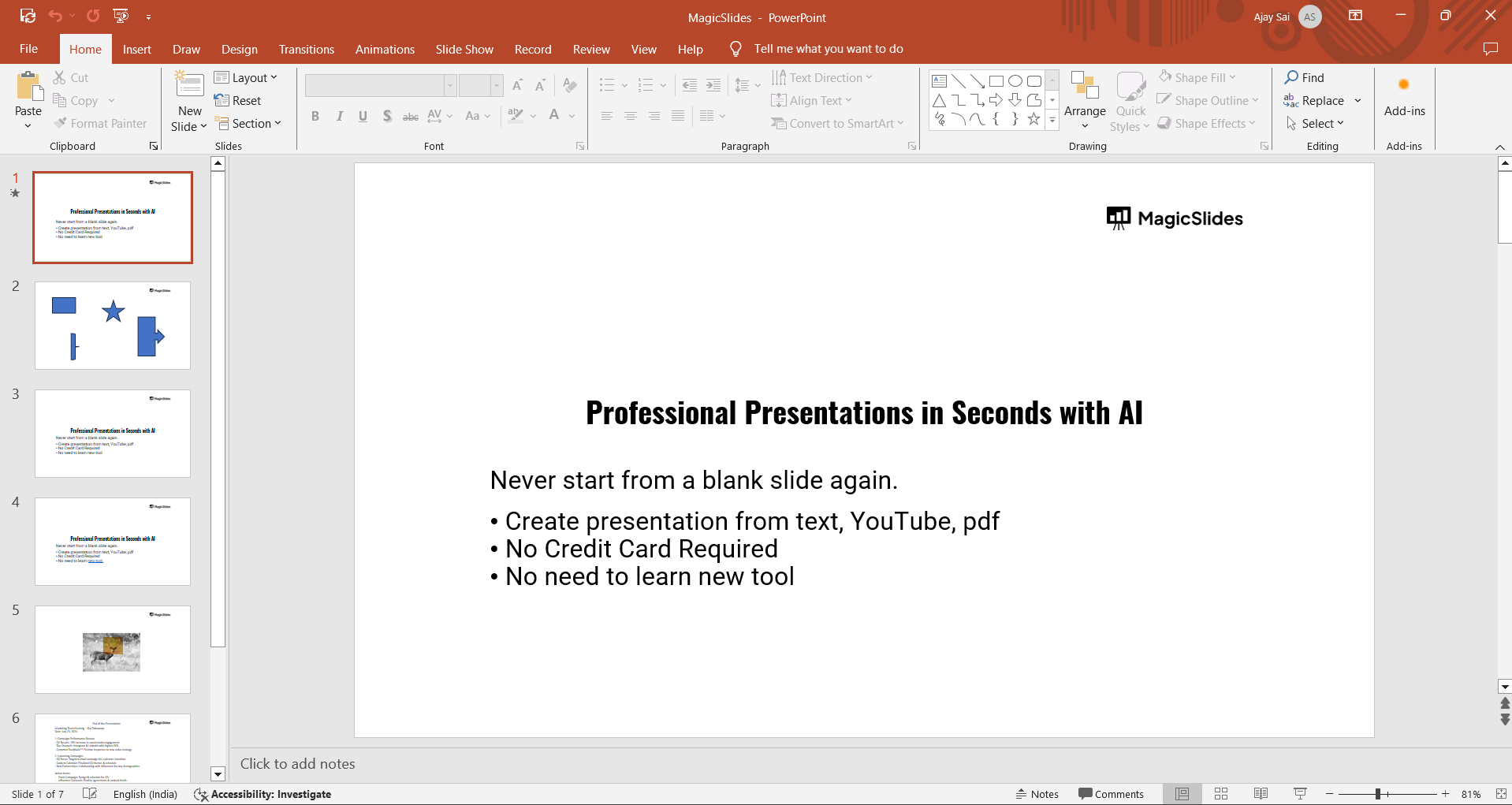
You can do this by searching for "PowerPoint" in the Start menu or clicking on the PowerPoint icon if it's pinned to your taskbar.
Step 2: Create a New Presentation
Once PowerPoint is open, create a new presentation. This can be done by selecting "Blank Presentation" from the initial screen.
This will automatically open a slide with the default layout.
Step 3: Identify the Default Layout
The first slide you see after creating a new presentation usually has a different layout called the "Title Slide." However, when you insert additional slides, PowerPoint typically uses the "Title and Content" layout as the default.
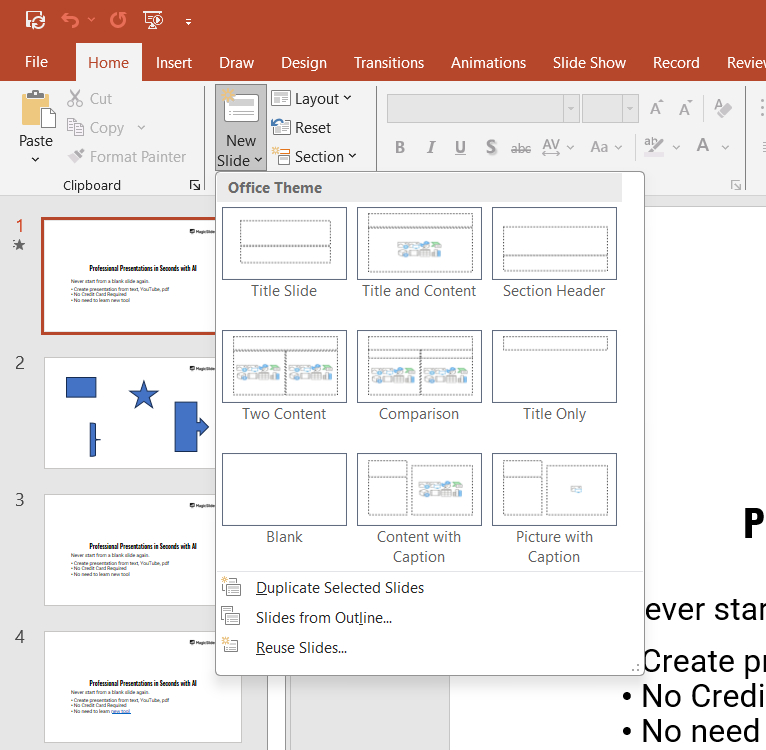
To insert a new slide, go to the "Home" tab and click on the "New Slide" button.
Notice that the new slide is created with a layout that includes a title placeholder at the top and a large content placeholder below it.
This is the "Title and Content" layout, which is the standard default layout in PowerPoint.
Step 4: Explore the Title Placeholder
At the top of the "Title and Content" layout, you'll find the title placeholder. This is where you can enter the title of your slide.
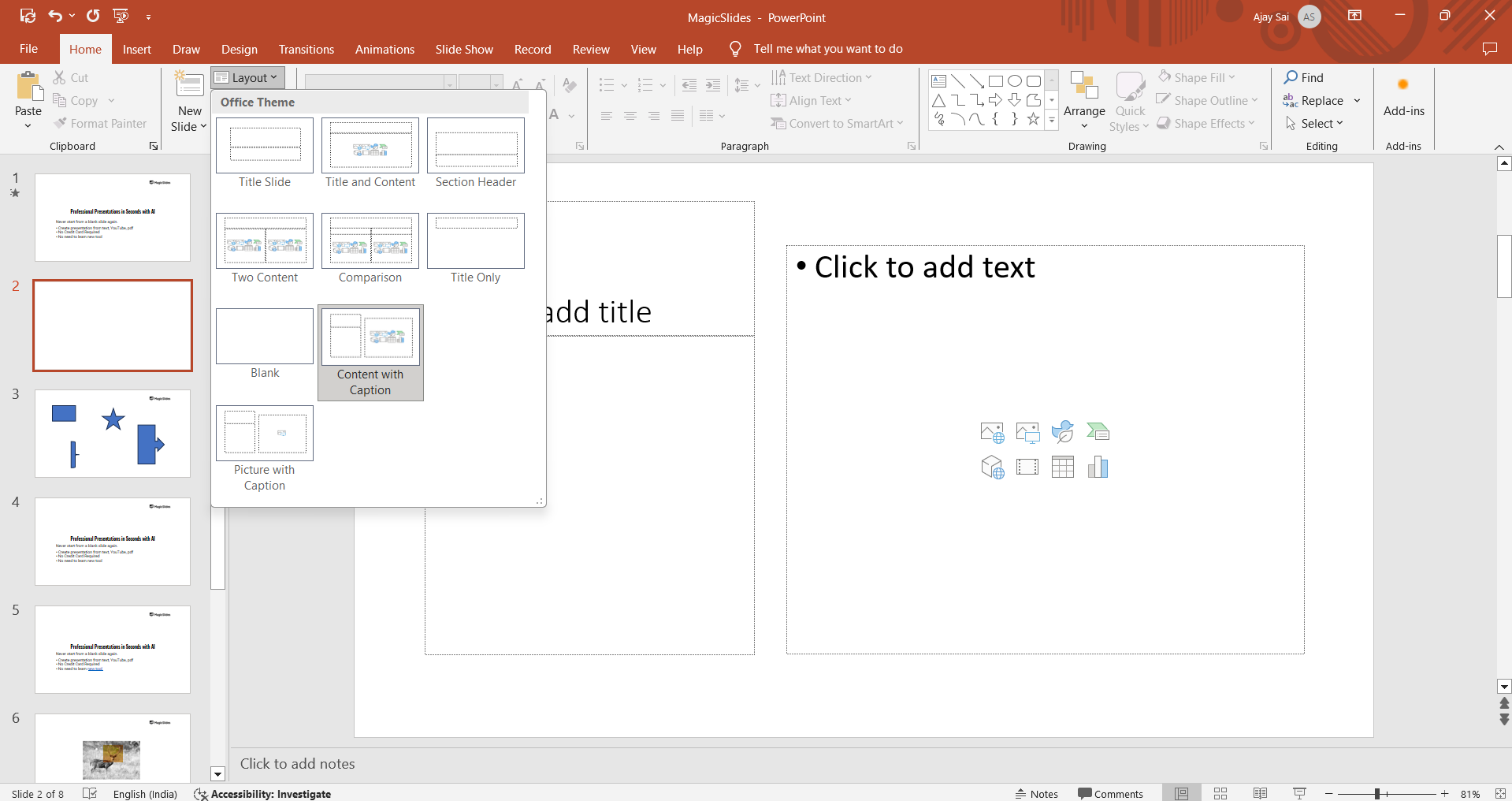
The title helps guide your audience by summarizing the content on the slide. It's typically formatted in a larger, bold font to stand out.
Discover where most presentation creation work happens, focusing on PowerPoint's primary editing view for optimal design and impact.
Step 5: Customize the Default Layout
While the "Title and Content" layout is the standard, you can customize it to better fit your presentation.
For instance, you can resize the placeholders, change their position, or adjust the font styles.
These customizations help you tailor the slide to match the overall theme and style of your presentation.
Step 6: Apply the Default Layout to Existing Slides
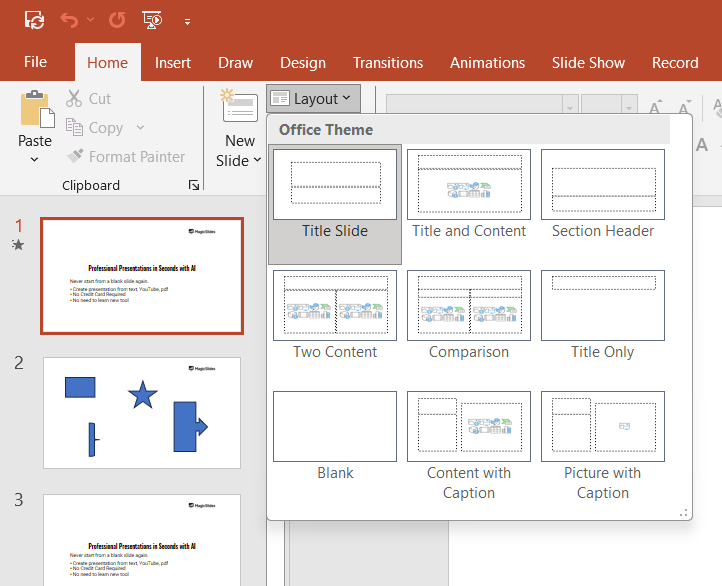
If you want to apply the "Title and Content" layout to an existing slide, go to the "Home" tab, click on "Layout," and then select "Title and Content" from the dropdown menu.
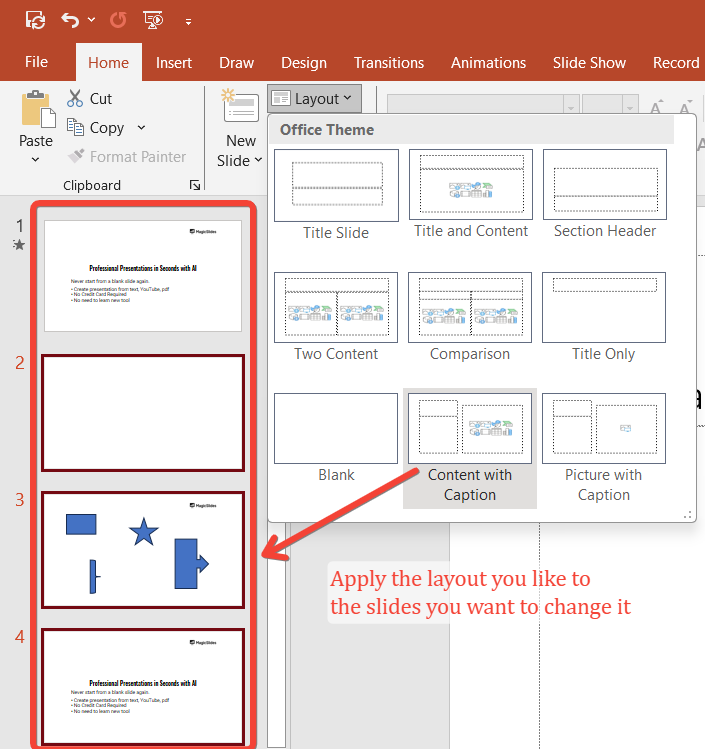
This will change the current slide’s layout to the default standard layout.
Tired of making presentations? what if we tell you you can make a presentation with just a prompt, convert YouTube videos to PPTs, convert website content to PPTs? Yes! checkout magicslides.app that does all and enjoy the free credits to make presentations in seconds.
Conclusion
The "Title and Content" layout is the default standard layout in PowerPoint, providing a balanced structure that works for a wide range of presentation types.
By understanding and utilizing this layout, you can create clear, organized, and visually appealing slides.
Whether you're presenting data, telling a story, or sharing ideas, the default layout gives you the flexibility to convey your message effectively.
Next time you create a presentation, consider starting with the "Title and Content" layout to ensure your slides are both functional and aesthetically pleasing.
FAQs can come handy!
What is the default layout in PowerPoint?
The default layout in PowerPoint is the "Title and Content" layout.
Can I change the default layout for new slides?
Yes, you can change the default layout by selecting a different layout from the "Home" tab's "Layout" dropdown menu.
What content can I add to the "Title and Content" layout?
You can add text, tables, charts, SmartArt, images, online pictures, and videos to the "Title and Content" layout.


