Why does Navigation bar disappear in PowerPoint


Quickly restore PowerPoint’s missing navigation bar by adjusting settings, exiting full-screen mode, or unhiding ribbons
Why Does the Navigation Bar Disappear in PowerPoint?
The navigation bar in PowerPoint helps users switch between slides, access tools, and manage their presentations efficiently.
However, it may sometimes disappear unexpectedly, making it difficult to navigate through the slides or access essential options. This can happen due to various reasons like full-screen mode, minimized ribbon, or PowerPoint settings.
In this guide, we will explore the common reasons why the navigation bar disappears in PowerPoint and how to restore it step by step.
Step-by-Step Solutions to Restore the Navigation Bar in PowerPoint (Alternate Methods included)
Exit Full-Screen Mode
PowerPoint may hide the navigation bar when running in full-screen mode. To restore it:
- Press the Esc key on your keyboard.
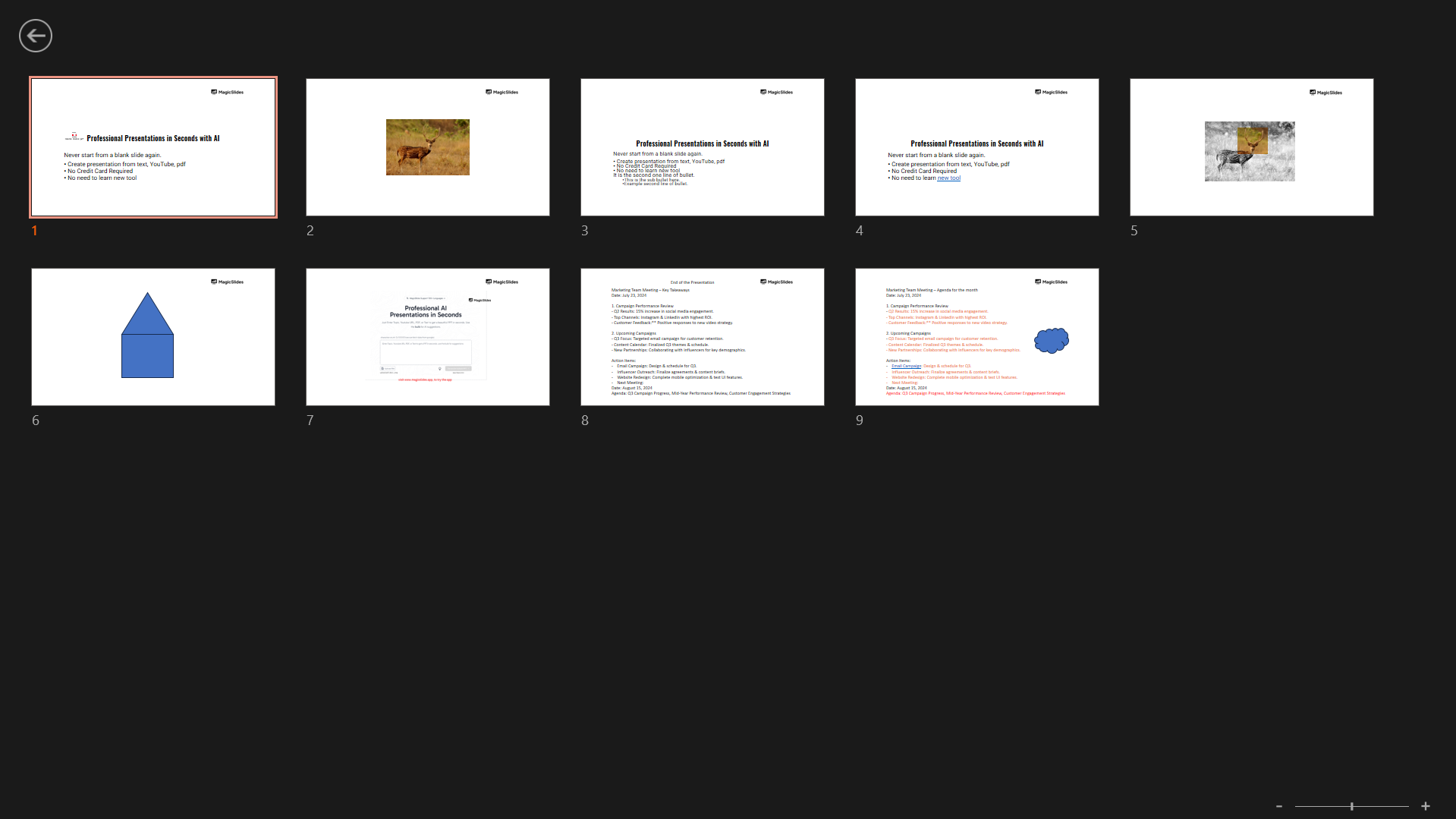
- Click on the Restore Down button (if available) in the top-right corner.
- The navigation bar should now reappear.
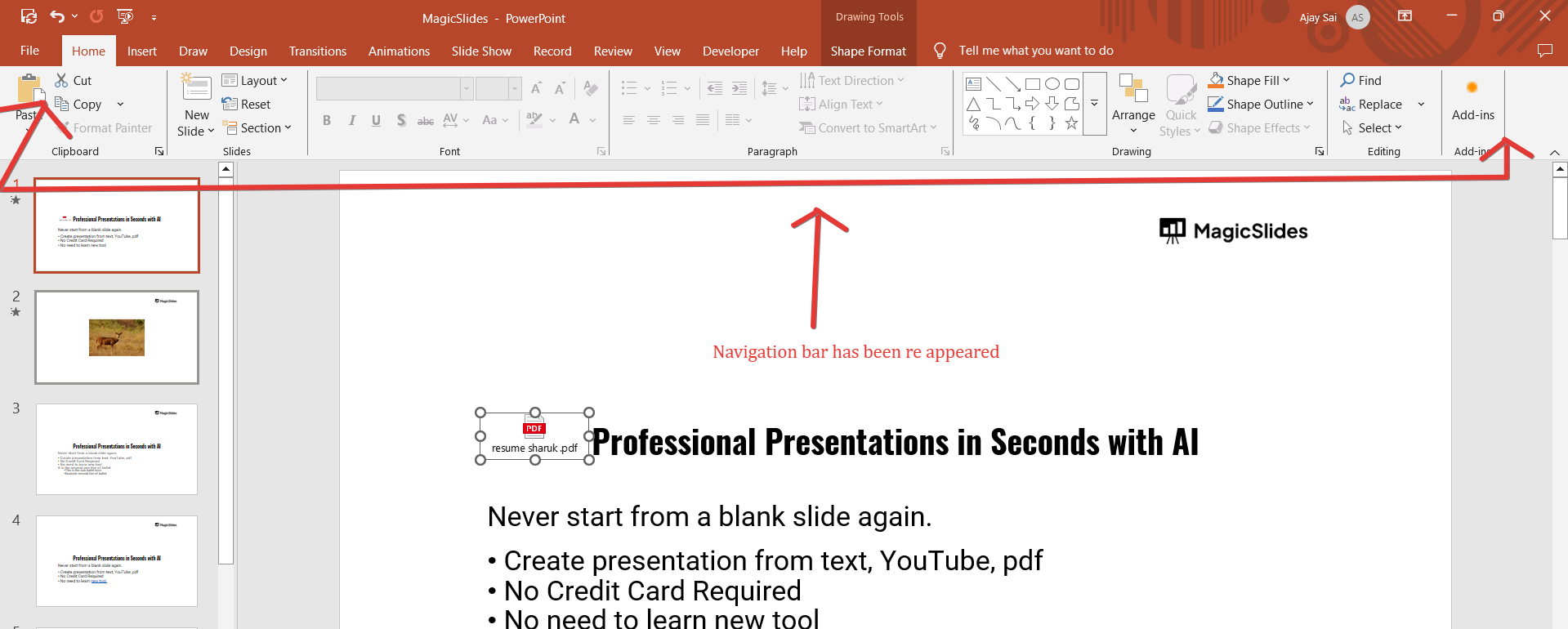
💡 Tip: You can also press Ctrl + Shift + F to toggle full-screen mode.
Unhide the Ribbon (Toolbar)
If the ribbon (toolbar) is missing, it could be minimized. To bring it back:
- Click on the Ribbon Display Options button (top-right corner near the minimize button).

- Select Show Tabs and Commands to keep the navigation bar visible at all times.
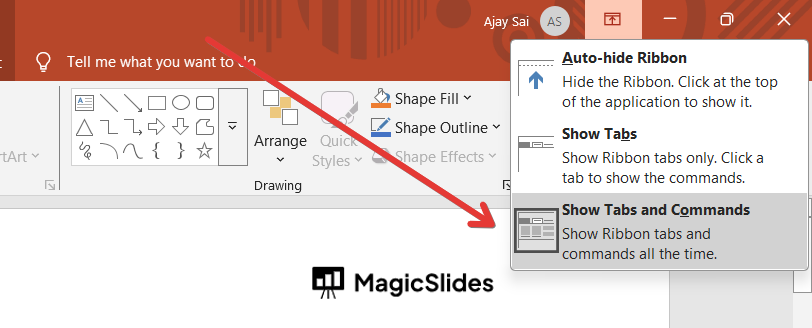
- Alternatively, press Ctrl + F1 to toggle the ribbon.
💡 Tip: If you see only the slide editing area, double-click any visible tab (like Home or Insert) to expand the ribbon.
Re-enable the Slide Navigation Pane
The Slides pane (on the left) may be hidden. To restore it:
- Click on the View tab in the PowerPoint ribbon.
- Select Normal under the Presentation Views group.
- If the navigation pane is still missing, drag the left edge of the window to expand it.
💡 Tip: You can also press Alt + W + L to toggle the slide navigation pane.
Check PowerPoint Settings
PowerPoint may be set to hide menus when inactive. To disable this feature:
- Click File > Options > Advanced.
- Scroll to the Display section.
- Ensure that Collapse the ribbon automatically is unchecked.
- Click OK and restart PowerPoint.
💡 Tip: If your PowerPoint is acting abnormally, resetting settings to default can fix unexpected behavior.
Restart PowerPoint or Your Computer
If none of the above methods work, a simple restart may fix the issue:
- Close PowerPoint completely and reopen it.
- If the issue persists, restart your computer.
- Open PowerPoint again to check if the navigation bar is restored.
💡 Tip: Ensure your PowerPoint software is up to date to avoid glitches.
If your PowerPoint navigation bar disappears, don’t worry it’s easy to bring back. But if you want to streamline your slide creation altogether, MagicSlides.app can generate professional presentations for you in seconds!
Conclusion
The disappearance of the navigation bar in PowerPoint can be caused by full-screen mode, minimized ribbon, or hidden slide navigation.
By following the steps outlined above, you can quickly restore it and continue working efficiently.
If the problem persists, consider restarting PowerPoint or updating the software to resolve any technical glitches.
FAQs About PowerPoint Navigation Bar Disappearance
How do I stop the PowerPoint ribbon from disappearing?
Press Ctrl + F1 to toggle the ribbon or go to Ribbon Display Options and select Show Tabs and Commands.
Why is my slide navigation pane missing in PowerPoint?
You may have accidentally hidden it. Go to View > Normal or press Alt + W + L to bring it back.
Can I lock the navigation bar in PowerPoint?
No, but you can keep it visible by selecting Show Tabs and Commands under Ribbon Display Options.
Now you know how to restore your PowerPoint navigation bar whenever it disappears! 🚀


