Google Slides Dark Mode: How to Use Dark Theme on Any Device?


Learn how to enable Google Slides dark mode on Android, iPhone, and desktop. Explore dark themes, browser extensions, and easy setup methods.
Google Slides dark mode is available on Android and iPhone through built-in theme settings, while desktop users can use browser extensions or Chrome dark mode workarounds.
Many users search for Google Slides dark mode to reduce eye strain, improve focus, and make presentations easier to edit in low-light environments. If you’ve ever wondered does Google Slides have a dark mode, the answer depends on the device you’re using.
This guide walks you through step-by-step methods to achieve a dark-mode effect, including changing slide themes, using browser extensions, or adjusting your system settings.
What Is Google Slides Dark Mode?
Google Slides has a mode. This mode makes the app look different. The menus, toolbars and settings now appear in colors. This makes it easier to work on your slides.
Dark mode in Google Slides only changes how the app looks. It does not change the design of your presentation or the colors on your slides.
Some people, like using Google Slides mode. It helps reduce glare from the screen. It also makes it easier to see in a room. Google Slides dark mode makes editing cleaner.
Does Google Slides Have a Dark Mode?
Yes, Google Slides dark mode is available on Android and iPhone through the official Google Slides app. Users can enable a dark theme directly from the app settings or follow their device’s system theme preferences.
If you’re asking does Google Slides have a dark mode on desktop, the answer is a little different. The web version of Google Slides does not currently offer a built-in dark mode setting. Instead, desktop users often rely on browser features or a Google Slides dark mode extension to create a darker viewing experience.
This difference is why many people search for dark mode for Google Slides when working on a Windows PC, Mac, or Chromebook. While mobile users can easily switch themes, desktop users need alternative methods to get the benefits of Google Slides dark mode.
Fortunately, there are several simple ways to use a dark theme regardless of the device you’re using.
Steps to Enable Dark Mode or a Dark Theme in Google Slides
If you want to use Google Slides in mode because it is easier, on your eyes when you are editing or if you want to make a presentation that has a dark mode for google slides can do this. You can use Google Slides mode in a few different ways and it depends on the device you are using with Google Slides.
Method 1. Enable Google Slides Dark Mode on Mobile
- Open the Google Slides app.
- Tap the menu icon and select Settings.
- Choose Theme.
- Select Dark.
- The app interface will immediately switch to Google Slides dark mode.
Method 2. Use a Dark Theme on Your Device
You can also set Google Slides to follow your device settings.
- Open Google Slides Settings.
- Tap Theme.
- Select System Default.
- Enable dark mode on your Android, iPhone, or iPad.
The app will automatically switch between light and dark themes based on your device preferences.
Method 3. Create a Dark-Themed Presentation
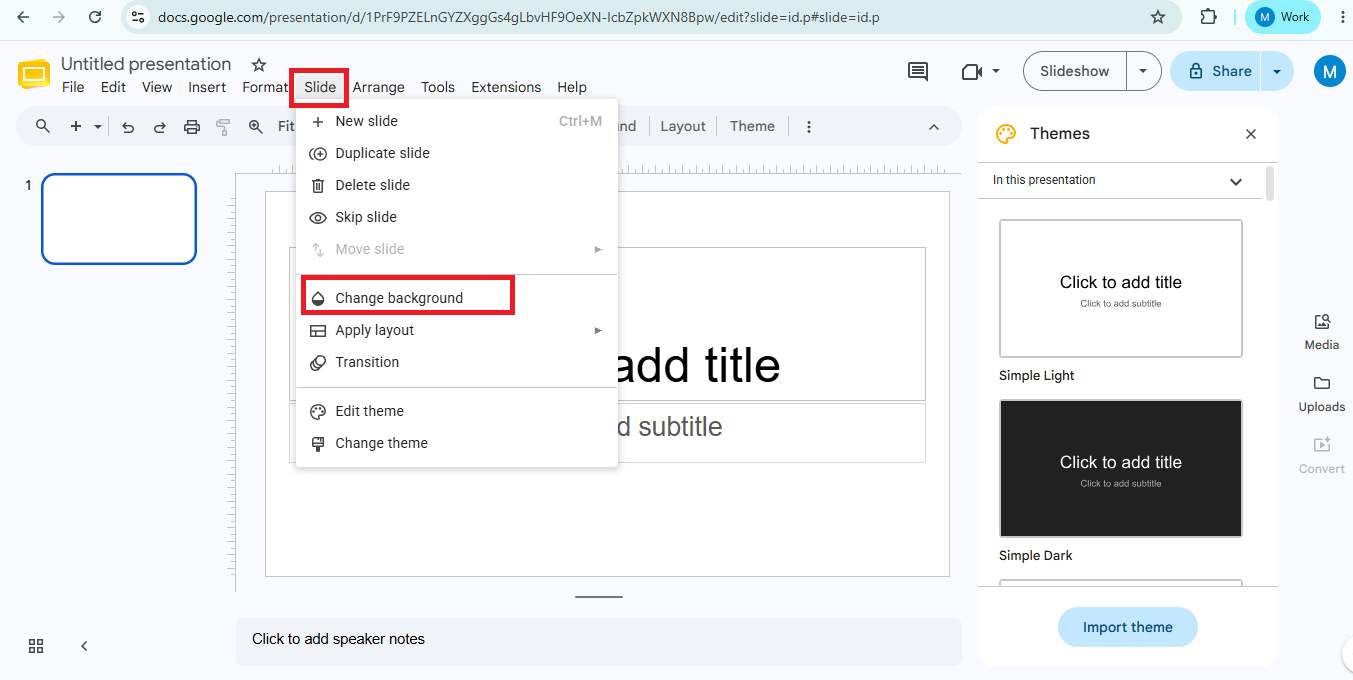
1. Open your Google Slides presentation and click on “Slide” in the top menu, then select “Change Background.”

3. Choose a dark color, such as black or dark gray, and click “Done.”
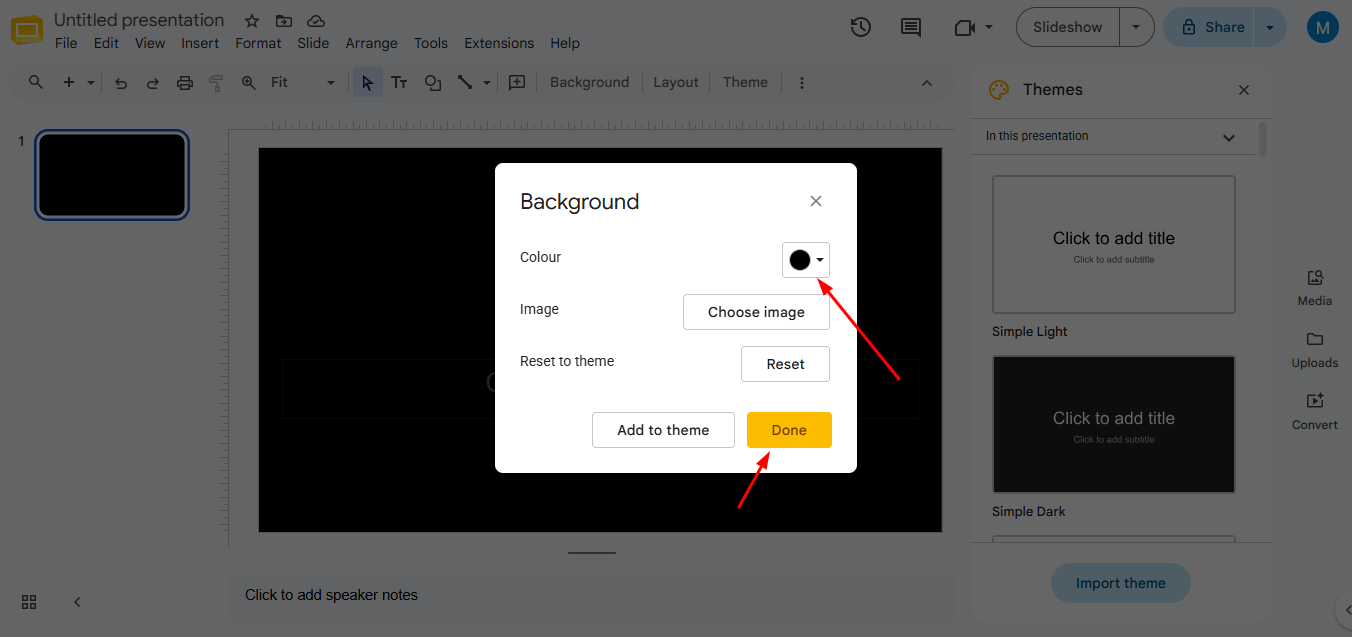
4. To apply this to all slides, click “Apply to all.” This changes the slide background to dark but does not affect the interface.
Method 4. Use a Google Slides Dark Mode Extension
Desktop users can install a Google Slides dark mode extension such as Dark Reader or Night Eye.
These tools apply a dark mode for google slides interface and help replicate the mobile dark mode for Google Slides experience.
Method 5. Adjust System-Wide Dark Mode Settings (Optional)
On your device, enable dark mode in the system settings:
- Windows: Go to Settings > Personalization > Colors > Choose Dark.
- Mac: Go to System Preferences > General > Appearance > Choose Dark.
While this won’t directly change Google Slides, it can darken the browser and other apps, providing a more cohesive dark-mode experience.
Benefits of Using Google Slides Dark Mode
There are reasons why people like using Google Slides in dark mode instead of the usual light mode.
- Reduced Eye Strain
Dark backgrounds are easier on the eyes when you are working in a room with light especially if you work for a long time.
- Focus
Many people think that Google Slides in dark mode is less distracting and it helps them focus on the presentation.
- Improved Comfort at Night
Bright screens can be really harsh when it is dark outside. Using Google Slides mode makes it easier on the eyes and makes viewing more comfortable.
- Modern Appearance
Lots of productivity tools have themes now. This means that Google Slides dark mode looks cleaner and more modern which is great, for making presentations every day.
Create Presentations Faster with MagicSlides in Google Slides
If you spend a lot of time creating presentations, enabling Google Slides dark mode can make editing more comfortable. But if you’re also looking to create presentations faster, tools like MagicSlides can help streamline the entire process.
It is an AI-powered Google Slides extension that works directly inside Google Slides, so there’s no need to learn a new presentation tool. Instead of starting from a blank slide, you can generate professional presentations in seconds using AI. Whether you’re looking for Google Slides ideas for projects, trying to make a Google Slides Presentation quickly, learning how to make Google Slides look good, or exploring what are Google Slides Add Ons, MagicSlides helps simplify the entire workflow.
With MagicSlides, you can create presentations from:
- Topics and prompts
- Text and notes
- YouTube videos
- PDF files
- DOCX documents
- URLs and web pages
- Quizzes and educational content
The extension is designed for teachers, students, professionals, marketers, and business teams who want to save time while creating high-quality presentations.
One of the biggest advantages is that MagicSlides works directly within Google Slides. This means you can generate slides, customize content, and continue editing without switching between multiple tools or platforms.
Beyond full presentations, MagicSlides can also generate individual slide types such as:
- Pros and cons slides
- Image-based slides
- Lists and bullet-point slides
- Icon slides
- Metrics and comparison slides
- Chart and data visualization slides
With more than 1 million installs and hundreds of positive reviews, MagicSlides has become a popular choice for users who want to create presentations faster while staying inside their familiar Google Slides workflow.
If you’re already using Google Slides dark mode for a more comfortable editing experience, combining it with an AI presentation tool like MagicSlides can make creating professional presentations significantly quicker and easier.
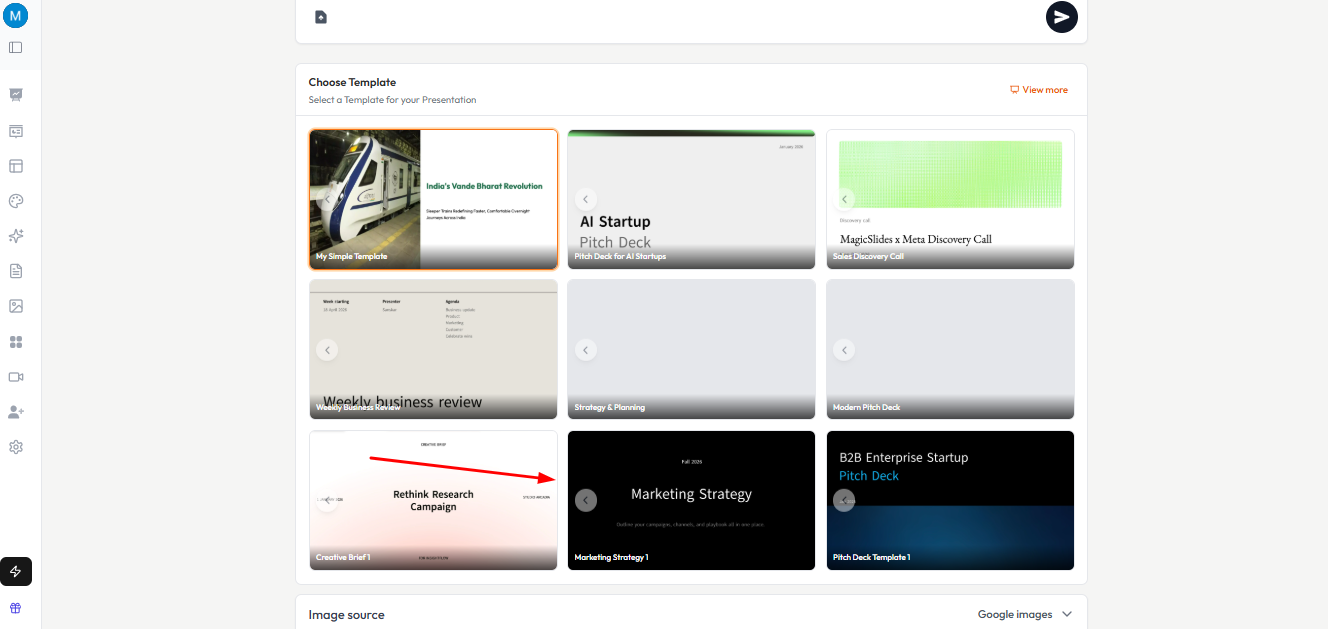
It provides you multiple mode options to choose.
Conclusion
Google Slides dark mode makes presentation editing more comfortable by reducing screen glare and improving visibility in low-light environments. Whether you’re using Android, iPhone, or desktop, there are multiple ways to enable dark mode and create a better editing experience.
For even faster presentation creation, tools like MagicSlides can help you generate professional slides directly inside Google Slides, saving time while boosting productivity.
FAQs on Making Google Slides Dark Mode
Q. Does changing the slide background to dark affect the entire interface?
No, it only changes the slide design. Use a browser extension to darken the interface.
Q. Can I use dark mode on mobile for Google Slides?
Yes, enable your device’s dark mode settings. However, it won’t affect the slide content directly.
Q. Will browser extensions affect how others view the presentation?
No, browser extensions only change how the interface appears on your screen. Your presentation remains unchanged for others.


