How to change the design of slides in powerpoint


Transform your PowerPoint slides effortlessly with this guide on changing designs, elevate your presentations and captivate your audience.
Discovering how to change the design of your PowerPoint slides can transform your presentations. With a variety of pre-set designs and customization options, PowerPoint empowers you to create visually appealing and cohesive slideshows. In this guide, we'll walk you through the simple steps to elevate the aesthetics of your presentation effortlessly.
How to change the design of slides in powerpoint
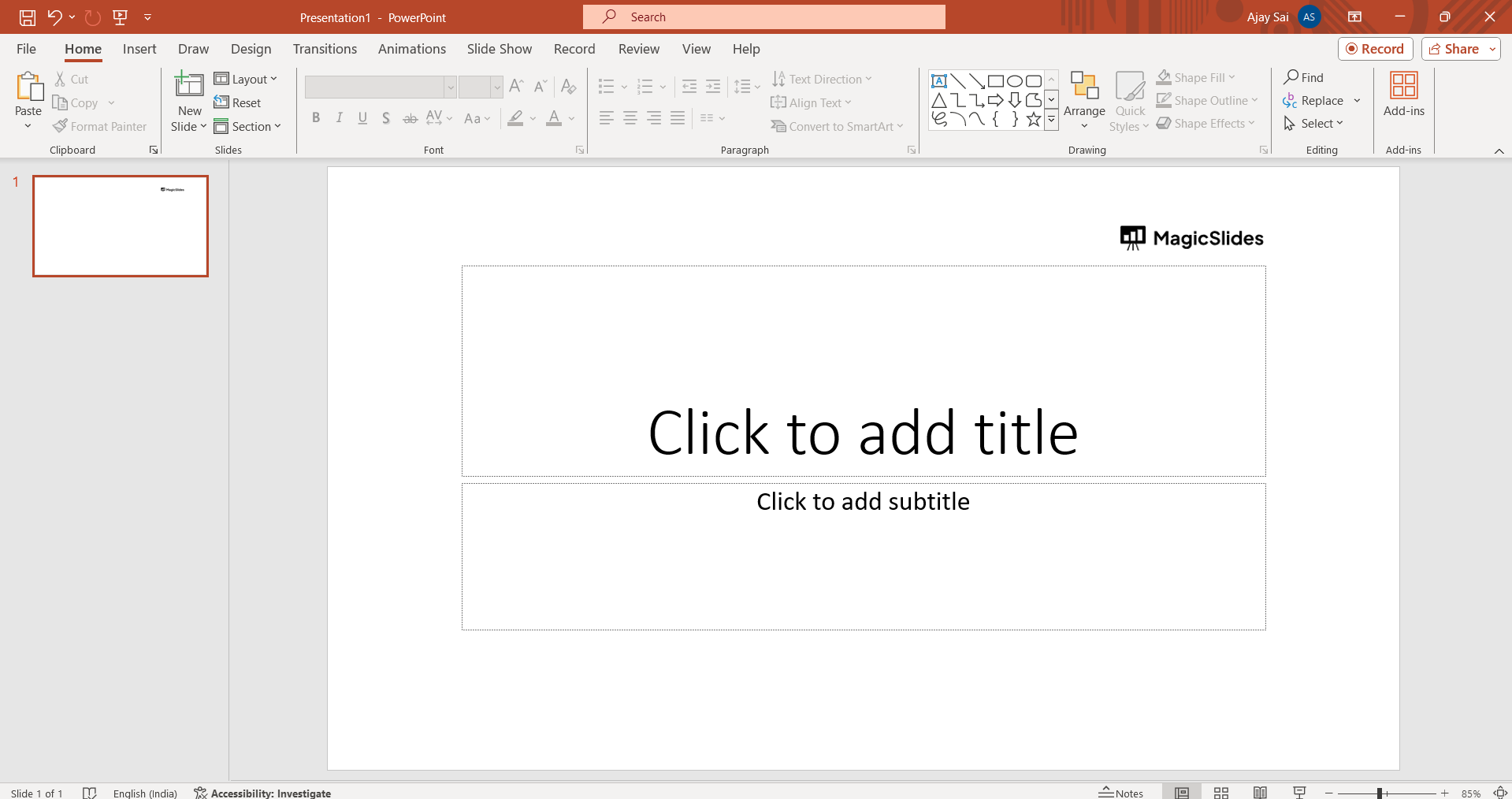
Open PowerPoint:
Launch Microsoft PowerPoint and open the presentation you want to edit.
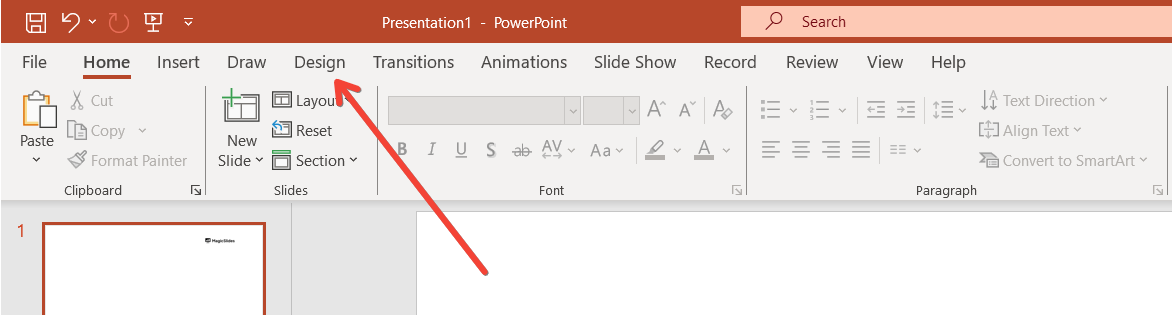
Go to the "Design" Tab:
In the Ribbon at the top of the PowerPoint window, select the "Design" tab. This tab is usually located between the "Transitions" and "Animations" tabs.
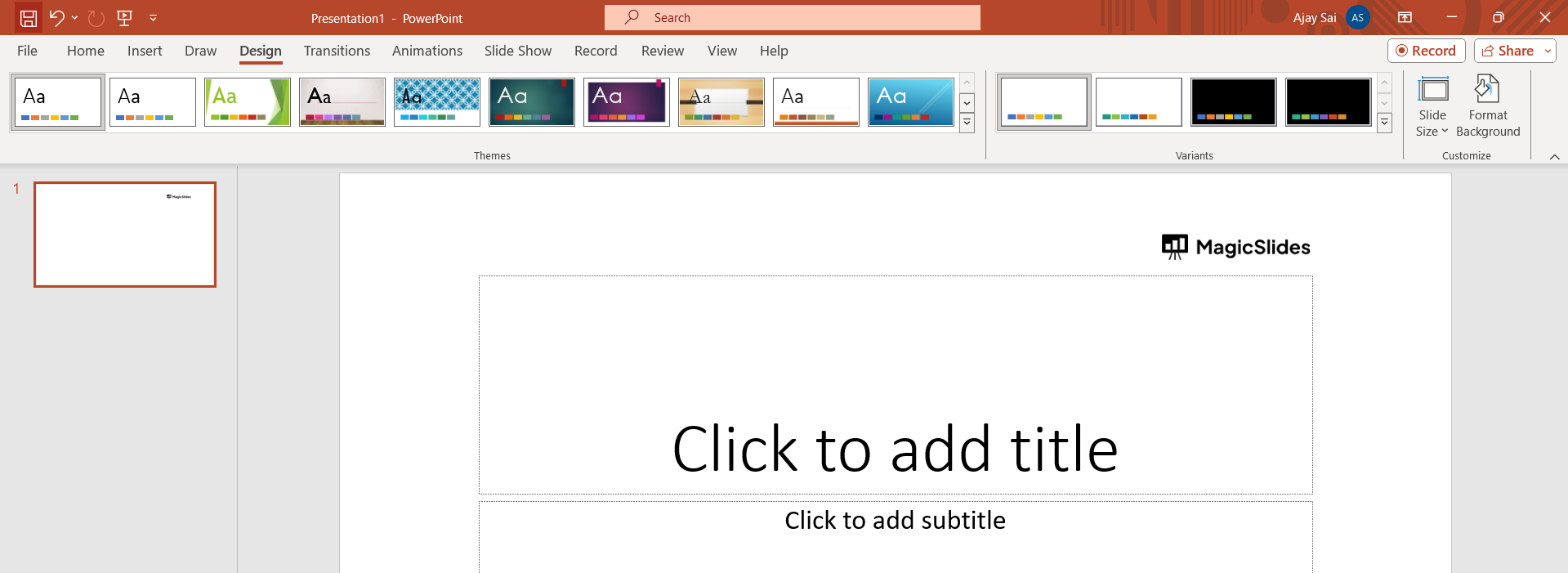
Choose a Design:
In the "Design" tab, you'll see a variety of design options. These designs include predefined combinations of fonts, colors, and effects.
Hover over each design to see a preview of how your slides would look with that design.
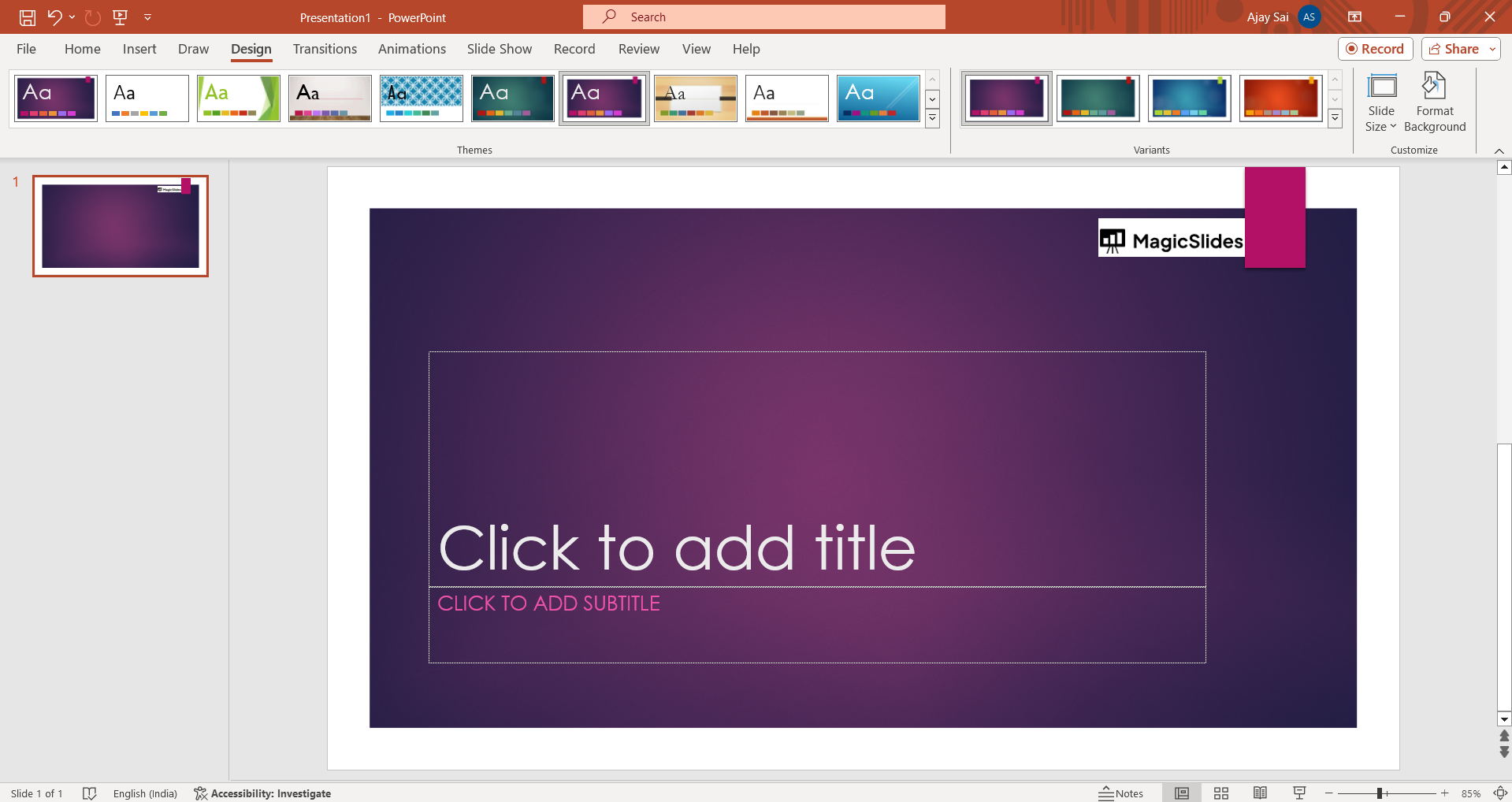
Apply the Design:
Once you find a design you like, click on it to apply it to your entire presentation. Alternatively, you can apply the design to selected slides by right-clicking on the design and choosing "Apply to Selected Slides."
Customize the Design (Optional):
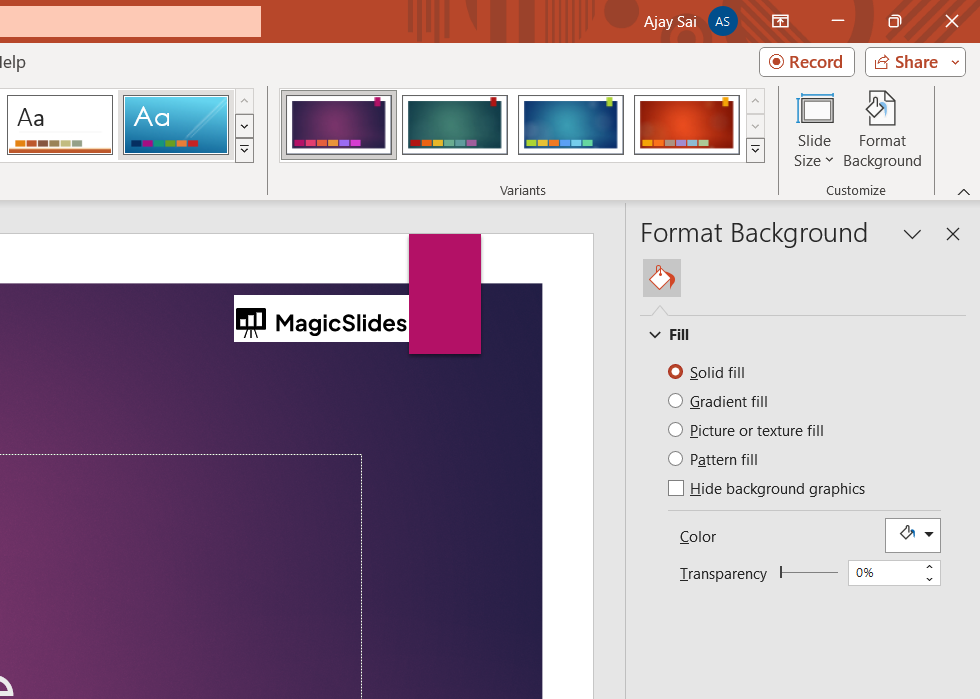
PowerPoint allows you to further customize the design. In the "Design" tab, you may find options such as "Variant," "Colors," "Fonts," and "Effects." Use these options to tweak the design according to your preferences.
Save Your Changes:
After making the changes, remember to save your presentation.
Additional Tips 💡:
Slide Master:
- If you want more control over the design, you can access the Slide Master. In the "View" tab, click on "Slide Master." Here, you can modify the master slides, which will affect the design of all slides in your presentation.
Background Styles:
- You can also change the background style of individual slides. Right-click on a slide, choose "Format Background," and then select a background style or customize it as needed.
Custom Themes:
- If none of the predefined designs suits your needs, you can create a custom theme. In the "Design" tab, click on "More" (usually represented by three dots), and choose "Customize."
Conclusion 💁♂️:
Mastering the art of slide design in PowerPoint opens the door to creating impactful and professional presentations. Whether you opt for a predefined design or delve into customization, the platform offers a user-friendly experience. Elevate your slides, capture attention, and leave a lasting impression on your audience with these straightforward design tips.
Frequently Asked Questions:
Q: Can I customize the design of individual slides in PowerPoint? Ans: Absolutely! Right-click on a slide, choose "Format Background," and tailor the design to your preference.
Q: What if I want a unique design not in the predefined options? Ans: Create a custom theme! In the "Design" tab, click "More" and choose "Customize" for personalized aesthetics.
Q: Will changing the design affect my entire presentation? Ans: Yes, it will. The "Design" tab lets you apply changes globally, ensuring a consistent look throughout.
Check out these info blogs by us:
- How To Use Microsoft Dictate In Desktop PowerPoint: https://www.magicslides.app/blog/how-to-use-microsoft-dictate-in-desktop-powerpoint
- How To Rename A Slack Channel On Desktop: https://www.magicslides.app/blog/how-to-rename-a-slack-channel-on-desktop
- How To Change Layout Of A Powerpoint Presentation: https://www.magicslides.app/blog/how-to-change-layout-of-a-powerpoint-presentation
- How To Reset A Presentation In Powerpoint: https://www.magicslides.app/blog/how-to-reset-a-presentation-in-powerpoint


